Square Integration
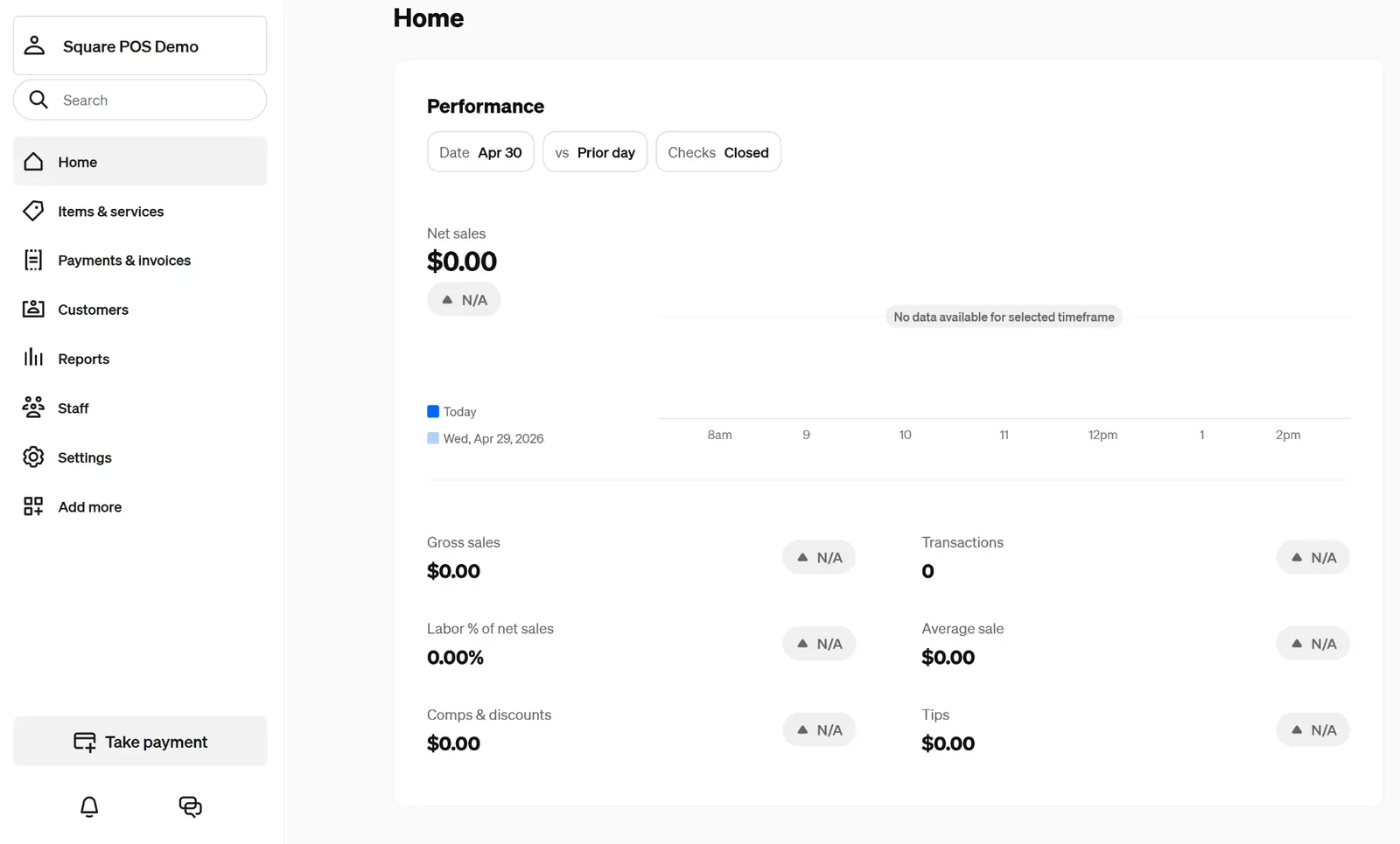
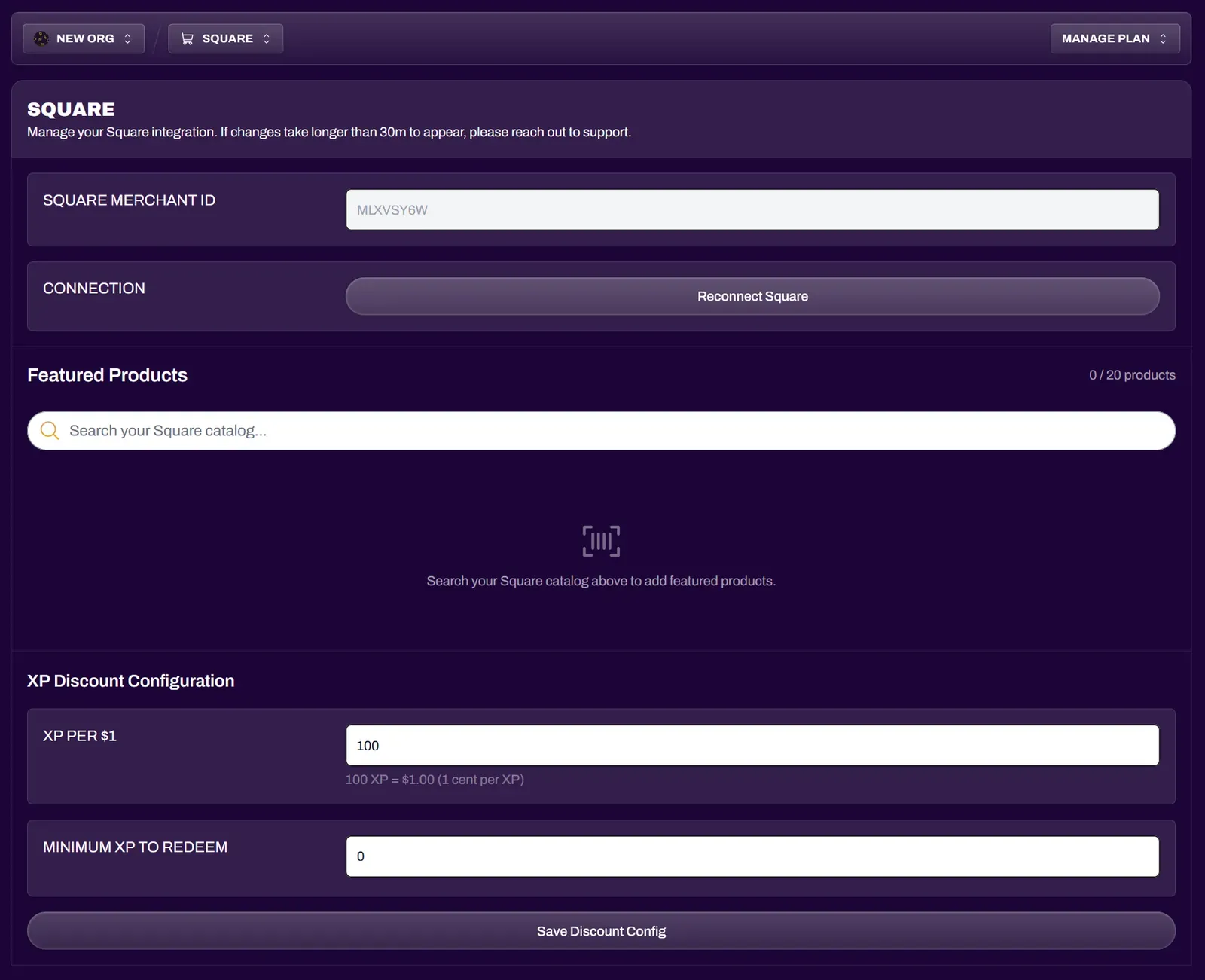
Navigate to your Square Dashboard and have it open in a separate tab.
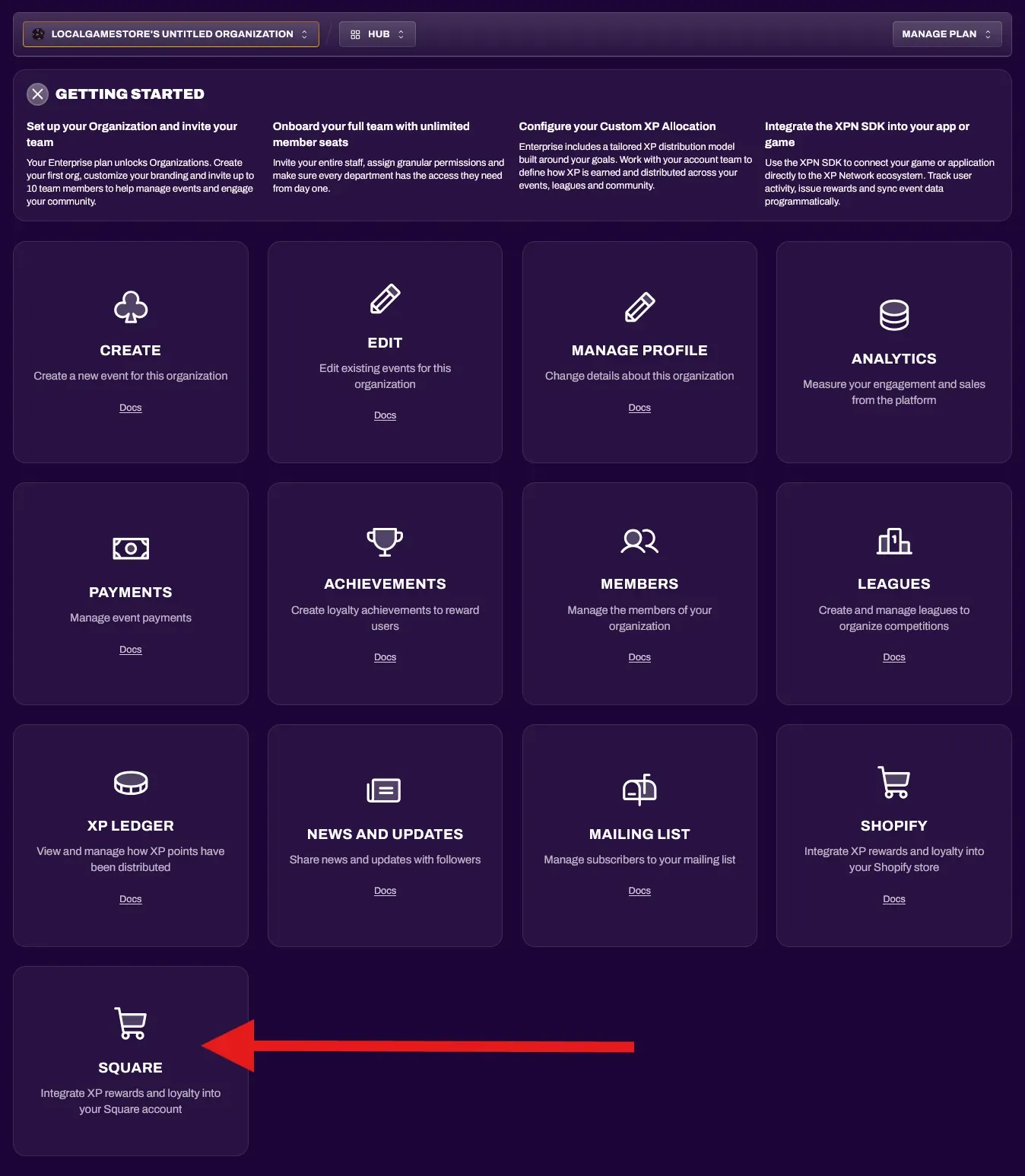
In a different tab, open your XP Network Hub and select Square.
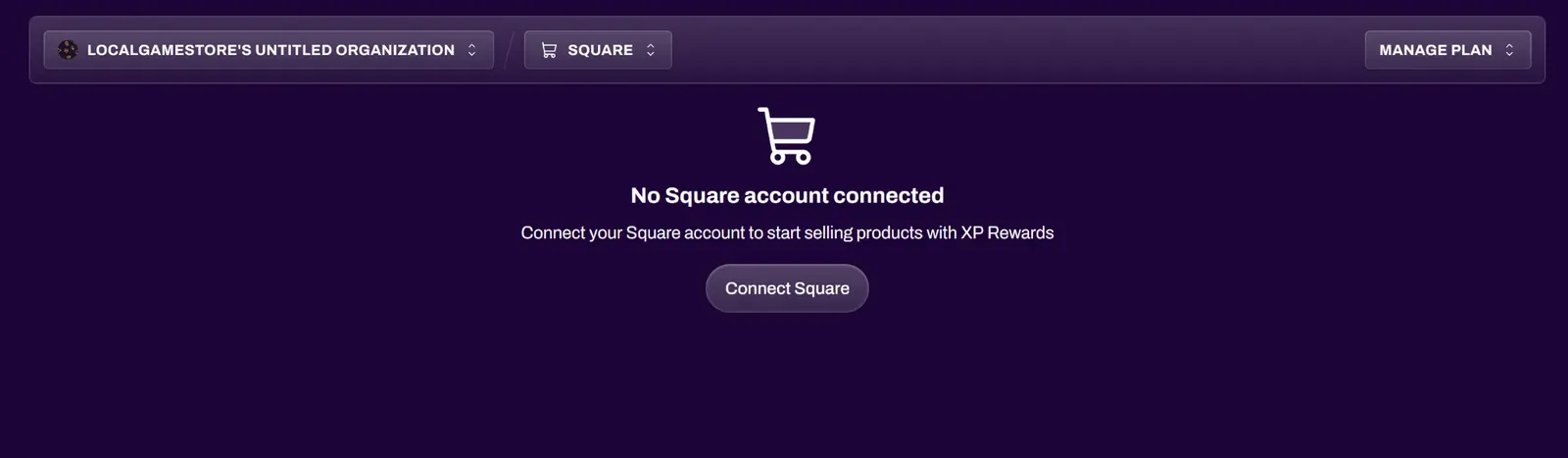
Select Connect Square to initiate the connection.
Once connected, XP Network syncs your Square data so you can manage products on the XP Store and assign XP values.
Featured Products
Section titled “Featured Products”You can search and display which of your products you would like to show on the XP Store. You can search for any item from your Square catalog and change these at any time.
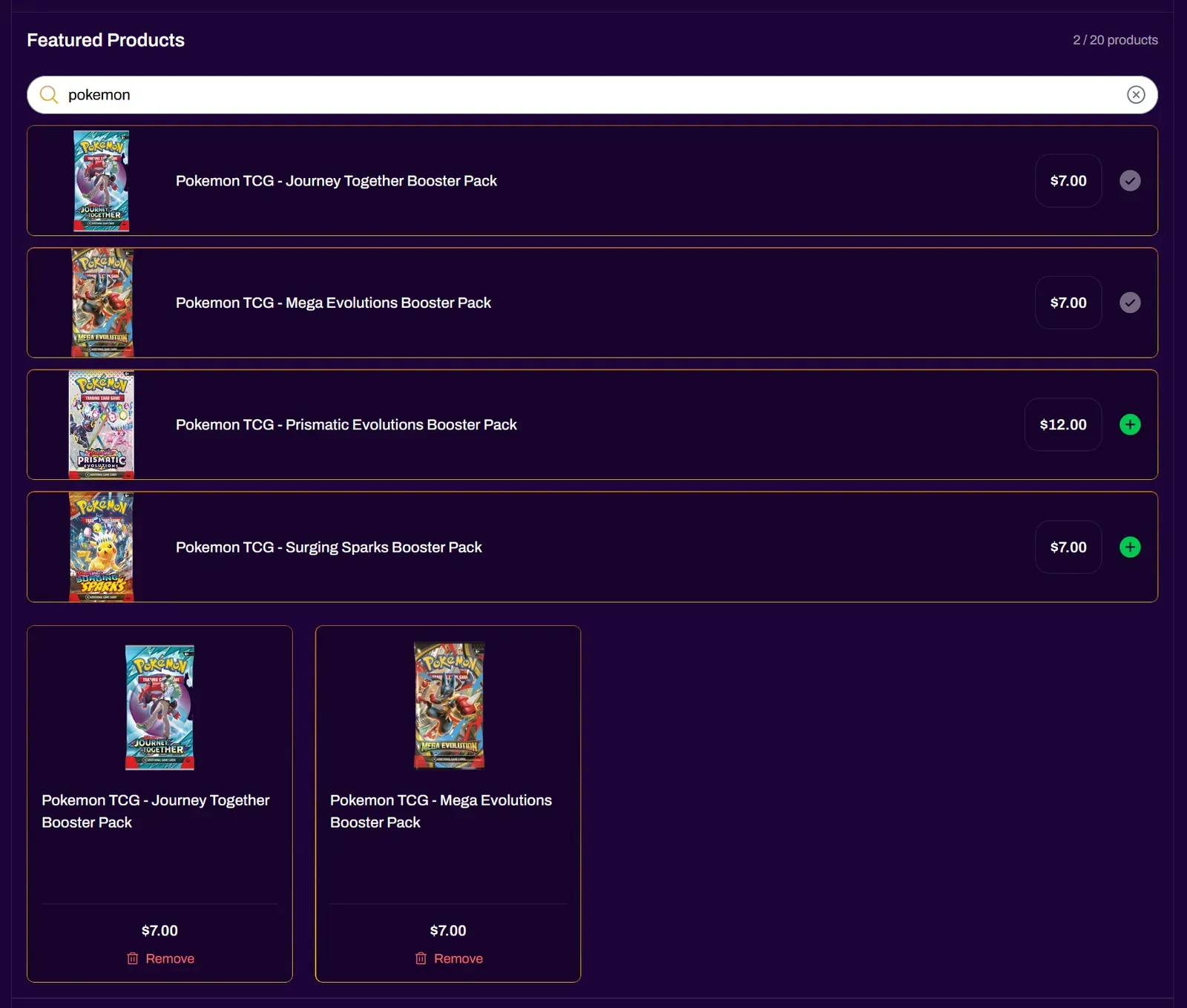
Selected products will automatically be displayed on your organization page and the XP Store.
XP Discount Configuration
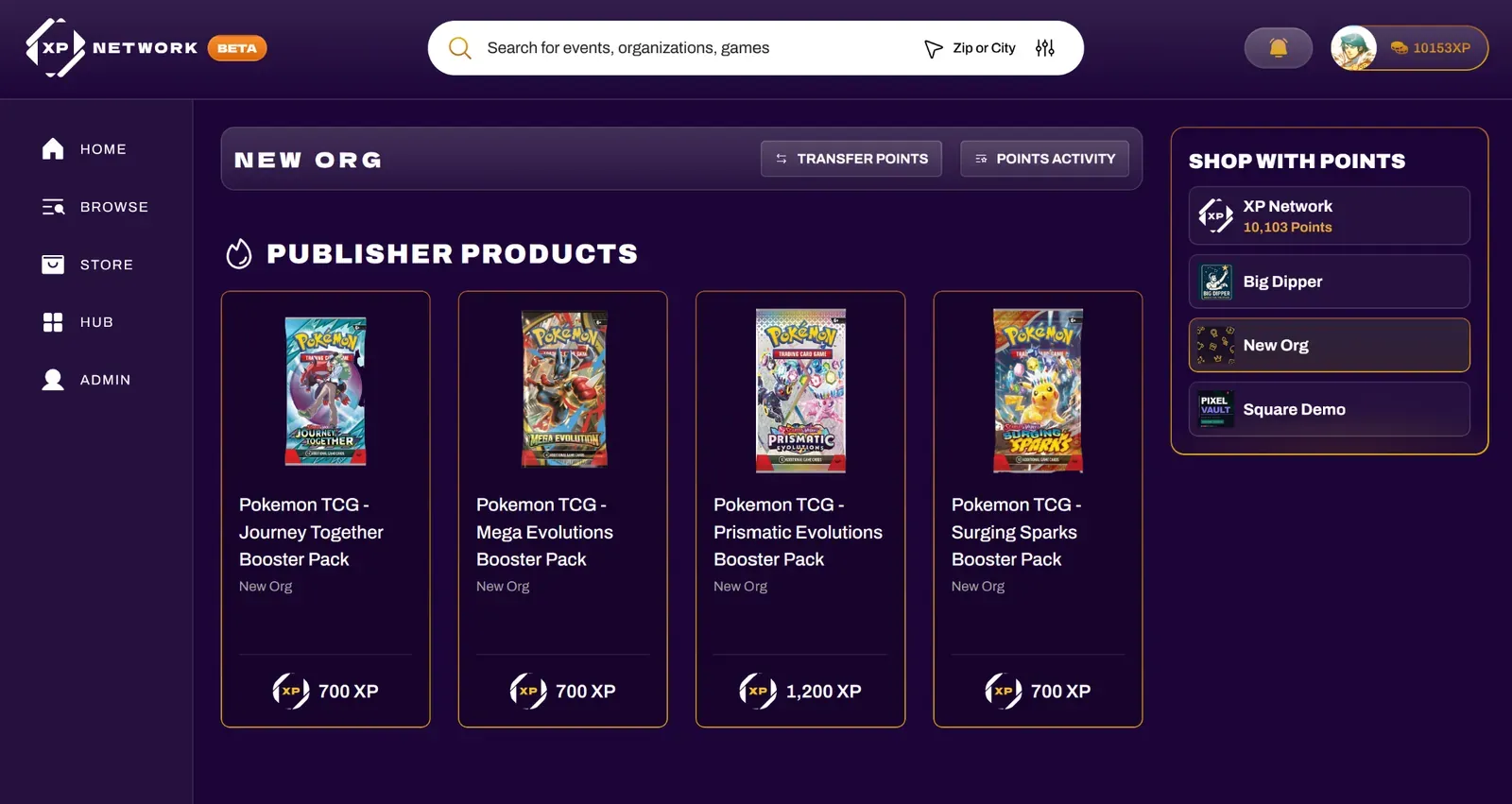
Section titled “XP Discount Configuration”Here is where you can adjust how much your XP is worth.
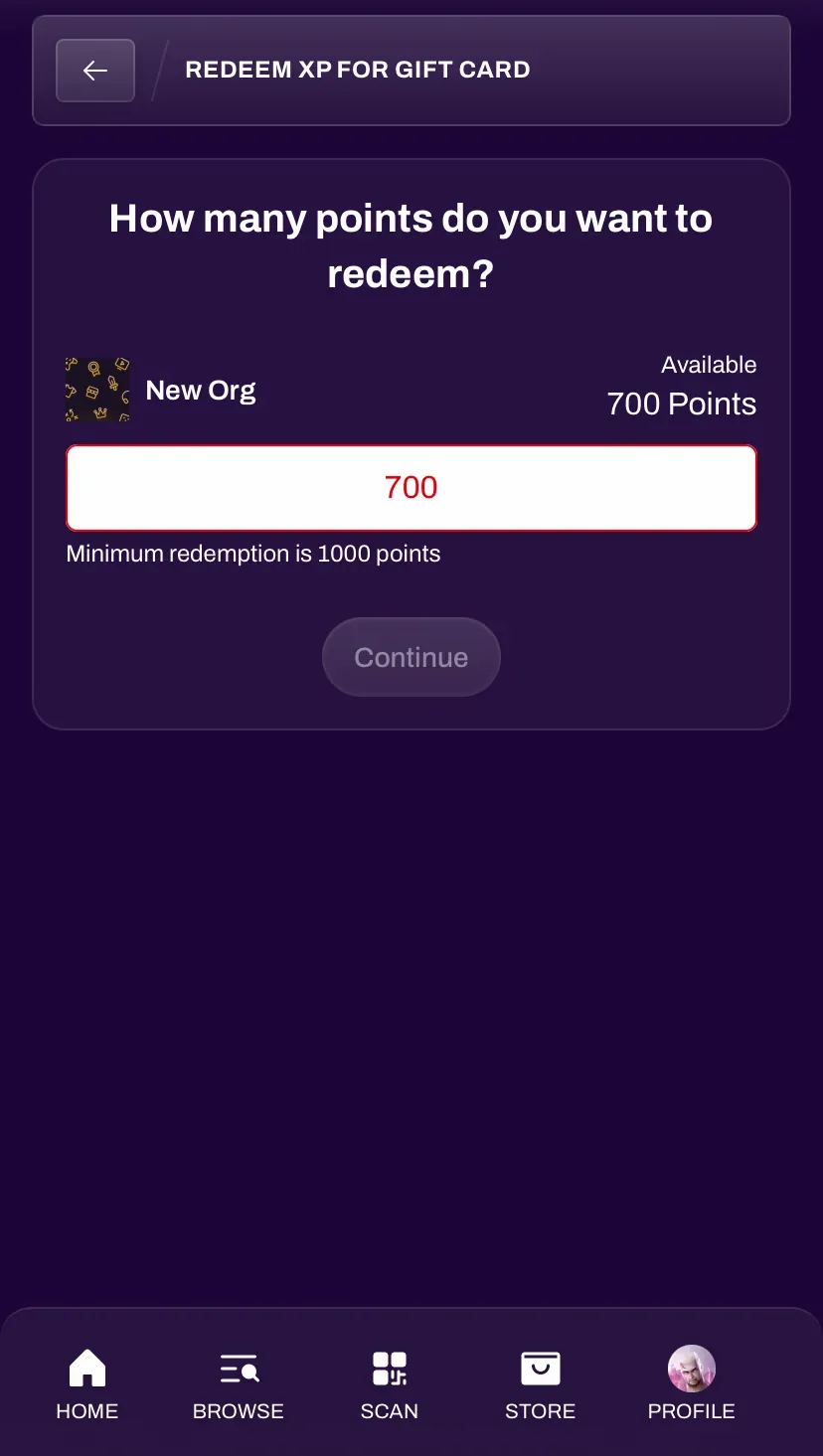
Minimum XP to Redeem defines the minimum XP balance required for a user to be eligible to convert XP into a Gift Card to your store.
XP Redemption from Users
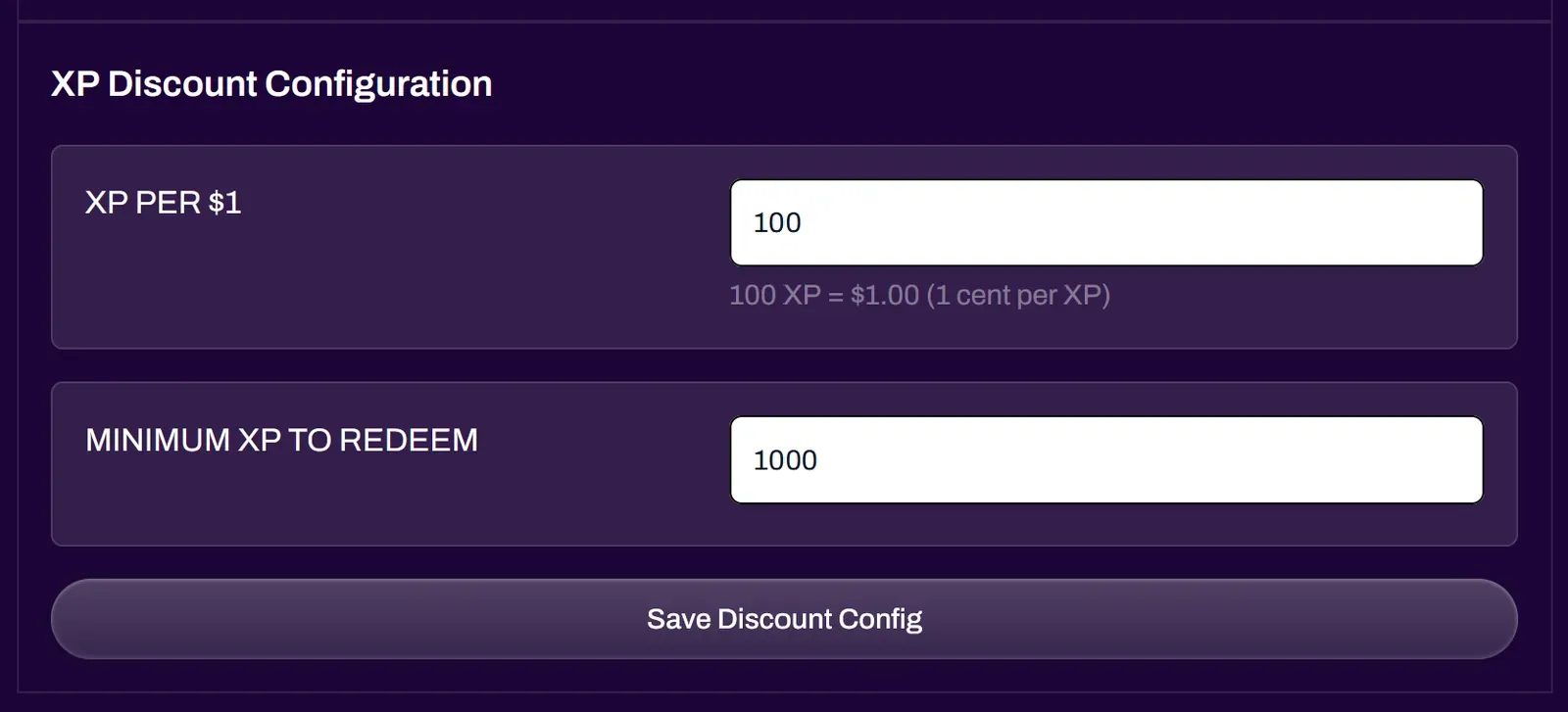
Section titled “XP Redemption from Users”You can award participants in your events with XP, which they can redeem for Gift Cards to your store through your Square integration.
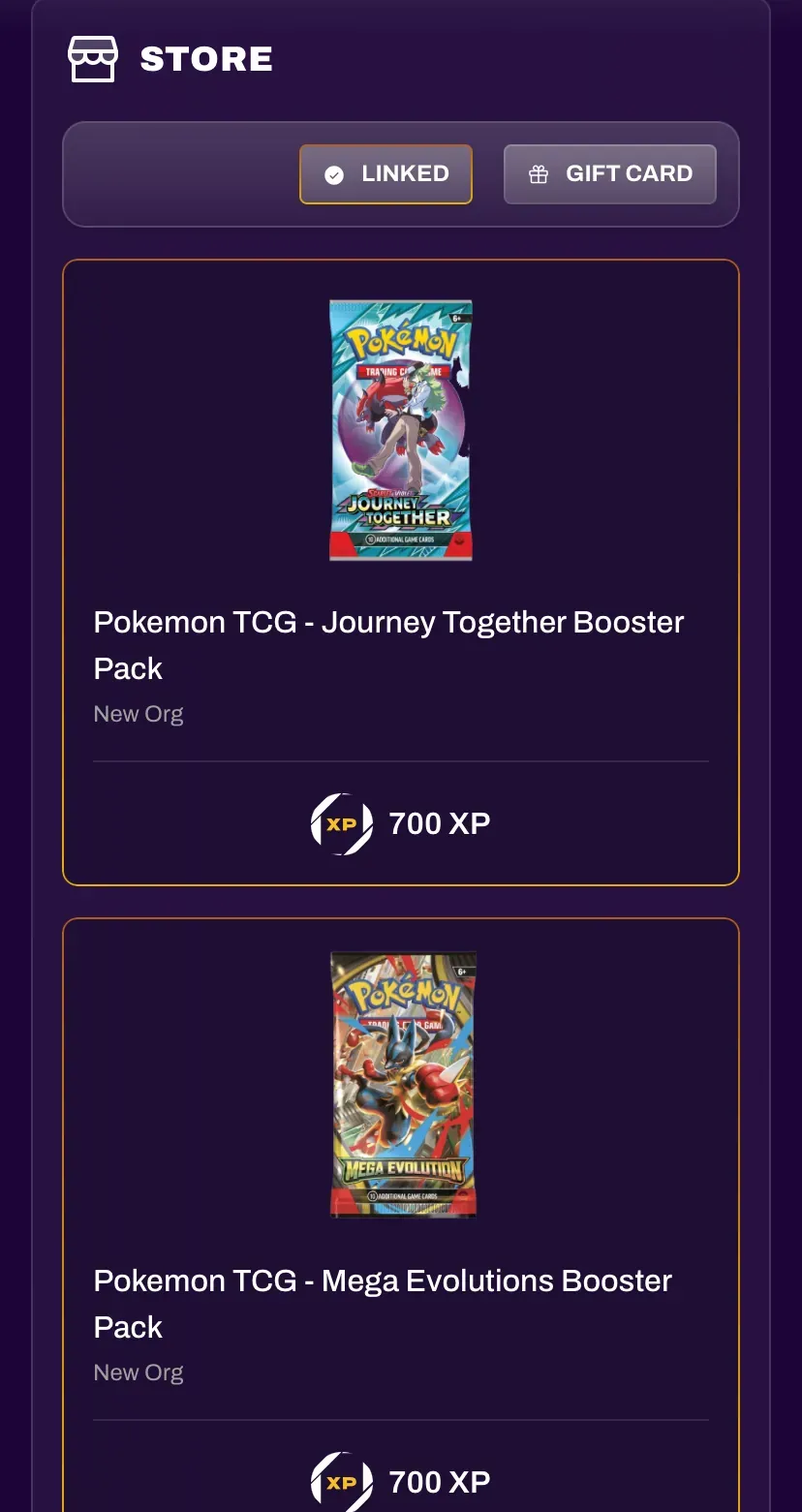
After navigating to your XP Store and linking their account with your Square integration, users will be able to exchange XP for a Gift Card to your store. Users may need to verify their phone number before linking to your Square.


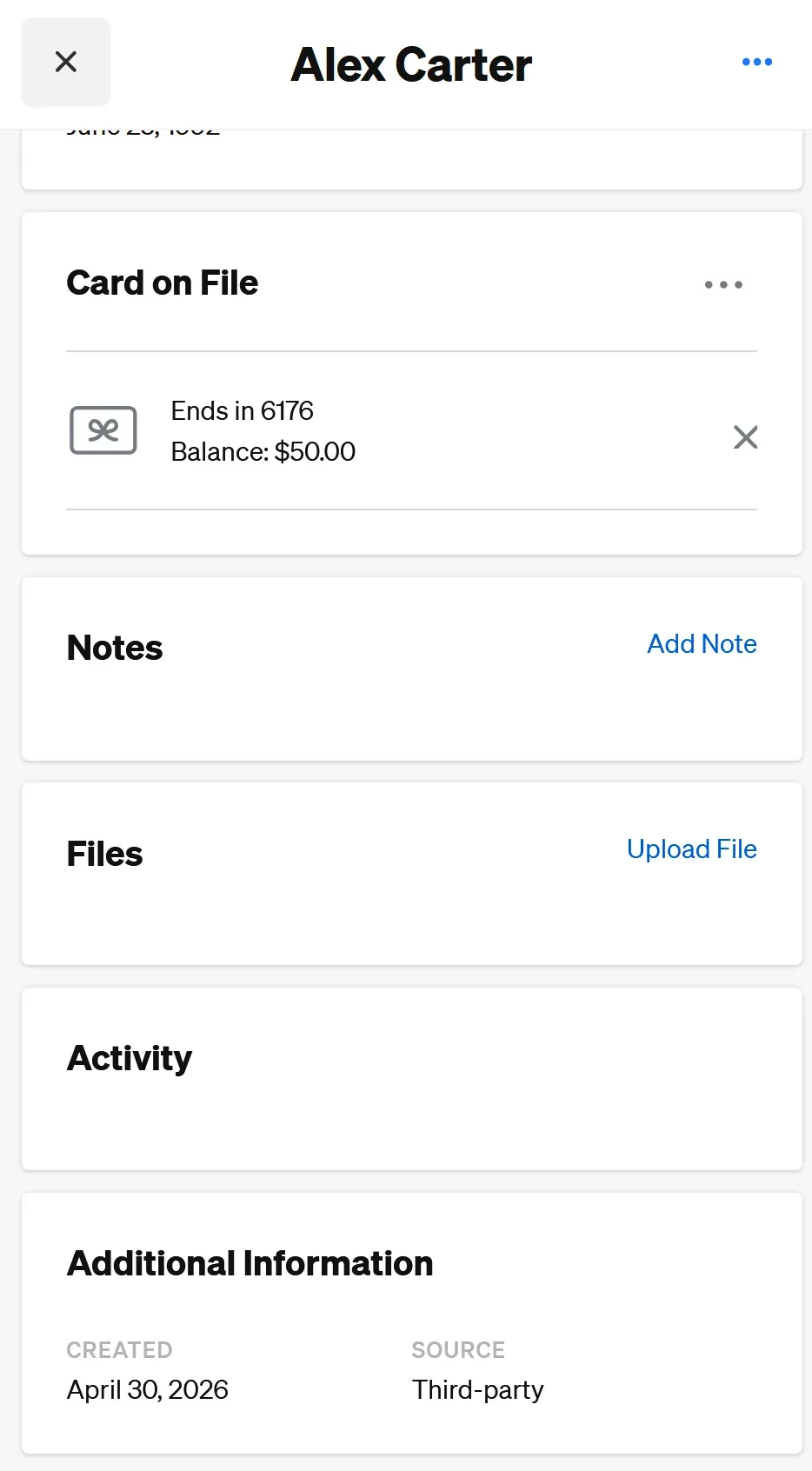
You can view the Gift Card, amount, and transaction date in your Square Customer Directory.
If the Minimum XP to Redeem has been set to a certain amount, users will not be able to redeem XP for a gift card until they have enough XP to meet the amount you set.