Ticket Scanner
The Ticket Scanner is a feature you can use to confirm actions from attendees.
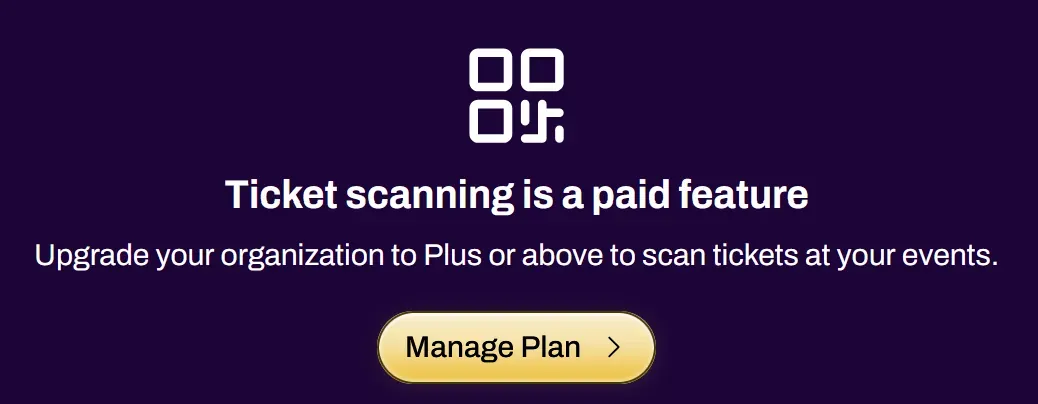
When you create an event, a scan session for the event’s default admission ticket is automatically opened for you, so you can start scanning attendees right away. For any other tickets, or for additional staff, a ticket scanning session must be created first.
Creating a Scan Session
Section titled “Creating a Scan Session”If you created the event, a Scanner Session for the event’s default admission ticket is already open for you, shortcutting the setup needed to scan attendees in. This session only covers the default admission ticket. If you create additional tickets for your event and want to scan those as well, create a new Scanner Session and select those tickets under Product grants to be redeemed.
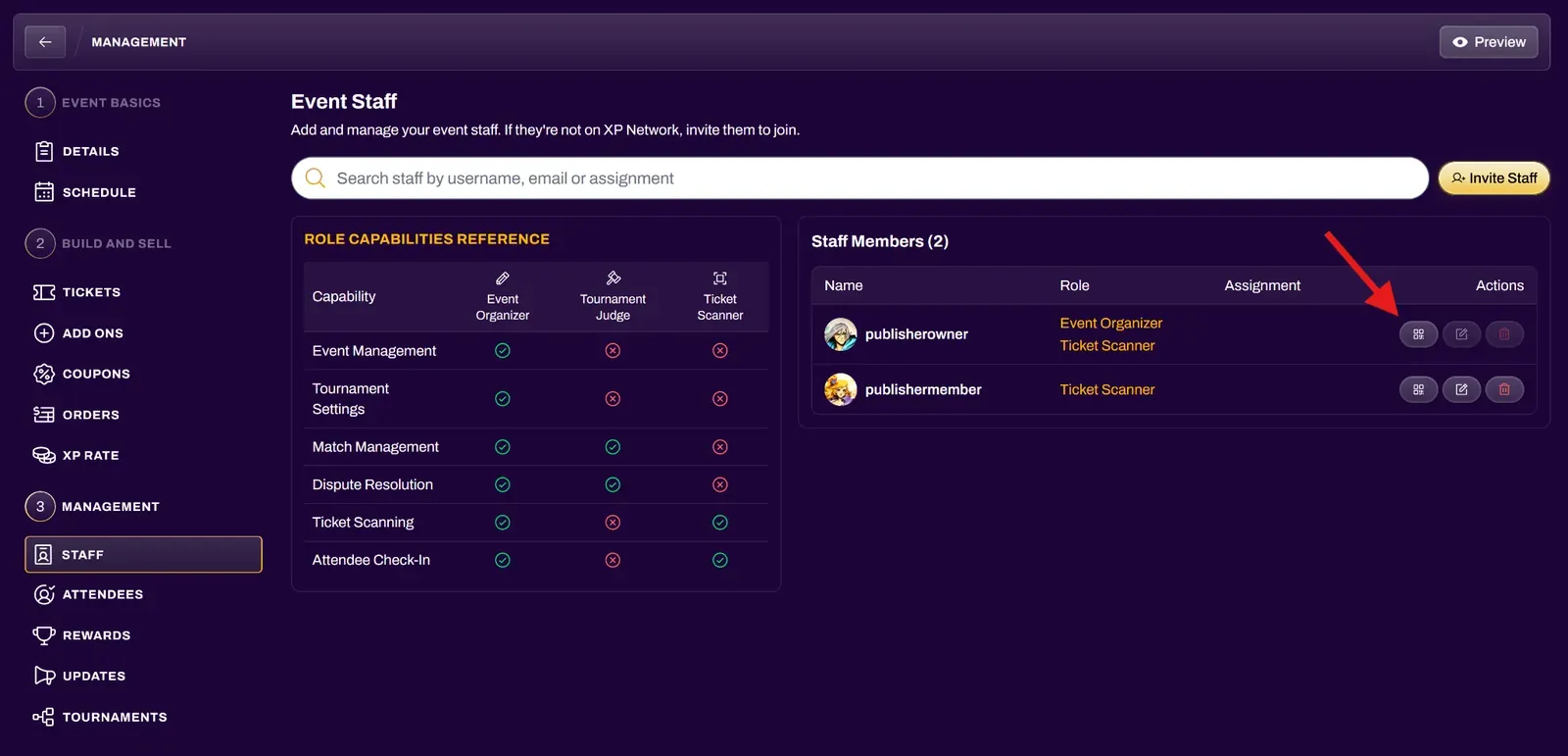
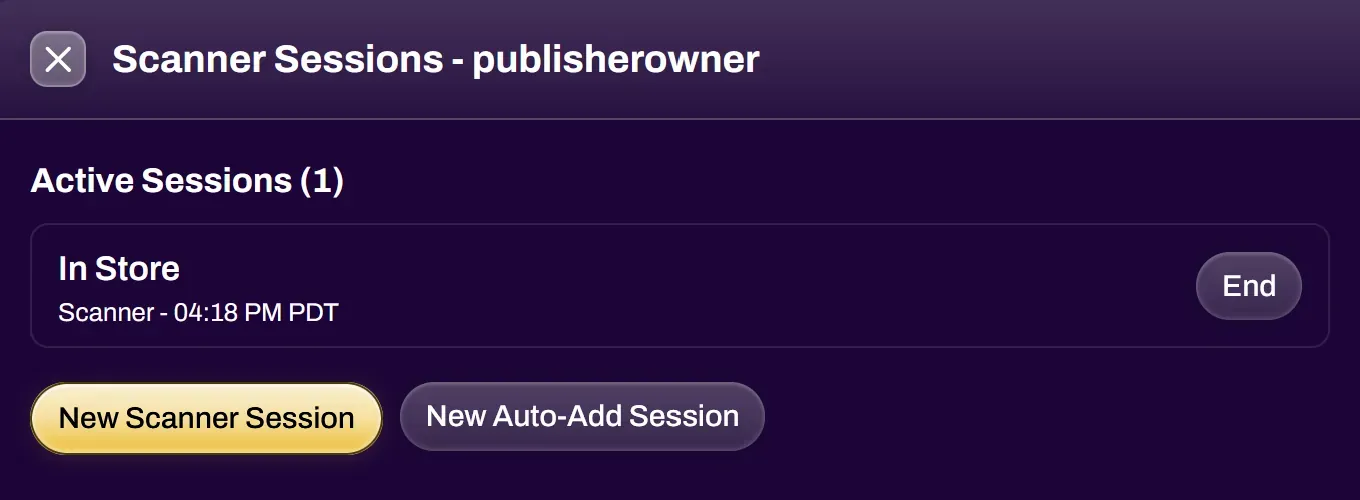
Navigate to your event and select the Staff tab from the Management section. Select the Scanner button of the staff member you want to create a redemption session for. Additional staff must be given the Ticket Scanner role before you can create a scanning session for them.
If Automatically open a scanner session was toggled on when the staff member was invited, a session covering all existing event tickets is already open for them and this step can be skipped. That session only includes tickets that existed at the time of the invite. Any tickets created afterward will need a new Scanner Session in order to be scanned.
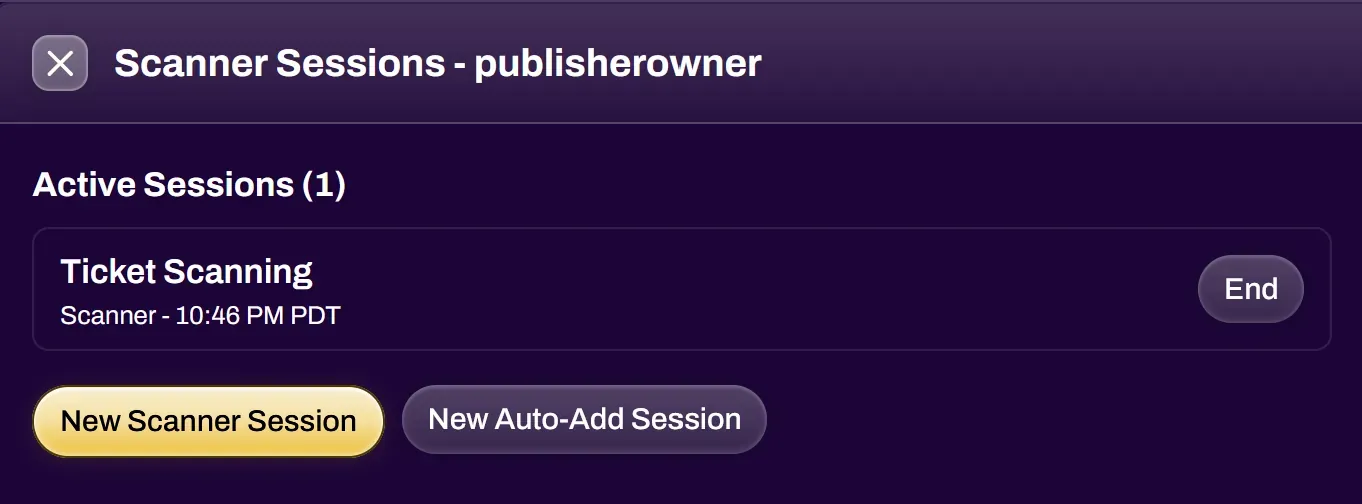
| Scanner Session | Primary scanner session to redeem tickets |
| Auto-Add Session | Automatically scan a player’s XP Card to add them to a tournament. Auto-add requires a free product with a Join Tournament grant and available inventory. League events are not supported. |
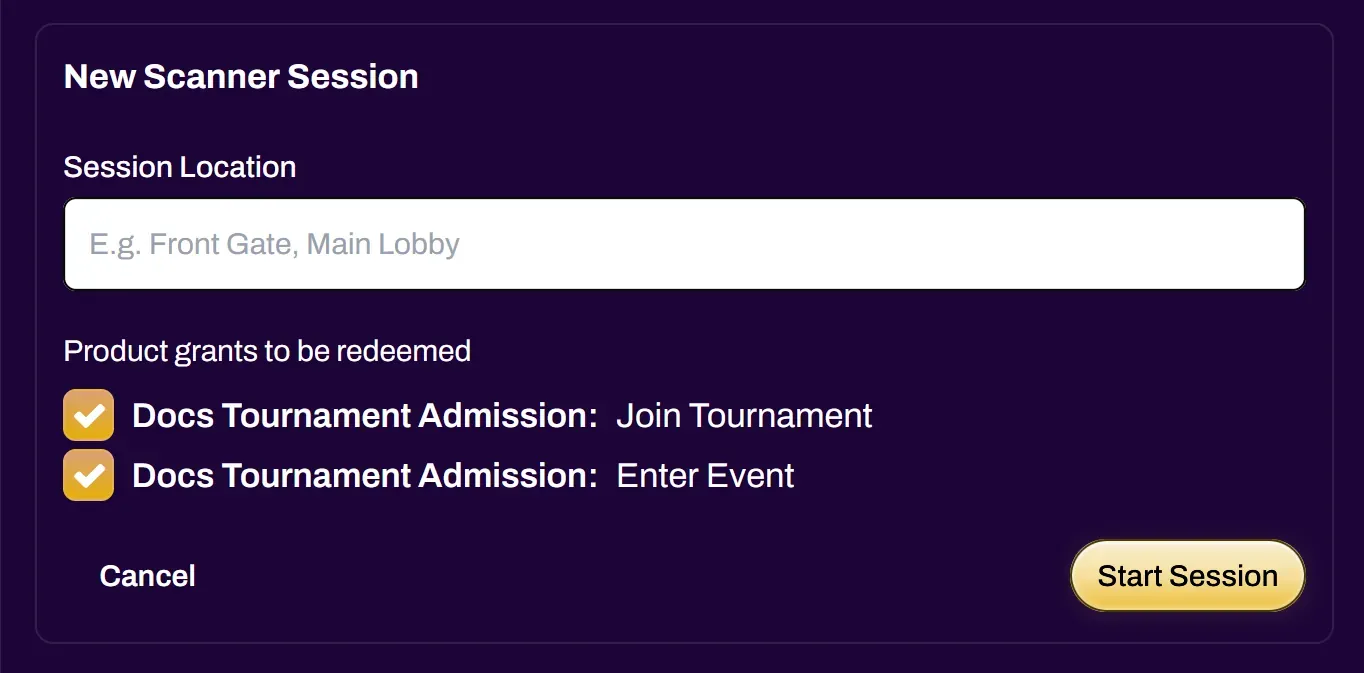
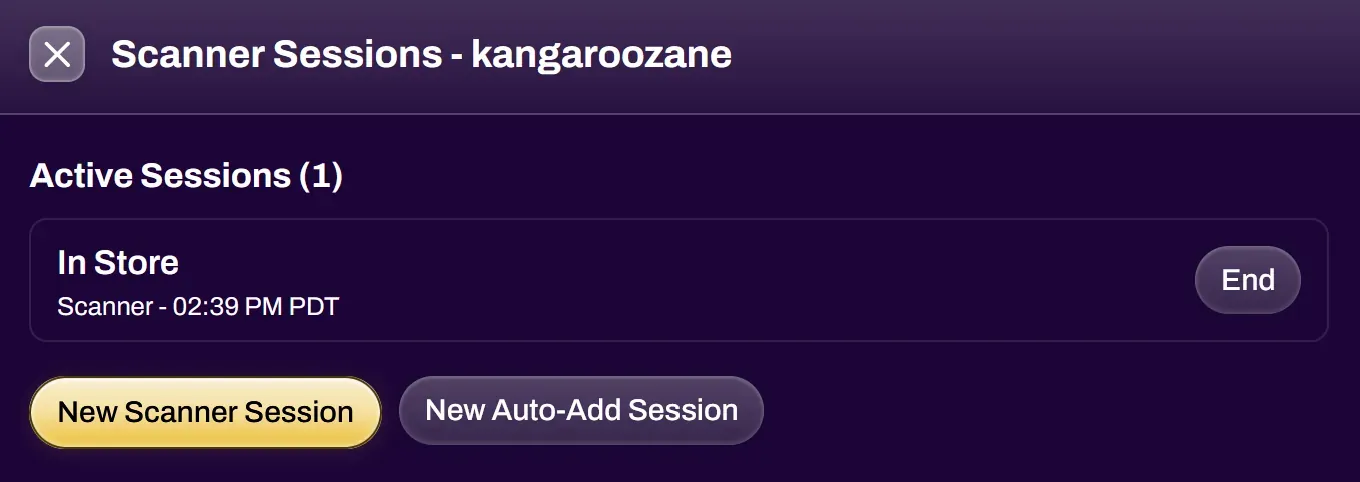
You have the ability to label a Session Location for the redemption session. This is useful when reviewing your redemption logs to see who scanned what and where. For example, you can label the session “Front Door” for the bouncer at the entrance of a bar, or you can label the session “Prize Booth” for scanning a ticket for a prize pickup. If scanning for attendance at a local game store, you could label the location “In Store”.
You can then select the tickets that can be redeemed by the redemption session. In the case of multiple tickets, this is where you can control which staff member has the ability to redeem what.
Scanning Tickets
Section titled “Scanning Tickets”Once a scan session is created, navigate to your Event Scanner from the event page and select the scan session. Your device may ask for permission to access the camera. You can scan via any device that has a camera, such as a mobile phone or computer with a webcam.
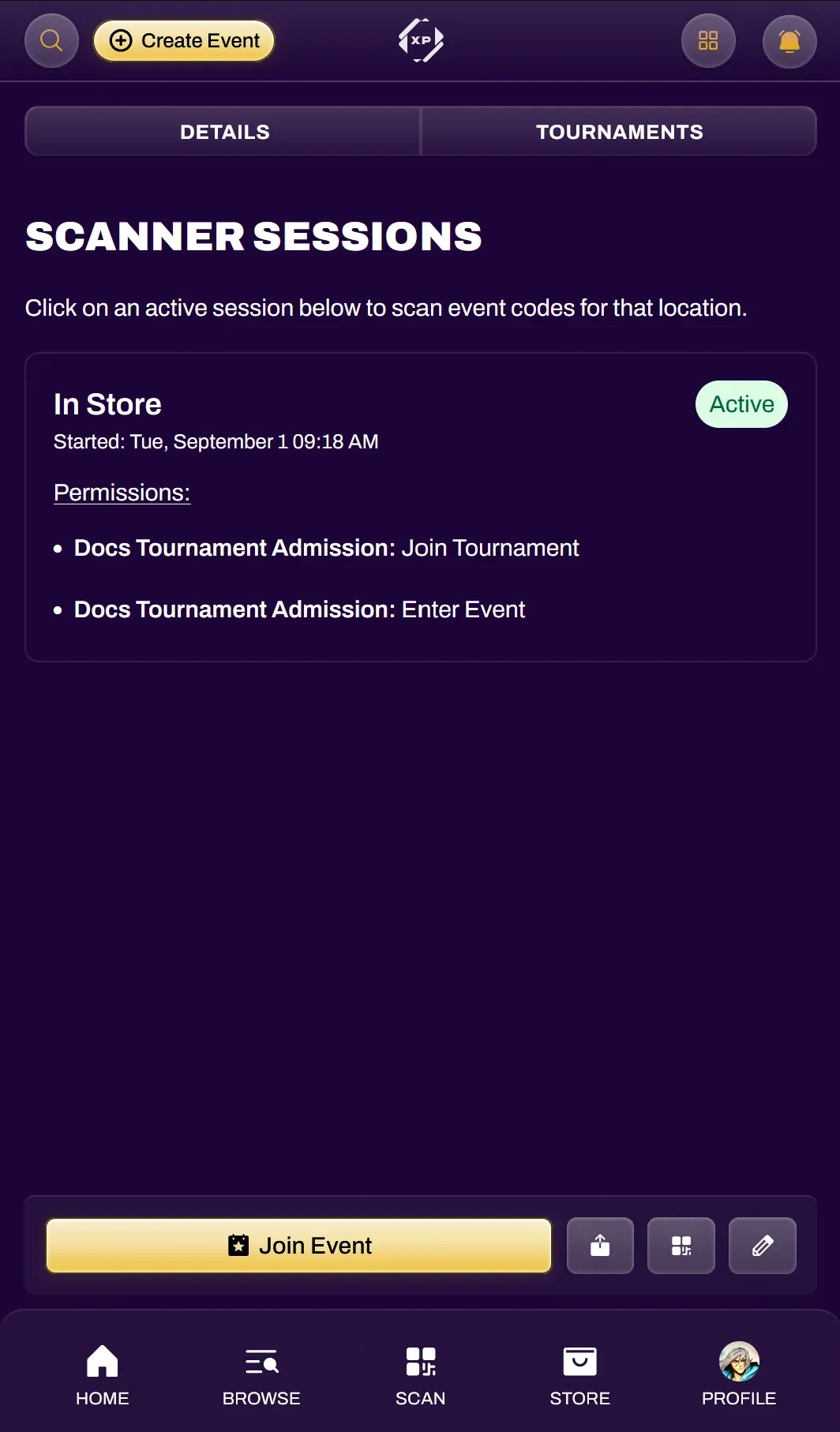
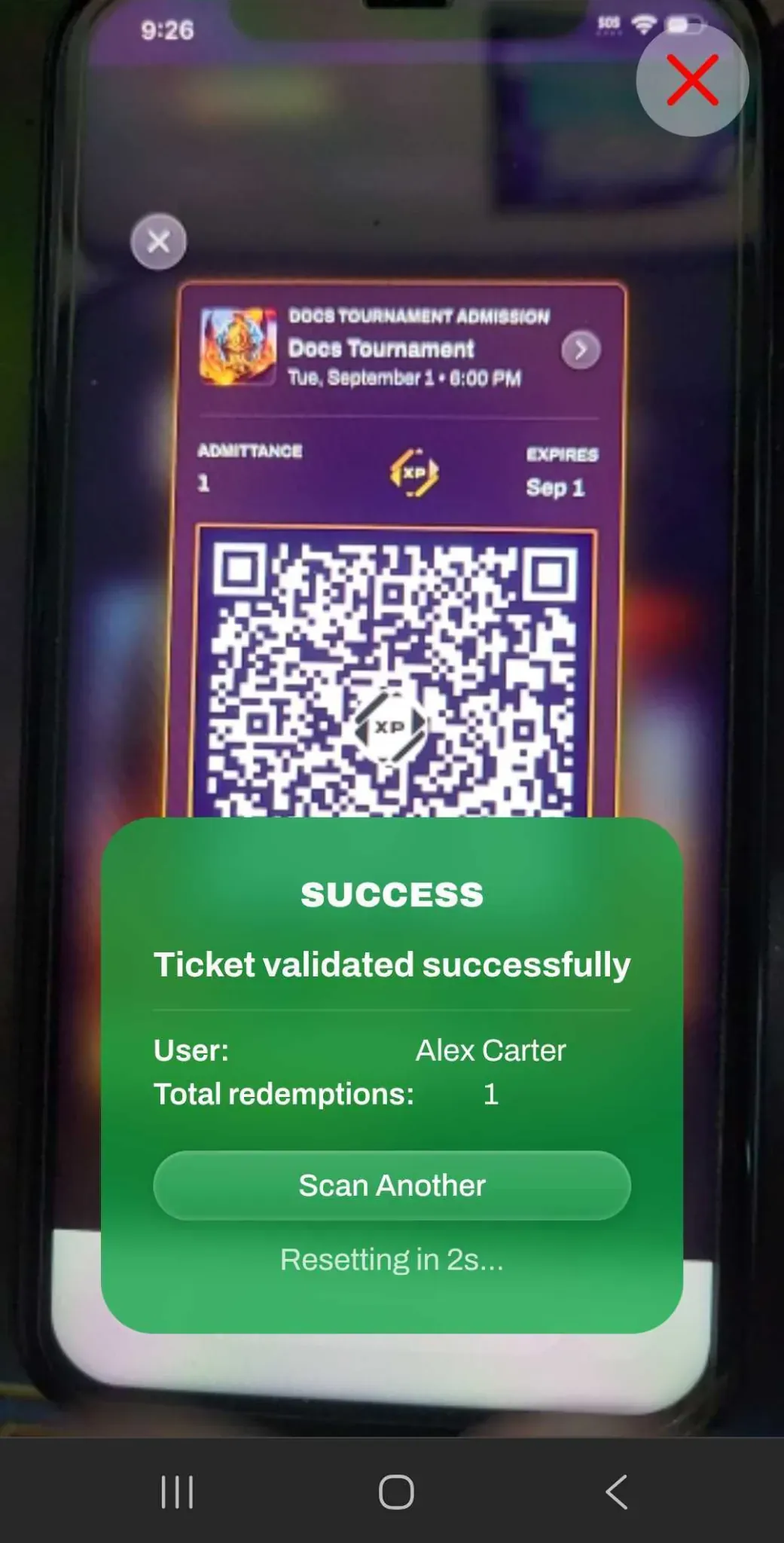
Open the Scanner Session and center the attendee’s QR code ticket within your camera. The system will automatically scan the ticket.
If the ticket has already been scanned, you will see an error message saying that the ticket has already been redeemed. An error message also exists if you scan a ticket that is not for the respective event you are redeeming for.
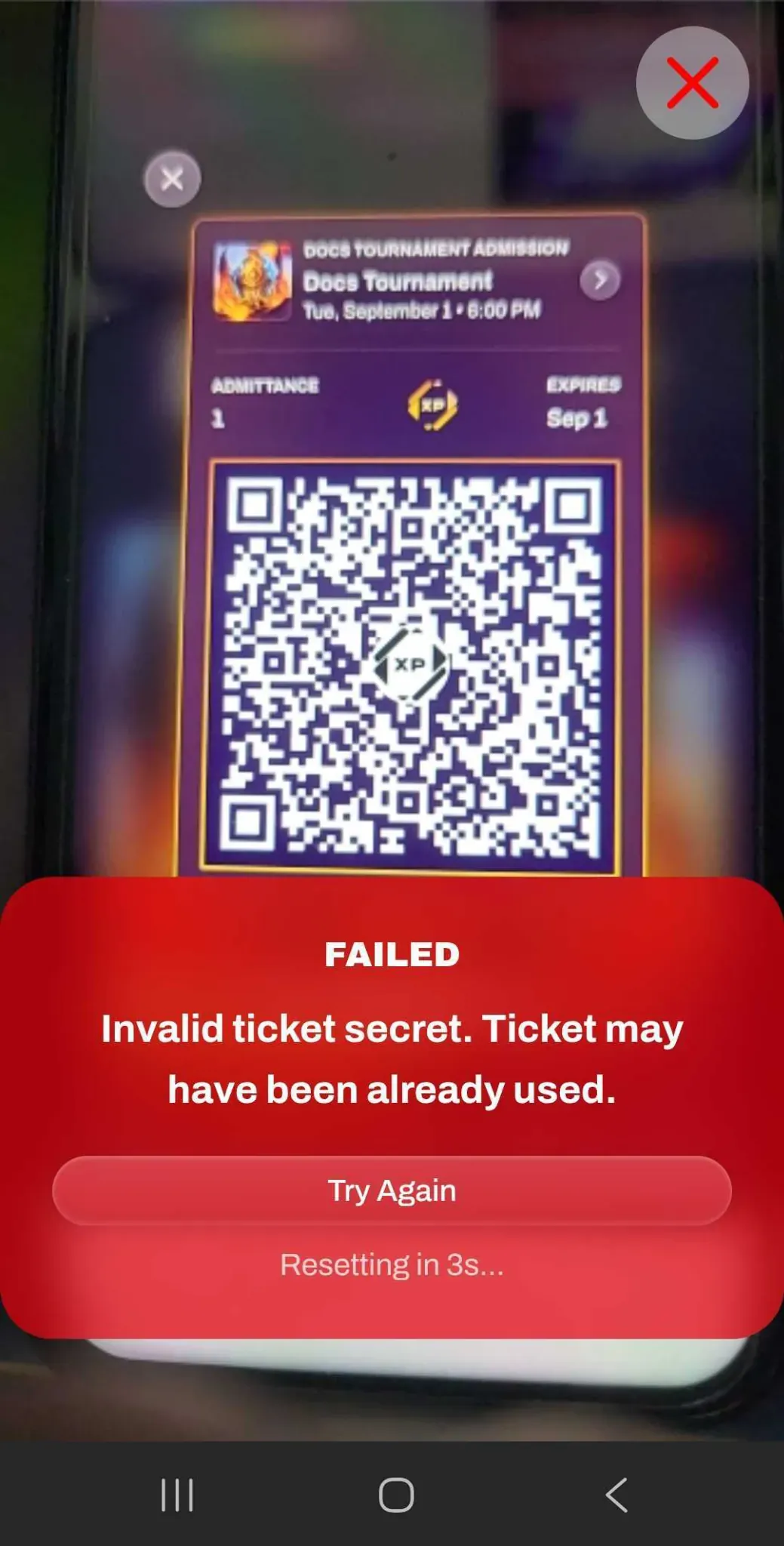
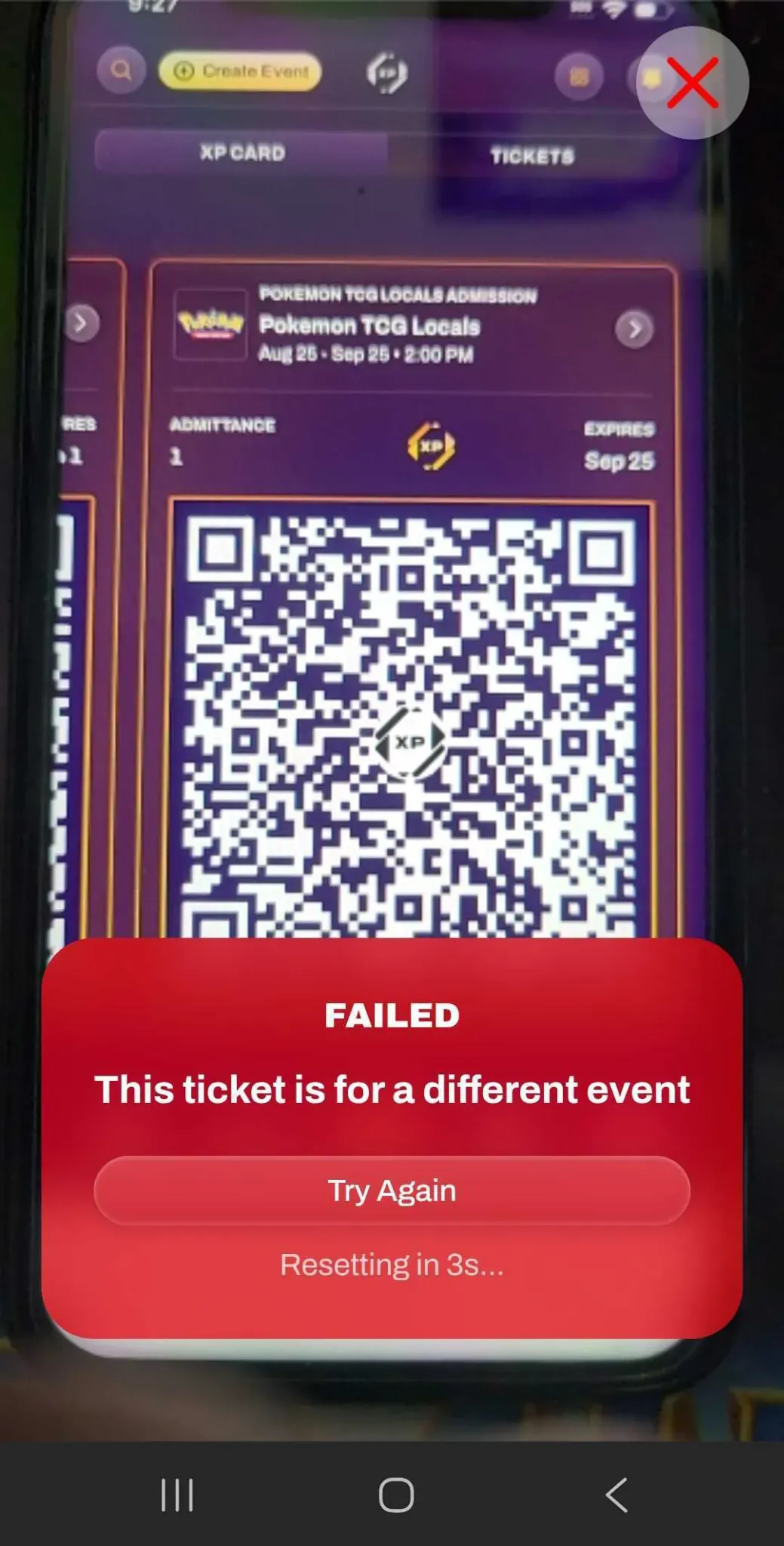
Scan Logs
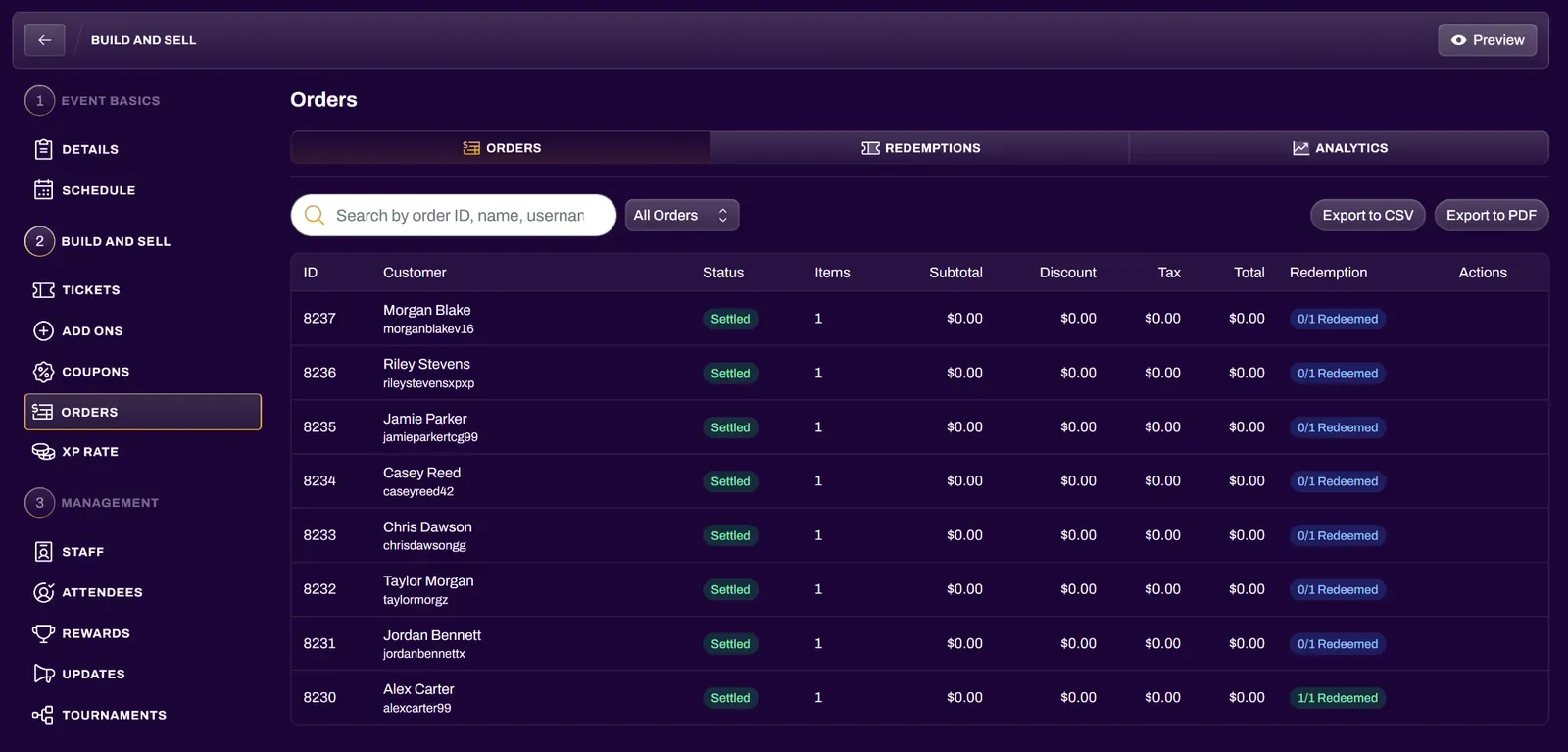
Section titled “Scan Logs”Under the Orders tab of the Build and Sell section, you are able to see the Redemption Status of each ticket for your event. The Redemptions tab shows a log of all ticket scans, which session they came from, and the ticket scanner who performed the action.
Manual Redemptions
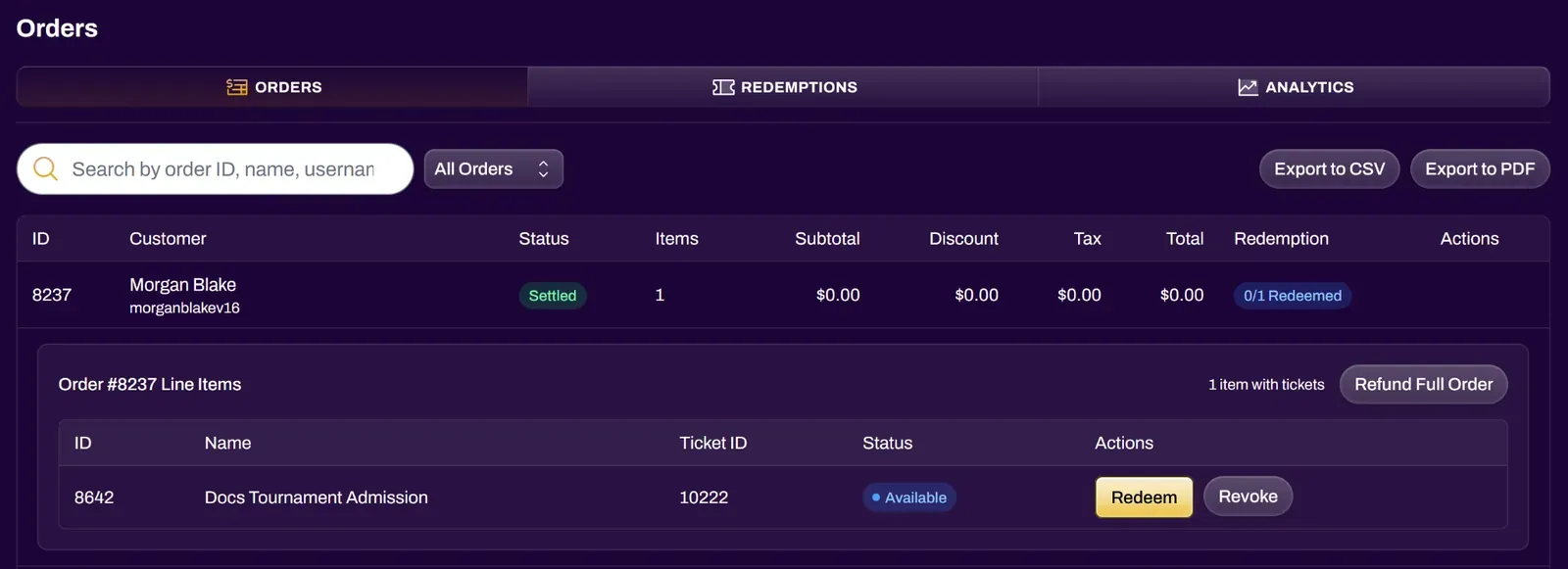
Section titled “Manual Redemptions”You can also Manually Redeem a ticket in the case of a severely cracked phone screen or a non-functional camera. Selecting an attendee’s ticket under the Orders tab will reveal an option to manually redeem their ticket. The system distinguishes between a camera-scanned redemption and a manual redemption for analytics purposes.
Ending a Scan Session
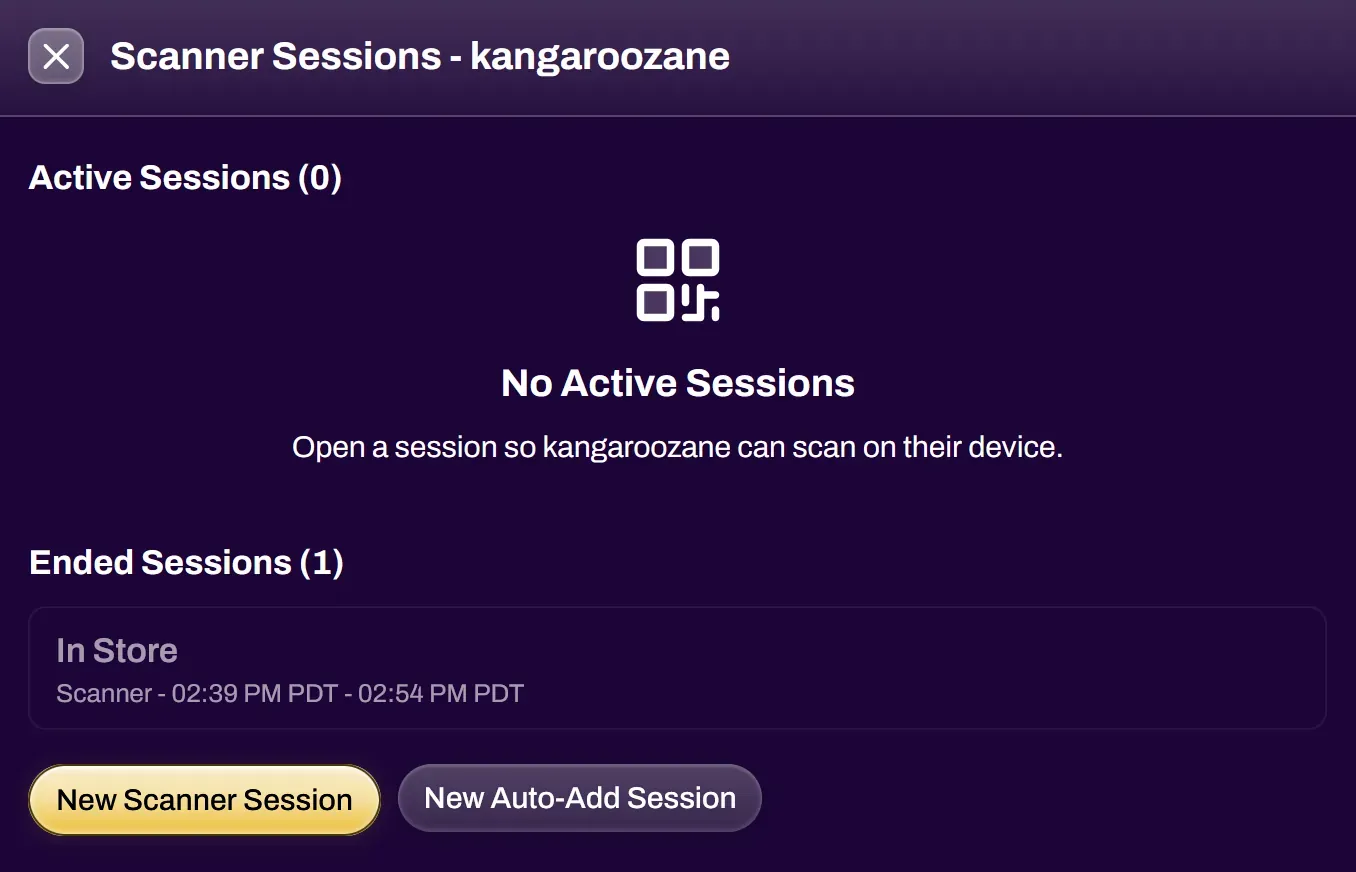
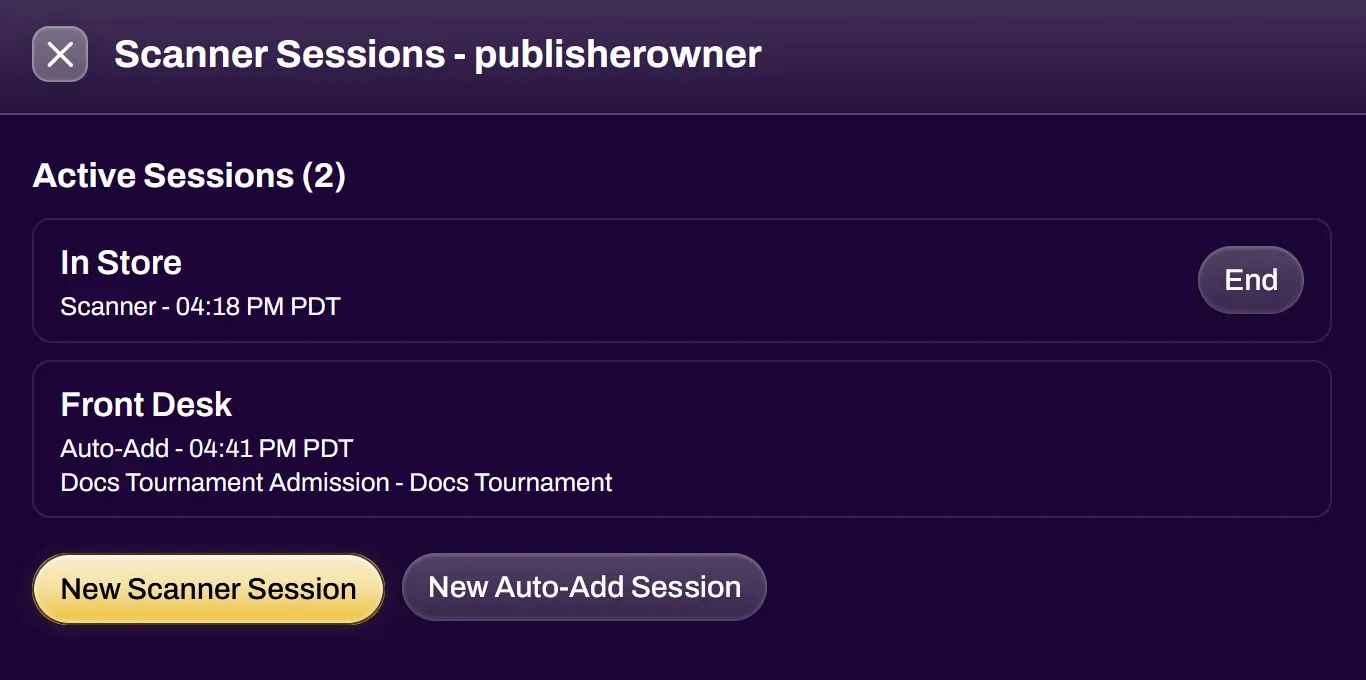
Section titled “Ending a Scan Session”To end a session, open the staff member’s Scanner Sessions window from the Staff tab and select End next to the session. The staff member can no longer scan until a new session is created, and ended sessions remain listed with their start and end times for reference.
Auto-Add to Tournaments
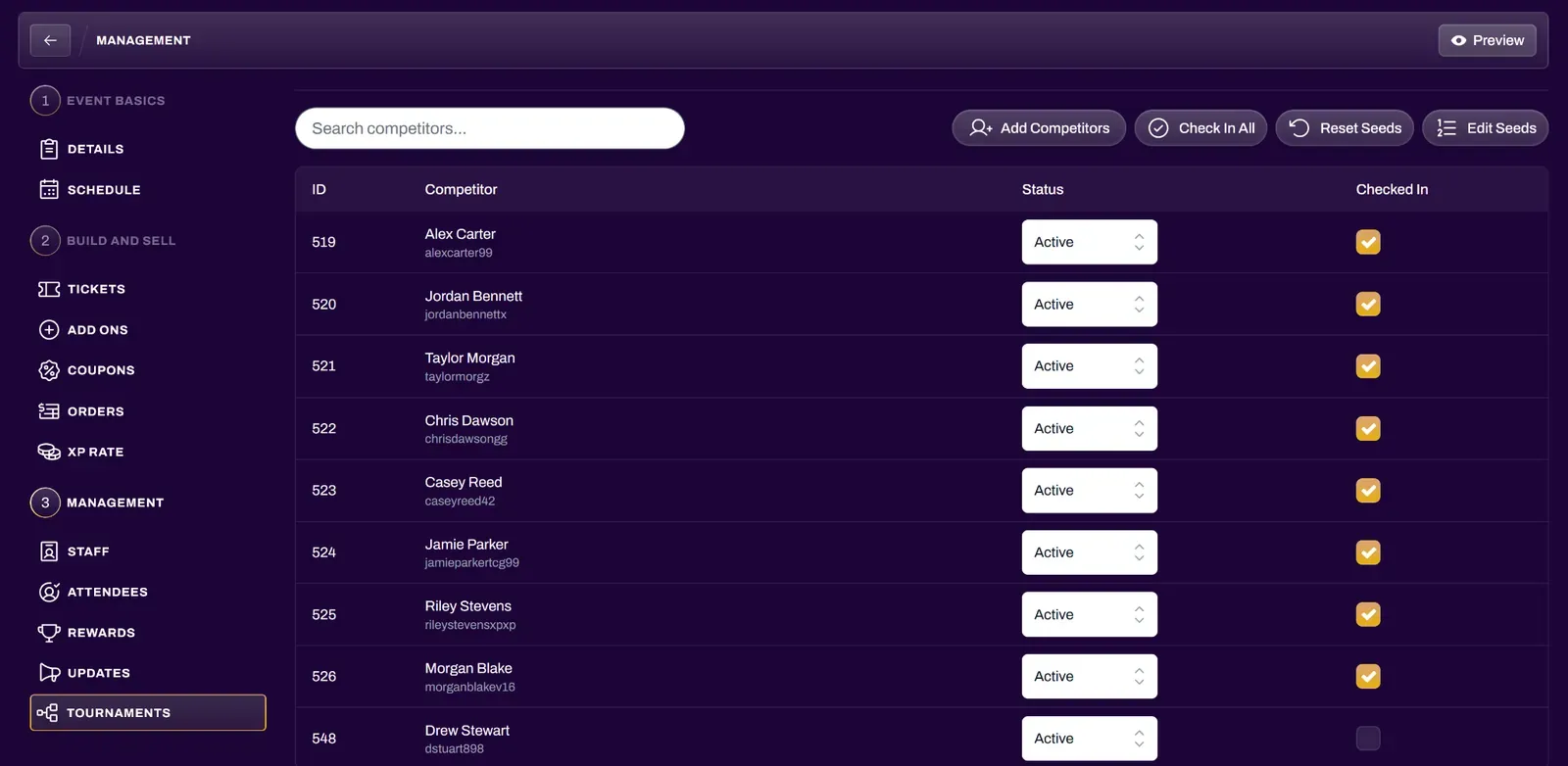
Section titled “Auto-Add to Tournaments”XP Network offers a feature where organizers can scan an attendee’s XP Card to automatically add them into a tournament. This makes it easy for players to register for tournaments on-site.
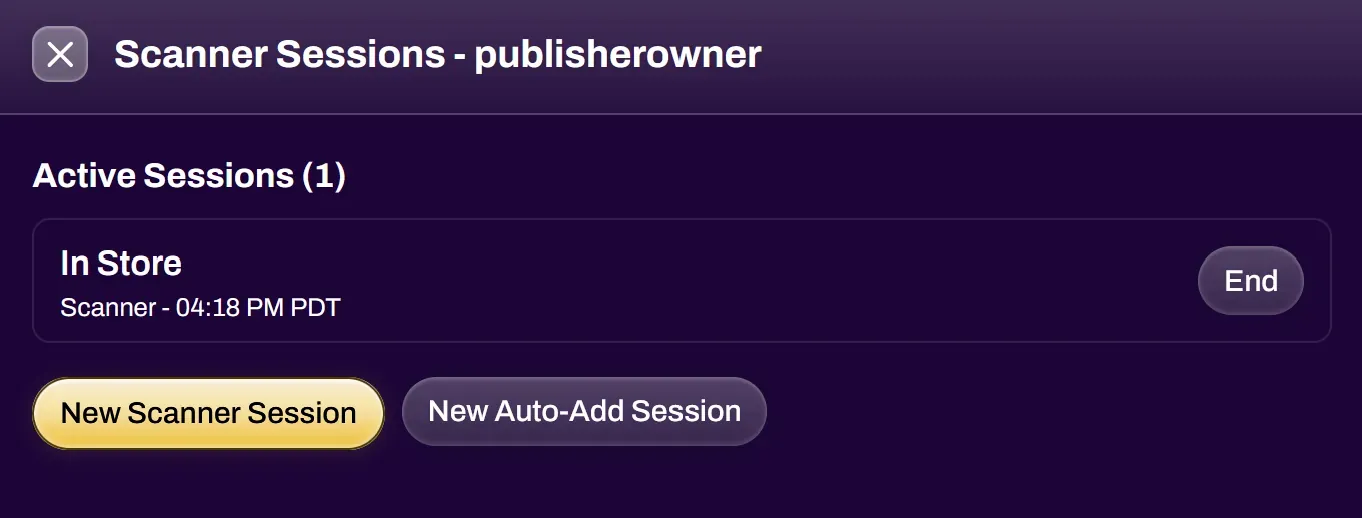
After creating a tournament and the tournament admission ticket, navigate to the Staff tab and select the Scanner icon under Actions. Then select New Auto-Add Session.
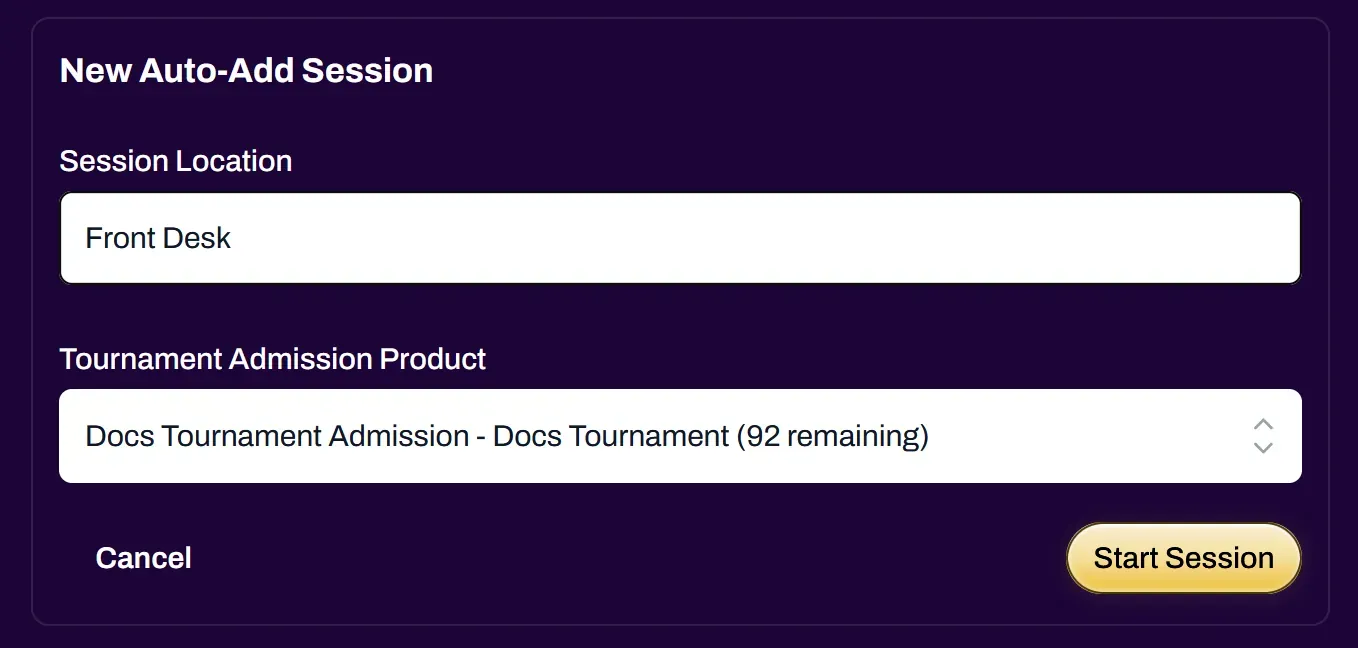
Enter a Session Location description and select the tournament that you would like to directly scan players into.
After creating the Auto-Add Session, it will show up in your Scanner tab. Selecting it will open your camera to begin scanning.
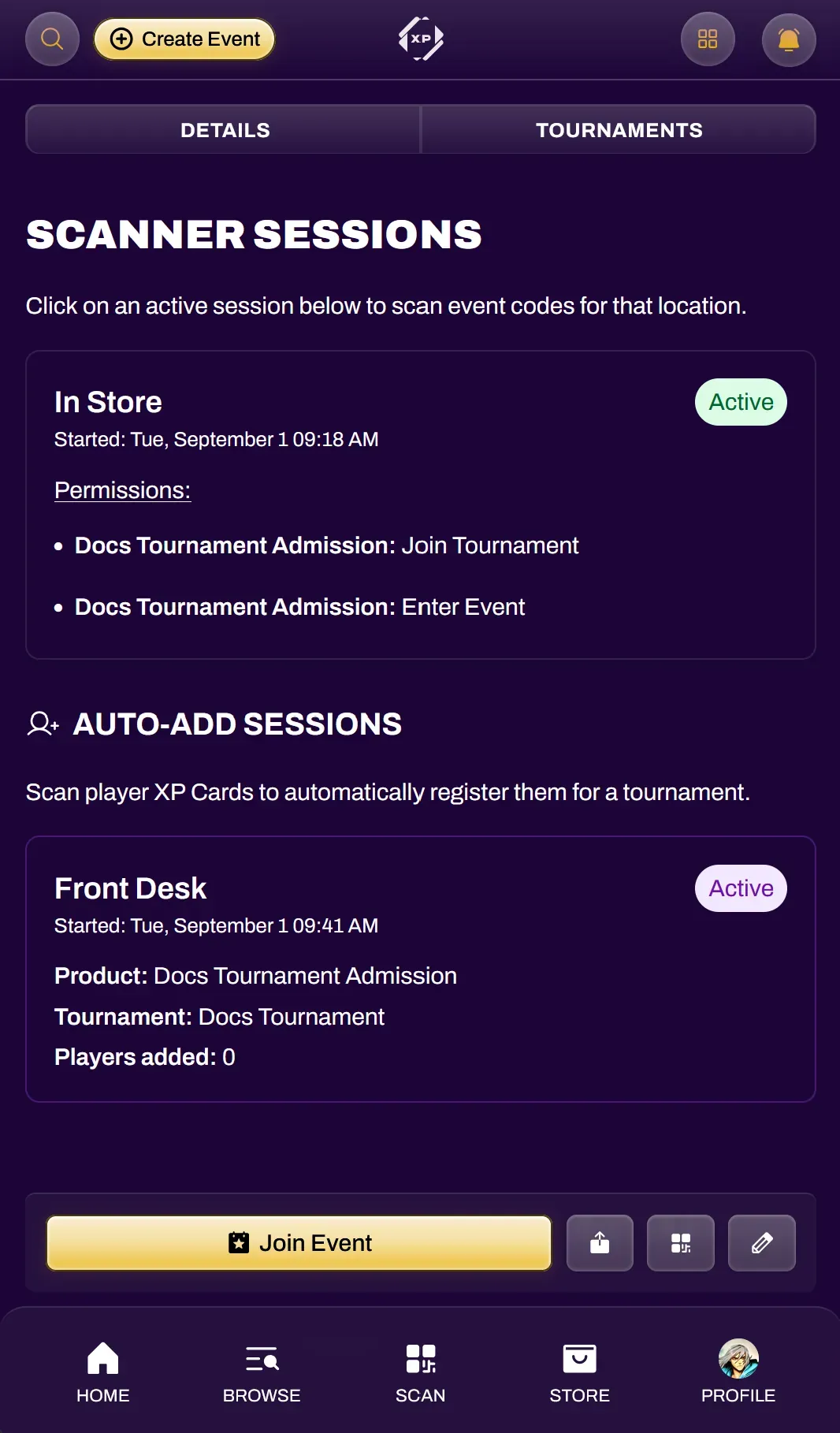
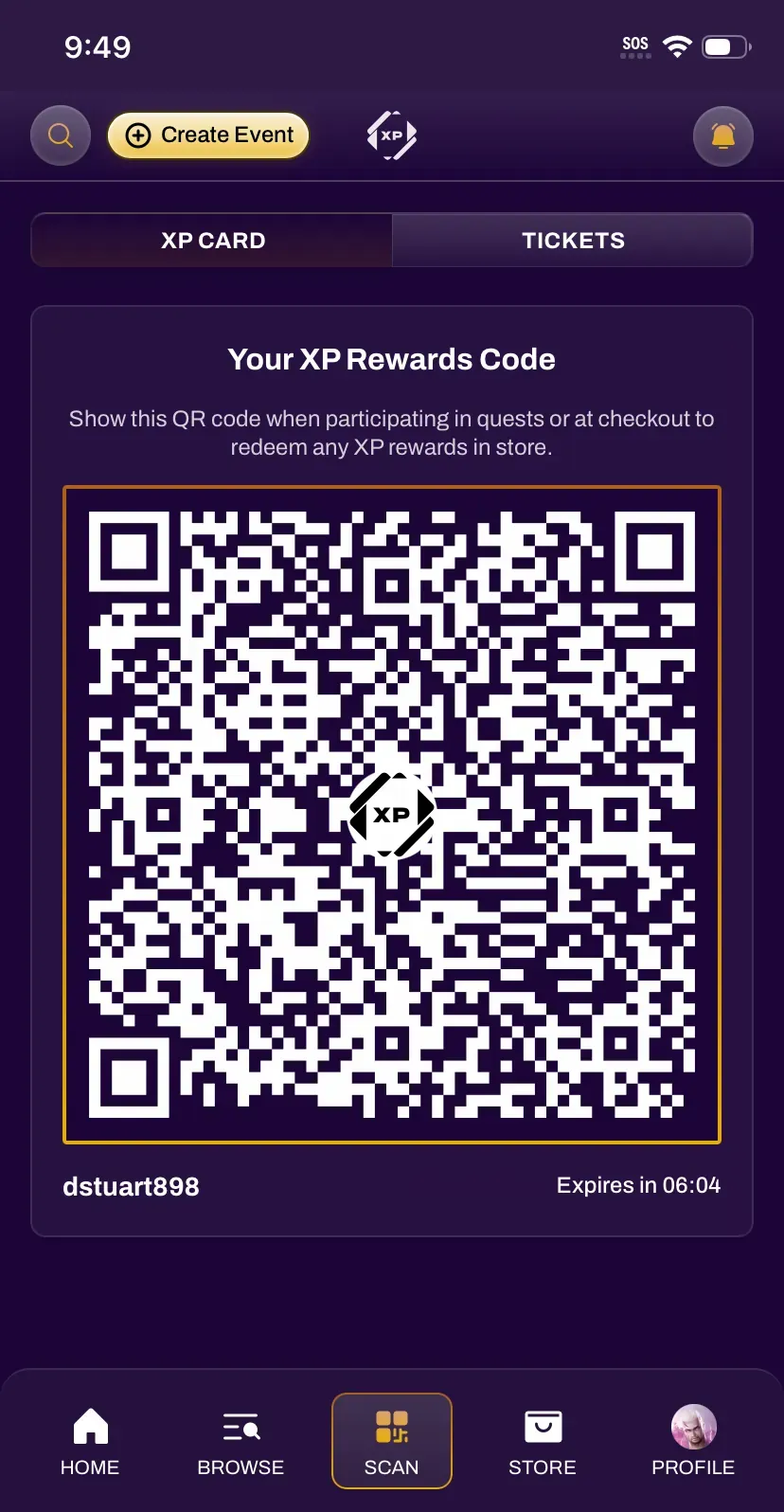
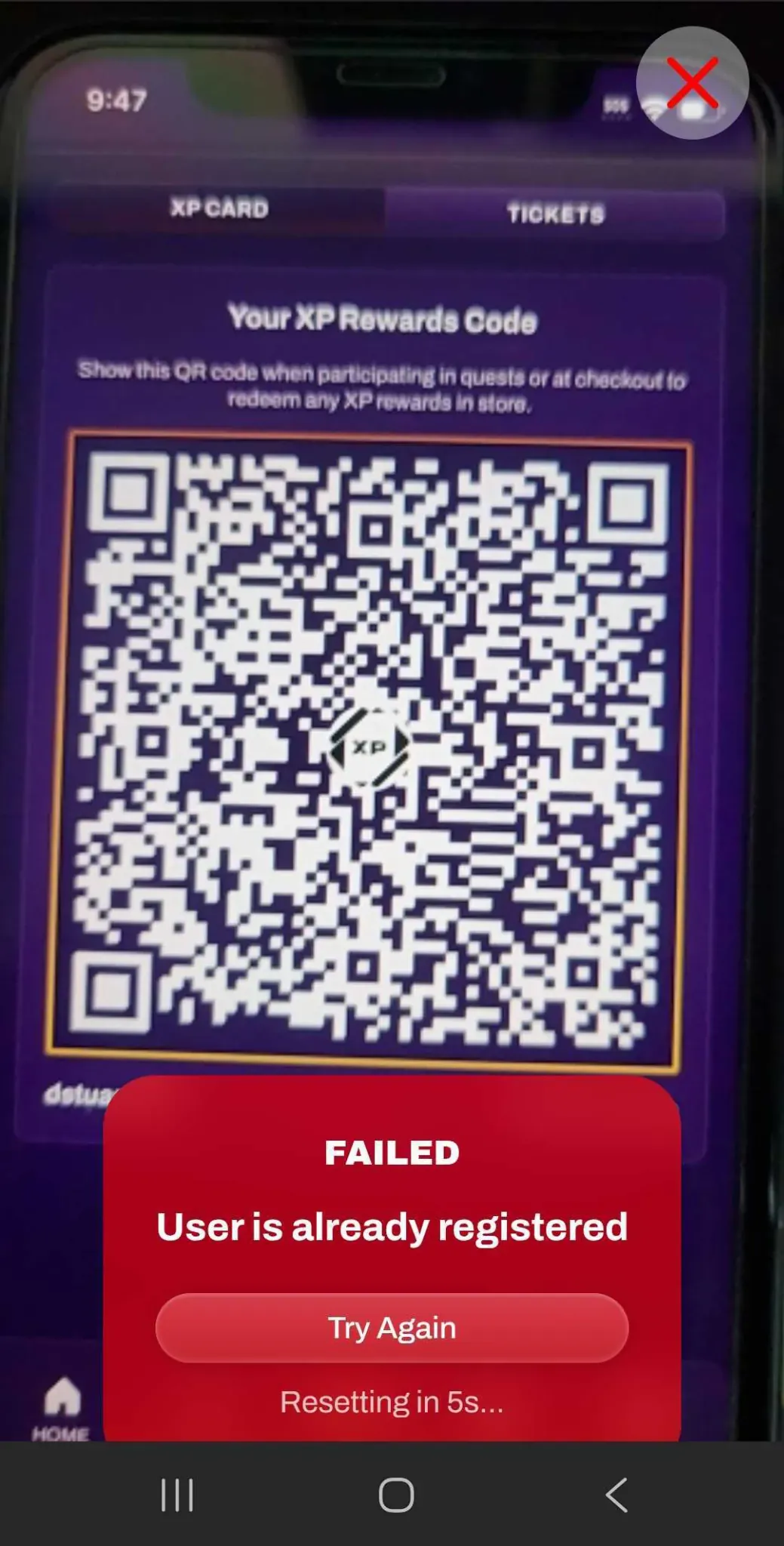
Players can find their XP Card by navigating to their Scan tab. Scan their XP Card through the Auto-Add Session to automatically add them to the tournament. A successful scan will display a green message with confirmation the player has been added. Attempting to scan a player already registered will result in an error message confirming they are already registered.
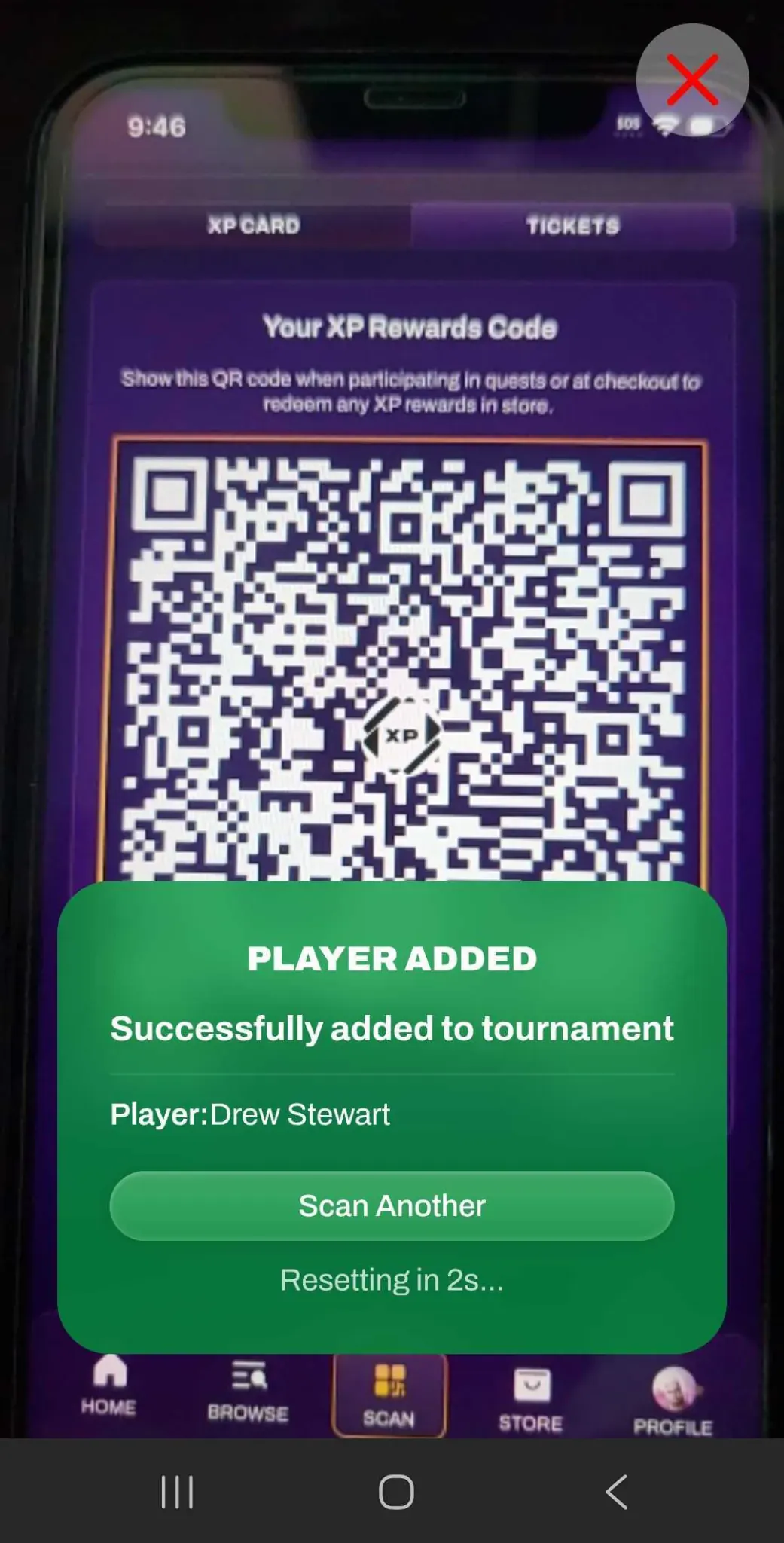
You can confirm added tournament players by navigating to the Competitors tab of the tournament.