Leagues
Leagues provide a structured way to organize ongoing competition and community engagement over time, whether you’re running one-on-one matchups or team-based play. They can be open to anyone or restricted by invitation, and offer leaderboard-driven progression to track performance across multiple events.
Creating a League
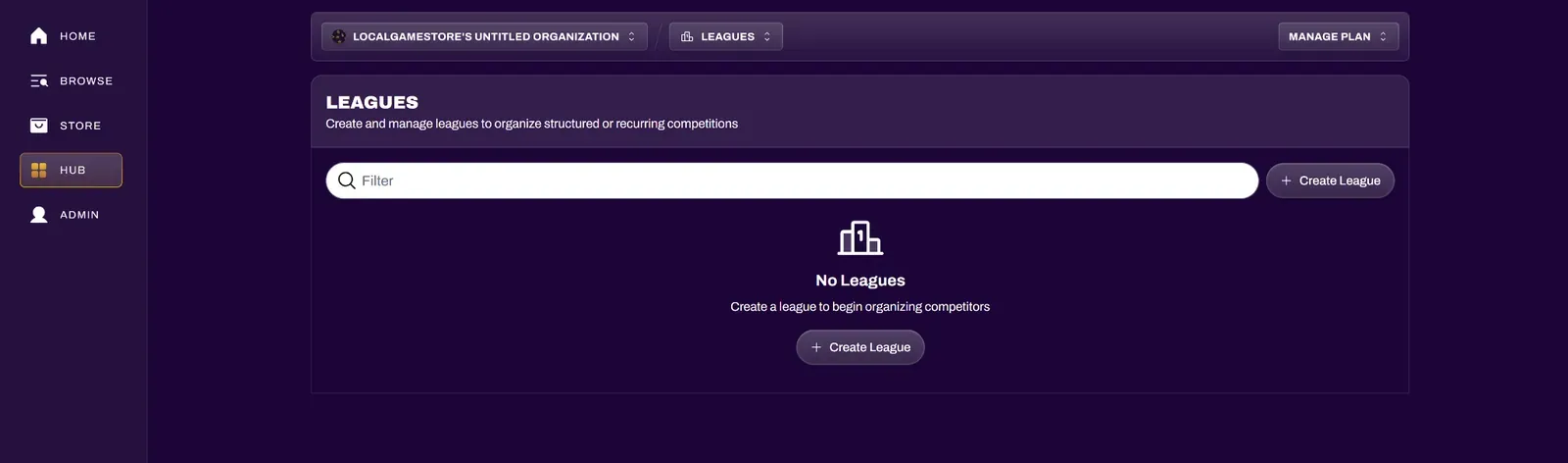
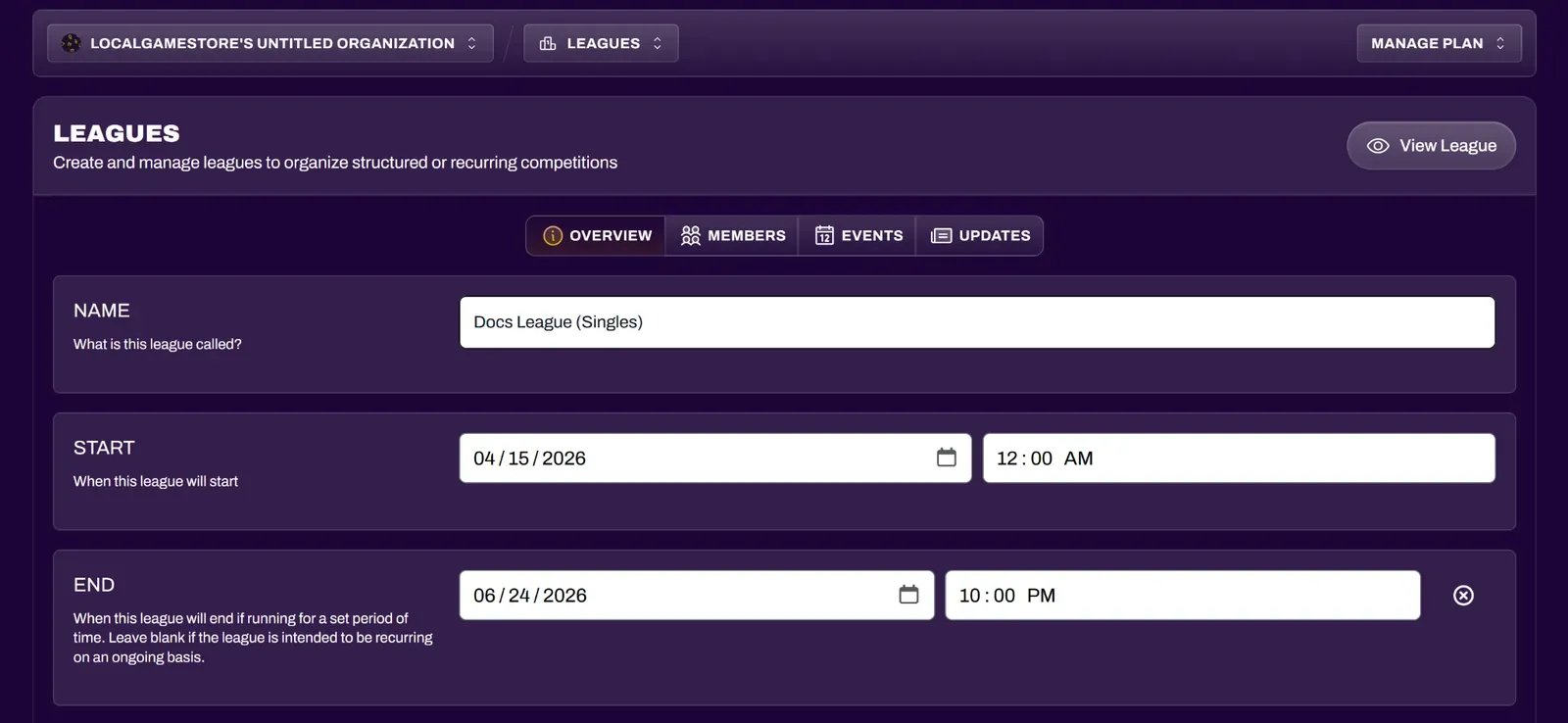
Section titled “Creating a League”Navigate to the Leagues section of the Hub to create a league, or to access and edit existing leagues.
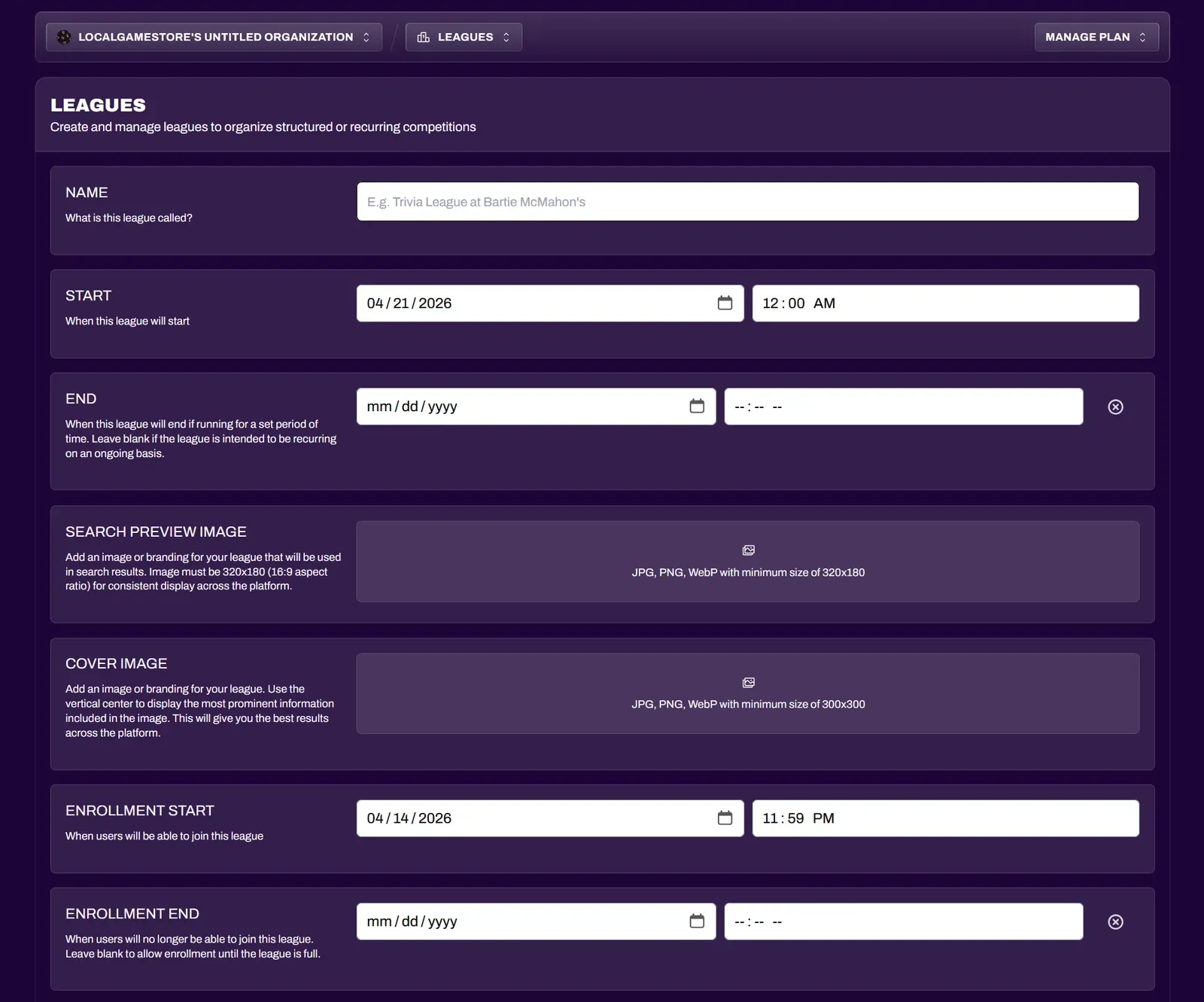
The league creator has many fields to help with league presentation and discovery. Most of these are similar to the event creator, but some are exclusive to the leagues feature.
League Enrollment
Section titled “League Enrollment”Organizers can configure when the league will start and end. If the Enrollment End field is left blank, enrollment will only end when the league is full.
Competition Styles
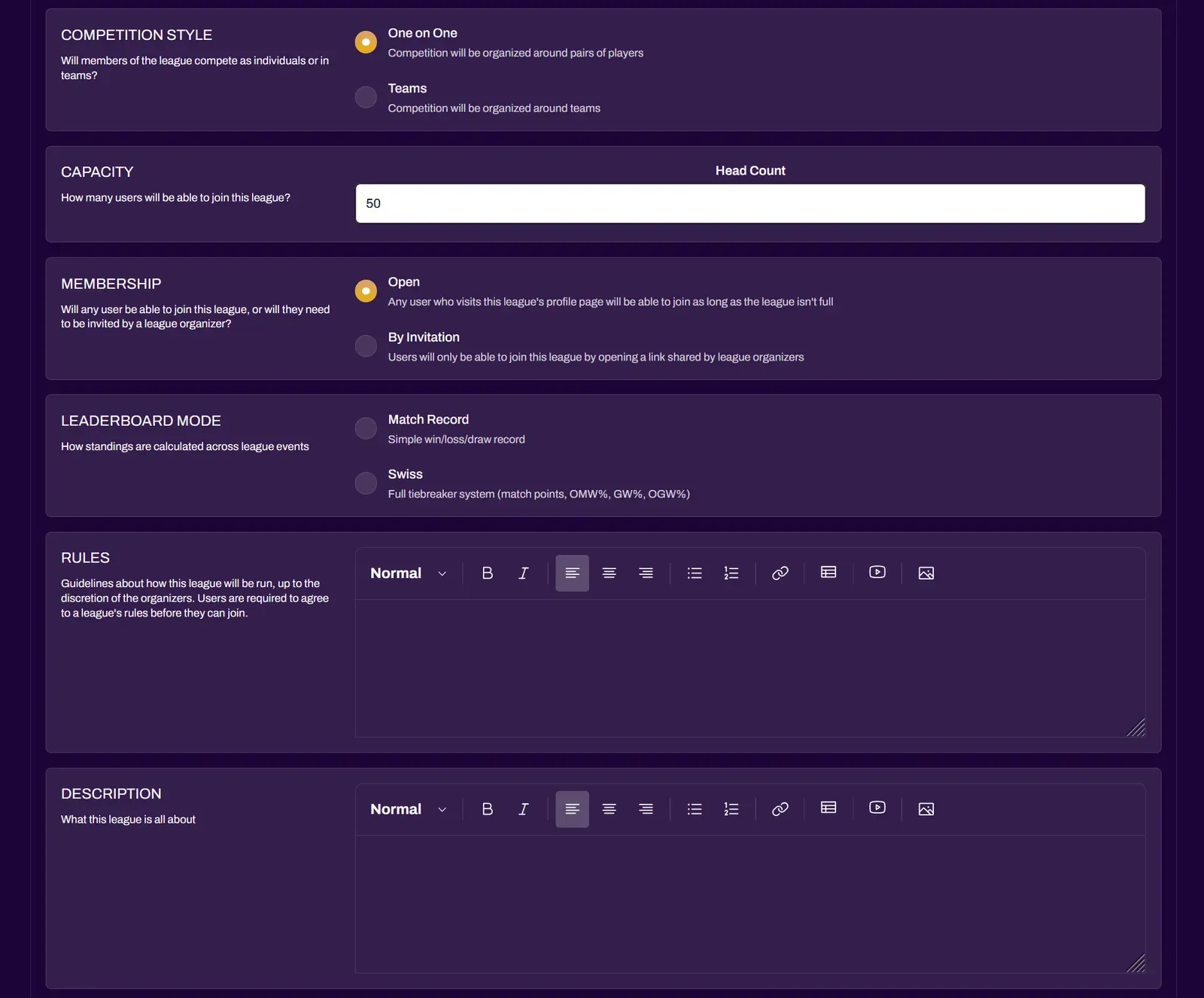
Section titled “Competition Styles”Organizers can configure whether the league is based on individual competitors or teams. If the league is team-based, organizers can set the Team Size and Team Count, and arrange teams from their league dashboard.
Leaderboard Mode
Section titled “Leaderboard Mode”Leagues use either a simple match record or a full point system for leaderboard calculation. League organizers can customize how much match points are worth when creating tournaments.
Membership
Section titled “Membership”Organizers can set the league to be open to the public or locked behind invitations only.
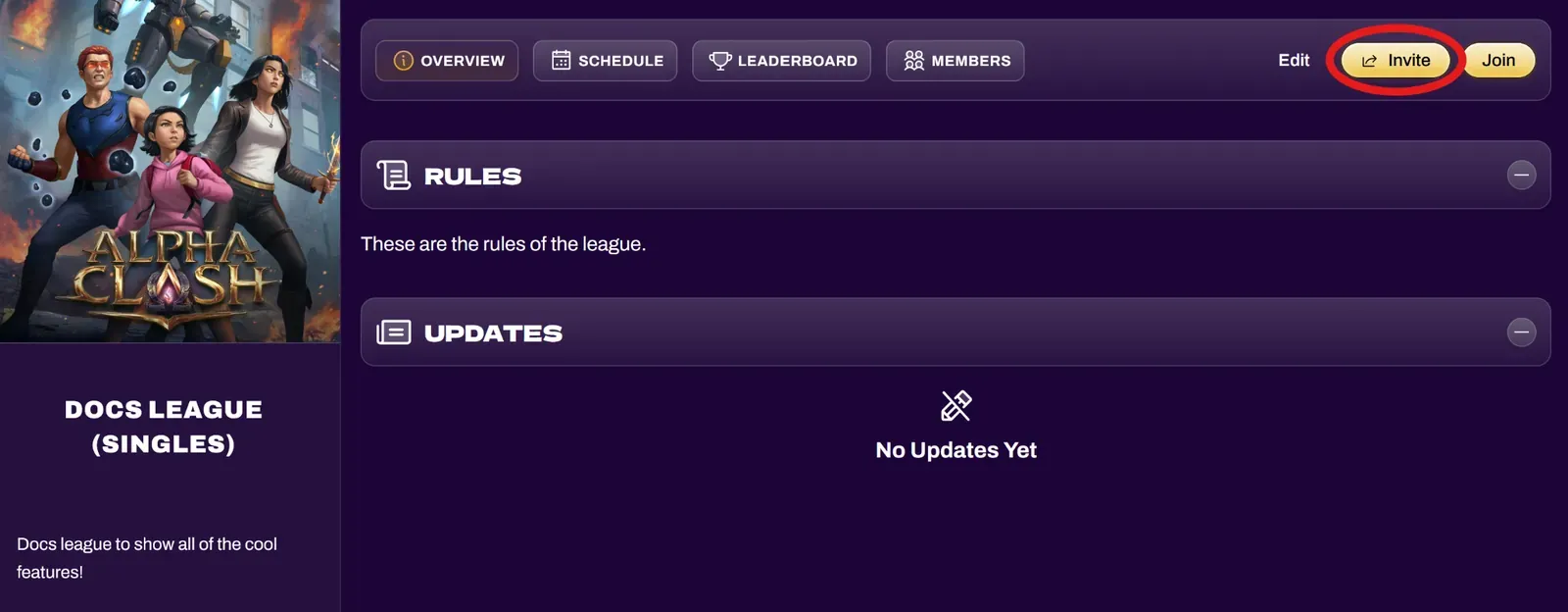
After the league is created, you will be taken to the League Editor where you can access more tools to manage your league. You can toggle between the League Editor and the League View using the View League and Edit buttons on their respective layouts.
Inviting Players to Your League
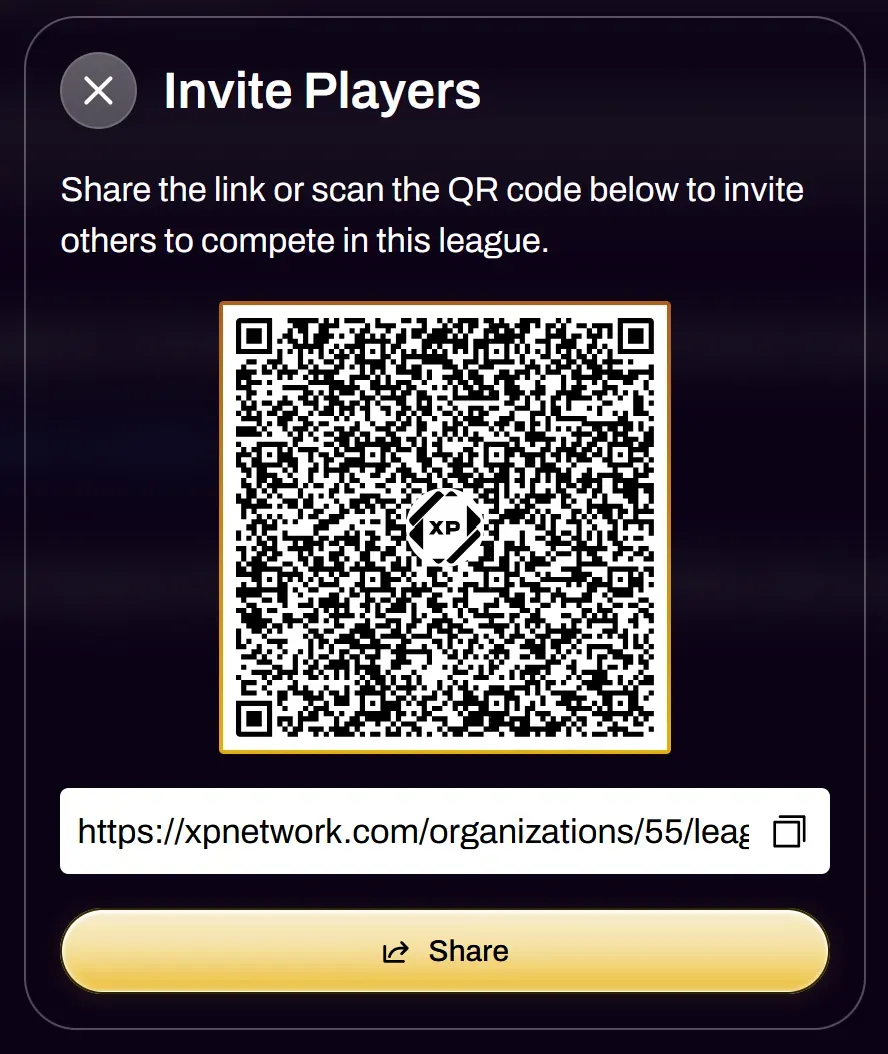
Section titled “Inviting Players to Your League”Selecting the Invite button from the League View will open an Invite Players window with a QR code and a copyable URL link.
If you set the league membership to By Invitation, league members will need the QR code or URL in order to join your league.
Managing League Members and Teams
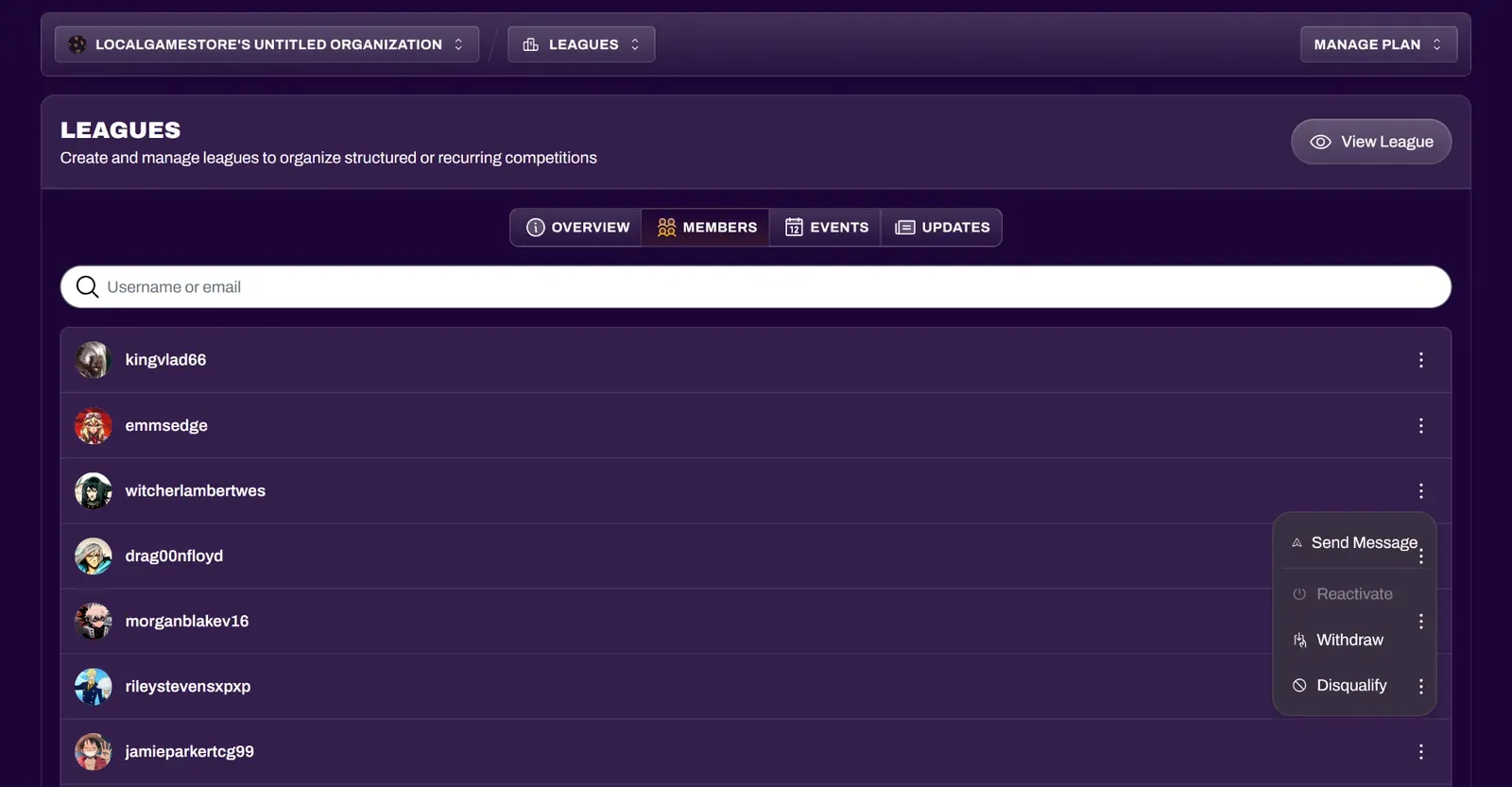
Section titled “Managing League Members and Teams”Navigate to the Members tab of the League Editor (or the Teams tab if your league is set to teams) to see a list of all members or teams. Organizers can Withdraw, Reactivate, and Disqualify league members from this tab. Organizers can also send a league member a message if they need to be contacted.
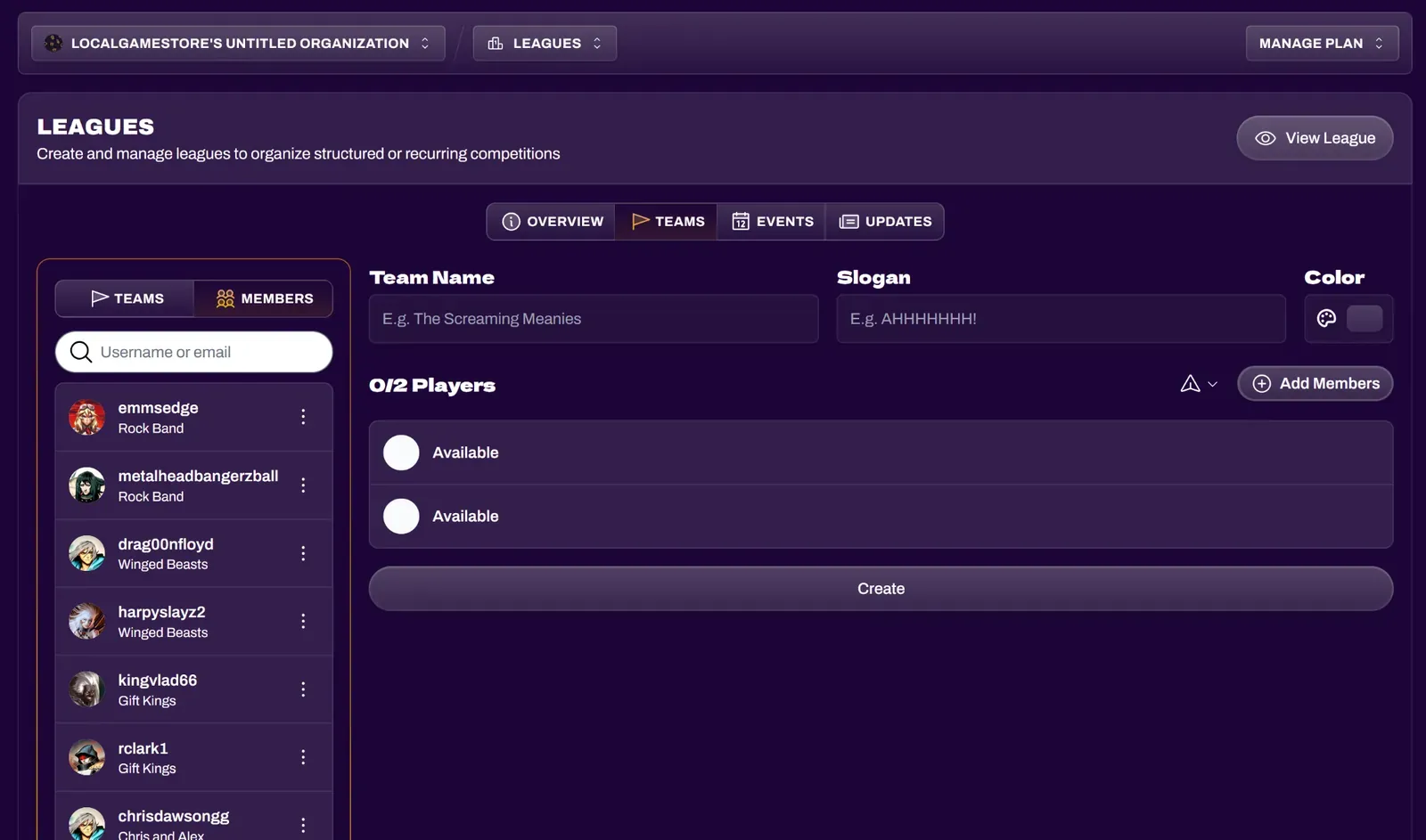
For leagues using the Teams format, this tab is used to create and assign players to teams, each with a Team Name and Slogan. Teams can optionally be assigned a color. Use the Add Members button to search and select players to add to a team, then select Create to form that team. Players who are already part of a team will have their team name shown in the Teams/Members list.
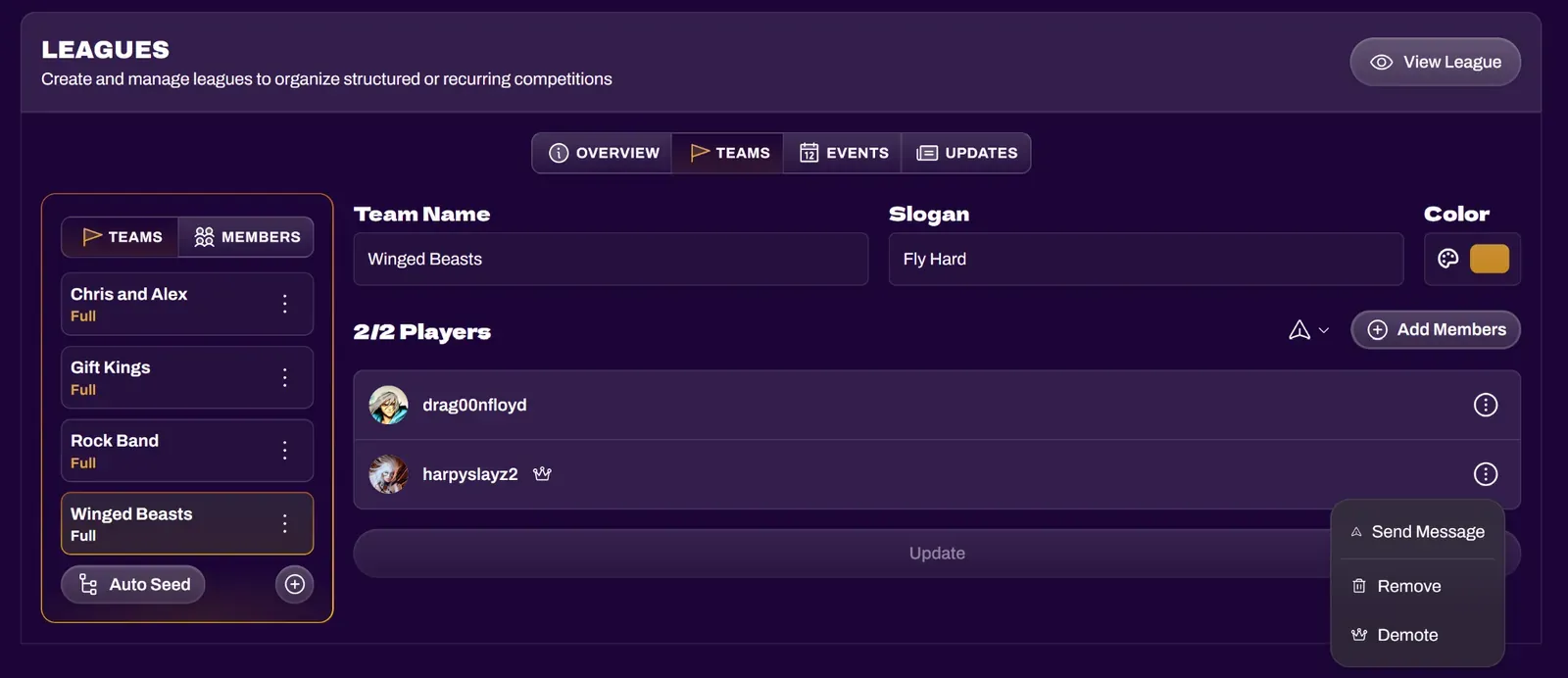
Organizers can Promote or Demote players as Team Captain. Captains simplify communication with teams in a league. Teams are allowed to have more than one Captain.
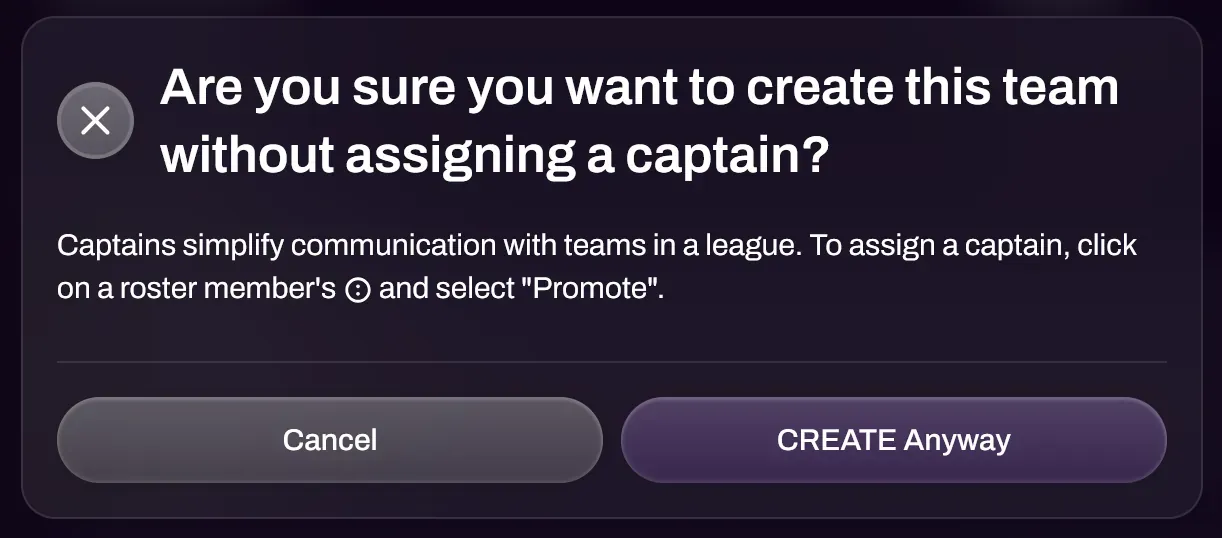
A warning message will display if a team is attempted to be created with no Team Captain.
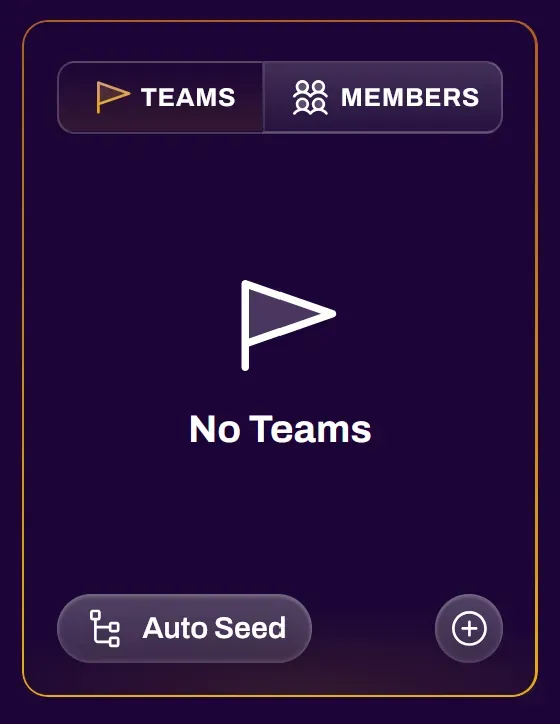
The Team editor also has an Auto Seed feature, which will automatically create Unnamed Teams and assign players to them. Organizers can edit these teams after creation.
Creating League Events
Section titled “Creating League Events”League events are created by navigating to the Events tab of the League Editor. Refer to the Creating Events doc for a full walkthrough on event creation. Leagues have some additional toggles in the event creator under Member Participation.
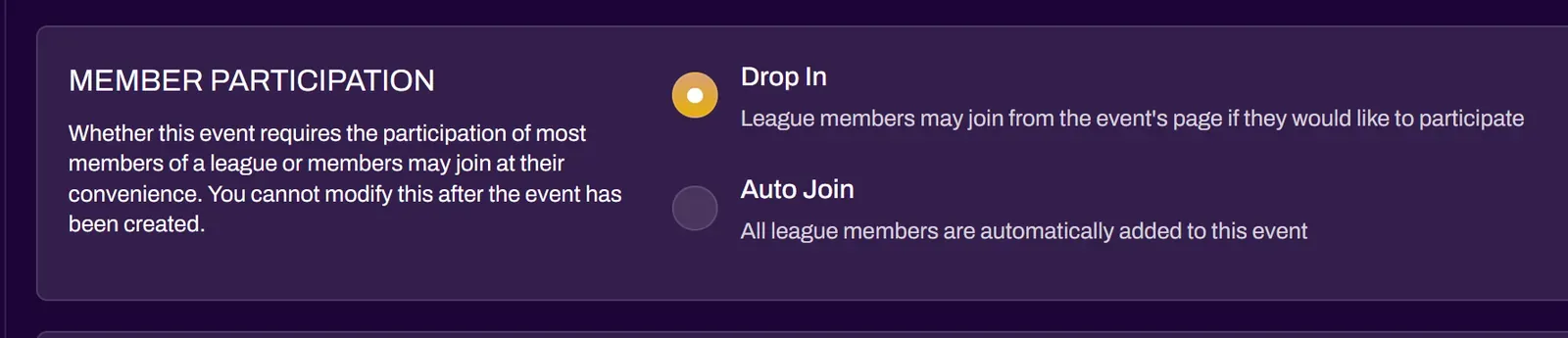
Drop In — Selecting this option will create the event without adding any league members to it. This gives league members the freedom to sign up themselves. Event ticketing will still need to be created so that league members can join the event.
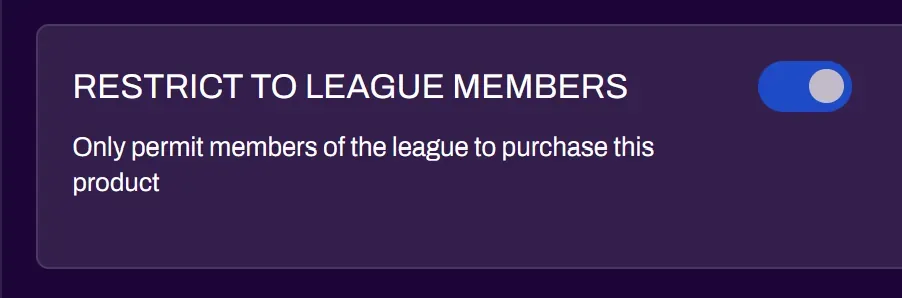
When creating ticketing for an event that uses the Drop In option, there is an option to restrict the event to only members of the league.
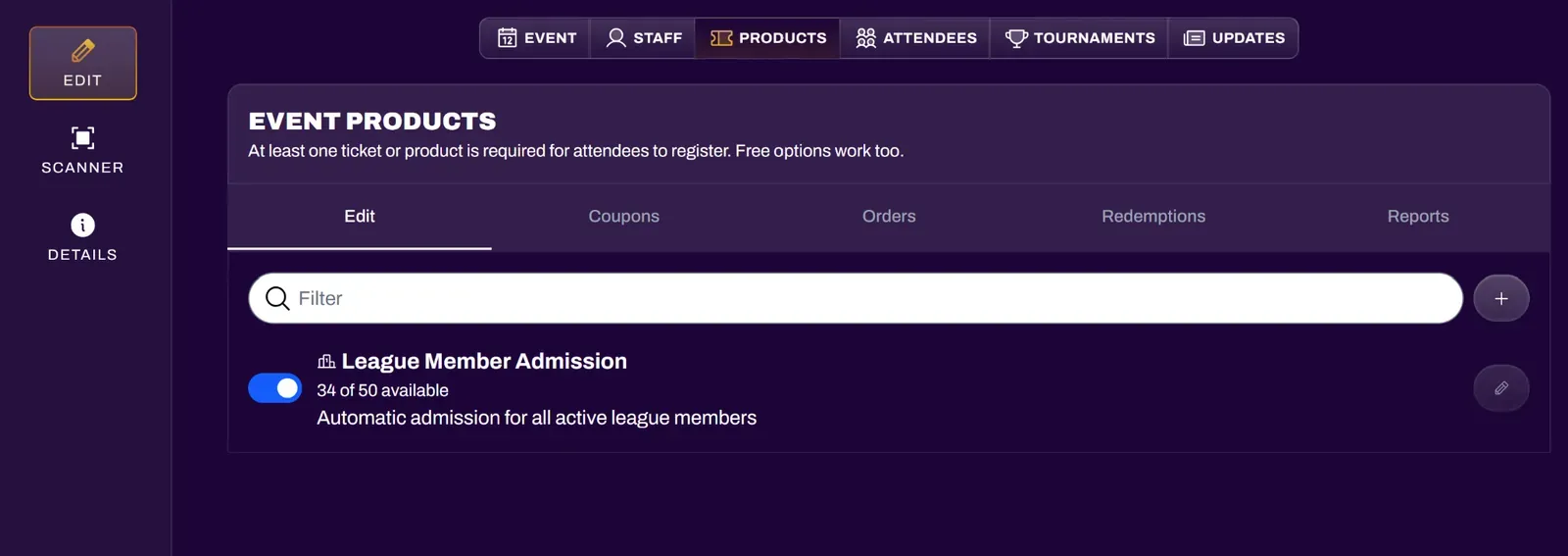
Auto Join — This option will add all league members to the created event. Ticketing is automatically created and assigns all league members an event ticket.
Creating League Tournaments
Section titled “Creating League Tournaments”After a league event is created, navigate to the Tournament tab of the event editor to create a tournament. Refer to the Running Tournaments doc for a full walkthrough.
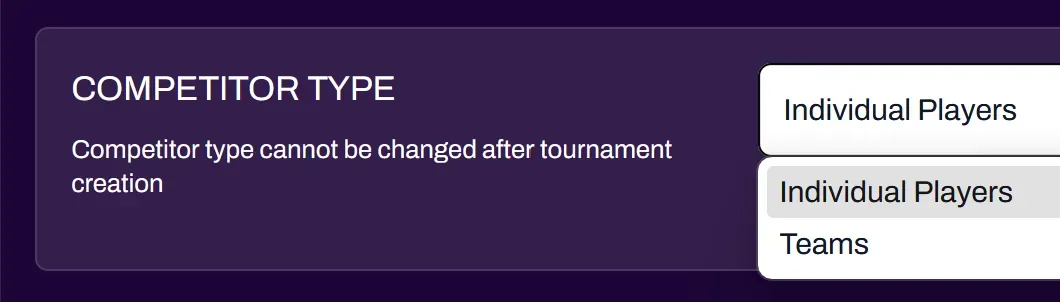
In the tournament creator, choose the proper Competitor Type based on whether your league is set for individual competition or teams.
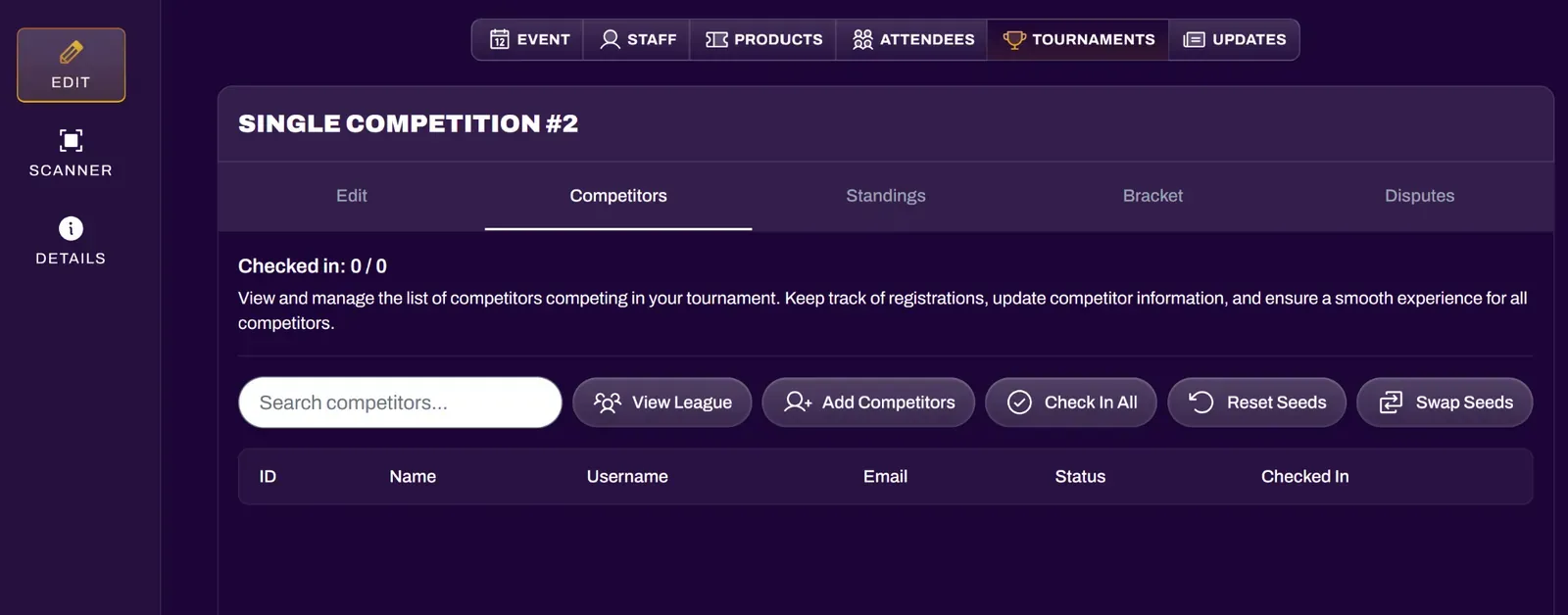
Organizers can add competitors and check them into the tournament through the Competitors subtab. There is also a button that shortcuts back to the League Editor.
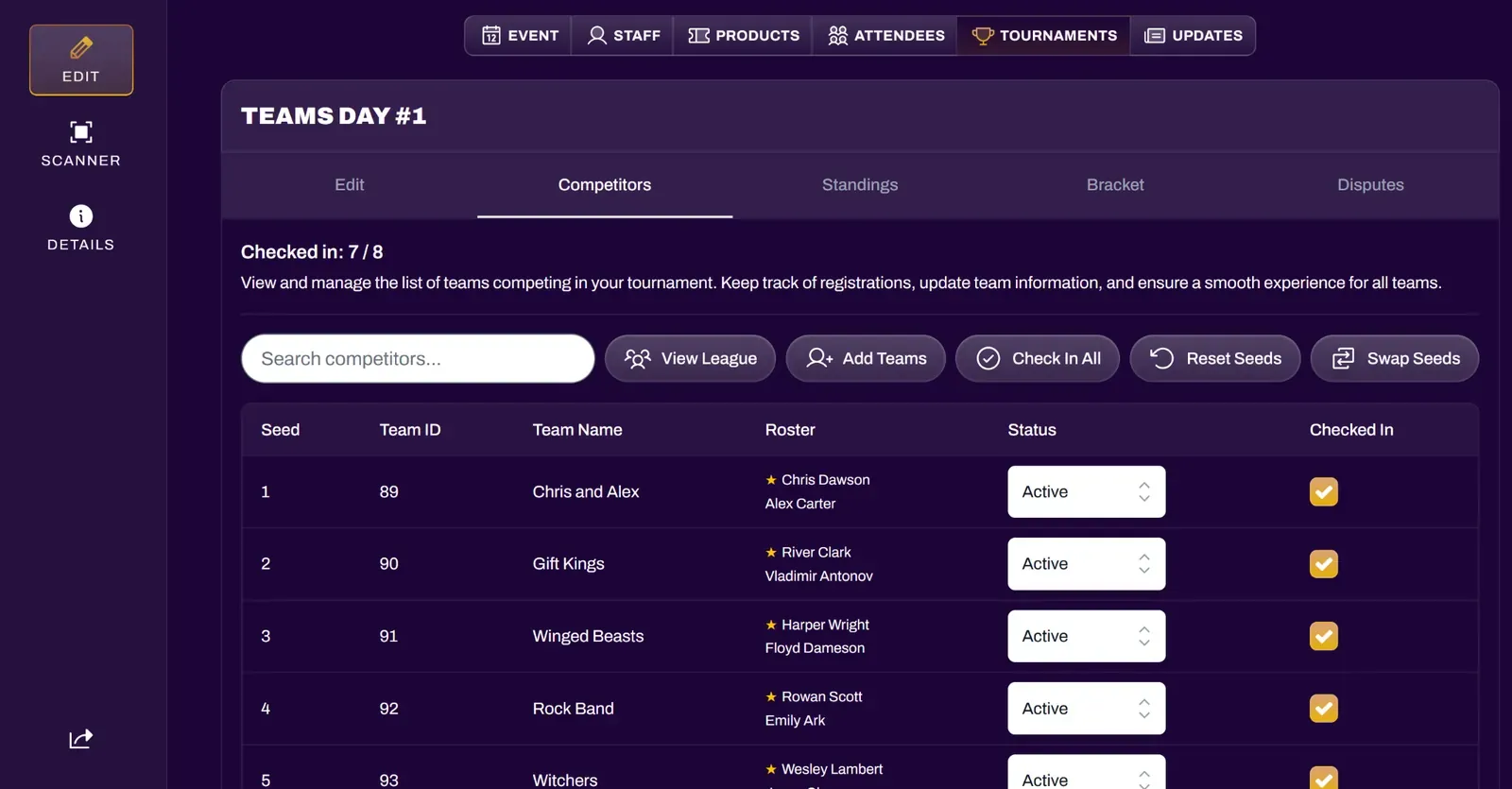
In team tournaments, organizers can view individual members on each team and see which members are captains.
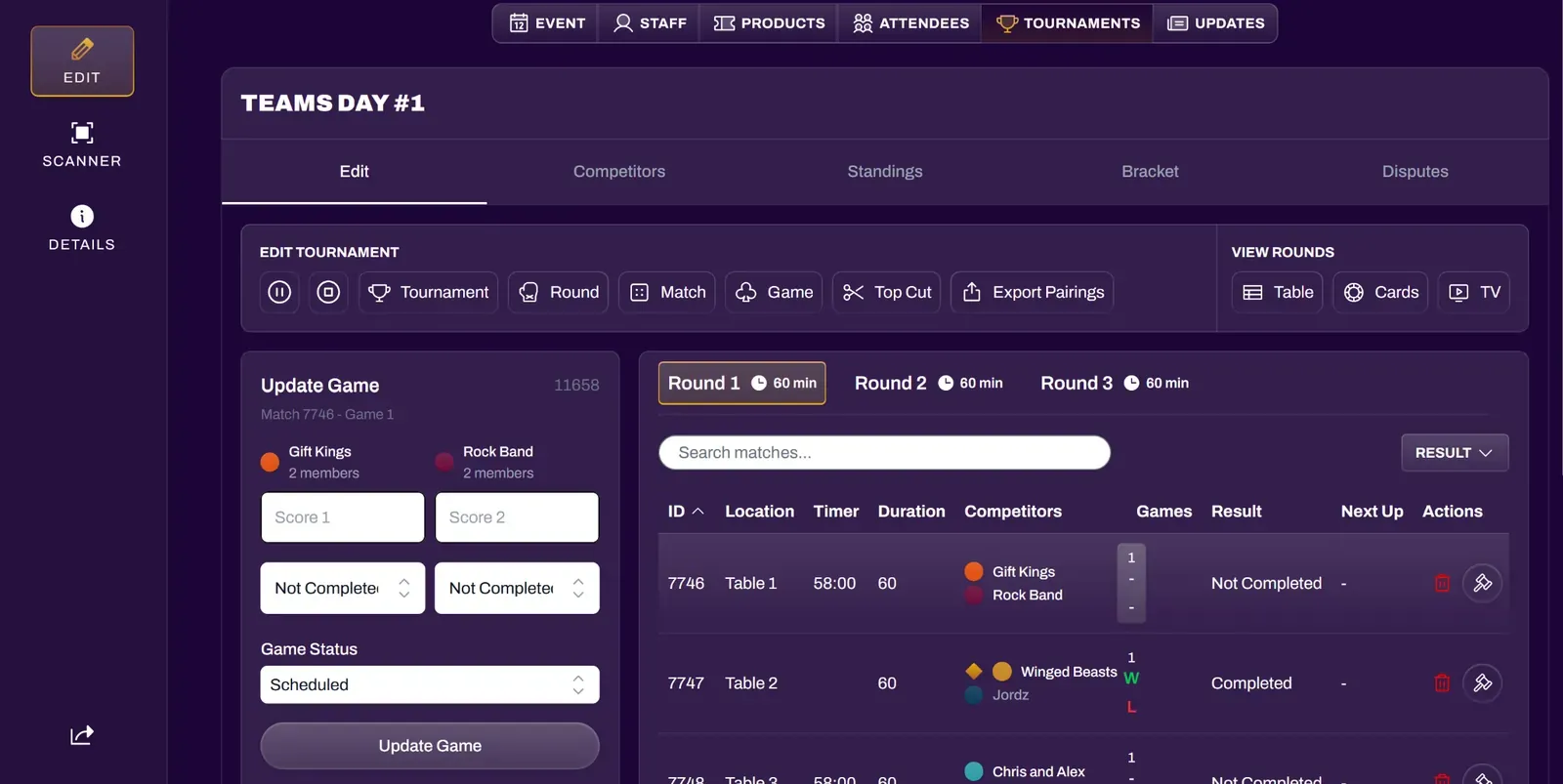
Refer to the Running Tournaments doc for a full walkthrough on how to run tournaments from start to finish.
League Schedule
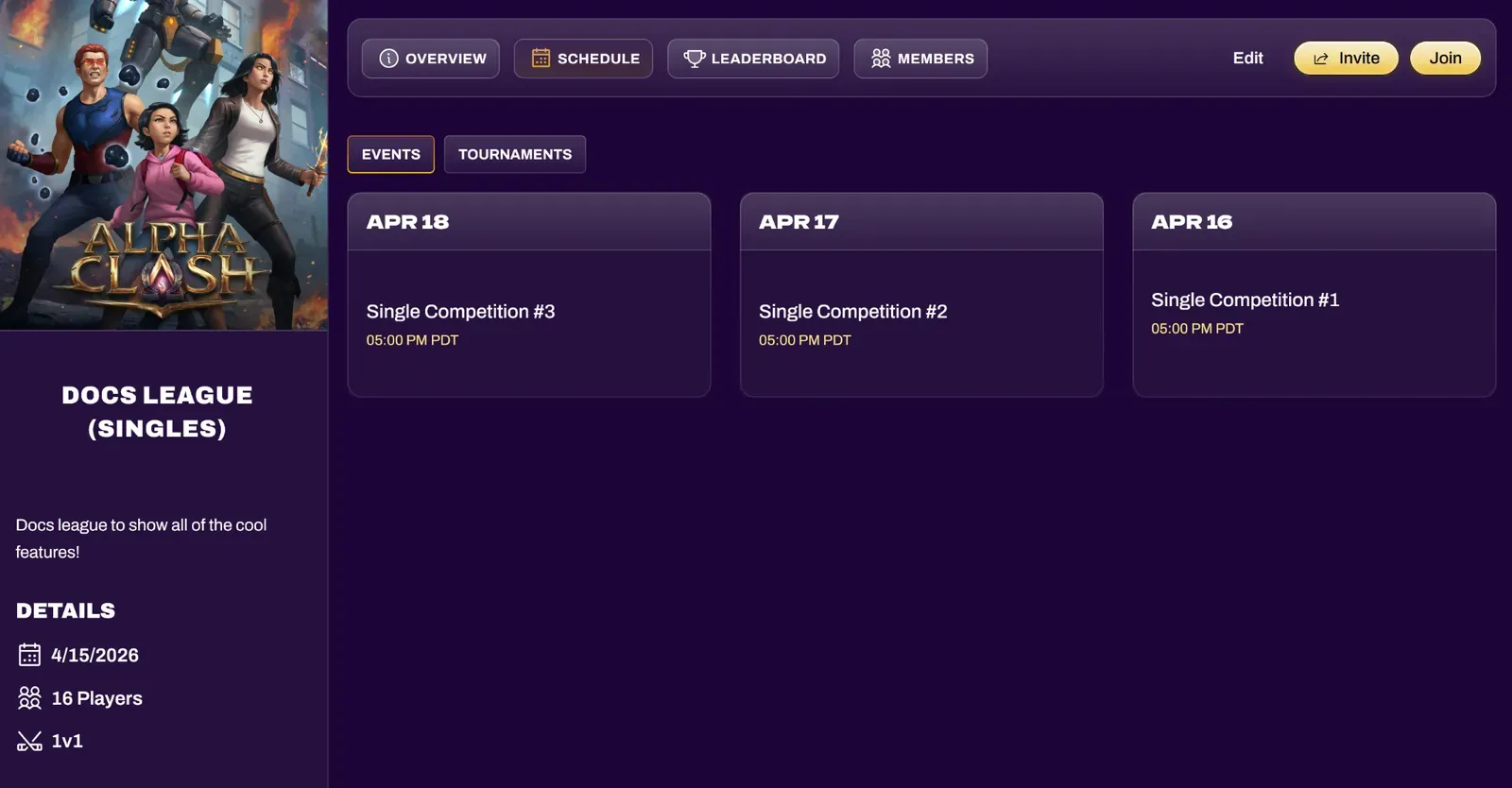
Section titled “League Schedule”Organizers and league members can view the League Schedule from the League View. This tab shows all past, ongoing, and future events within the league. Selecting events or tournament rounds from this view will take you to the respective event or tournament round.
League Leaderboard
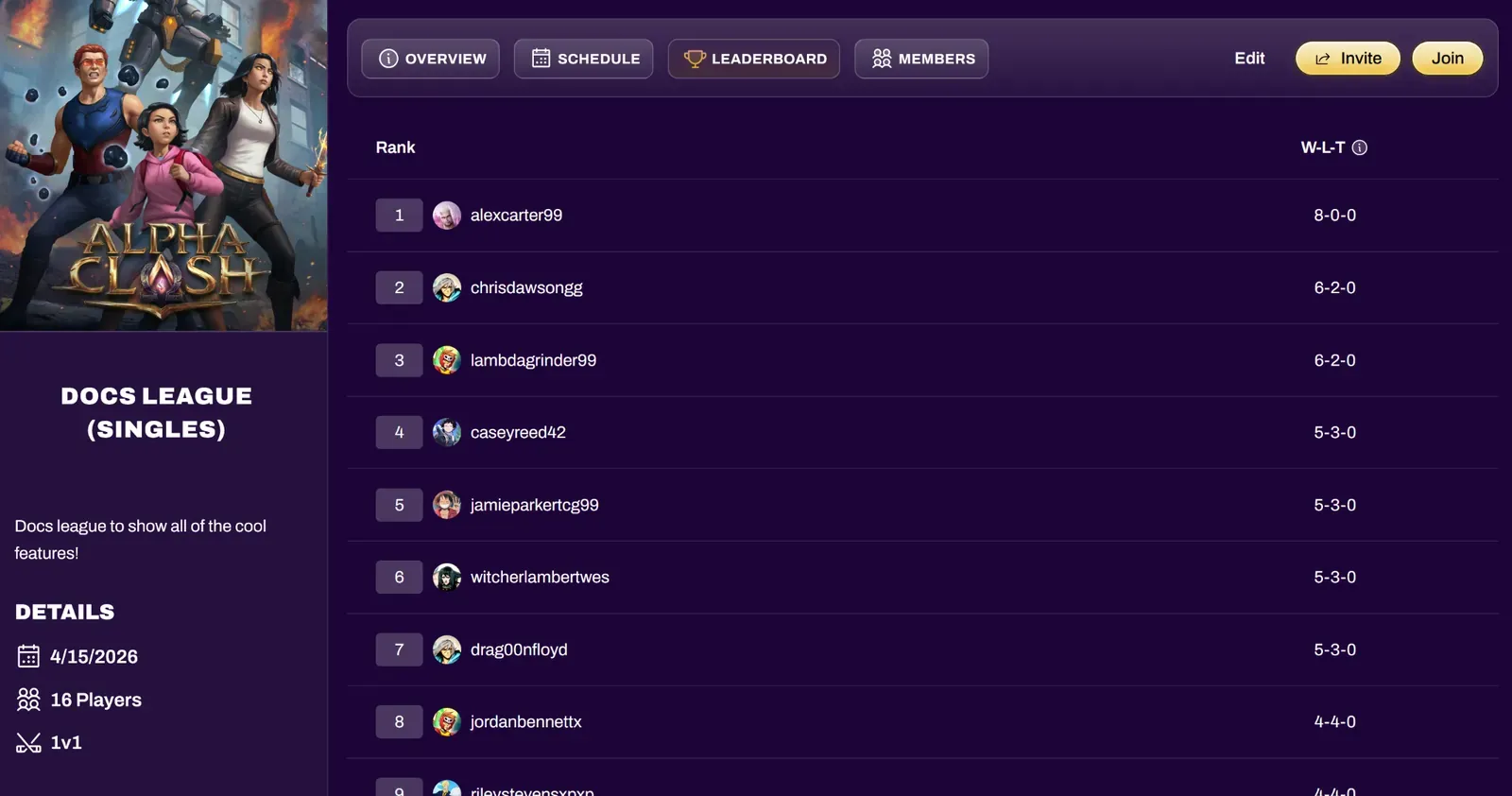
Section titled “League Leaderboard”Organizers and league members can access the Leaderboard from the League View. The leaderboard compiles results from all tournaments in the league and presents them in the format of the leaderboard mode you selected. The leaderboard automatically updates as more tournaments are played. If a score correction is made in a league tournament, the correction will be properly reflected on the leaderboard.
Sending Updates to League Members
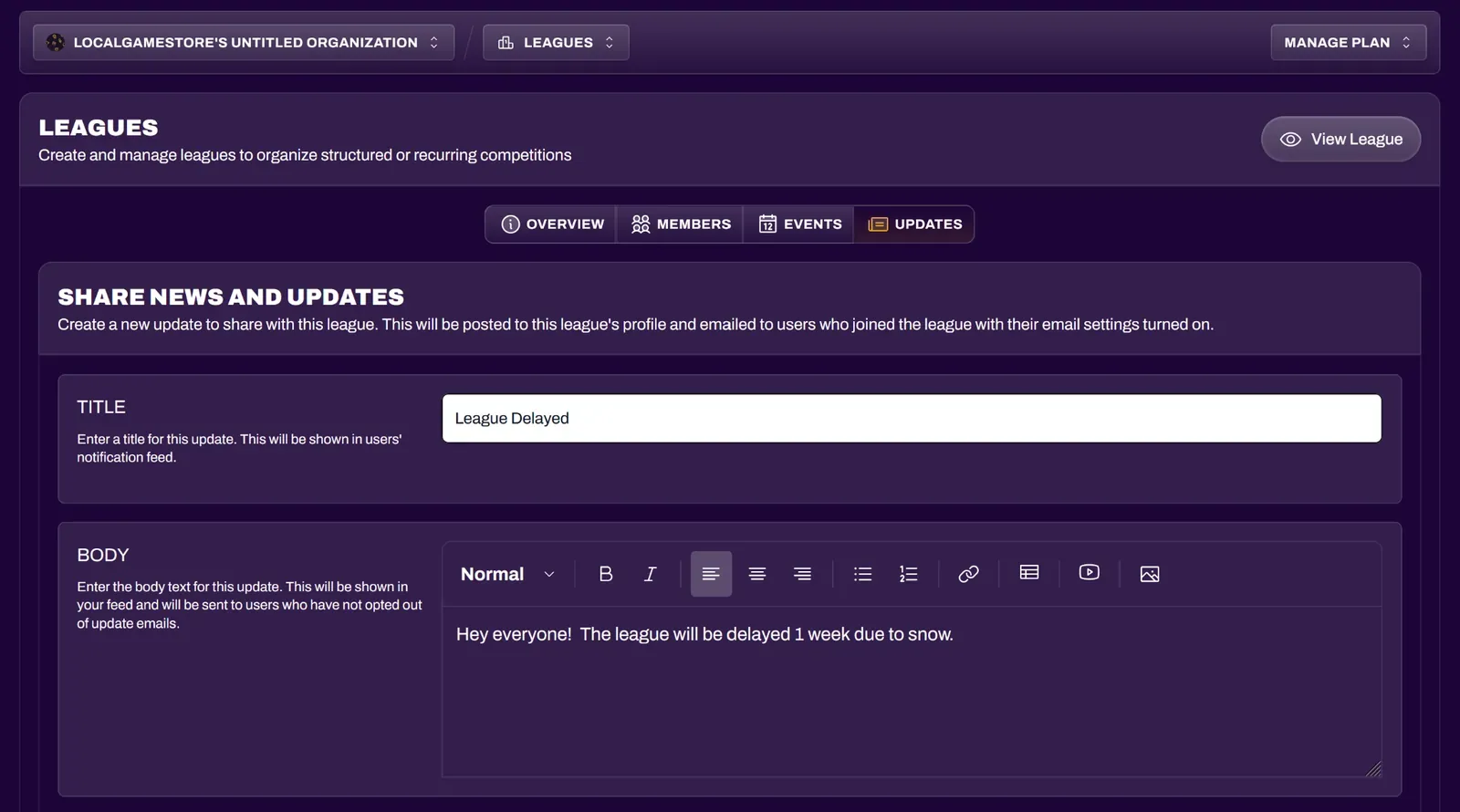
Section titled “Sending Updates to League Members”You can send updates to players via the Updates tab in the League Editor. Members of the league will receive a notification immediately after an update is published.