
Sponsor Requests
A Sponsor Request asks an organization on XP Network, usually an activity publisher or a parent organization, to sponsor your event. An approved request makes your event Official and can add prize support: the sponsor’s achievements and items, which you can give to the attendees.
Two people take part:
- Event organizer: sends requests from the event’s Sponsor Support tab, then gives out the prizes once approved.
- Organization owner: reviews requests under Sponsorships in the organization Hub, then approves or denies them.
A request is Pending, Approved, Denied or Withdrawn. The sponsor has 7 days to respond, and an event’s details lock once a request is approved.
Sending a Sponsor Request (event organizers)
Section titled “Sending a Sponsor Request (event organizers)”Before you start, add your event’s Activities in Event Basics and finalize its date, time and location. You can only request sponsors that own one of your event’s activities, and event details can’t be changed once a request is approved.
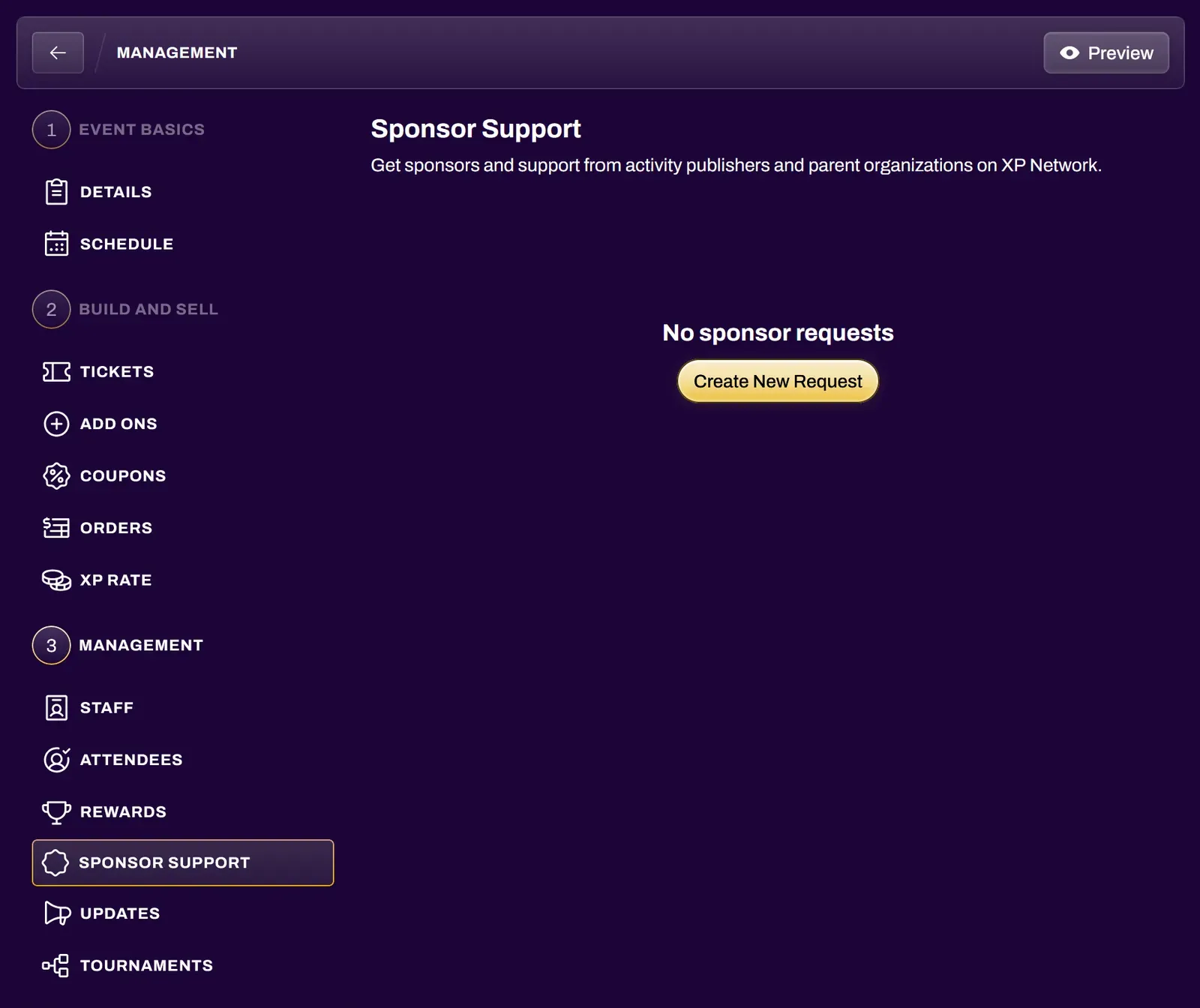
- In your event’s Event Management section, select the Sponsor Support tab.
- Select Create New Request.
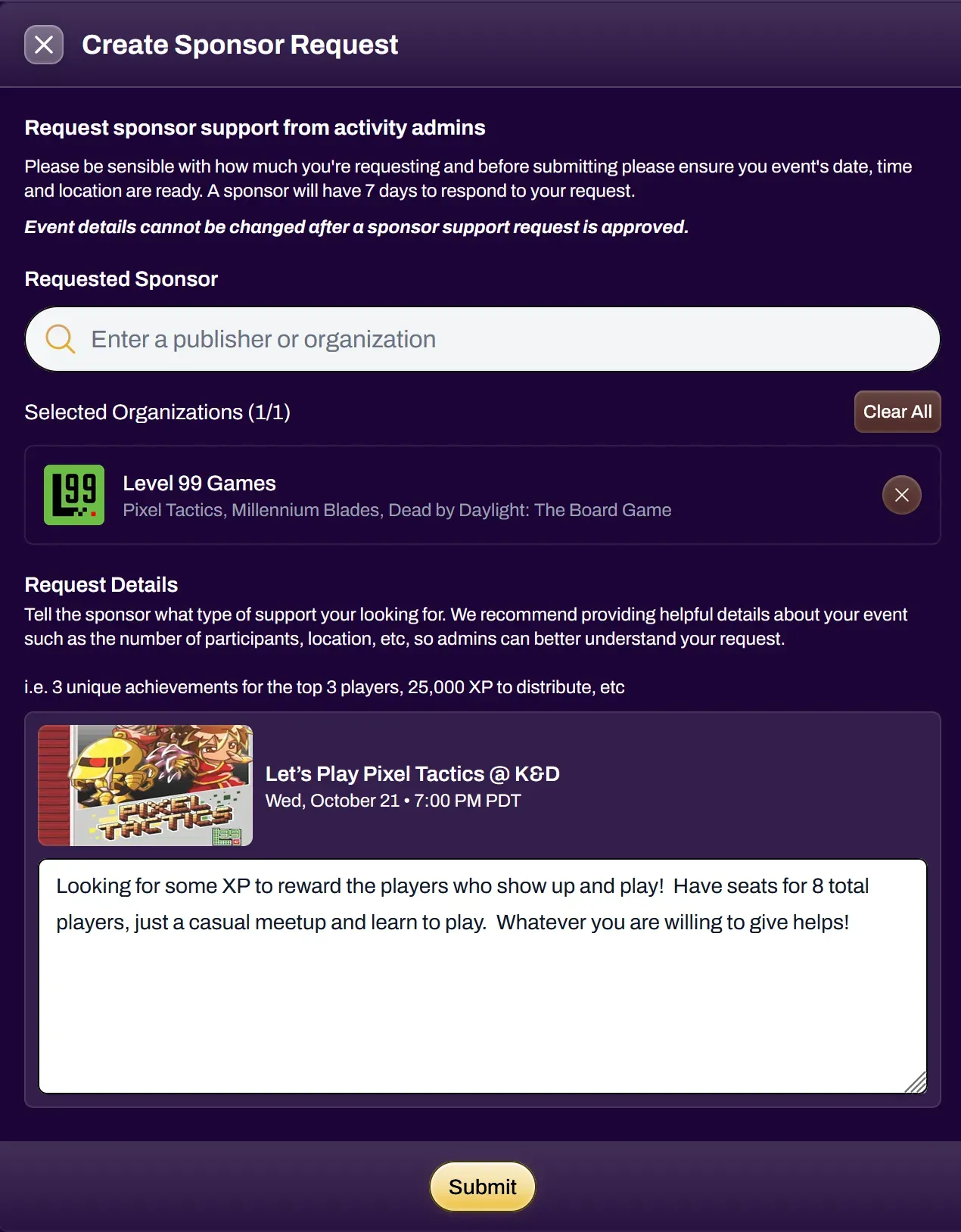
- Under Requested Sponsor, search for the publisher or organization.
- Under Request Details, describe your event and the support you want: number of participants, location, and the prizes you’re asking for, such as achievements for the top players or some XP to distribute.
- Select Submit. The organization’s owners get a notification and an email.
You can send requests to more than one organization if your activities call for it. Each appears as its own row in Sponsor Support with its status.
While it’s pending
Section titled “While it’s pending”- Open the request to edit Request Details, then select Update. The sponsor can’t be changed: withdraw and send a new request instead.
- Select Withdraw to cancel it. You can submit a new request afterward. The sponsor is not notified when you withdraw.
If it’s approved
Section titled “If it’s approved”- You get a notification and an email, and the request shows Your request was approved. The sponsor’s explanation appears under Sponsor’s Note.
- Your event becomes Official.
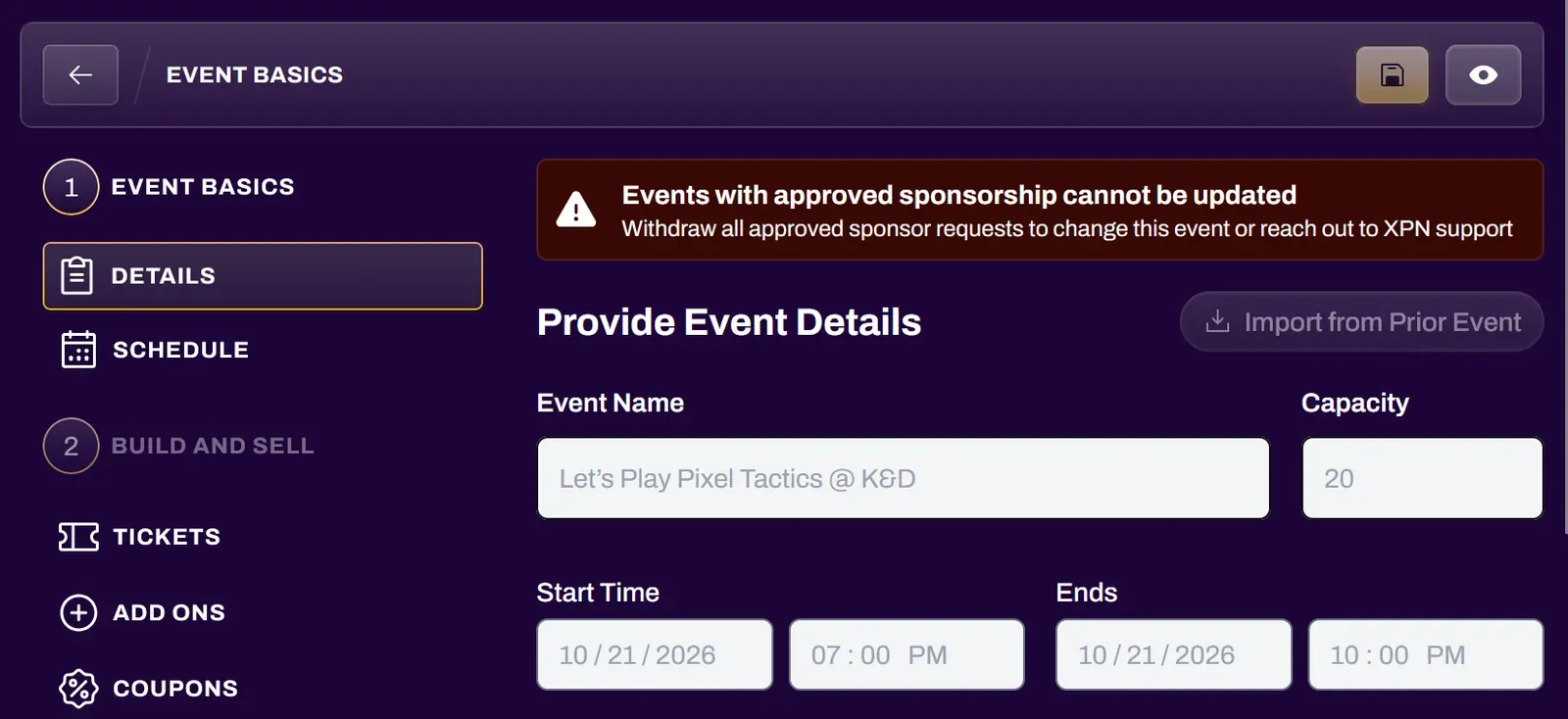
- Event details lock. The details page shows Events with approved sponsorship cannot be updated. To change the event, withdraw all approved sponsor requests or contact XPN support.
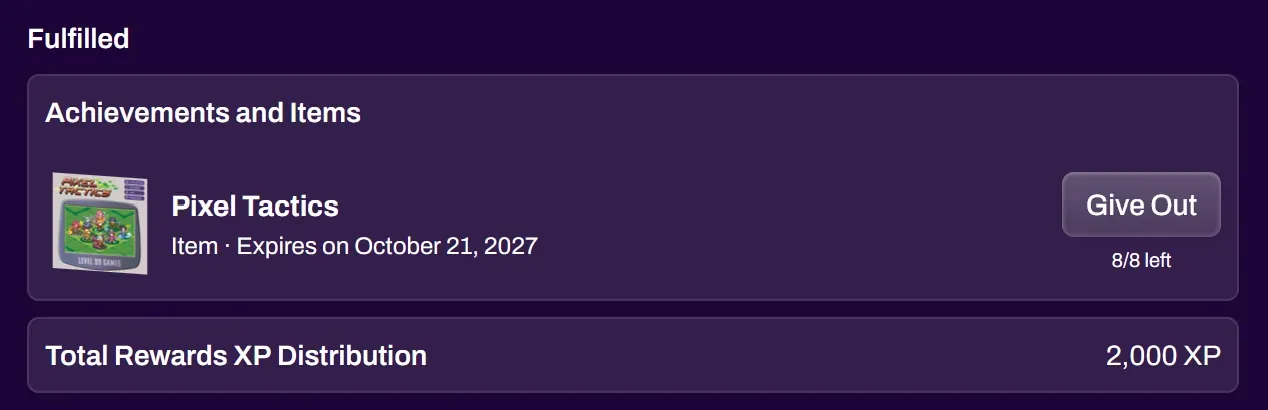
- The prizes you were granted appear under Fulfilled.

If it’s denied
Section titled “If it’s denied”You get a notification and an email, and the sponsor’s explanation appears under Sponsor’s Note. The request shows as Rejected in your Sponsor Support list. You can request again from the same publisher. More detail about your event may improve your chances.
Giving out sponsored prizes
Section titled “Giving out sponsored prizes”Each prize under Fulfilled shows how many uses are left, such as 5/8 left, and when it expires. Prizes expire one year after approval.
- In Sponsor Support, open the approved request.
- Select Give Out next to an achievement or item.
- For an achievement, pick attendees in Unlock Achievement and select Unlock. For an item, pick attendees in Adjust User Inventories and select Adjust.
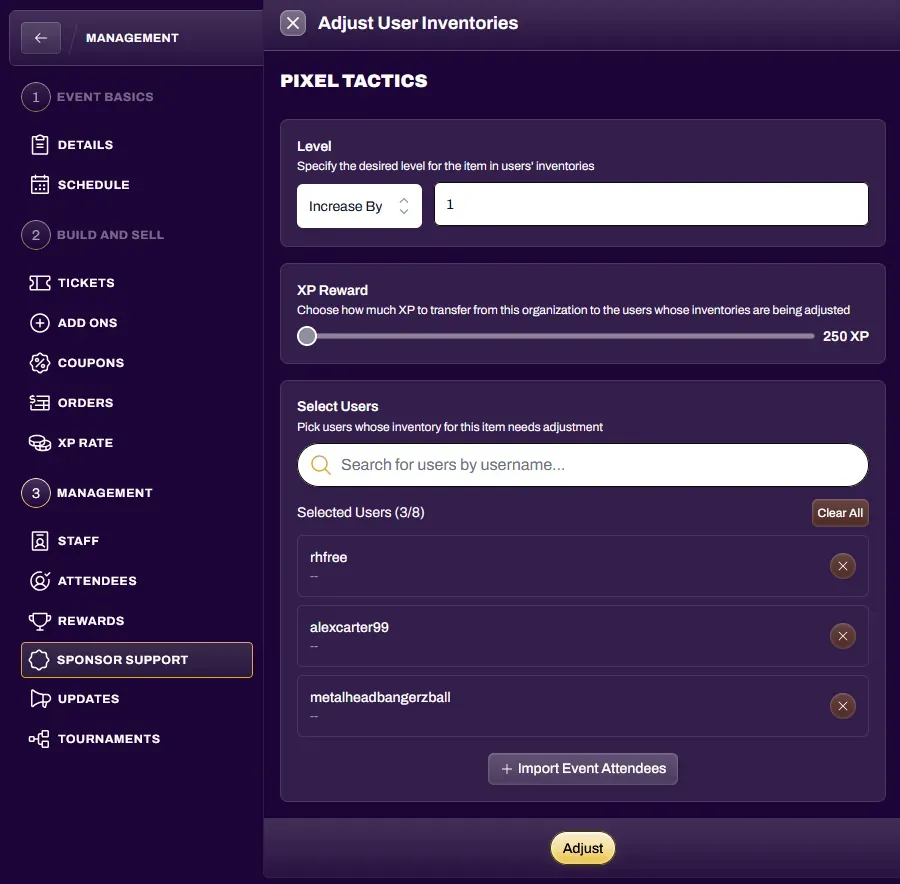
Only attendees of this event can receive sponsored prizes, and each recipient uses one of the prize’s remaining uses. Select an achievement’s name to see who has unlocked it.
You can also withdraw an approved request. That removes Official status and any prizes not yet given out. Prizes already given out stay with attendees.
Reviewing Sponsor Requests (organization owners)
Section titled “Reviewing Sponsor Requests (organization owners)”Only organization owners can see and answer sponsorship requests. Treasurers and other members can’t. Sponsorships must also be enabled for your organization.
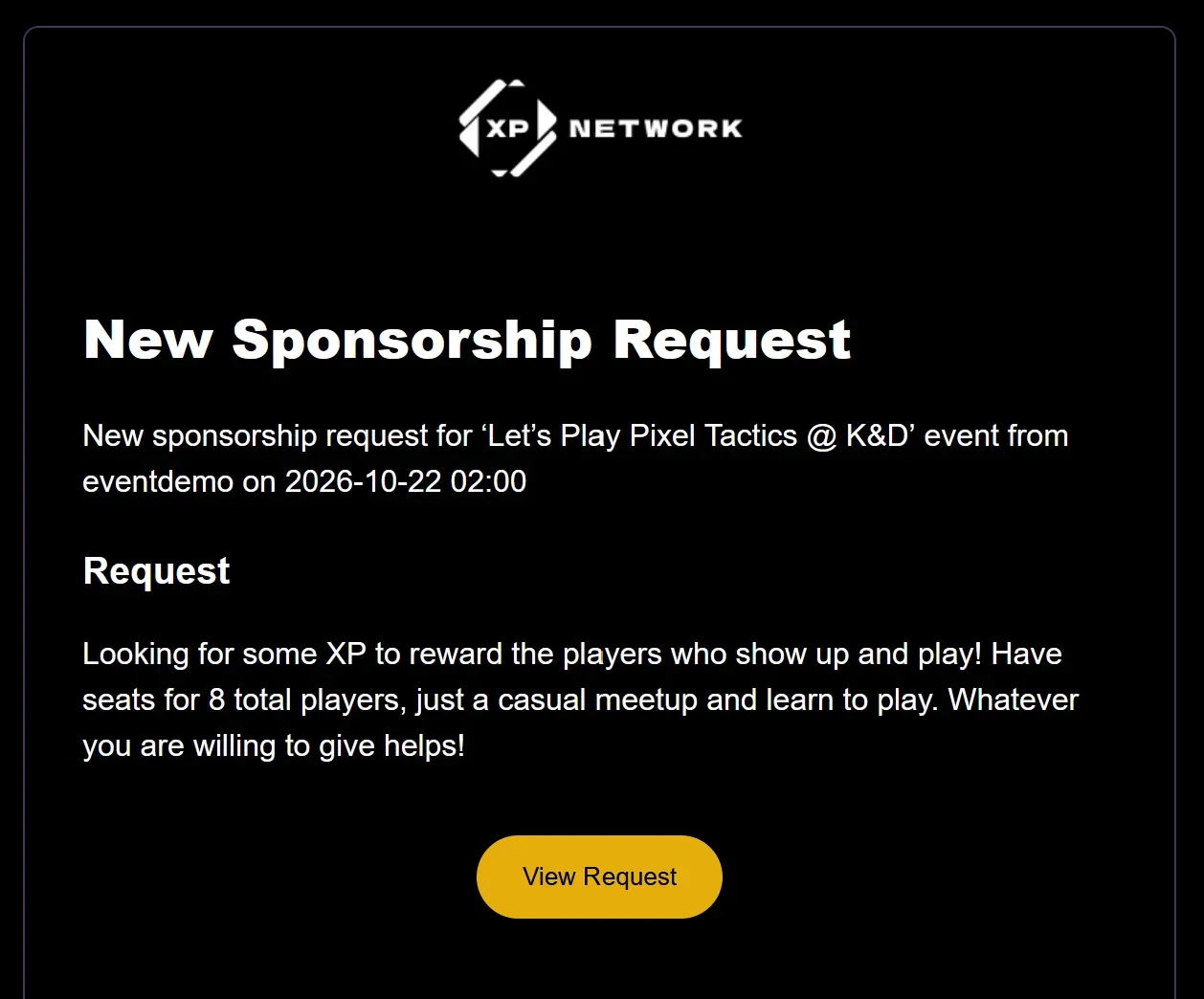
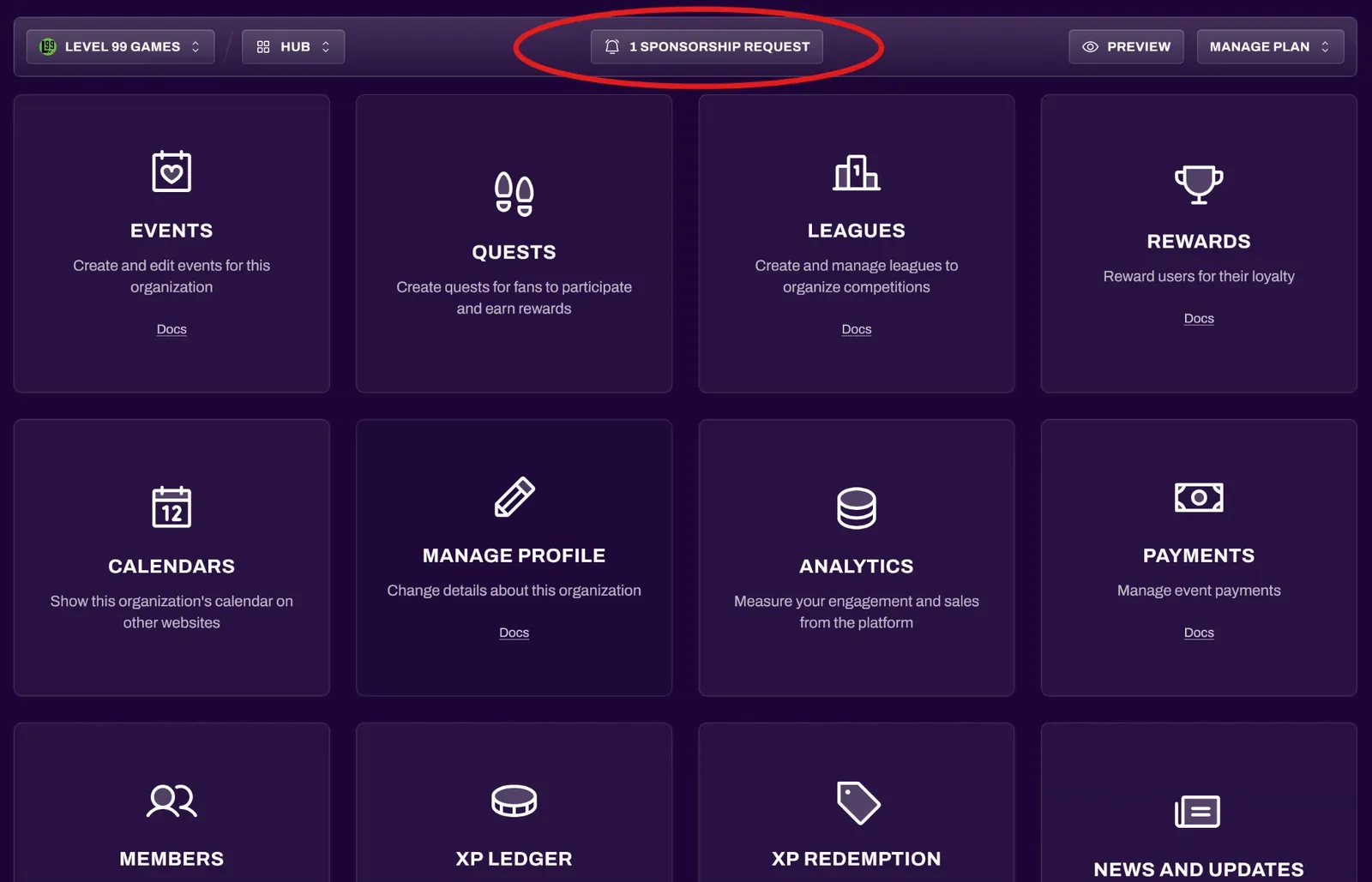
When a request arrives, every owner gets a New Sponsorship Request notification and an email. Your Hub also shows a Sponsorship Requests shortcut with the number waiting.
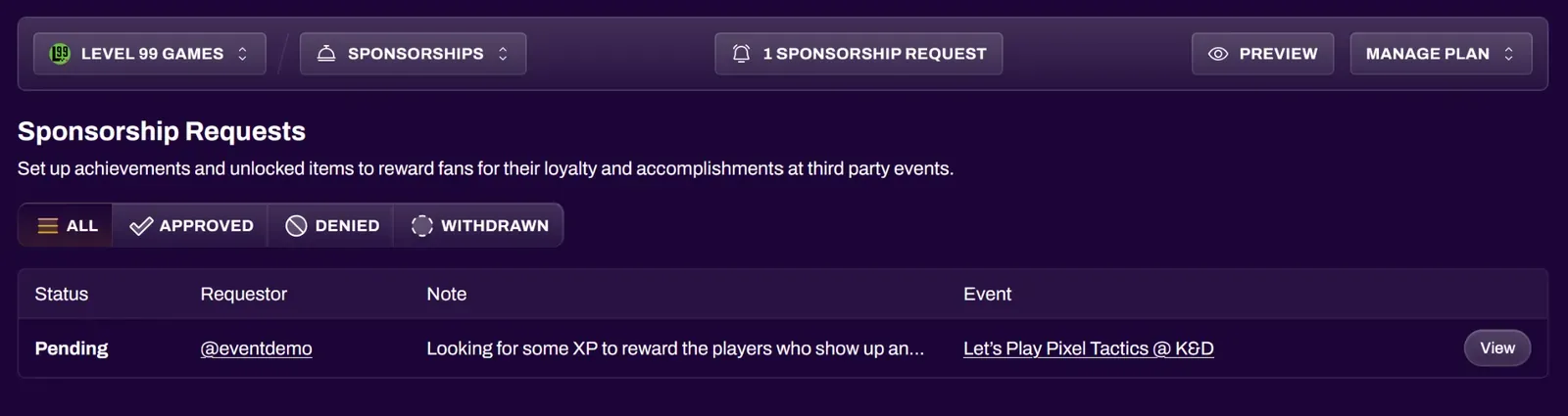
- In your organization Hub, open Sponsorships.
- In Sponsorship Requests, find the request and select View. Use the All, Approved, Denied and Withdrawn tabs to filter.
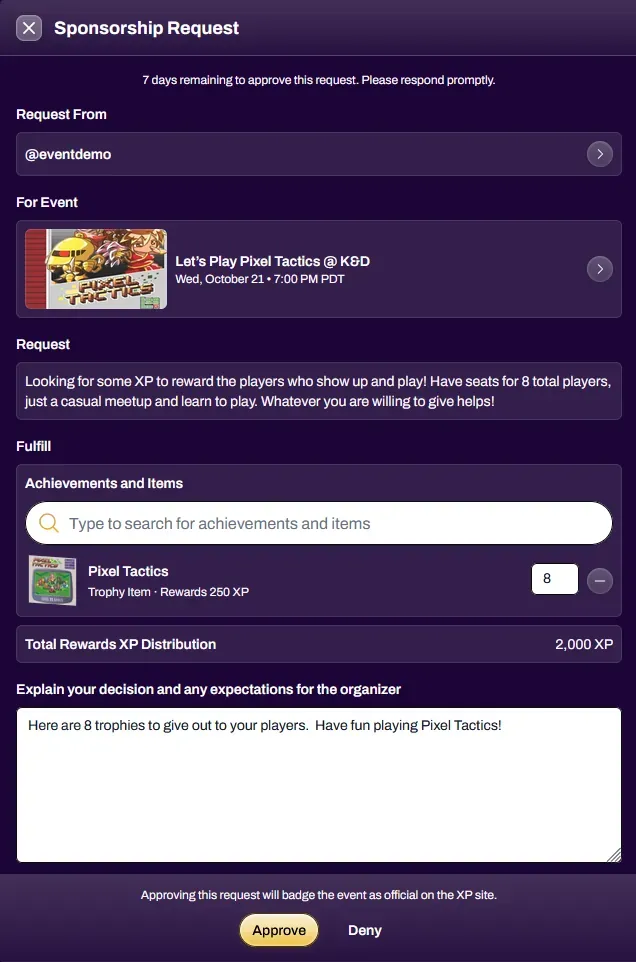
- Check Request From, For Event and Request: the requester’s profile, the event, and their note. The top of the request shows how long you have left to respond.
- Under Fulfill, search Achievements and Items and add the ones you’ll provide. Set how many times each can be used, at least 1. Total Rewards XP Distribution shows the total XP they can hand out.
- Fill in Explain your decision and any expectations for the organizer. It’s required, and the organizer sees it as the Sponsor’s Note.
- Select Approve or Deny.
You can attach achievements and items that your organization has already created. You can approve with no prizes attached: the event still becomes Official. Attached prizes can’t be changed after approval.
| Action | What happens |
|---|---|
| Approve | The event is badged Official on XP Network and its details lock. The organizer can give out your prizes to attendees, up to the uses you set, for one year. The organizer is notified and emailed. |
| Deny | No prizes or Official badging. The organizer is notified and emailed with your explanation, and can submit a new request later. |
| Withdraw (after approving) | Official status and all unused prizes are revoked. Prizes already given out stay in attendees’ inventories. The organizer is notified and emailed. |
To withdraw an approved request, open it, update the explanation, and select Withdraw.
How a request moves
Section titled “How a request moves”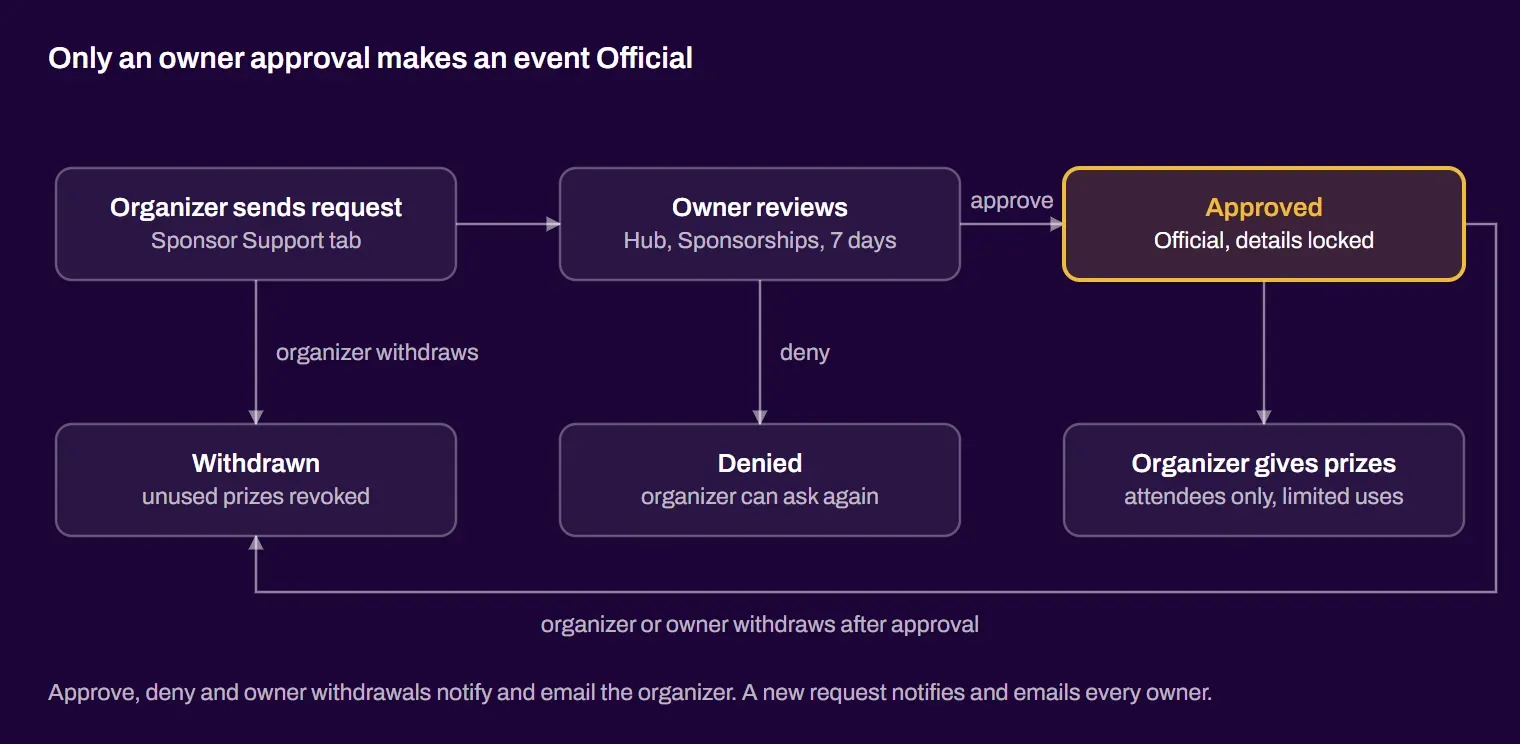
A pending request ends in approval, denial or withdrawal. An approved request can still be withdrawn later by either side.
Can I make my event Official myself? You can’t pick the event type. It’s set automatically: an event becomes Official when a sponsor approves its request, or when it’s created under an organization that owns one of its activities.
Why can’t I find the organization I want? The search only lists organizations that own one of your event’s activities and accept sponsorship requests. Add the right activity in Event Basics first.
Can I edit my event after approval? No. Withdraw all approved sponsor requests or contact XPN support.
Do I have to ask for prizes? No. Describe what you’d like in Request Details, and the sponsor decides what to attach. Approval makes the event Official either way.
Who can receive sponsored prizes? Only attendees of the event, up to the uses the sponsor set, before the prize expires.
I’m an owner but don’t see Sponsorships in my Hub. Only owners see it, and your organization needs a Pro or Enterprise plan.