
Creating Events
Event Creation
Section titled “Event Creation”You can access the event creator by navigating to your Hub, or by selecting the Create Event button in the header.
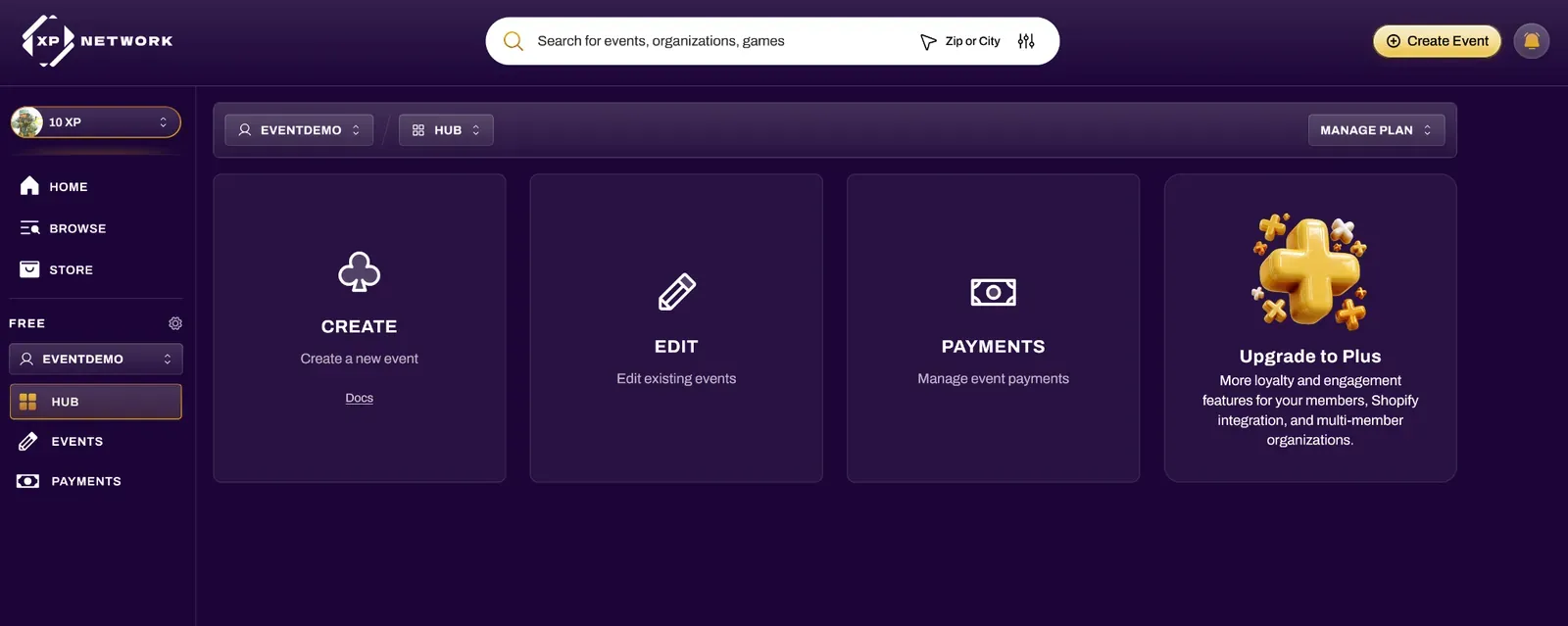
Event Templates
Section titled “Event Templates”After selecting Create Event, you’ll be asked to set up a new event by choosing a starting template. Templates create the tickets, tournaments, and check-in for you, and you can change any of it later in the event creator.
| Quick Event | a local or online gathering with a ticket ready to sell as soon as you save |
| Quick Tournament | one tournament with its entry ticket ready to sell |
| Large Event / Multi Day | badges and day passes, an add-on to rename, a front gate for check-in, and a daily schedule |
| Convention | badges, day passes, and a front gate at convention scale. Add tournaments and vendors as you go |
| Custom Event | a blank event where you add tickets, tournaments, and everything else yourself |
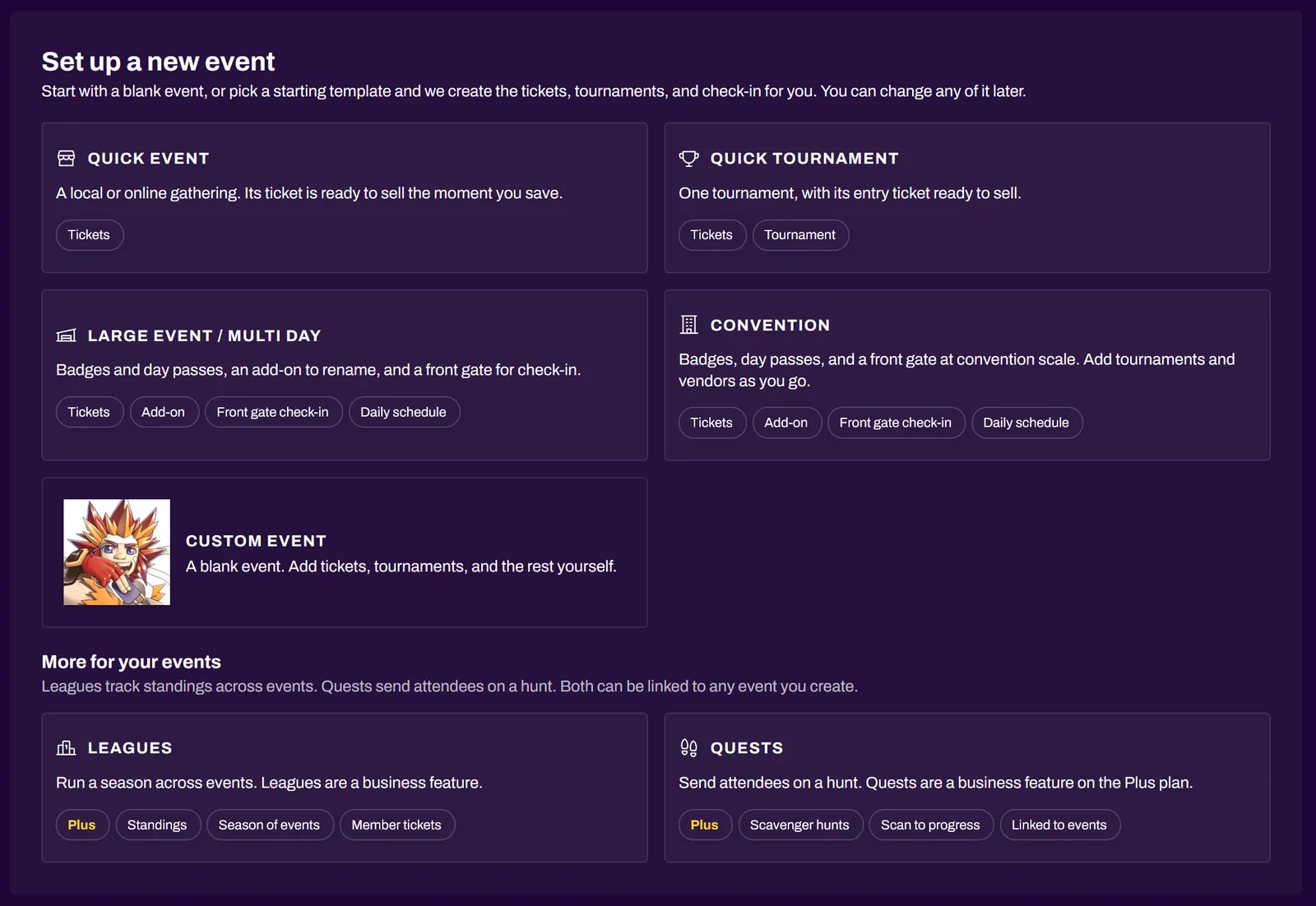
Below the templates, the More for your events section links to Leagues and Quests, which can be linked to any event you create. Both are available on the Plus plan or higher.
Once you’ve chosen a template, the event creator opens and you can start filling out information.
While you’re creating the event, the top of the form shows which template you’re using. To pick a different one, select the pencil icon next to the template name to go back to the template list.
There is also an Import from Prior Event button that can pull information and images from a previous event from your staff event history, effectively duplicating events.
Organization
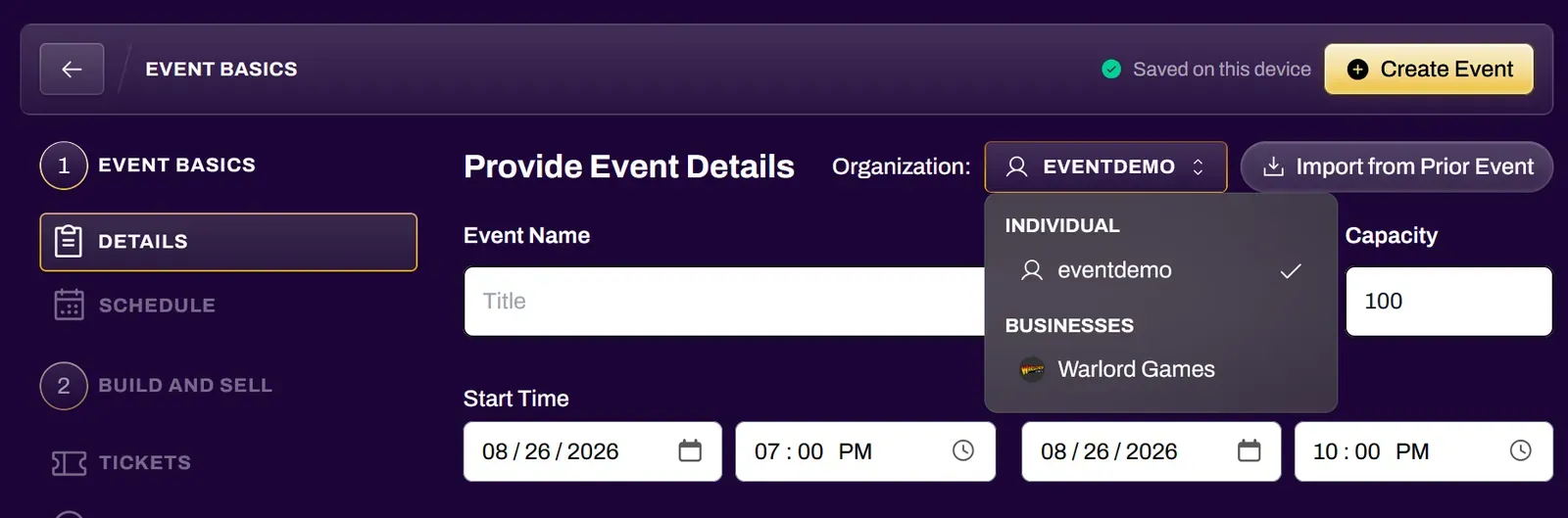
Section titled “Organization”If you are part of multiple organizations, be sure to confirm the proper organization (from the organization dropdown) that you are creating the event under.
The Organization field matters if you are creating the event on behalf of an organization already on XP Network. You must be an owner or a member of an organization in order for it to show up in this field. Organization owners and treasurers can add achievements to events that are created under their organization.
Any paid ticket sales will go to the Stripe account that is associated with this organization. The organization field cannot be changed once the event is created.
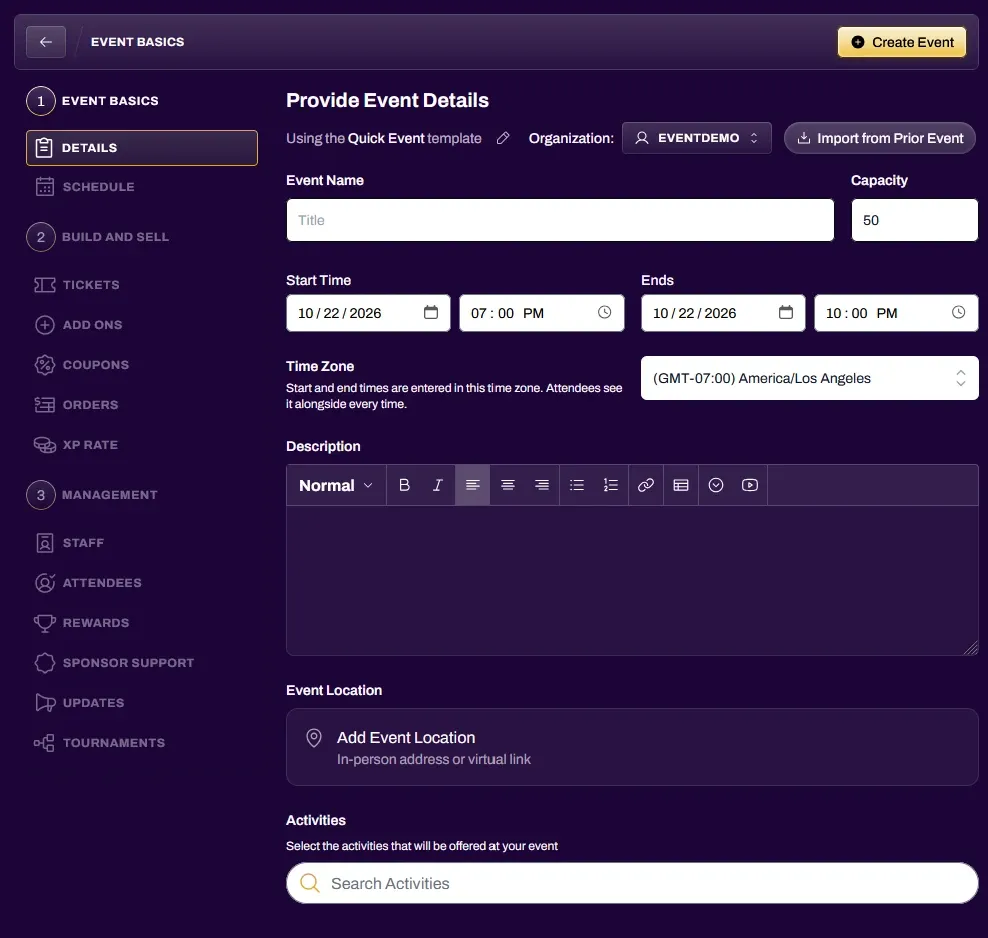
The event creator has many fields to fill out that help with event presentation and discovery.
1. Event Basics
Section titled “1. Event Basics”Basic Details
Section titled “Basic Details”Event Name - Name of your event that appears when searched
Capacity - Number of tickets available for your event. This number can be edited later if you need to increase the number of tickets to your event.
Start Time - Date and time that your event starts.
End Time - Date and time that your event ends.
Time Zone - The time zone your Start Time and End Time are entered in. Attendees see it alongside every time for your event. It defaults to your device’s time zone, or to the league’s time zone if the event is part of a league.
Description - Details of your event. The description editor has many tools available. You are able to organize information through bulleted or numbered lists, or even tables that you can modify and sort information in. You are also able to embed a YouTube video if you wish. You can also link off to external documents or pages for additional info for the event attendees.
Event Location - Physical or Virtual. Physical Events require a location which is verified by the built-in maps plugin. Virtual Events require a URL location. This can be a website, a Discord server, Twitch channel, YouTube channel, Zoom link, etc.
Activities - Games that are relevant to your event. For example, a BattleTech miniature paint night event would use BattleTech as the activity. You are able to add more than 1 activity if your event calls for it.
Event Page Image - Square image (1:1) that represents the event when a user is on the event page.
Search Preview Image - Banner image (16:9) that represents what people will see when they search events.
A crop tool exists that helps set the image at the proper dimensions. This tool also prevents any squishing or warping of images that are not exactly the proper dimensions to start.
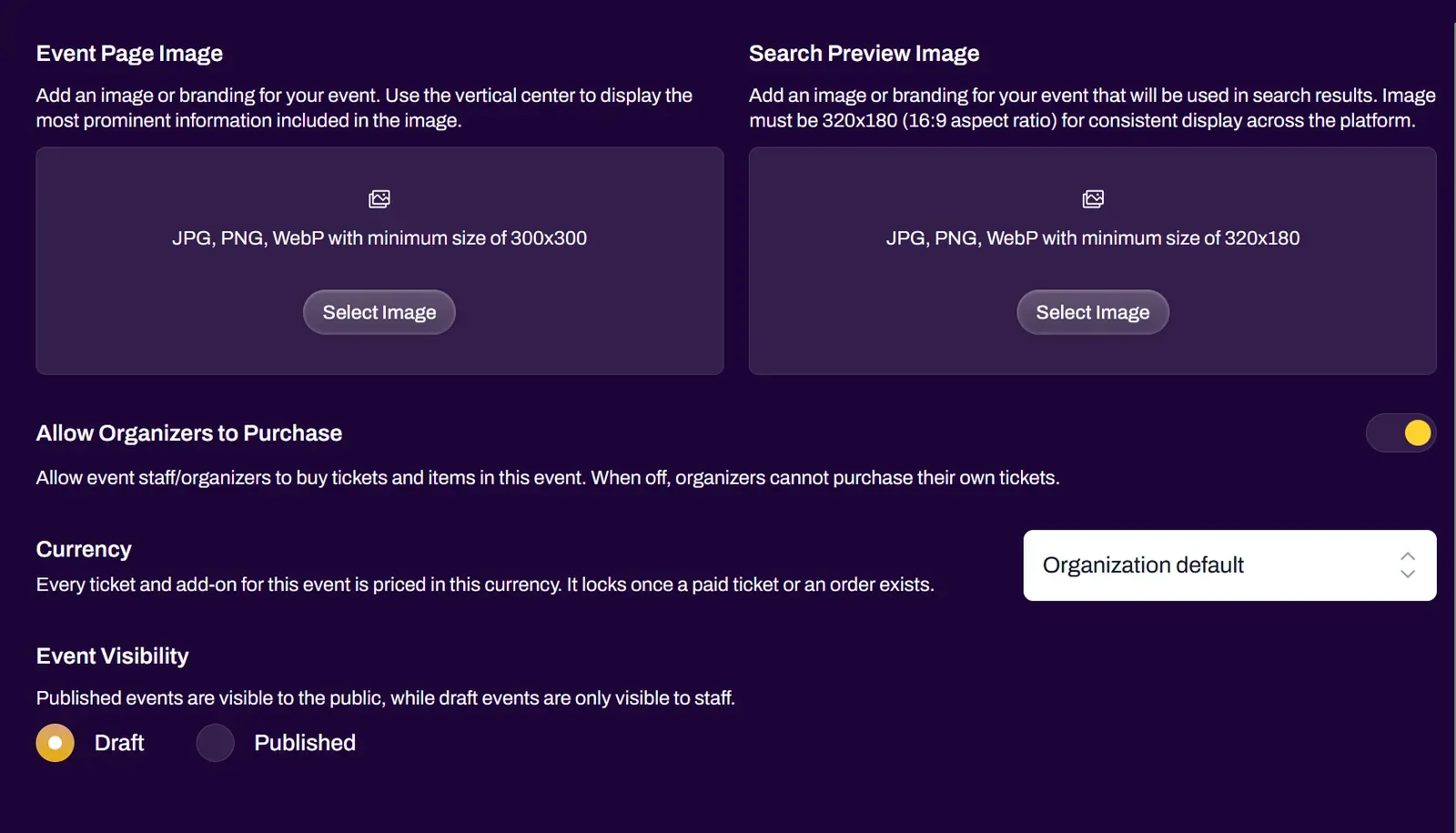
Allow Organizers to Purchase - Toggle that allows the event creator and assigned staff to be able to purchase tickets and add-ons for the event. For example, if you are creating an event for a card game tournament, and you want to play in that tournament, turn this toggle on.
Currency - Choose which type of currency the event tickets and add-ons will be displayed in. This will affect both free and paid tickets and add-ons. The currency locks once the event has a paid ticket or an order.
Event Visibility - Events can be set to Draft or Published. In Draft mode, only the event creator and staff added to the event under the Staff tab will be able to see the event. In Published mode, the event is able to be seen by the public. You can view events in Draft by viewing Staff Events in your profile, or by going to the Edit section of the Events tab in your Hub.
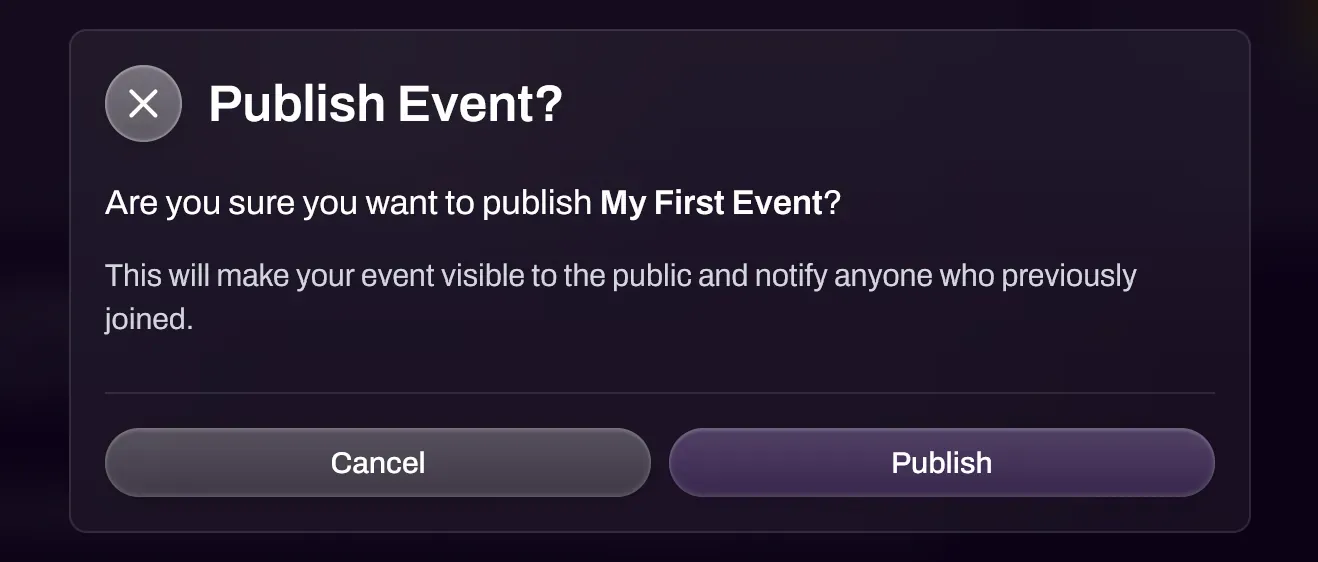
Once you have entered all details, select Create Event. If the Event Visibility was set to Published, you will get a confirmation that you want to Publish the event.
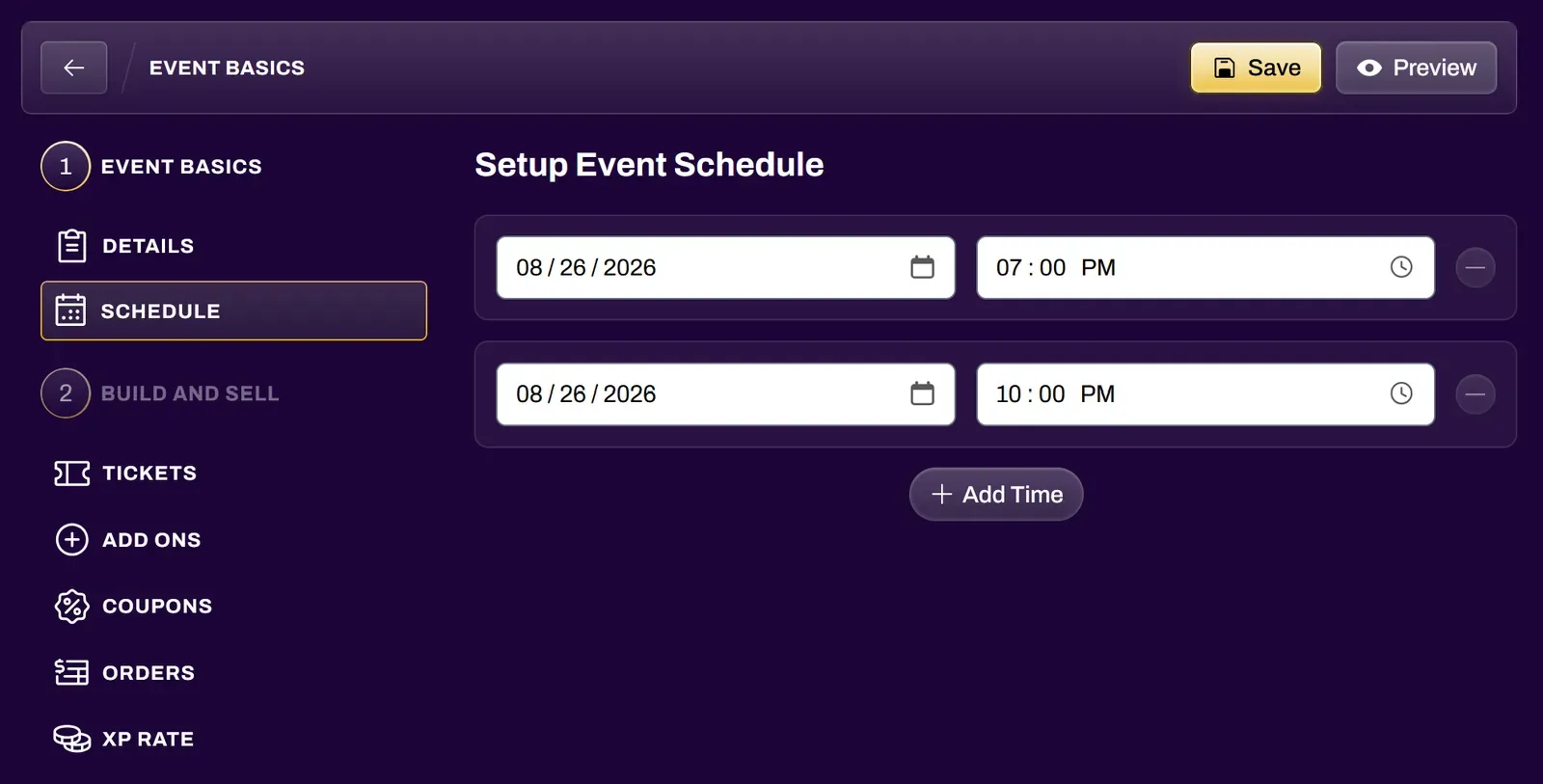
Event Schedule
Section titled “Event Schedule”If your event is across multiple days, or if you would like to segment times, you can add more times to your event here.
2. Build and Sell
Section titled “2. Build and Sell”Ticketing
Section titled “Ticketing”Events need tickets created so that people can join the event. A general admission ticket is automatically created, however you can add more tickets, both paid and free, if your event calls for it. The On Sale Date of a ticket determines when people can join the event.
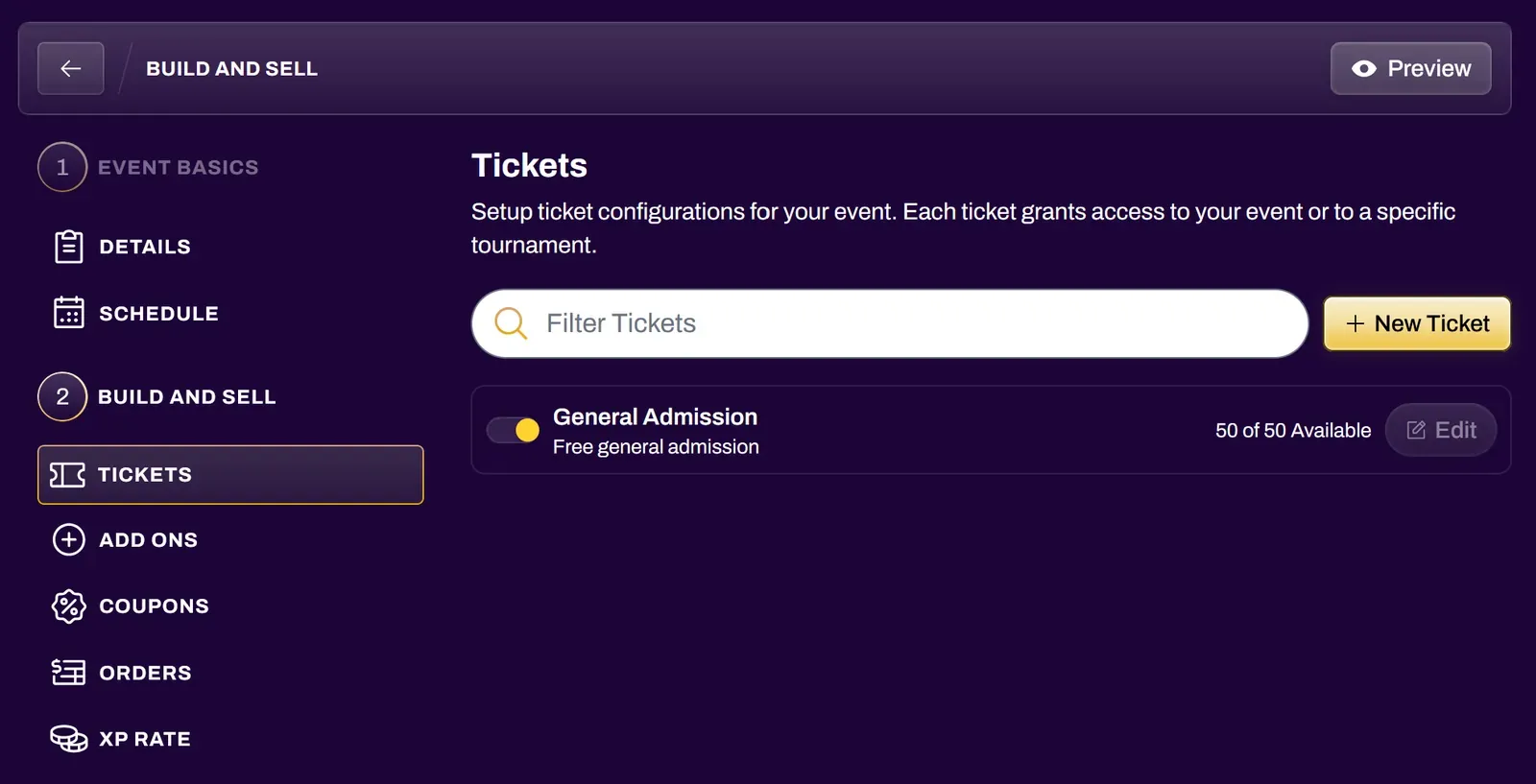
You can create additional tickets if your event calls for it by selecting the New Ticket button.
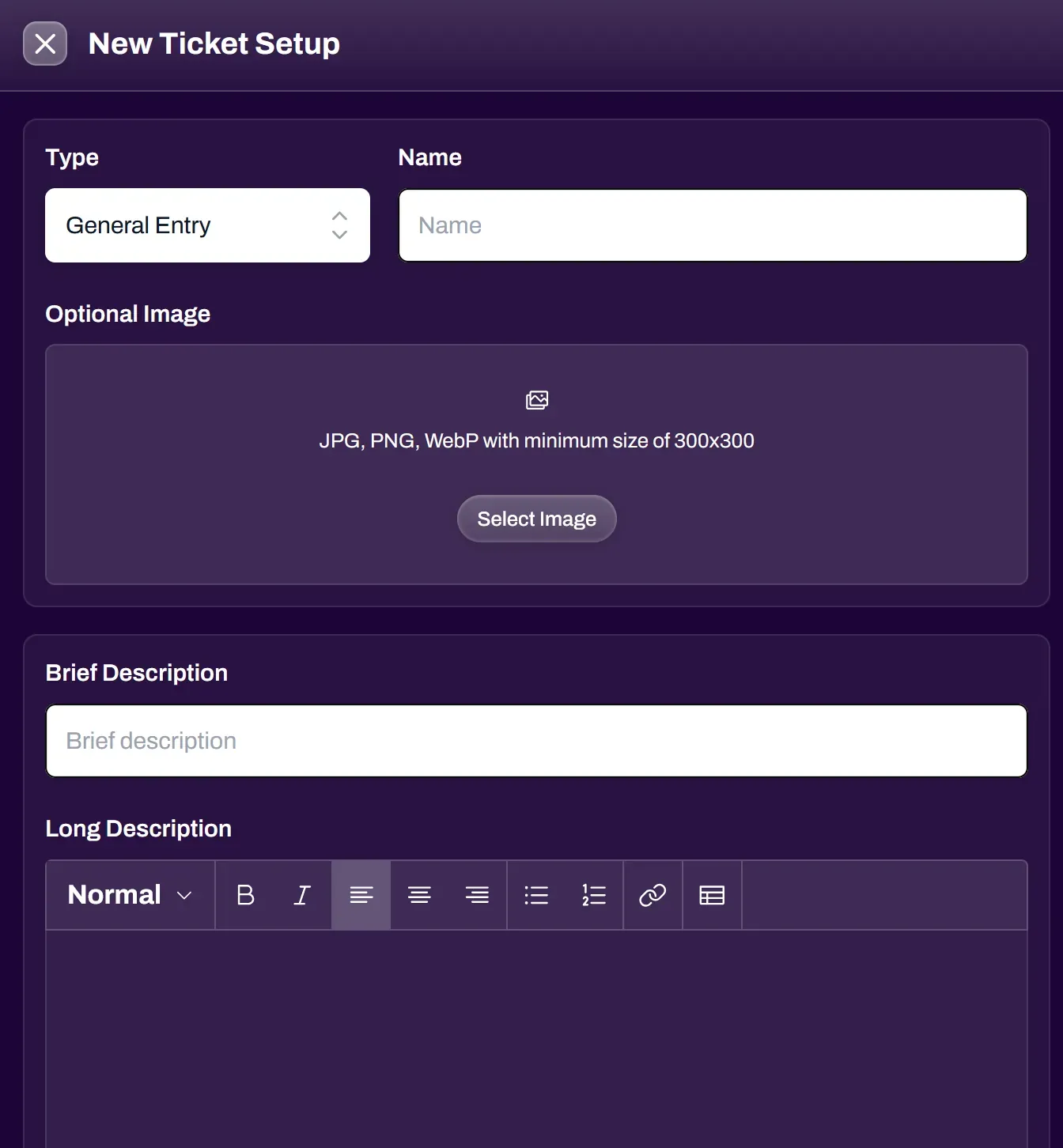
Type - General Entry or Tournament Entry. General Entry is the most common ticket type, which grants admission to the event. If creating a Tournament Entry ticket, make sure to create the tournament first under the Management section.
Name - mandatory field displaying the name of the ticket
Optional Image - set an image to be displayed with the ticket
Brief Description - mandatory field displaying a short description
Long Description - optional field containing more details about the ticket
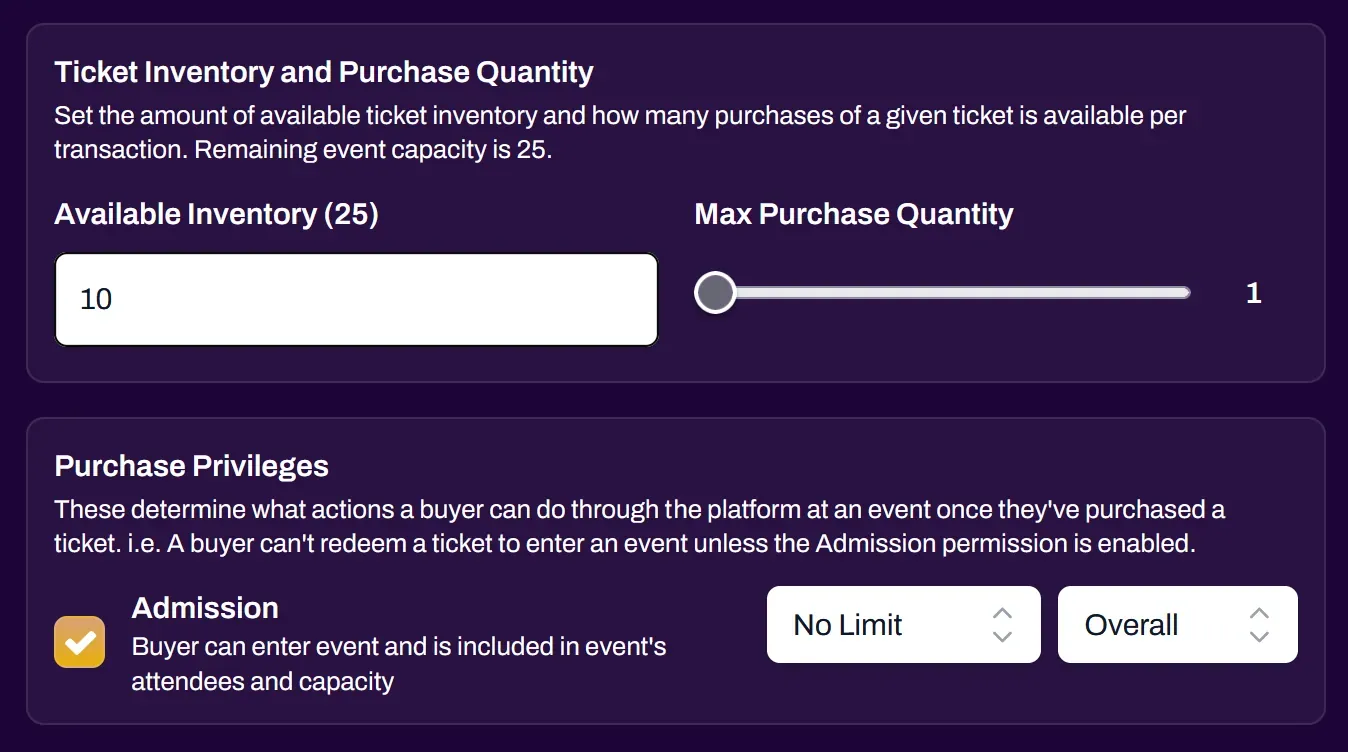
Ticket Inventory - set the amount of tickets available you want to sell. You can create multiple tickets for events, each with their own inventory. You may need to raise the Capacity in the Event Details if other tickets have already been assigned to the current event capacity.
Max Purchase Quantity - limits the user on how many purchases they can make for the specific ticket. The default General Admission ticket is automatically set to Max Purchase Quantity of 1 (1 ticket per user). Tournament Tickets are automatically locked to Max Purchase Quantity of 1. You can set this above 1 in the case of raffle tickets, for example.
Purchase Privileges - determines what the ticket allows the user to do at an event. This is automatically defaulted to Event Admission, and additional options such as Tournament Admission may show up here in the case of a Tournament Ticket. You may have 1 ticket combining multiple privileges, such as a Tournament Ticket granting both Event Admission and Tournament Admission. You can also set the limit for how many times a ticket can be redeemed.
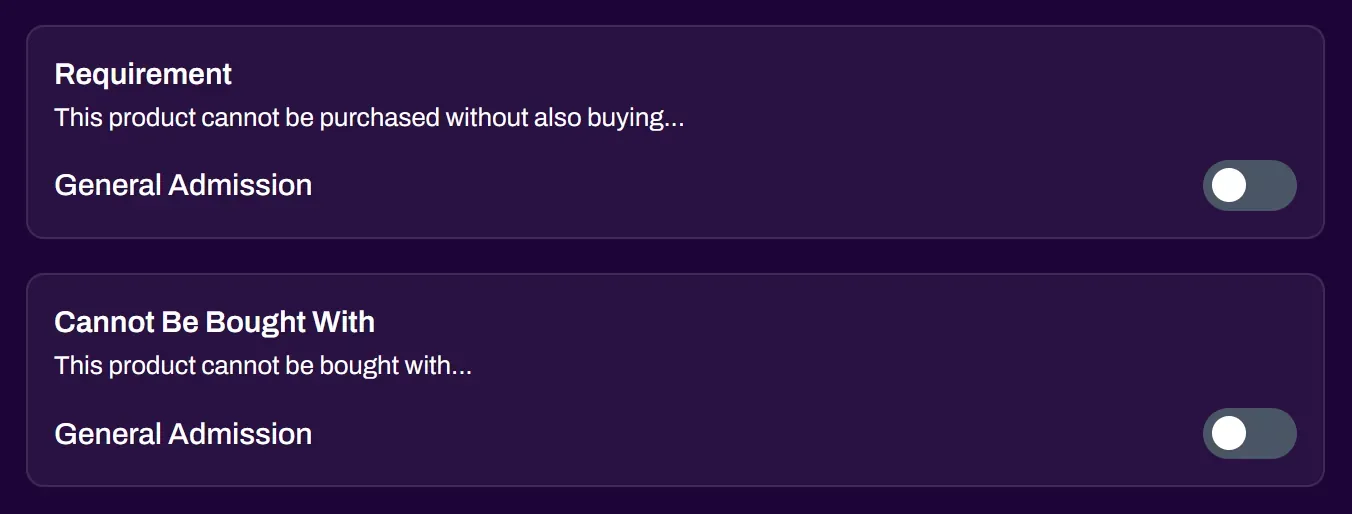
Ticket Requirements - When creating additional tickets, you have the ability to require specific tickets to be purchased together, or make certain ticket combinations forbidden. You can use these options to control what event attendees are allowed to purchase together, and also safeguard them from over-purchasing something included in a VIP ticket, for example.
Sales and Pricing
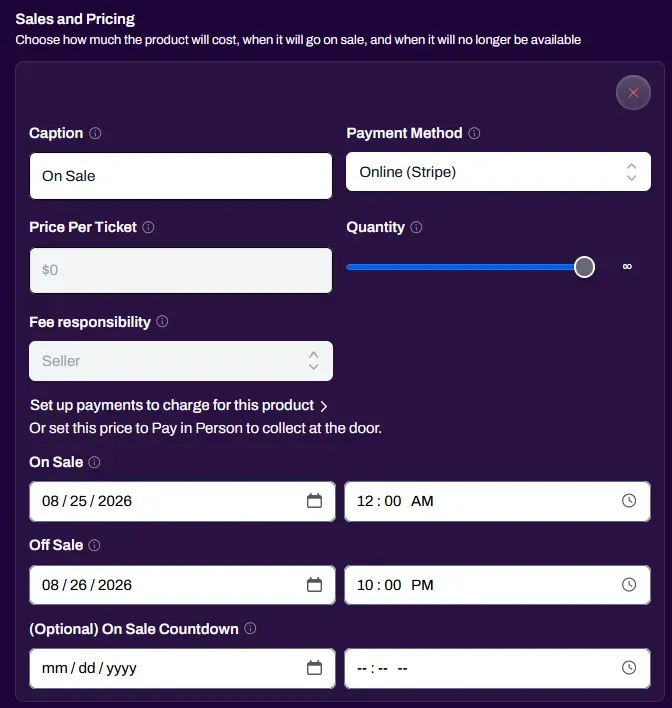
Section titled “Sales and Pricing”Caption - short label shown to buyers to tell this pricing tier apart from others.
Payment Method - Online (Stripe) or Pay in Person. Use Pay in Person if you wish to accept pre-registrants and collect payment on site.
Price Per Ticket - How much you are charging for the event ticket. This price is automatically locked to $0 until a Stripe account has been linked, then it can be modified. Once active, all ticket proceeds will go to the Stripe account of the associated organization of the event.
Quantity - how many of this ticket you want to sell at the options you have chosen. Defaults to unlimited, or max available. This option is useful for dynamic pricing such as “Early Bird Specials” where you can assign a portion of the tickets to be cheaper than the rest.
Fee Responsibility - defaults to Seller, but you have the ability to pass the fees onto the Buyer if you wish.
On Sale Date - choose when tickets become available to purchase.
Off Sale Date - defaults automatically to the Event End date and time.
On Sale Countdown - optionally shows a countdown to the buyer before the ticket goes on sale.
Allow XP Redemption - if your organization has XP Checkout enabled, this toggle allows for XP to be redeemed toward the ticket cost.
Enable After Saving - automatically turns the ticket toggle ON after creating the ticket. This is primarily useful for pre-registrations or advanced sales. If you wish to edit a ticket after creation, the ticket toggle must be set to OFF before you are able to edit it. Be sure to turn it back on, or toggle Enable After Saving back to ON when saving your edits.
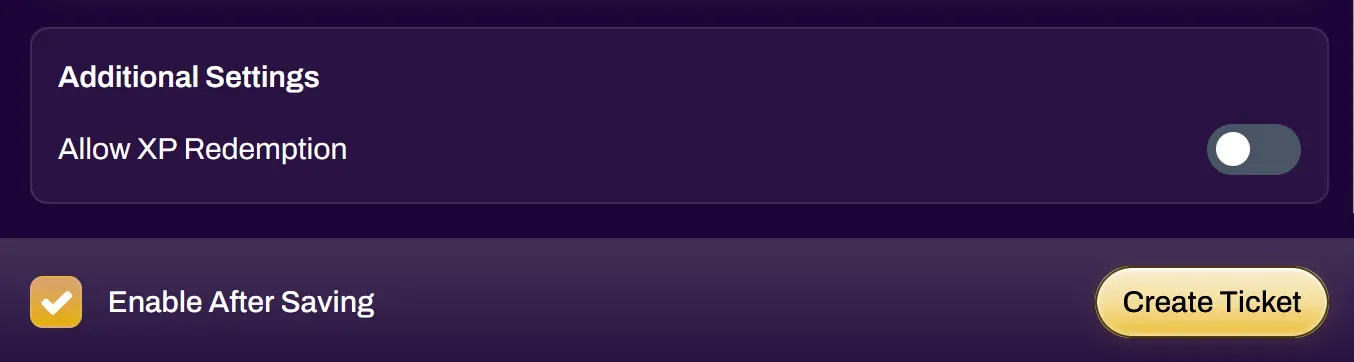
Once ticketing has been set up and is active, the Not Available button on your event will switch to Join Event.
Add Ons
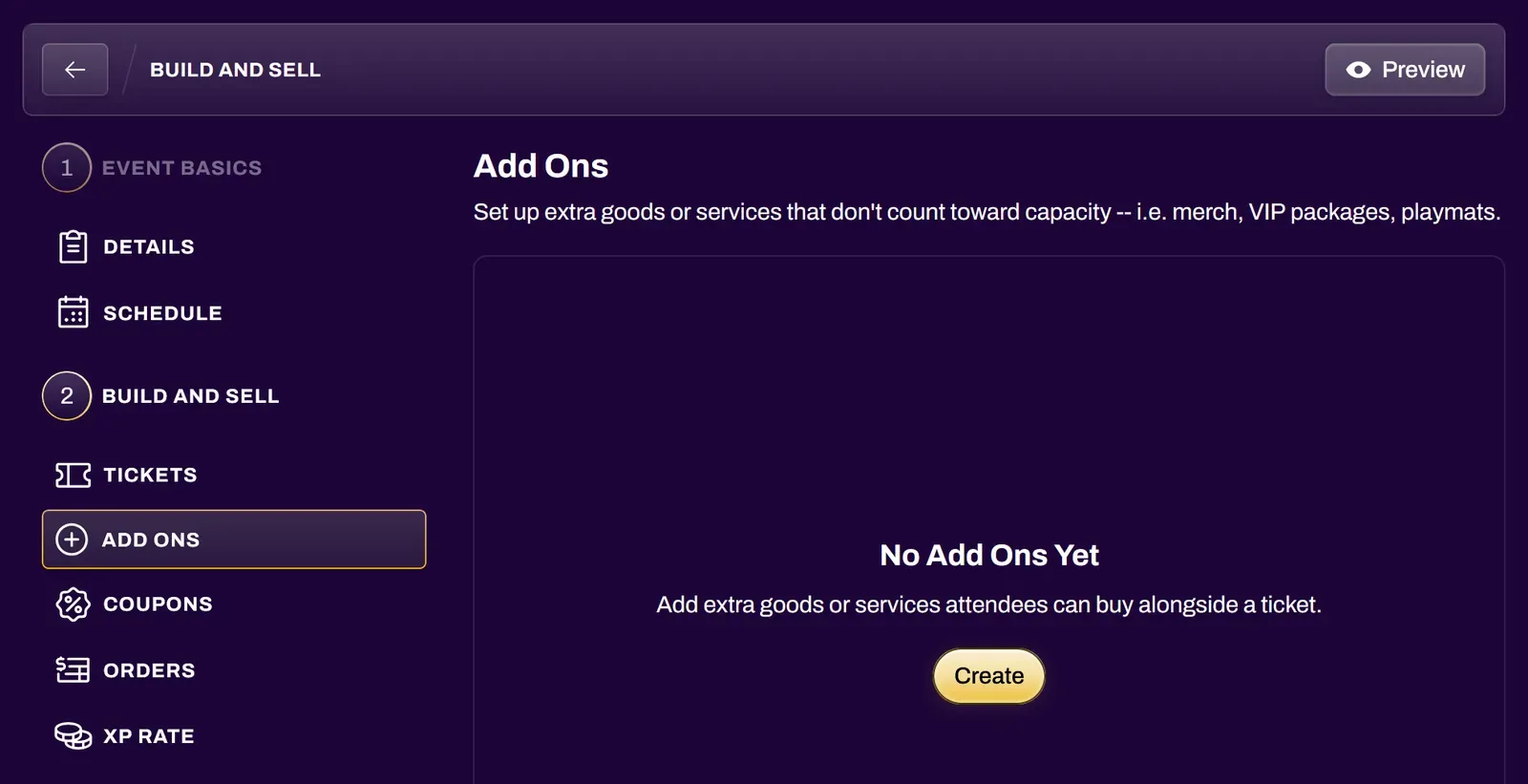
Section titled “Add Ons”You can use the Add Ons section to sell extra goods through the event. This works great for merch or various items you plan to sell at your event.
Coupons
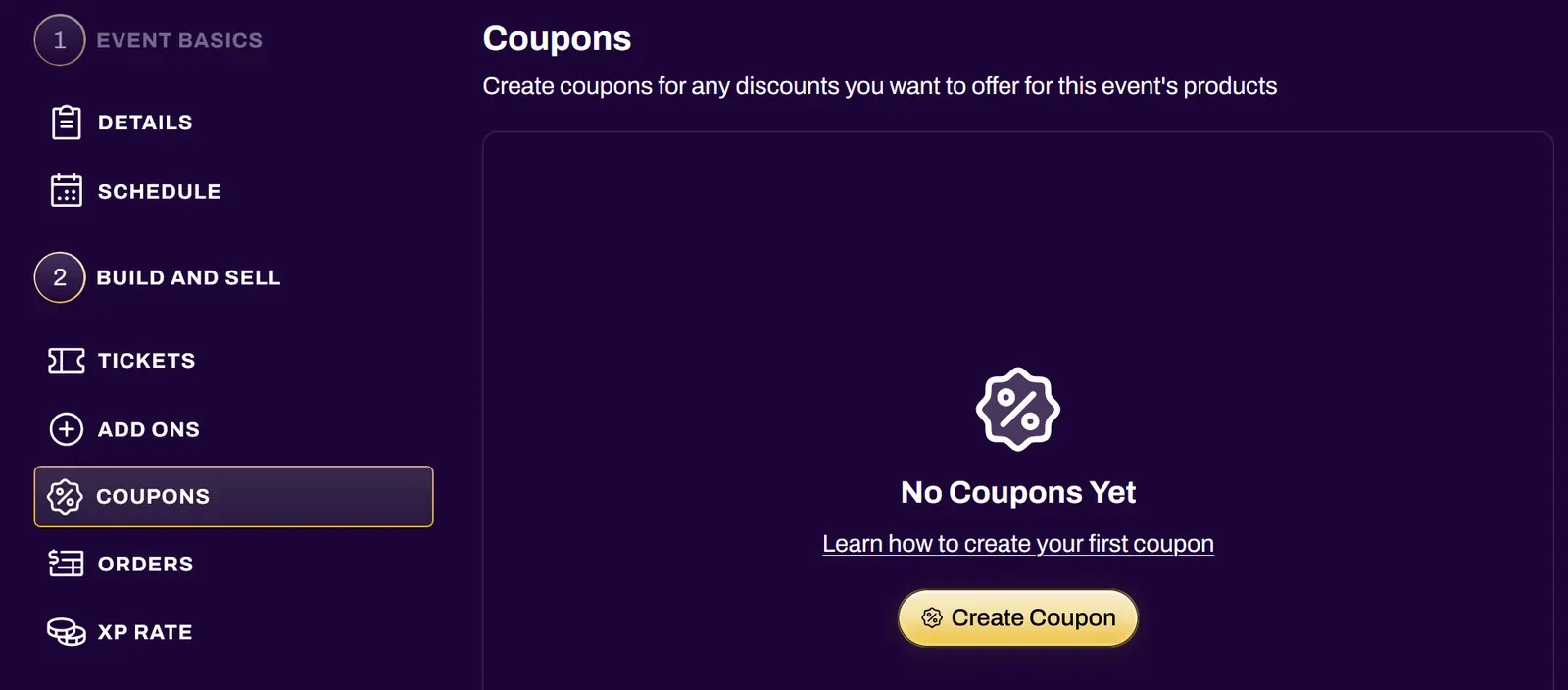
Section titled “Coupons”Coupons let you offer discounts on any paid ticket, either as a percentage of the price or as a fixed amount off. They’re useful for early-bird promotions, member or sponsor perks, comped guests, and more. Each coupon can be scoped to specific tickets and limited by both a redemption count and an expiration date.
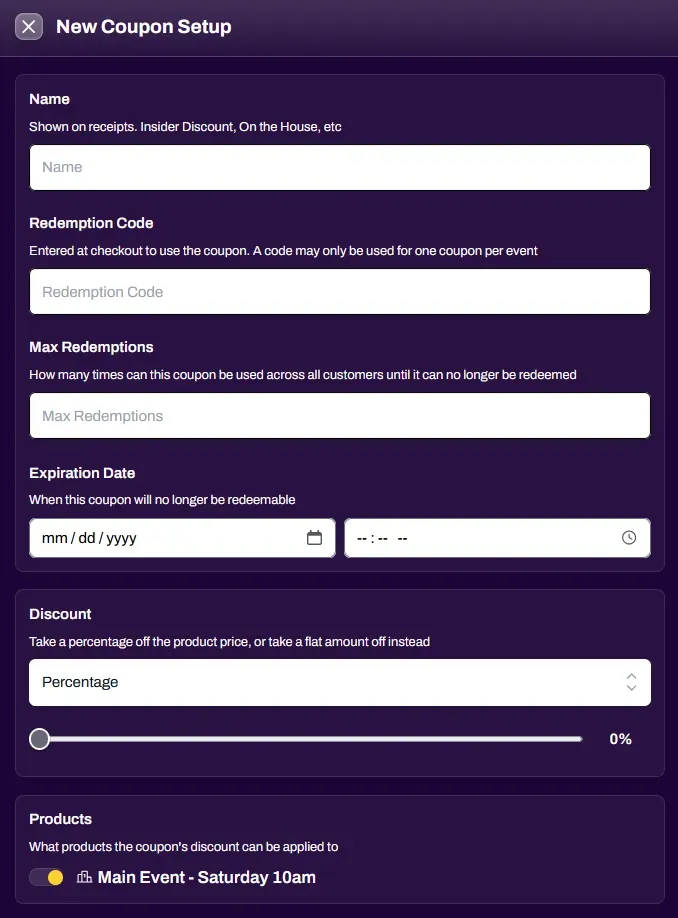
Name - Coupon name shown on receipts
Redemption Code - custom code entered at checkout to use the coupon.
Max Redemptions - how many times the coupon can be used.
Expiration Date - when the coupon can no longer be used.
Discount - Percentage or flat Amount.
Products - choose which product tickets this coupon can be applied to.
Orders
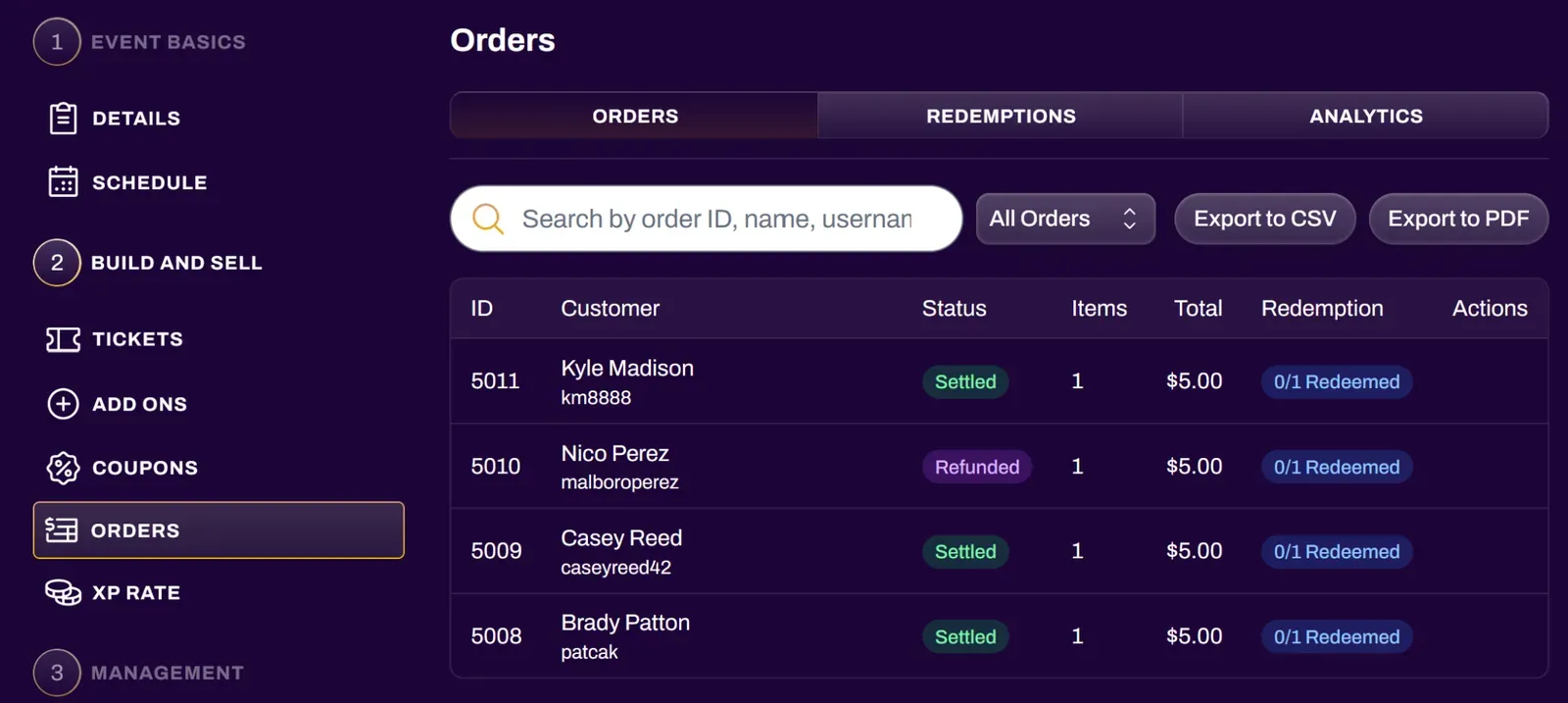
Section titled “Orders”You can use the Orders tab to view order history, redemption sessions, or analytics for your event.
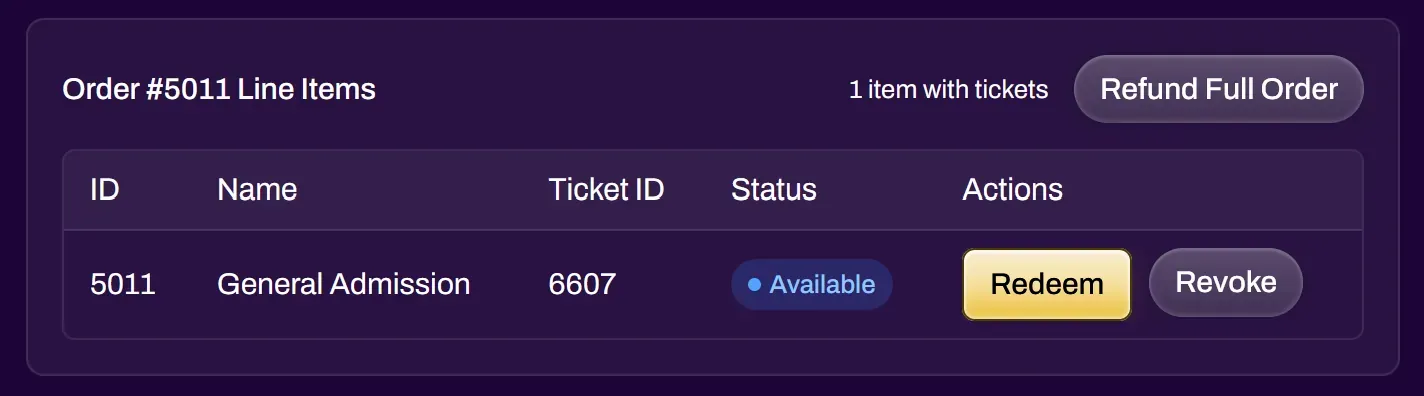
Selecting an individual order opens up more options.
Refund Full Order - cancels every active ticket in the order and releases them back to be purchased by another user. Any tickets that were paid for through Stripe are refunded automatically.
Redeem - manually redeem a ticket. Redeemed tickets will show in the Redemptions log with a timestamp and which staff member redeemed it.
Revoke - cancels the ticket and immediately releases it.
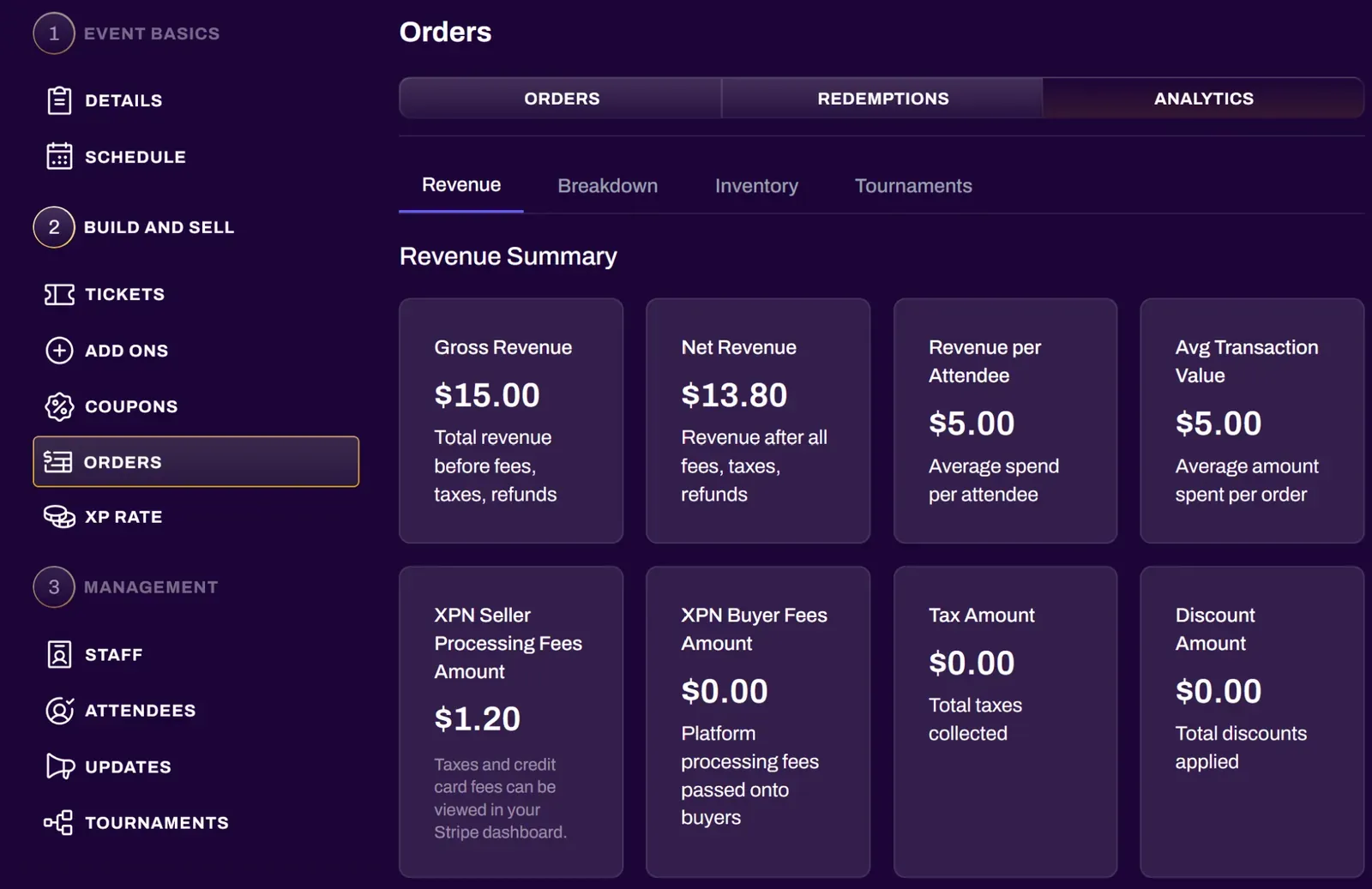
The Analytics tab has more granular breakdowns by product type, price tier, time periods, and more.
XP Rate
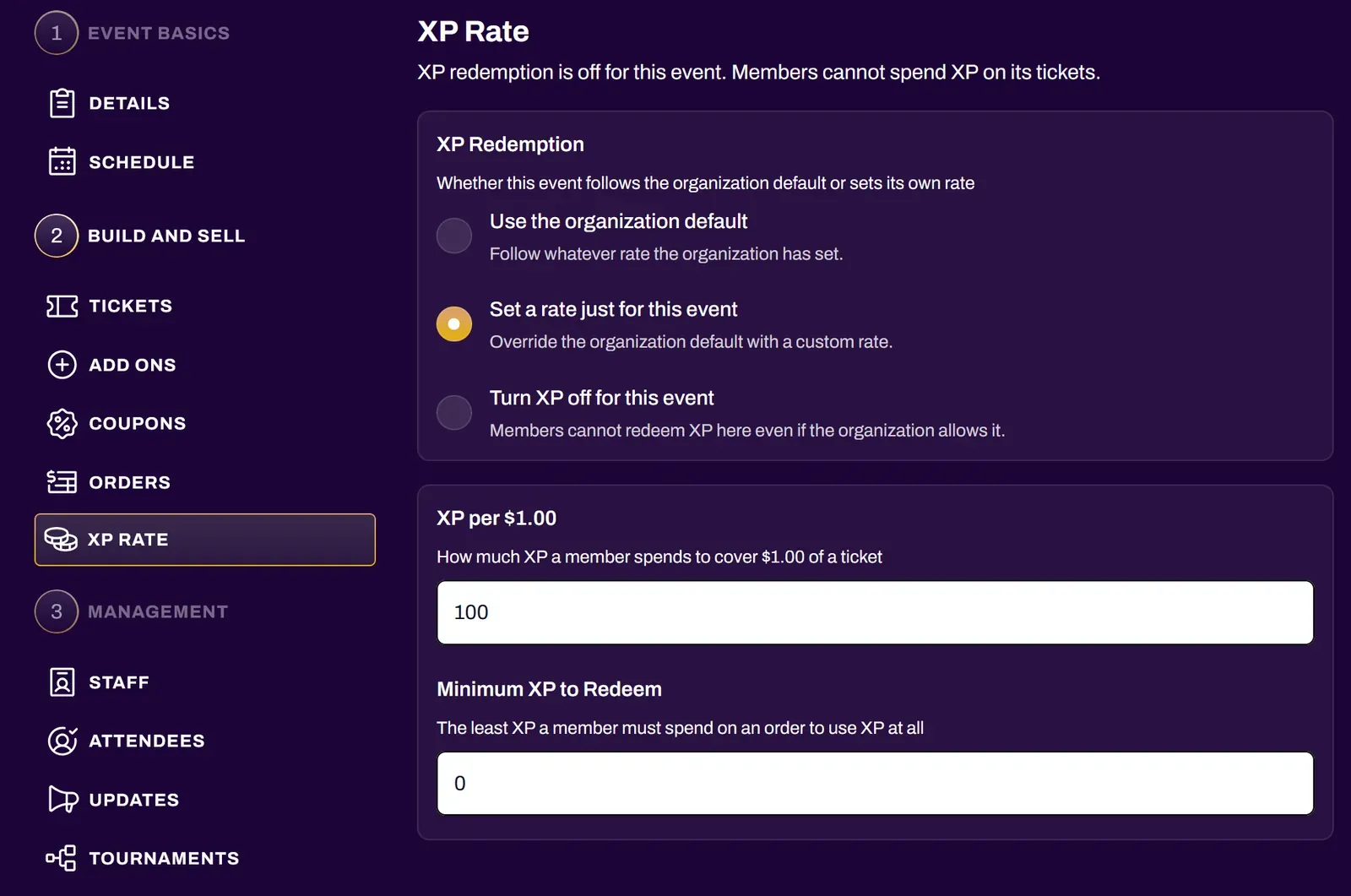
Section titled “XP Rate”If your organization has the XP Checkout feature enabled, you can configure how event attendees can spend XP on tickets here. You can use the default rate in your organization settings, or set a custom rate and a custom Minimum XP to Redeem.
3. Management
Section titled “3. Management”Here is where you can add more staff to your event and review or assign their roles.
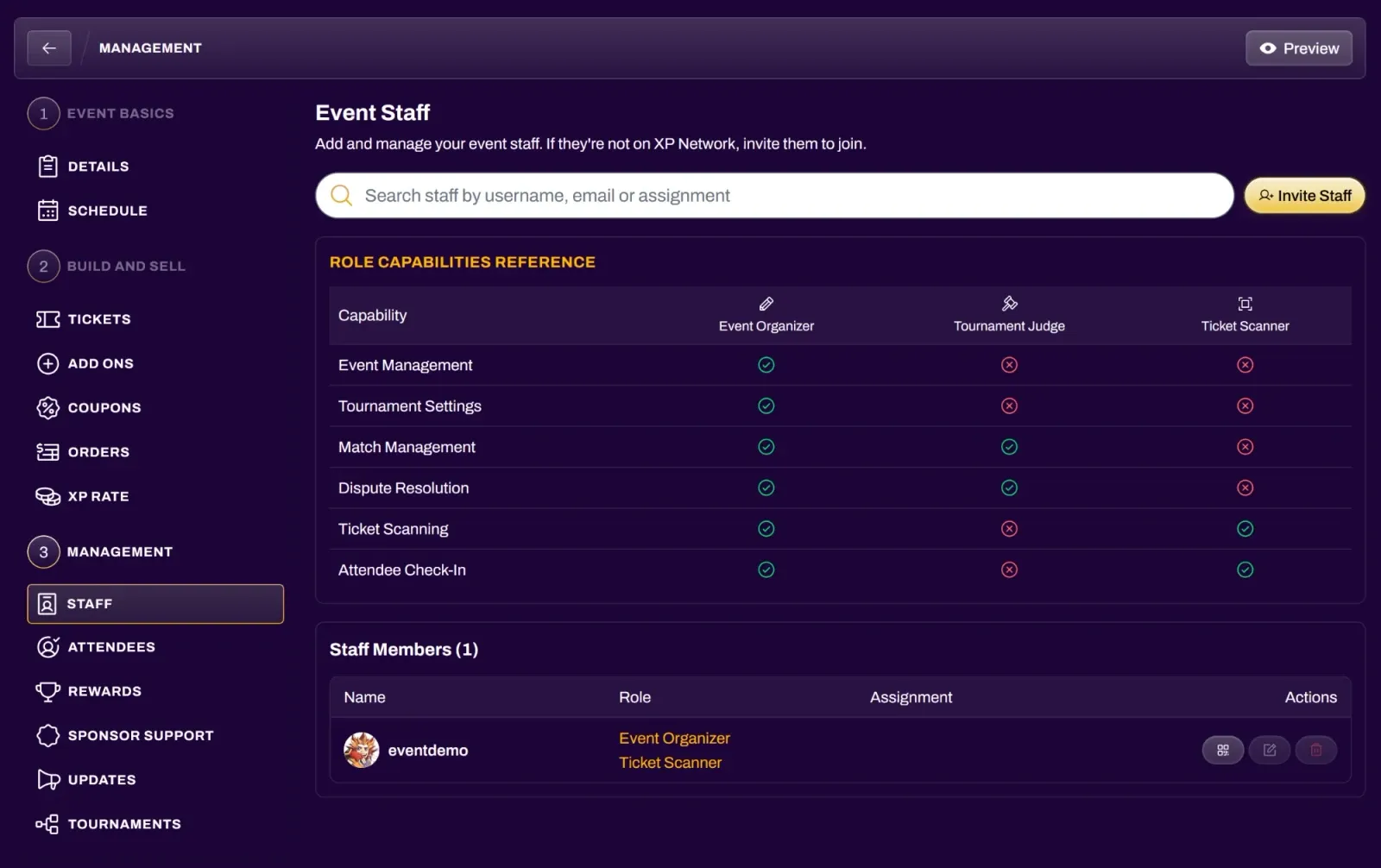
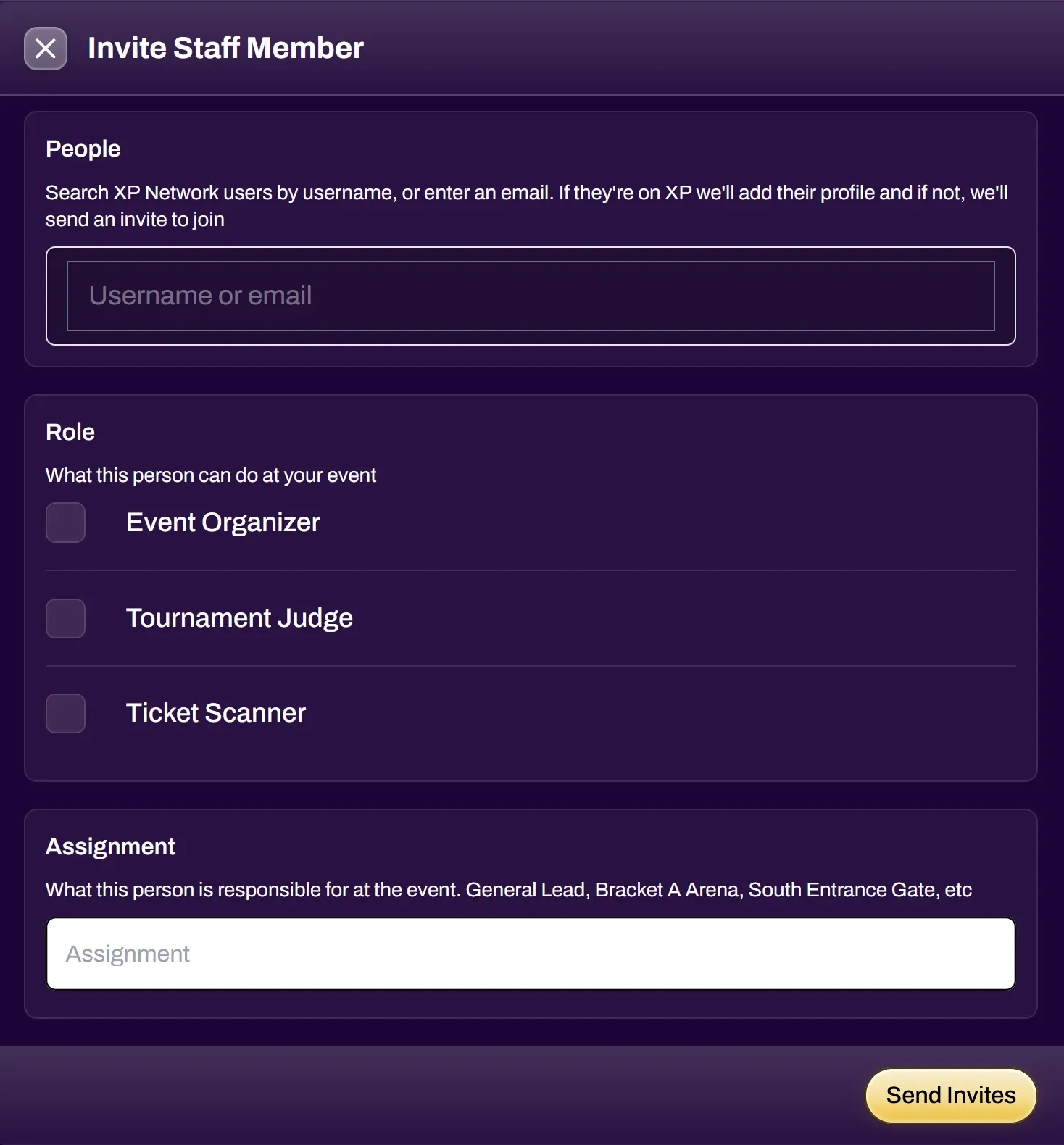
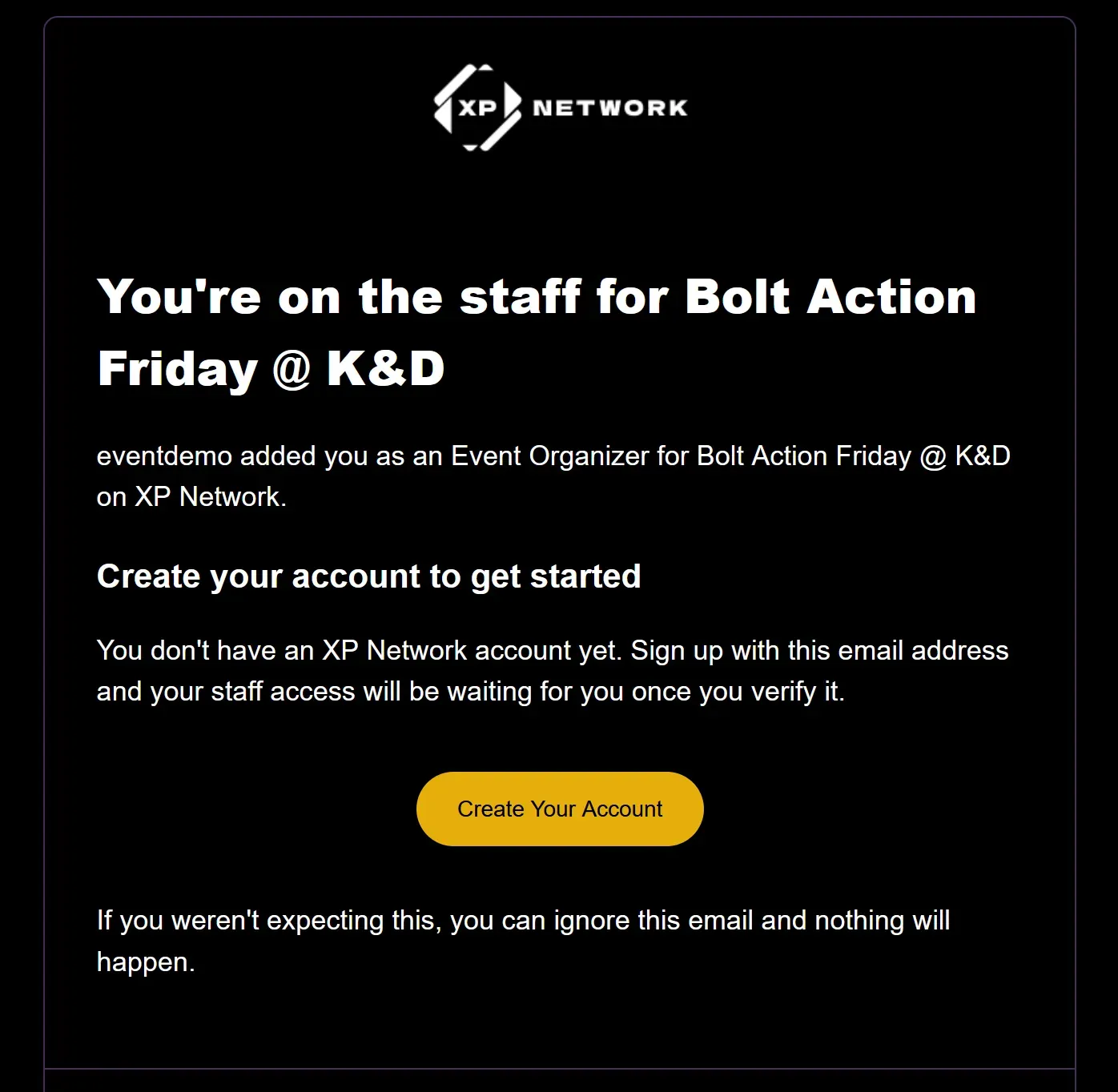
Select the Invite Staff button to add more staff to your event. Search for XP Network users by username, or enter one or more email addresses, and select the roles you wish to grant them. You can also enter an assignment, which is a description of their responsibilities at the event. Upon selecting Send Invites, users on XP Network will be added with their respective roles. If an email address is not linked to an account on XP Network, that person will receive an email inviting them to join.
Event Organizer - has full event management access and can add or remove other staff members (except the original event organizer)
Ticket Scanner - has the ability to scan and redeem tickets. Refer to the Ticket Scanner doc for a full guide on how to set up Ticket Scanner sessions. The Ticket Scanner can also be used to quickly add players to a tournament.
Tournament Judge - has the ability to enter match results, add judge notes and resolve match disputes
Attendees
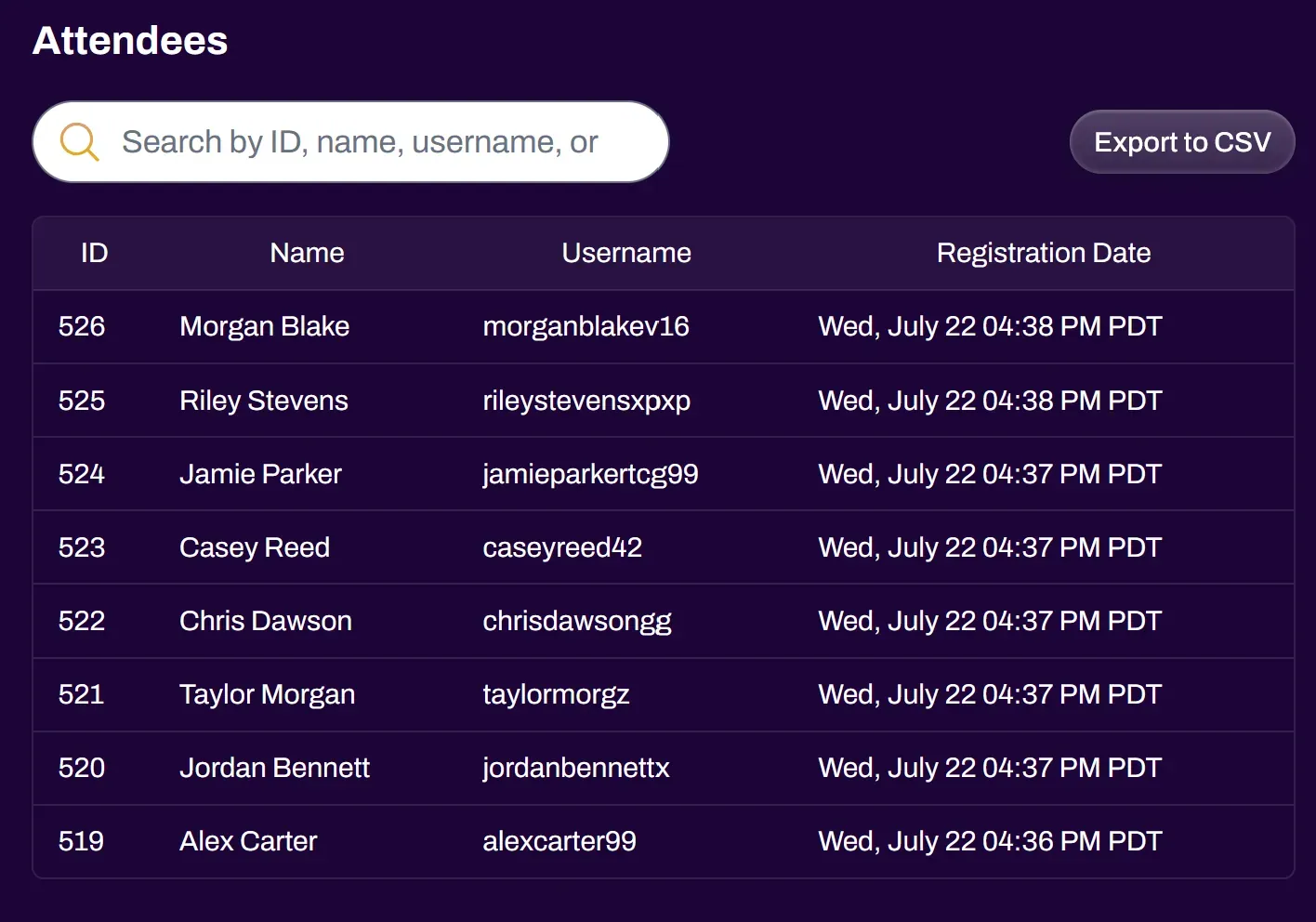
Section titled “Attendees”See the entire list of attendees for your event, including their names, usernames, and registration date with timestamp. There is an Export to CSV button that you can select to email you a CSV file of the attendee list.
Rewards
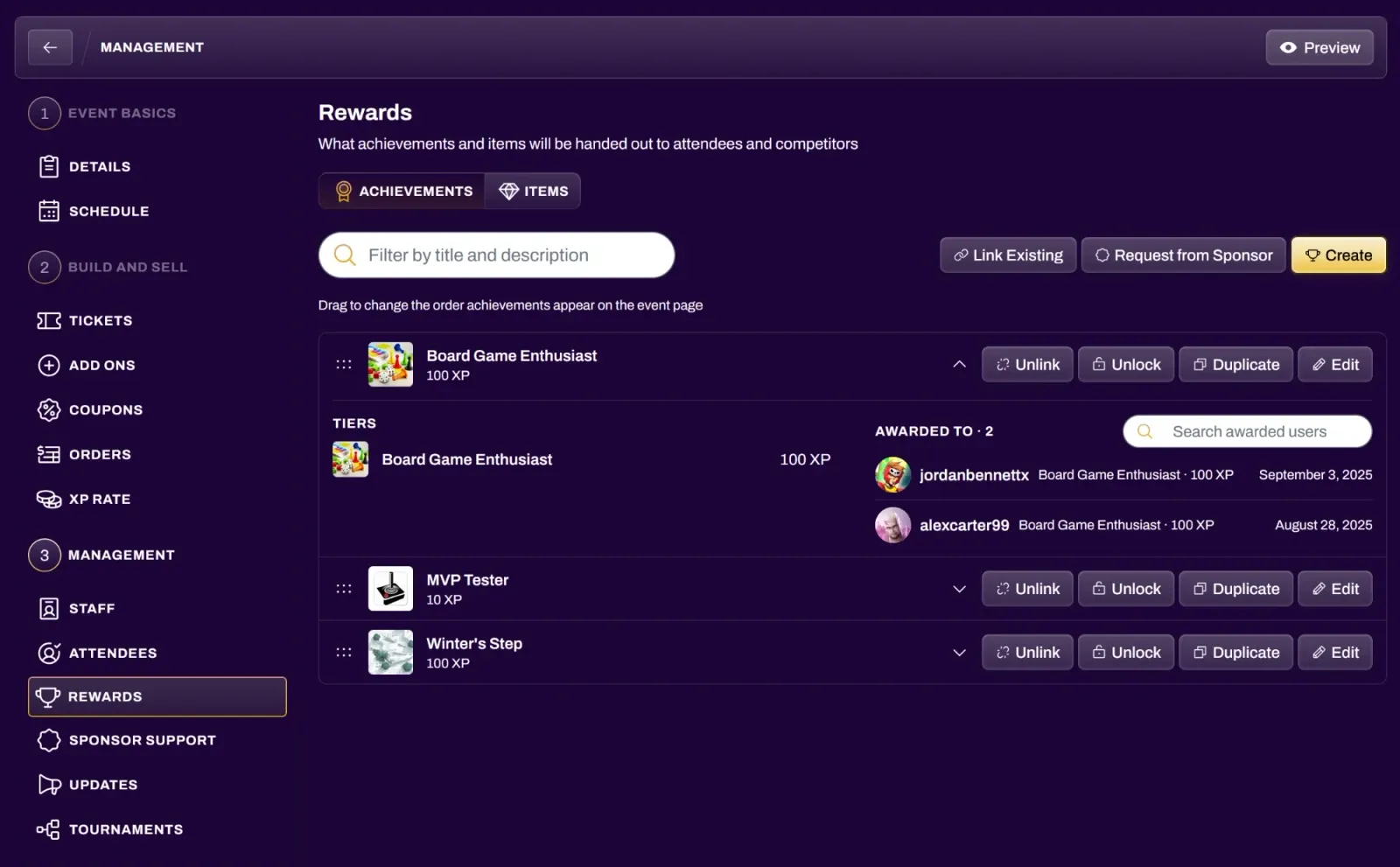
Section titled “Rewards”The Rewards tab shows the achievements and items linked to your event, in separate Achievements and Items tabs. For events created under an organization, only Organization Owners and Treasurers see this tab. For events not under an organization, the event’s organizers see it too.
Select Link Existing to add achievements or items you already have, or Request from Sponsor to ask an organization for prize support. Refer to the Sponsor Requests doc for details. For events under an organization, you can also select Create to make a new achievement or item. Owners and Treasurers have shortcuts to their Rewards section of their dashboard to Unlock or Edit these achievements. They can also select the dropdown to view existing users who have that achievement unlocked, and the timestamp of when they unlocked it.
Sponsor Support
Section titled “Sponsor Support”Use the Sponsor Support tab to ask an activity publisher or parent organization on XP Network to sponsor your event, including prize support such as their achievements and items. Refer to the Sponsor Requests doc for full details on sending a request and giving out sponsored prizes.
Updates
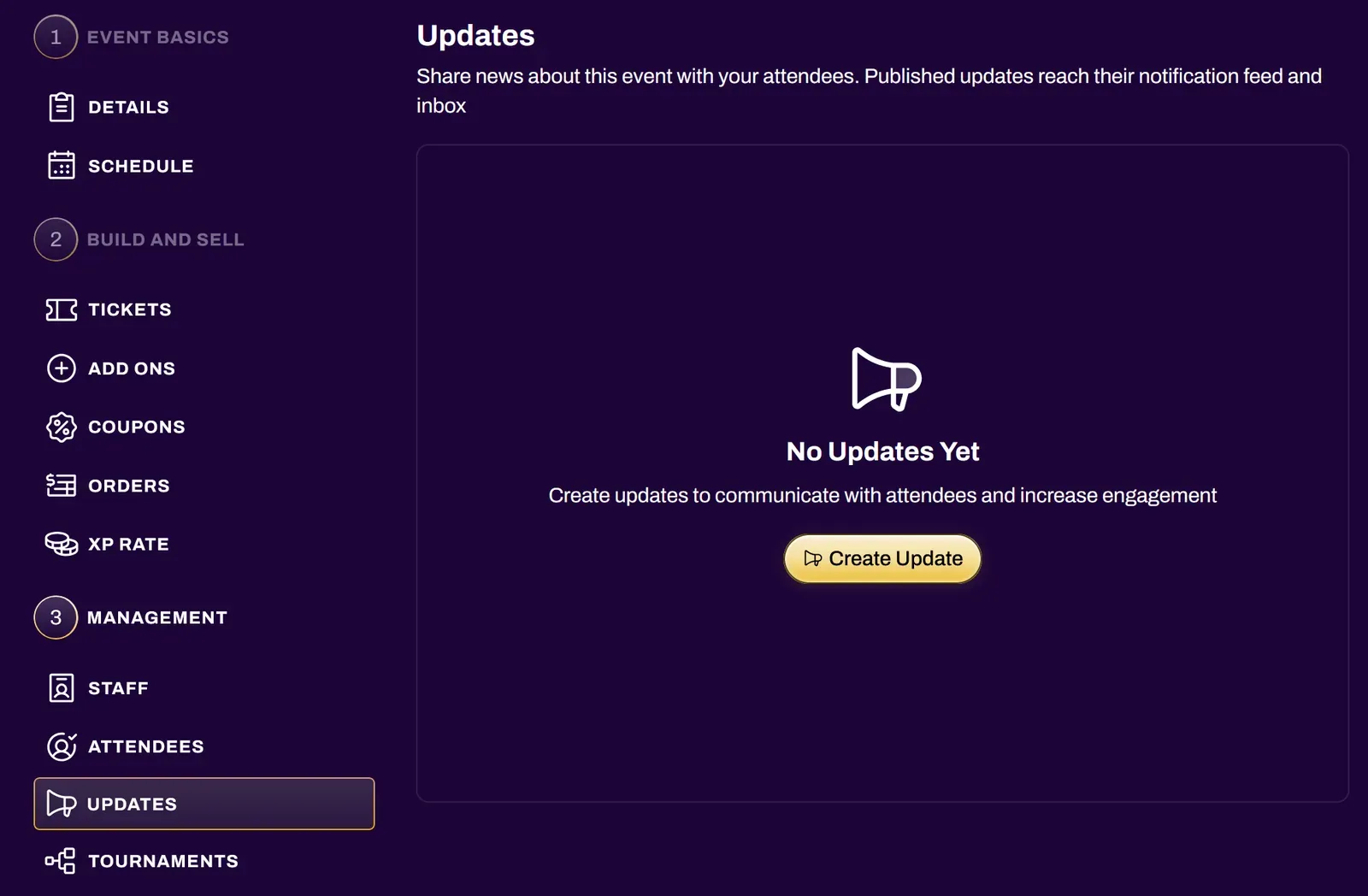
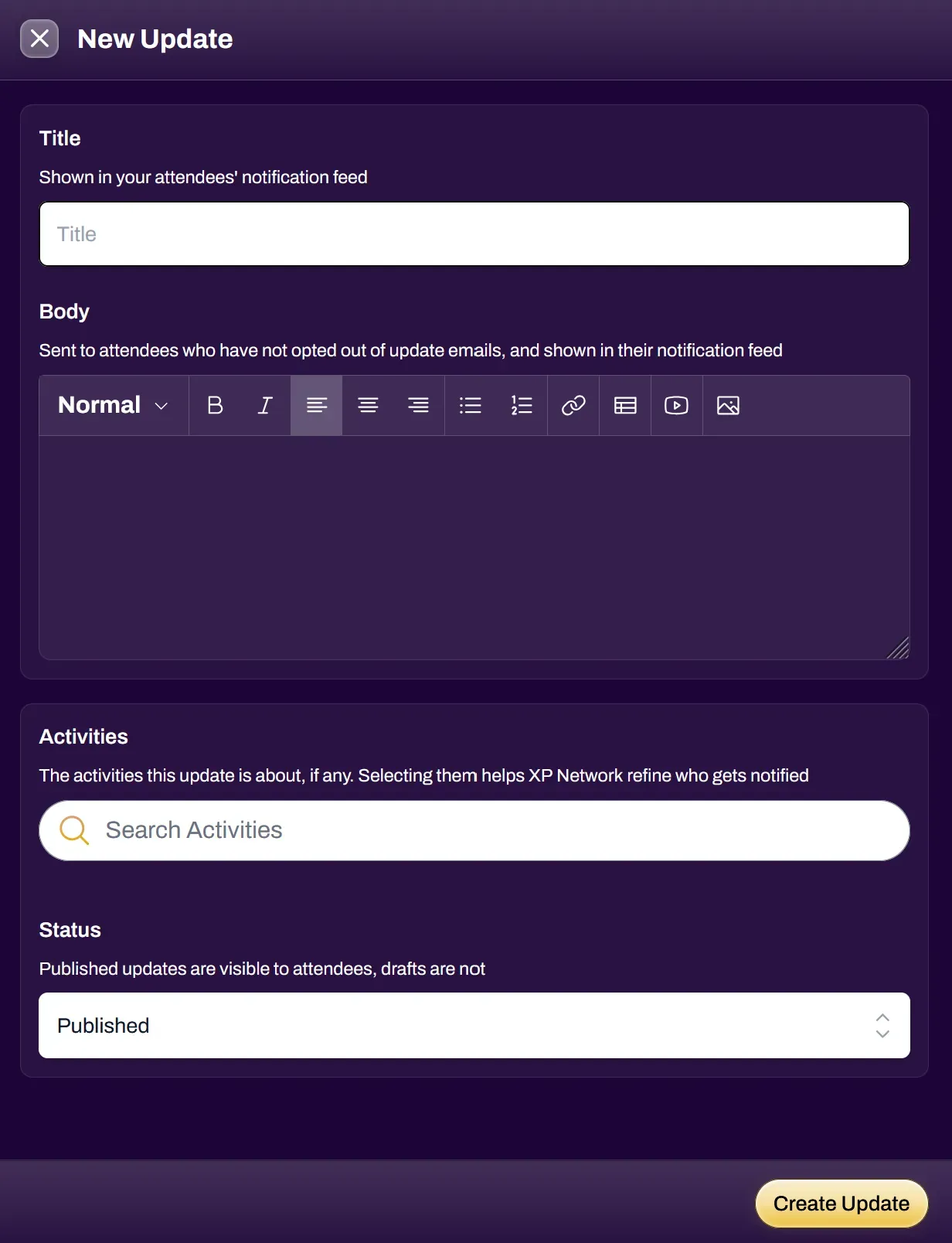
Section titled “Updates”Here is where you can make a post about anything regarding the event. Updates can be set to Draft or Published. When you publish an update, each registered attendee will receive a notification that links to it.
Tournaments
Section titled “Tournaments”This is where you can configure tournaments for your event. Refer to the Running Tournaments doc for full details on the XP Network tournament software.