Items
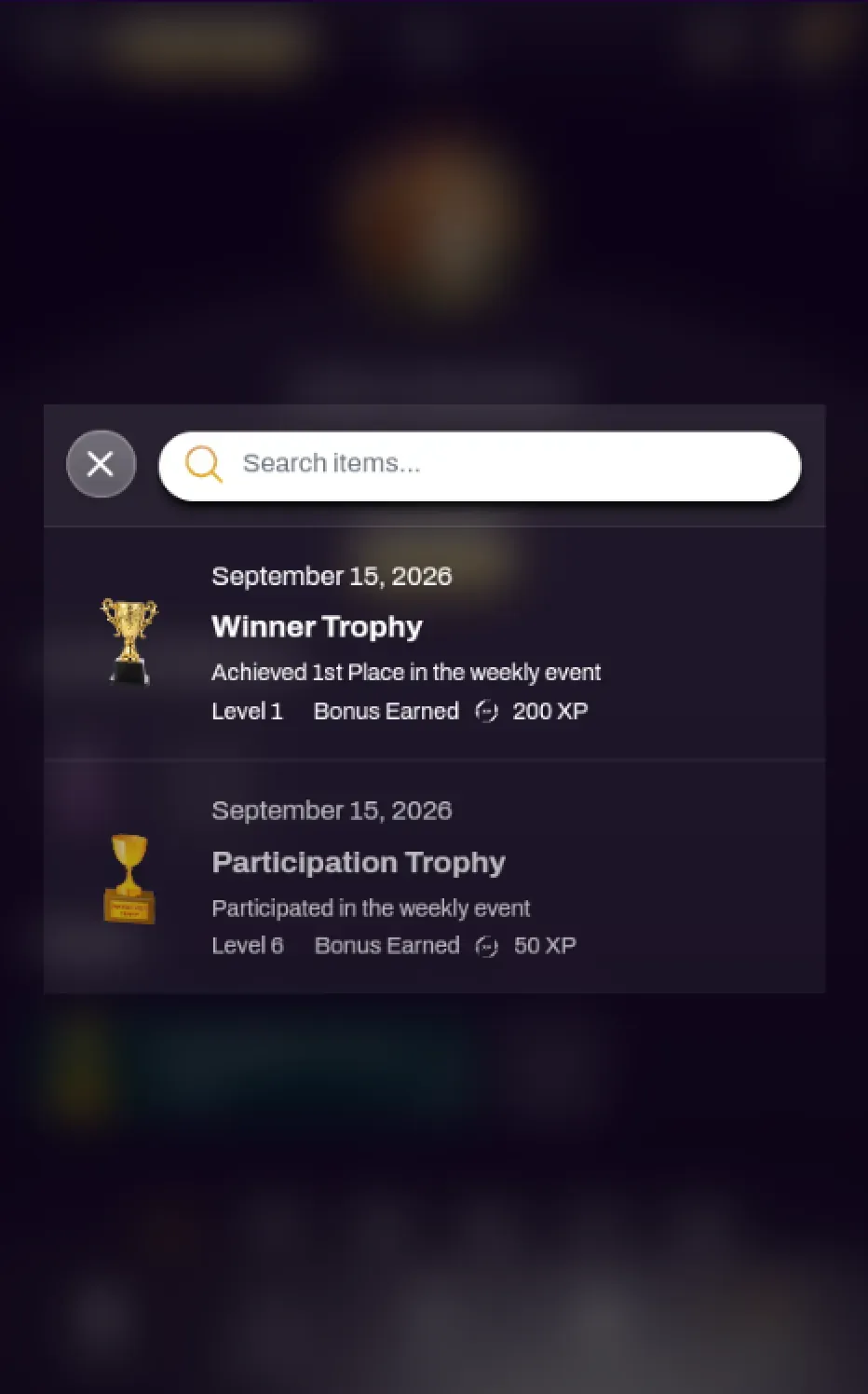
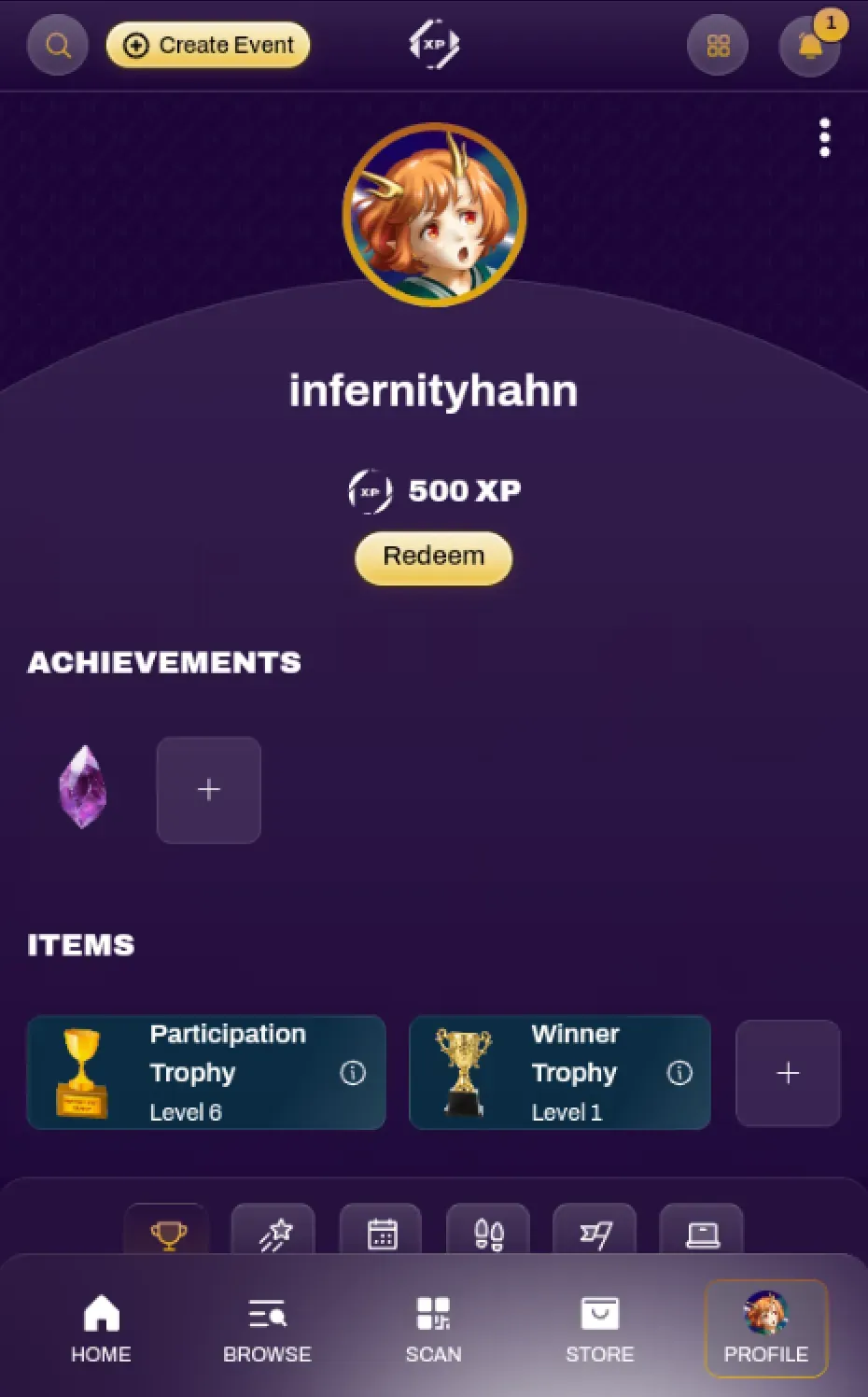
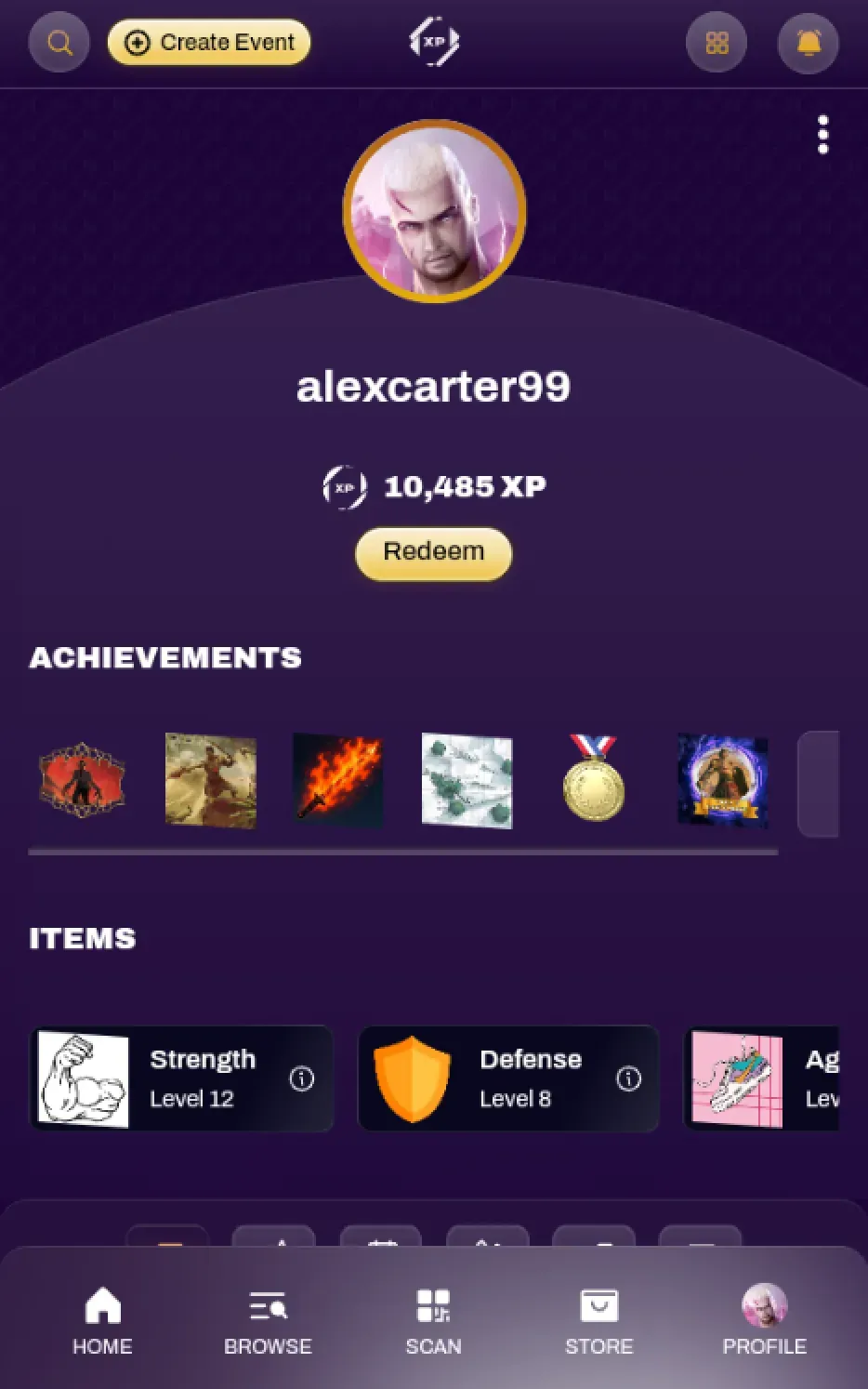
Items are dynamic rewards for your community. Whether created as Trophies, Stats, or Effects, Items live in each user’s inventory and can be displayed on their profile. Unlike Achievements, Items can level up, carry XP rewards or penalties, and evolve alongside your participants, making them perfect for everything from participation rewards to complex quest gameplay.
Creating an Item
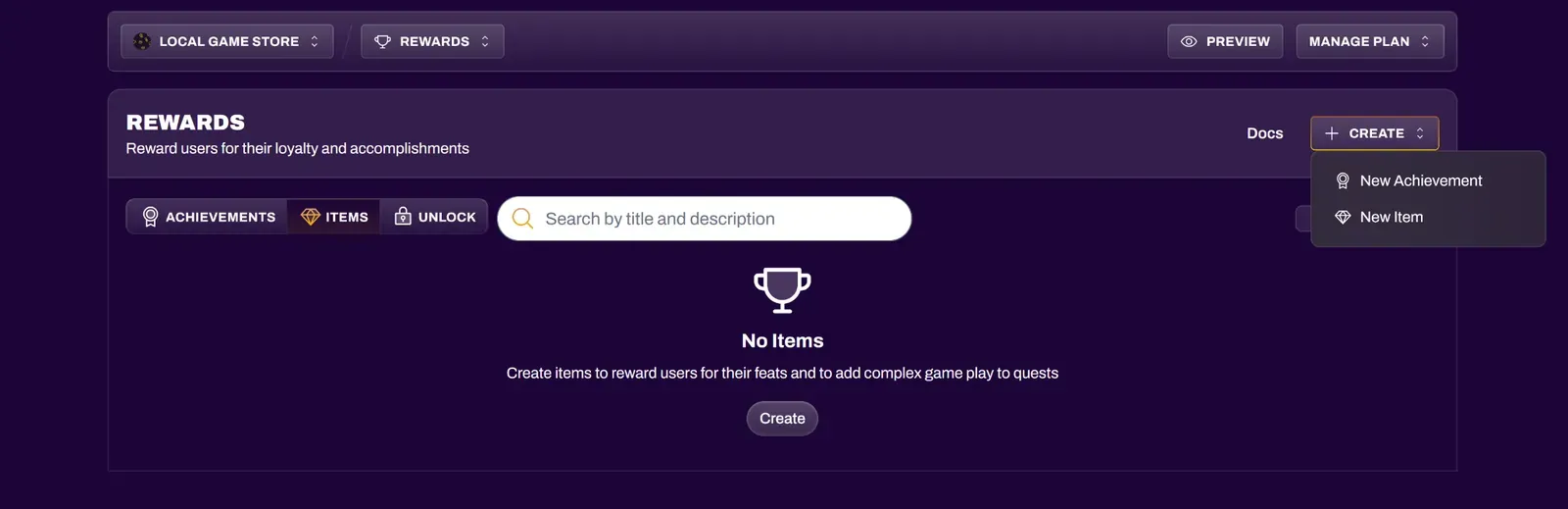
Section titled “Creating an Item”To create an Item, navigate to the Rewards section of your Organization Hub, select Create and pick New Item from the dropdown.
Item Details
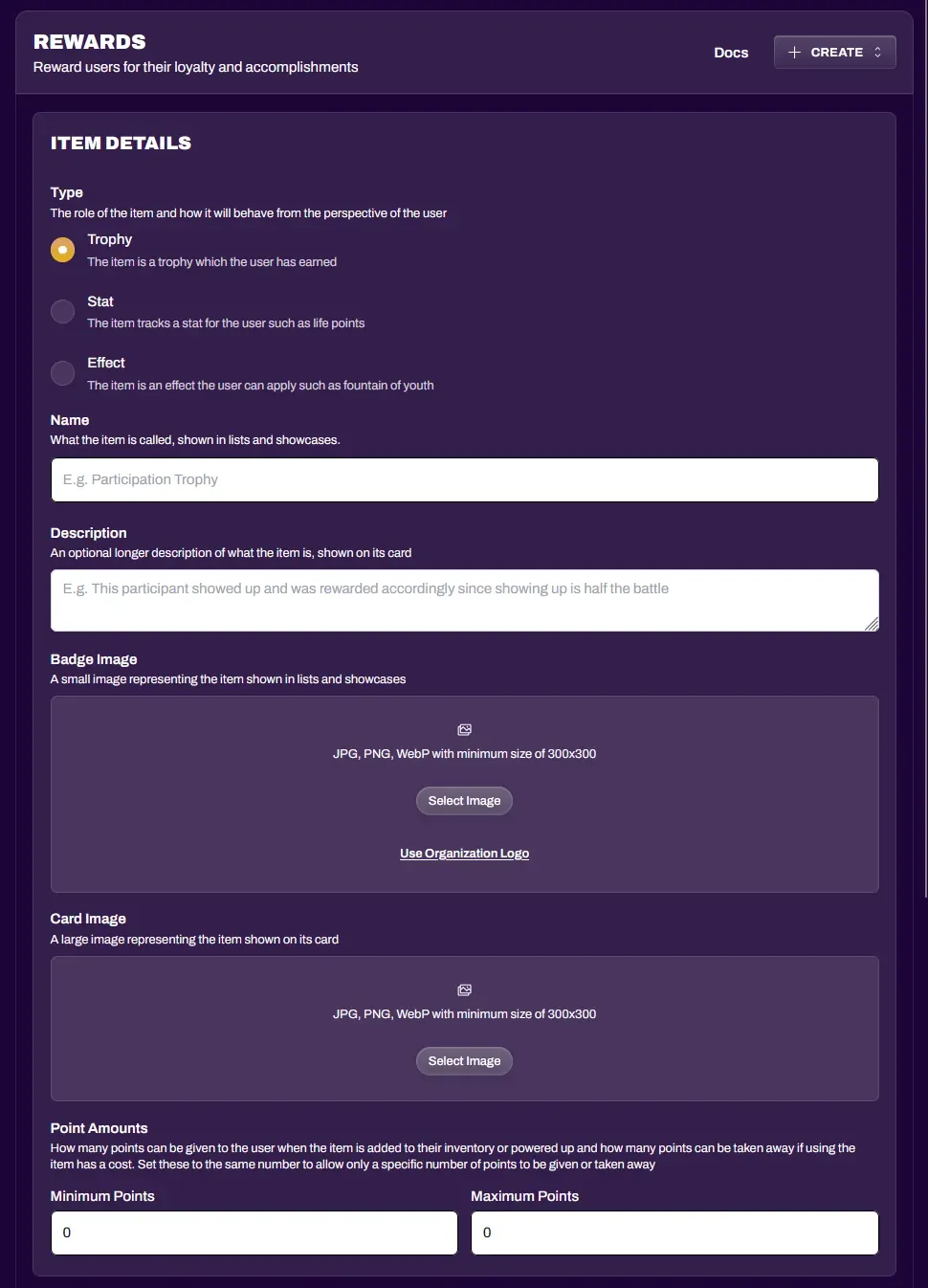
Section titled “Item Details”Item Type
| Trophy | an award which the user has earned |
| Stat | tracks a stat for the user, such as life points |
| Effect | an ability that a user can apply, such as a power boost |
| Name | what the item is called, shown in lists and profiles |
| Description | optional details describing what the item is |
| Badge image | shows up on linked event pages and in a user’s profile |
| Card image | shows up when the item is viewed in full size and detail |
Item image dimensions are 1:1 (square), with a minimum of 300x300 px
Point Amounts
Section titled “Point Amounts”Point Amounts control how many points can be given to the user when the Item is added to their inventory or powered up, and how many points can be taken away if using the Item has a cost. These values set the range of the XP slider when awarding or penalizing users with this Item.
| Minimum Points | The fewest points that can be given or taken away when adjusting this Item |
| Maximum Points | The most points that can be given or taken away when adjusting this Item |
Managing Items
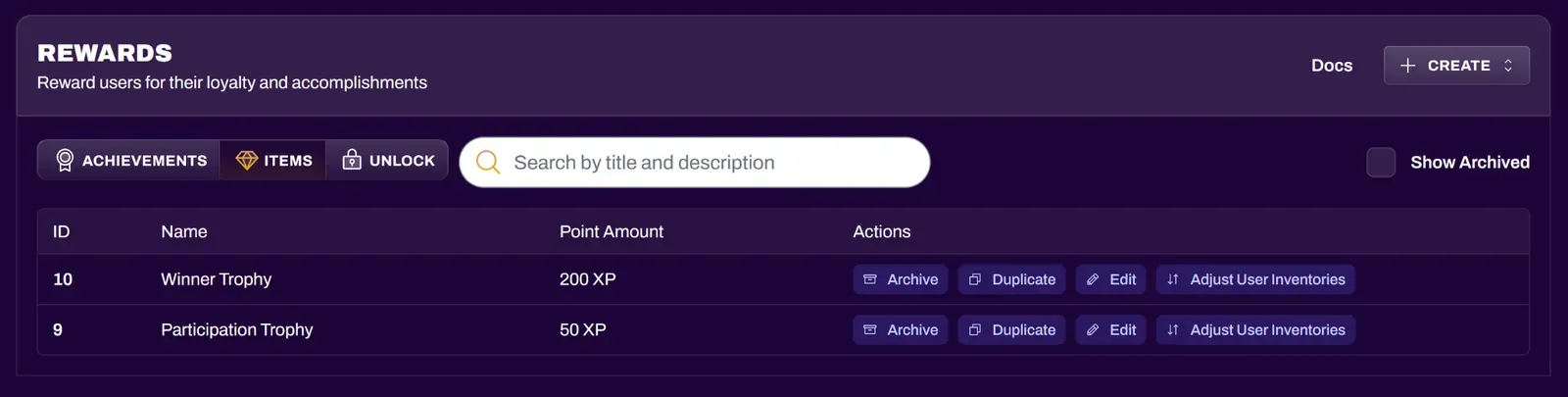
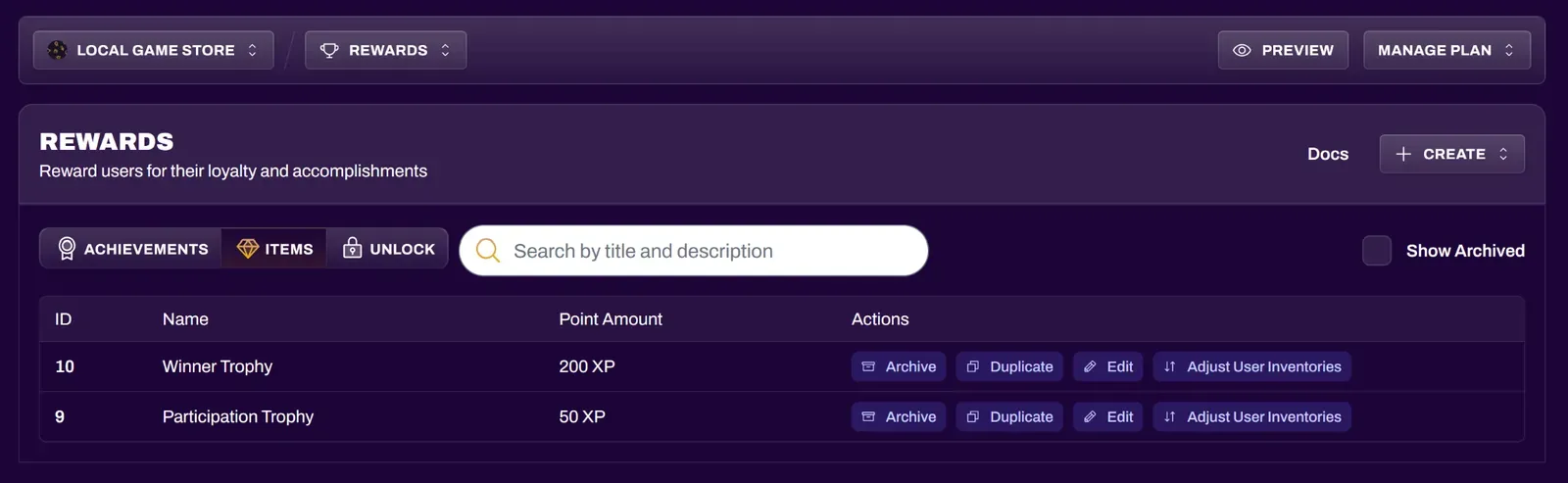
Section titled “Managing Items”Existing Items can be managed from the Items view of the Rewards section.
| Edit | Change the Item’s details, such as its name, description, images, or point amounts. |
| Duplicate | Create a copy of the Item to use as a starting point for a new one. |
| Archive | Retire an Item that is no longer in use. Archived Items can be viewed by toggling Show Archived, and can be restored by selecting Unarchive. |
Linking Items to Events
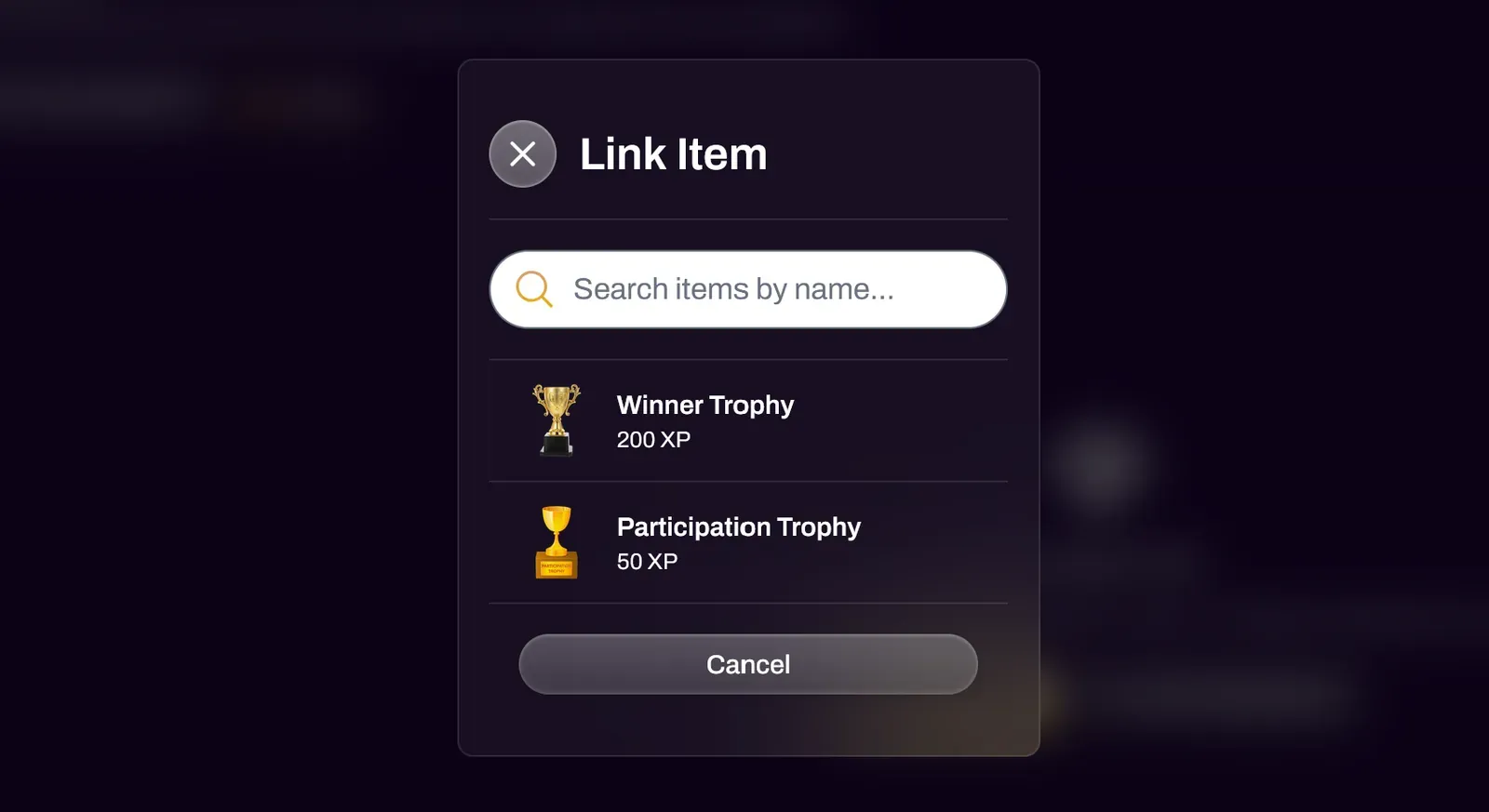
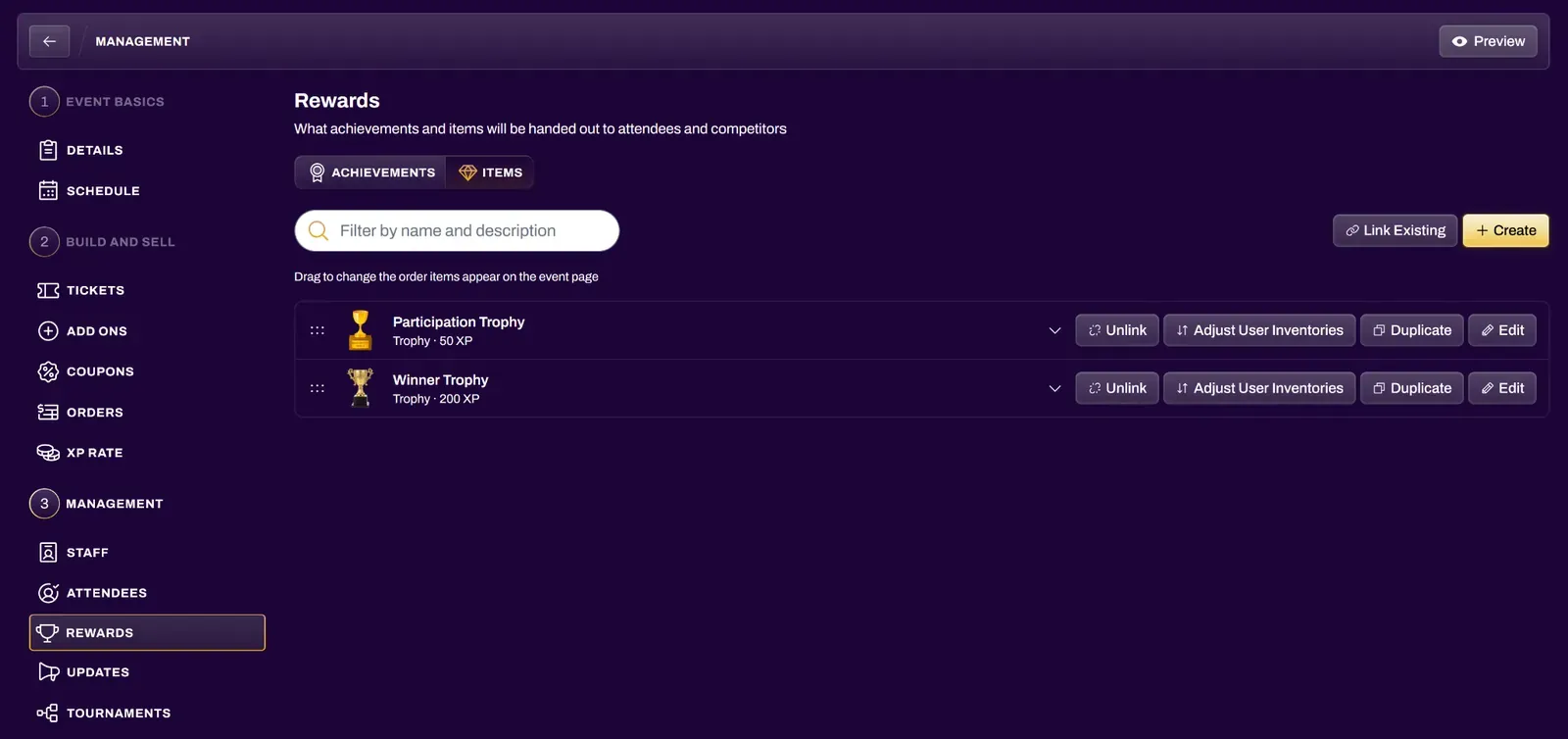
Section titled “Linking Items to Events”Navigate to the Rewards tab of the Event Management section of the Event you want to link the Reward to. Choose the proper Reward (Achievement or Item) and select Link Existing. Owners and Treasurers can also select the Create Item button if they still need to create a Reward from scratch.
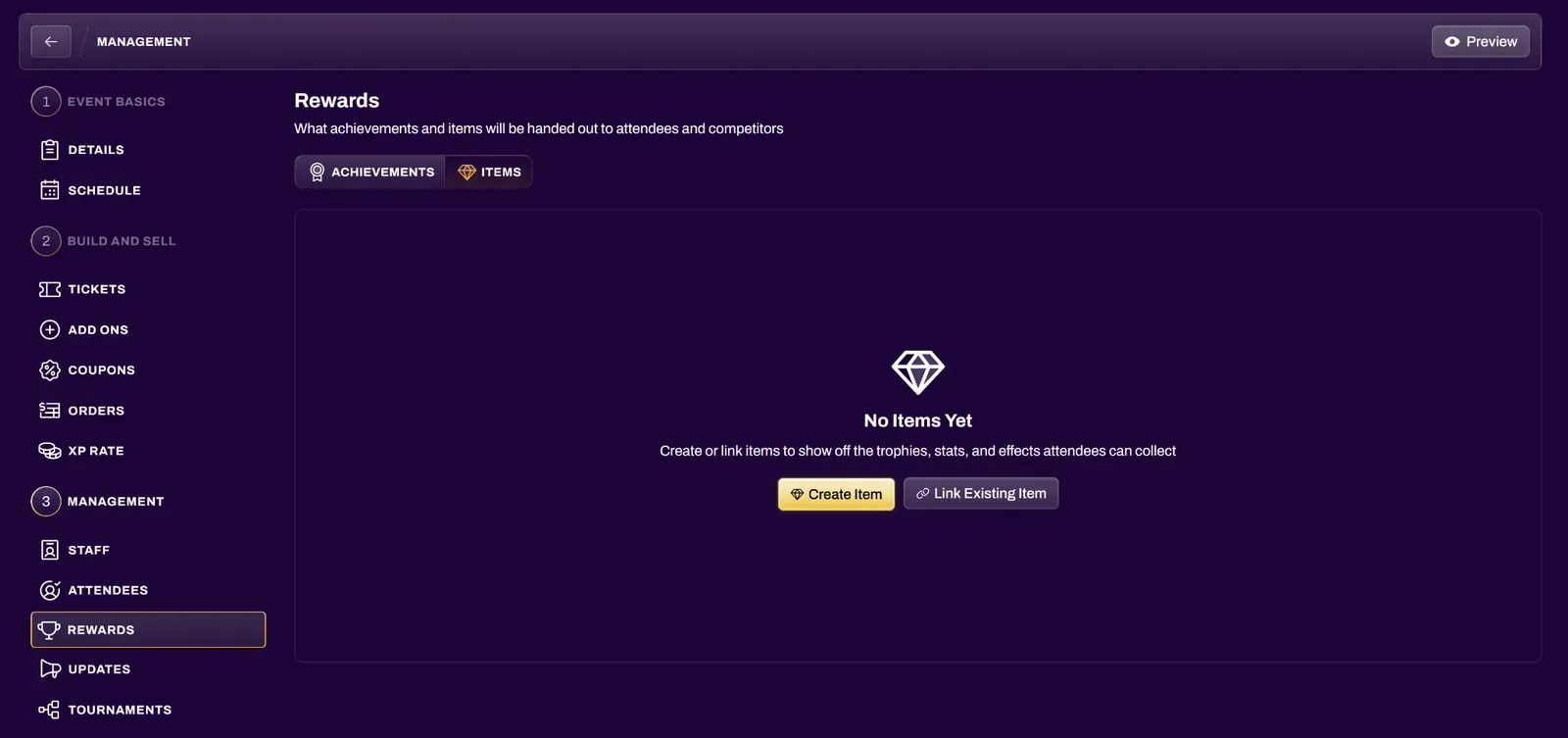
Linked Items can be dragged to change the order they appear on the event page. From the event’s Rewards tab, you can also Unlink an Item from the event, or select Adjust User Inventories to award or penalize users directly from the event view.
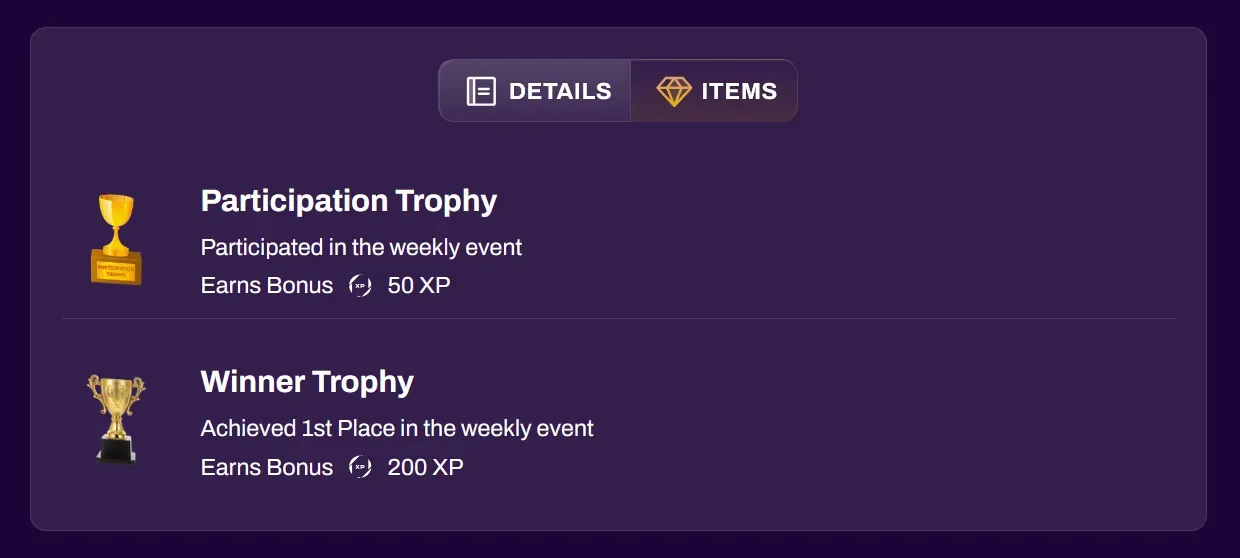
Linked Rewards will show up in the Event, next to the Details information tab.
Awarding and Adjusting Items
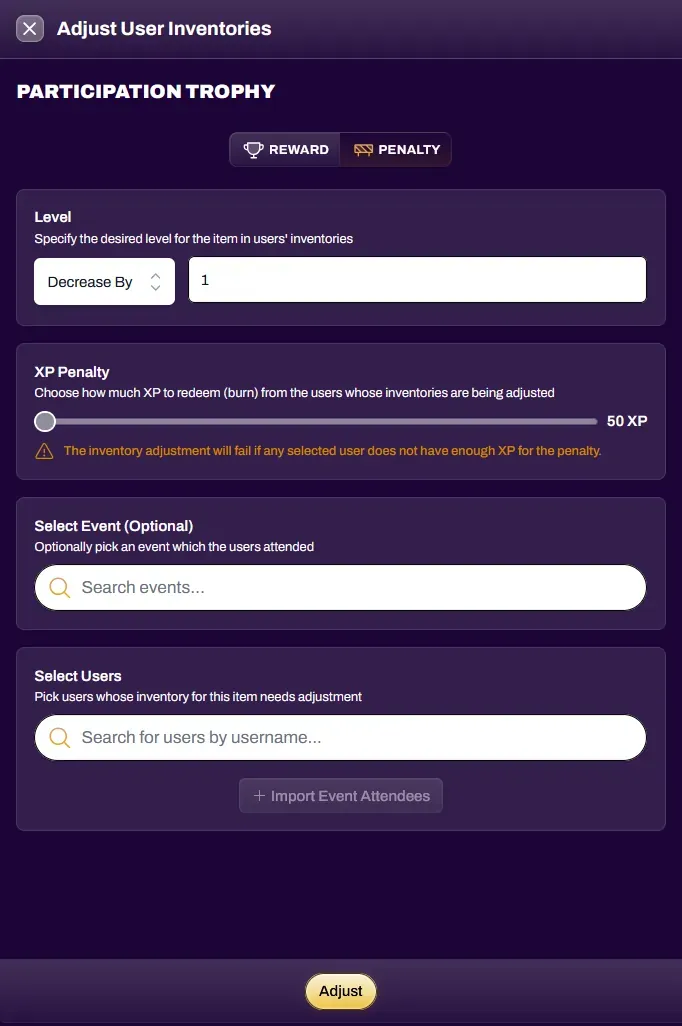
Section titled “Awarding and Adjusting Items”Navigate to the Rewards section of your Organization Hub and select the Adjust User Inventories button from the Items view. All Item types are adjusted the same way.
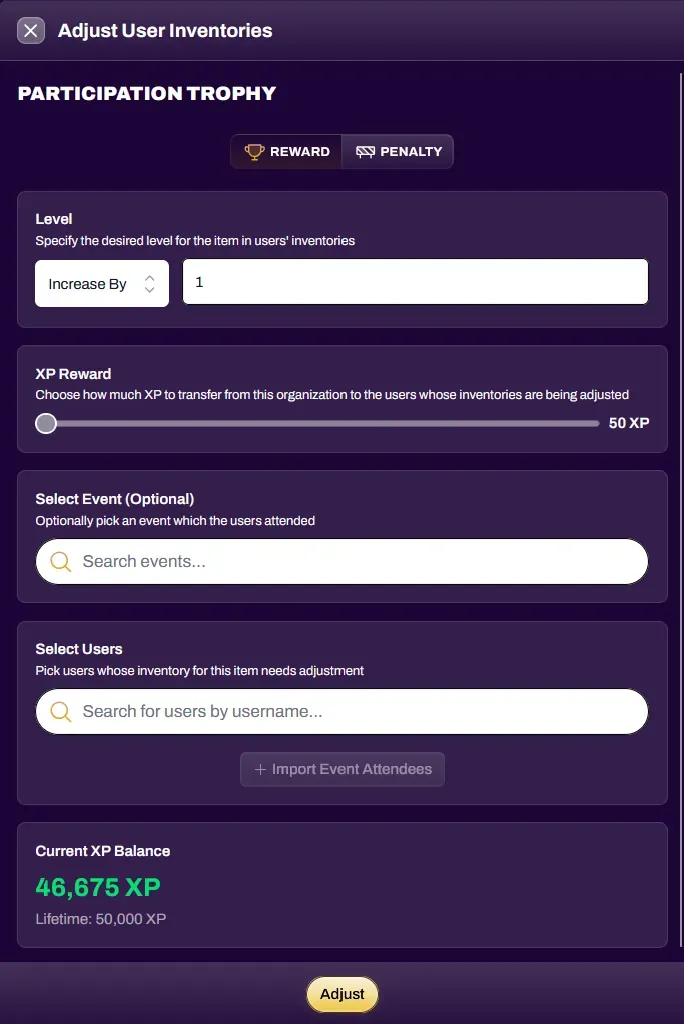
At the top of the Adjust User Inventories window, choose whether the adjustment is a Reward or a Penalty. Rewards give levels and XP to the selected users, while Penalties decrease levels and take away XP.
Adjustment Settings
Section titled “Adjustment Settings”| Level | Specify the desired level for the Item in users’ inventories. Choose Increase By (Reward) or Decrease By (Penalty) to change the level by a relative amount, or Set To to set the Item’s level to a specific number, then enter the value |
| XP Reward (Reward only) | Choose how much XP to transfer from your organization to the users whose inventories are being adjusted. The slider’s range is set by the Item’s Minimum and Maximum Points |
| XP Penalty (Penalty only) | Choose how much XP to redeem (burn) from the users whose inventories are being adjusted. The slider’s range is set by the Item’s Minimum and Maximum Points |
| Select Event | Optionally pick an event which the users attended |
| Select Users | Pick users whose inventory for this Item needs adjustment by searching for their username. If you selected an Event, you can also select Import Event Attendees to add everyone who attended the selected event |
Your organization’s Current XP Balance is shown at the bottom of the window so you can confirm you have enough XP to cover the reward. When everything is set, select Adjust to apply the changes to all selected users.
Items in User Profiles
Section titled “Items in User Profiles”Users can pin their acquired Items in their Profile to showcase the trophies, stats, or effects they have.