
Editing your Org Profile
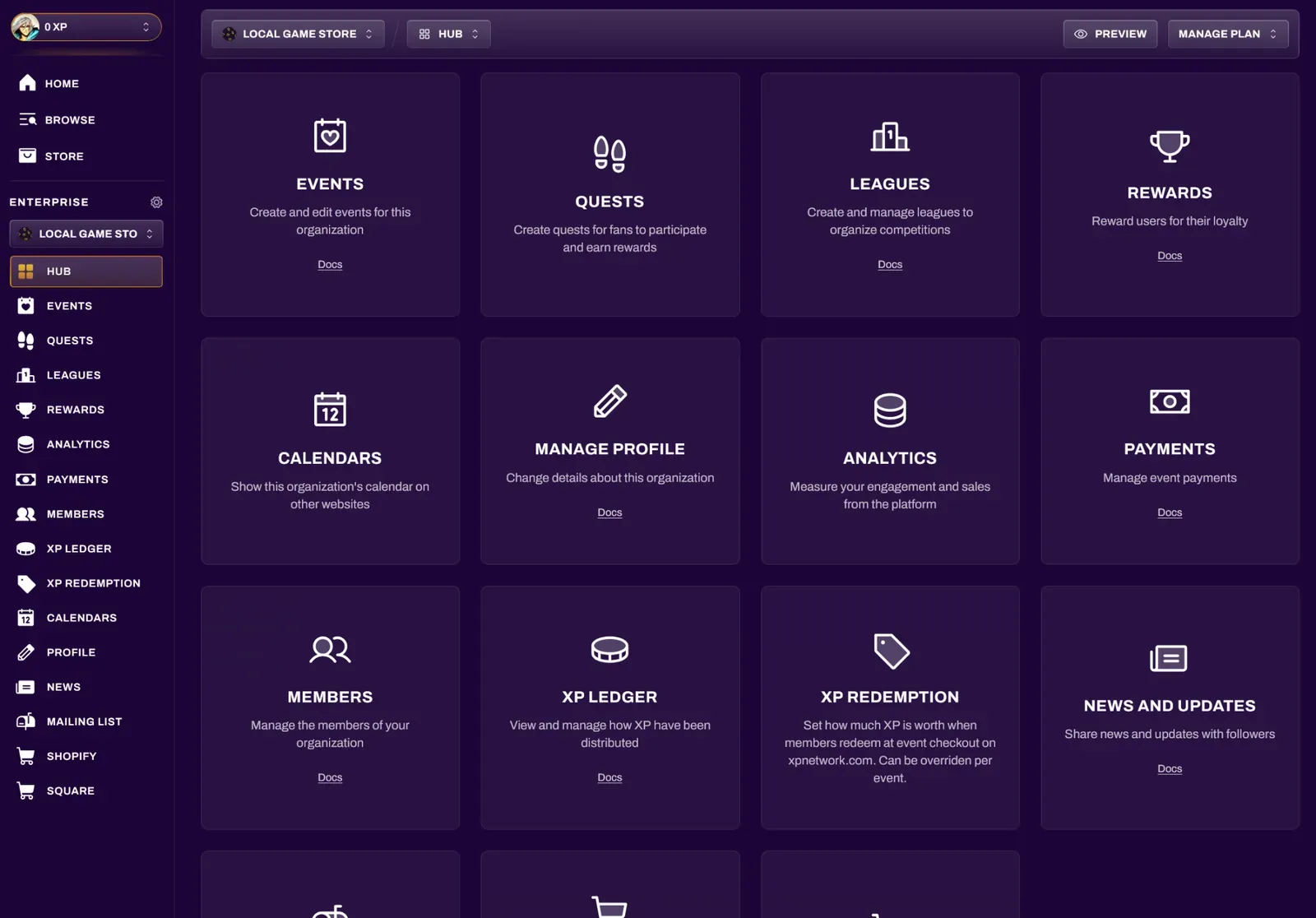
After signing up for a Plus Plan or higher, a new organization will be created under the account you signed up with, and you will automatically be assigned as an Owner of that organization. You can access your Organization Dashboard through your Hub. Here you can update your branding, contact details, and general settings to keep your page looking sharp for members and attendees.
Accessing Your Org Profile
Section titled “Accessing Your Org Profile”Navigate to your Hub and select Manage Profile. This is where all profile-level customization lives.
Profile Details
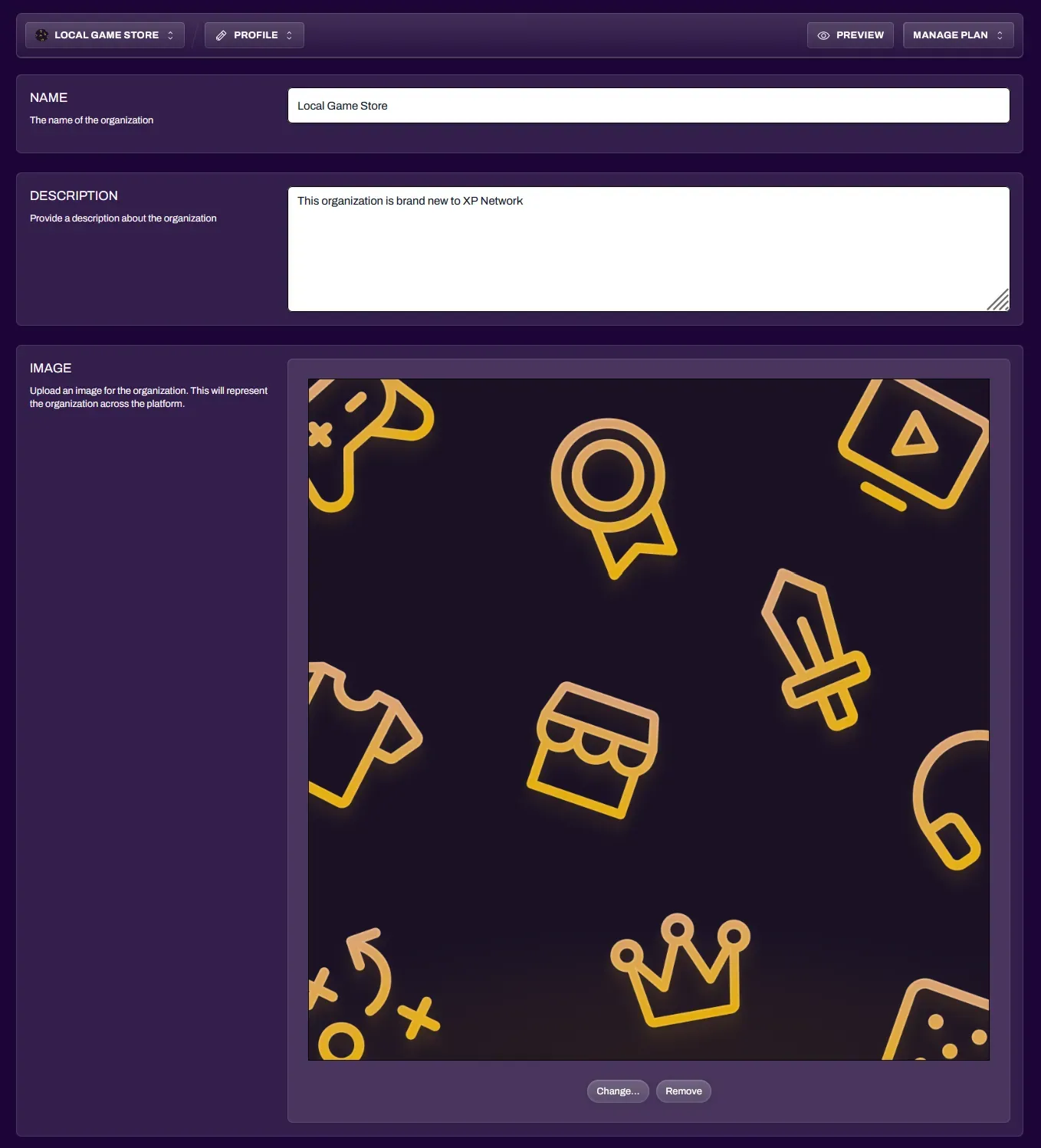
Section titled “Profile Details”| Name | Official name of your Organization. This is how you will appear across XP Network, including on events you host and member profiles. Keep it clear and recognizable for your community. |
| Description | Details about your organization. |
| Image | 1:1 square image that represents your organization across the platform. A crop tool is built in to help you frame the image correctly without stretching or distorting it. |
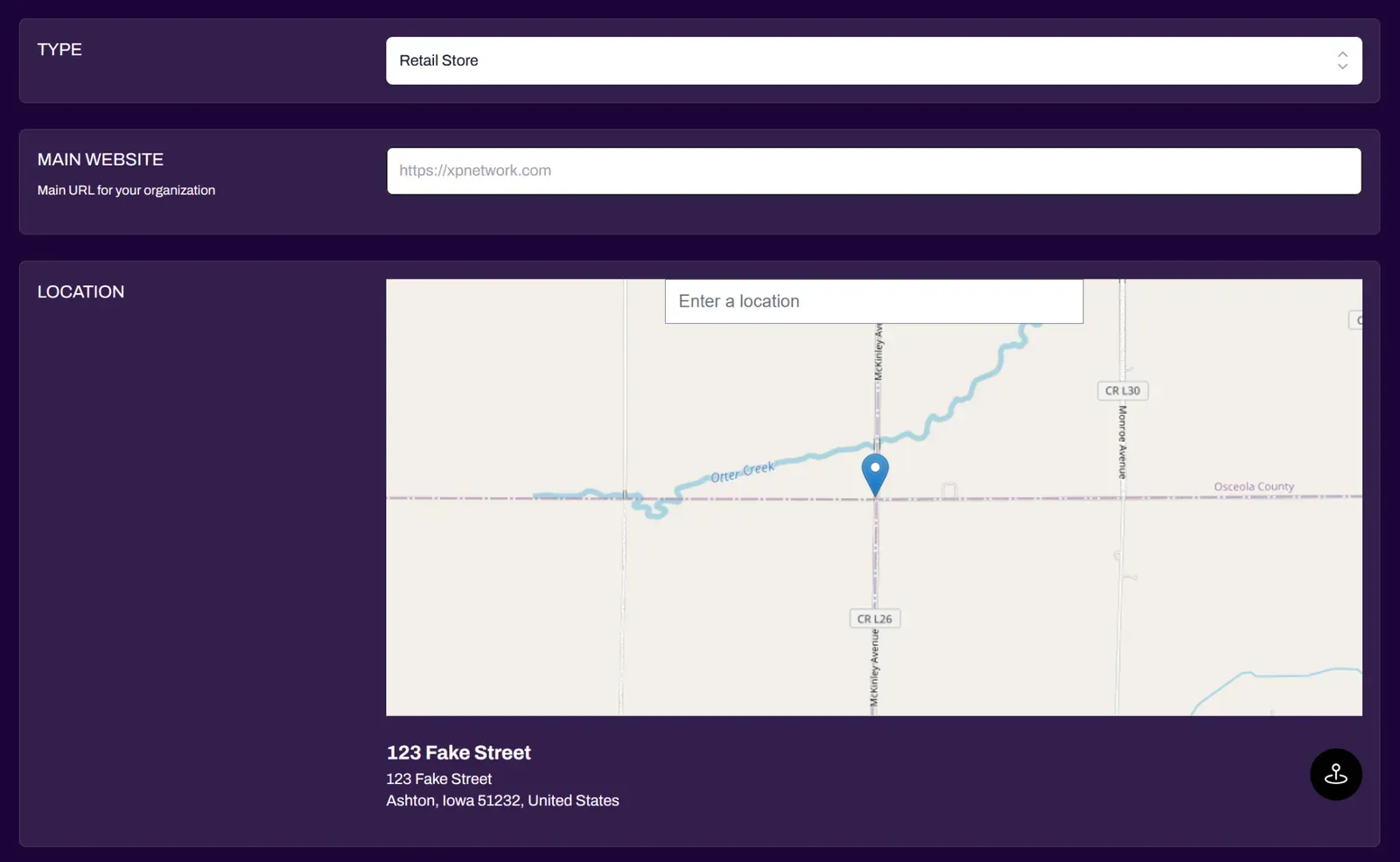
| Type | From the dropdown, select what type of organization best describes you, such as Retail Store, Event Organizer, Influencer, and more. |
| Main Website | URL for your organization’s primary website. |
| Location | Physical address for retail stores. This field only displays for specific organization types, such as Retail Store. |
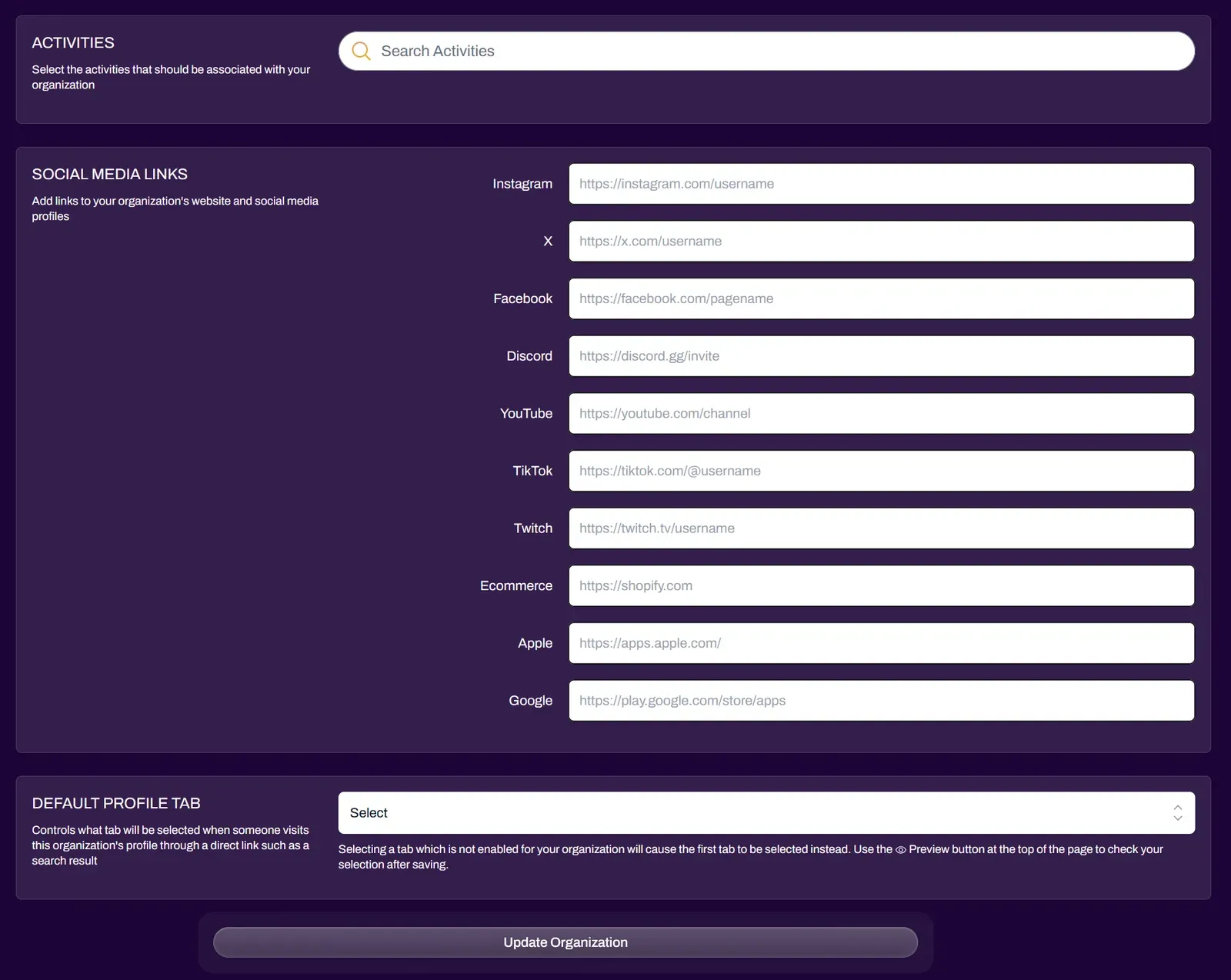
| Activities | The games your organization supports, or that are associated with your organization. A publisher would list all of the games or activities they create or manage. A retail store or other organization type would list all of the games or activities they support. |
| Social Media Links | Adding your socials makes them appear on your public XP Network org page so attendees can find and follow your community. |
| Default Profile Tab | controls what tab will be displayed on default when a user visits your organization page, such as Events, Quests, Store, News, and Leagues. Selecting a tab which is not enabled for your organization will cause the first tab to be the default instead. |
Saving Changes
Section titled “Saving Changes”Once you have made your edits, click Update Organization to apply them. Your organization details will update immediately across the platform, including on any events associated with your organization.