Running Tournaments
Flexible tournament software is available as a free feature for events. This section will cover how to set up and run a tournament for a created event.
Creating a Tournament
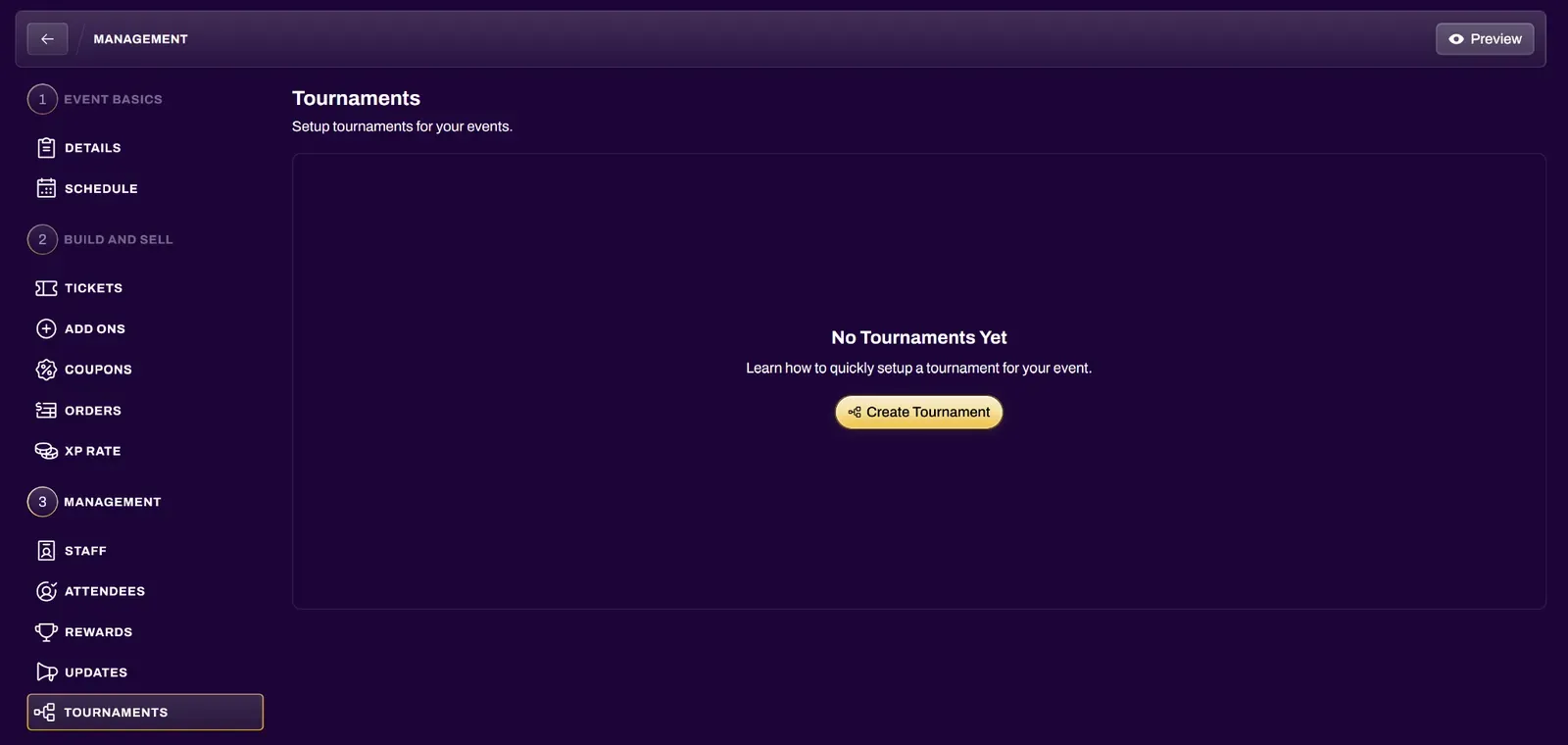
Section titled “Creating a Tournament”After creating an event, go into the Edit menu and navigate to the Tournament tab, then select Create Tournament.
Tournament Setup
Section titled “Tournament Setup”Tournament Structure
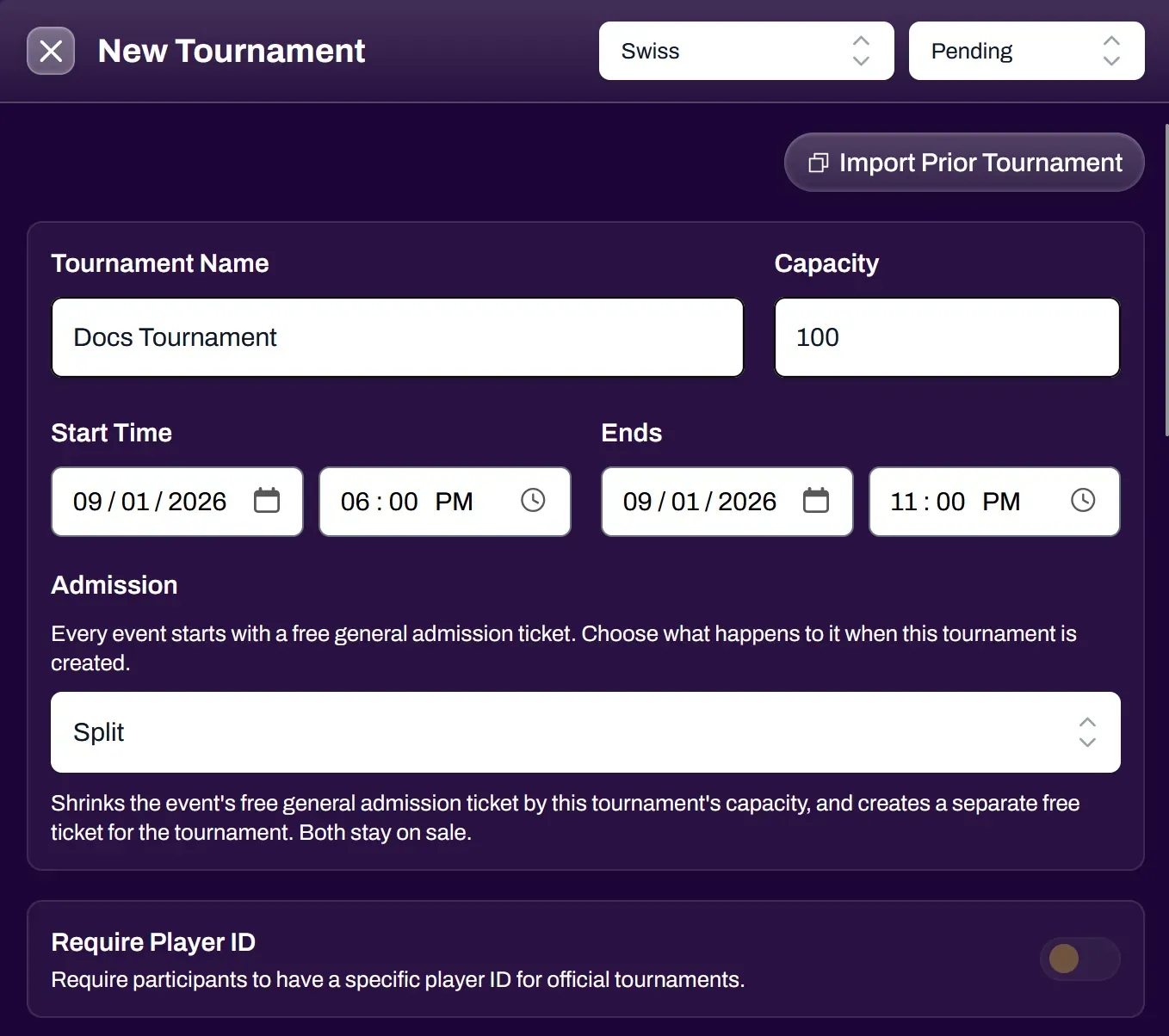
Section titled “Tournament Structure”XP Network currently offers Swiss, Single Elimination, and Double Elimination tournament formats. Make sure to select the proper tournament format from the dropdown.
| Status | A tournament can have the following tournament statuses - Pending, In Progress, Paused, or Completed. Tournaments should start in Pending and will automatically move to In Progress once started. An event organizer can pause the tournament if necessary, and unpausing it would move the status to In Progress again. Once a tournament has concluded, the status should be set to Completed, which automatically happens when the Stop button is pressed. |
| Import Prior Tournament | Allows you to duplicate tournament setup by importing information from a previous tournament. |
| Tournament Name | Defaults to the main event name, but can be modified if the details are different, or in the case of more than 1 tournament in an event. |
| Capacity | The maximum number of players the tournament can have. This also defaults from the main event details and can be modified. |
| Start Time and End Time | Automatically defaults to the main event Start Date and End Date, but these can be modified if necessary, especially if multiple tournaments are being created under the same event. |
| Admission | Split shrinks the event’s free general admission ticket by this tournament’s capacity, and creates a separate free ticket for the tournament. Both stay on sale. Take Over replaces the event’s free general admission ticket, and the tournament ticket becomes the only way to get into the event. |
| Require Player ID | This toggle is only used if the event organizer is using XP Network for ticketing, then exporting the player list to be used with external tournament software. If this toggle is ON, upon registering, players will be required to enter their Player ID from whichever external system the event organizer chooses from the dropdown. Players can also edit their external Player IDs from their profile. |
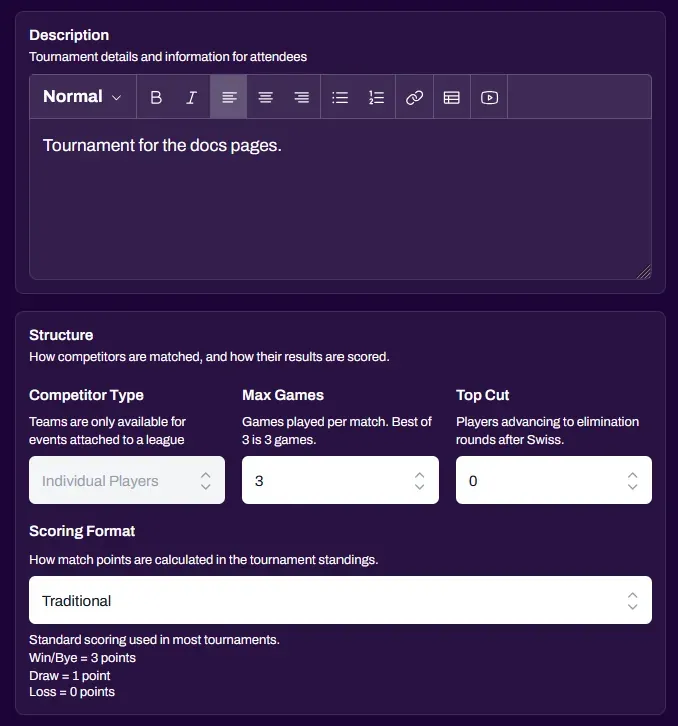
| Description | Defaults to the main event description, but can be modified if the details are different, or in the case of more than 1 tournament in an event. |
| Competitor Type | Individual Players or Teams. The Teams format is only available if the event is created from the Leagues feature. |
| Max Games | The number of games per match, anywhere from 1 to 7. |
| Top Cut | If the tournament structure is Swiss, you can set the number of top cut players to play in an elimination bracket after swiss. |
| Grand Finals Mode | In the case of a Double Elimination tournament, you can select from Bracket Reset, Single Elimination, or No Grand Finals. |
| Scoring Format | If the tournament structure is Swiss, you can set the scoring format to Traditional, Best of 2, or Custom. Traditional is the standard used point system across most games, while Best of 2 is suited for games that support that point system (eg. Alpha Clash). Custom lets you define your own point values for wins, draws, losses, and byes. |
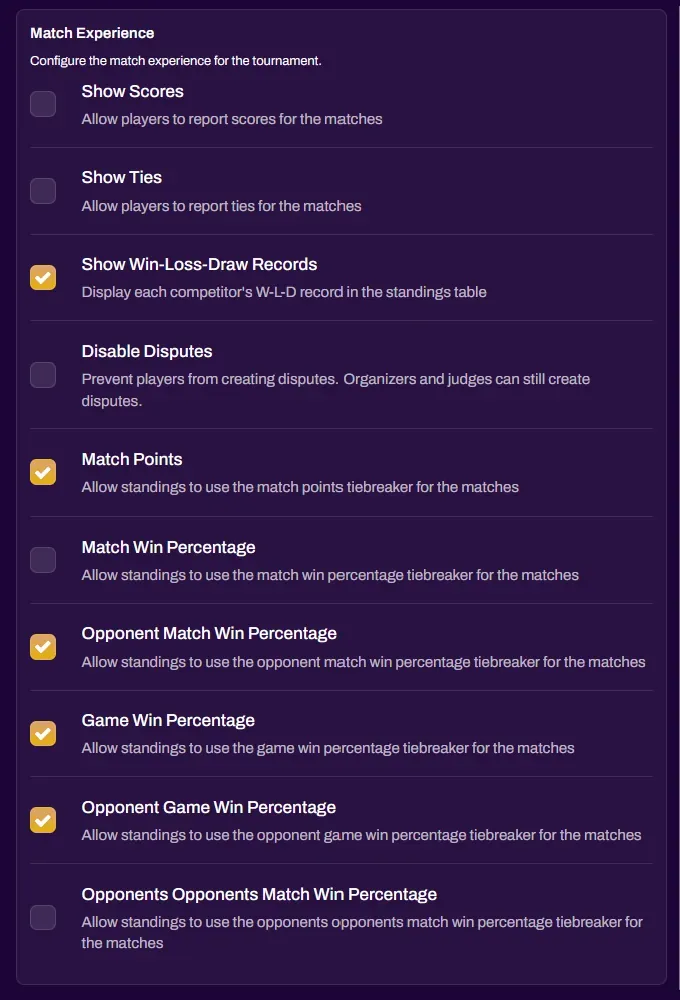
| Match Experience | These are tiebreakers that can be toggled to fit a variety of tournament types. The default options ticked are universal tiebreakers for best of 2 games or more. In the case of Best of 1 matches, untick the game win percentage tiebreakers and tick the Opponent’s Opponents Match Win Percentage tiebreaker. |
| Show Scores | Allows players to input a numerical score while submitting their match. |
| Show Ties | Allows players to submit an individual game result as a Tie. This option should only be used for tournament structures that allow for individual games to end in ties or no contest. |
| Show Win-Loss-Draw Records | Defaulted to on, but can be toggled off if you wish to hide W-L-T records from the public. |
| Disable Disputes | Prevent players from calling a judge from their device. |
| Match Points | Primary tiebreaker, almost always left on. |
| Match Win Percentage | Only used in Best of 2 scoring format. Is irrelevant in traditional scoring because every win is 3 points. |
| Opponent Match Win Percentage | Primary tiebreaker, almost always left on. |
| Game Win Percentage | Used for matches with Best of 2 or more games. Turn off for Best of 1. |
| Opponent Game Win Percentage | Used for matches with Best of 2 or more games. Turn off for Best of 1. |
| Opponent’s Opponents Match Win Percentage | Secondary tiebreaker for Best of 1 systems. Can be used in Best of 2 or higher, but is generally irrelevant as the primary tiebreakers should be developed enough for this tiebreaker to not matter in those systems. |
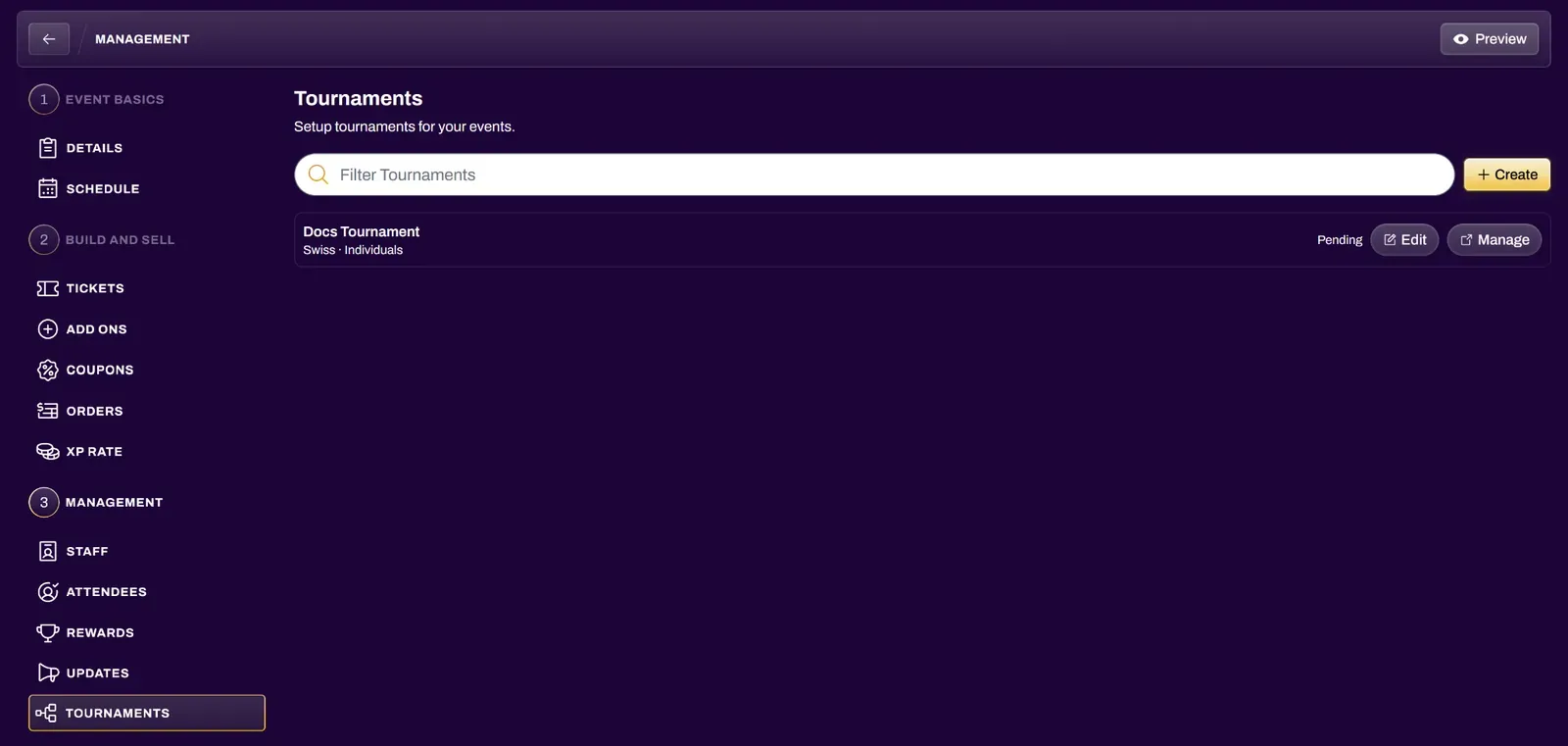
After creating your tournament, it will show up in the Tournaments tab. Selecting the Manage button will take you to the respective tournament’s organizer view.

Editing Tournament Entry Tickets
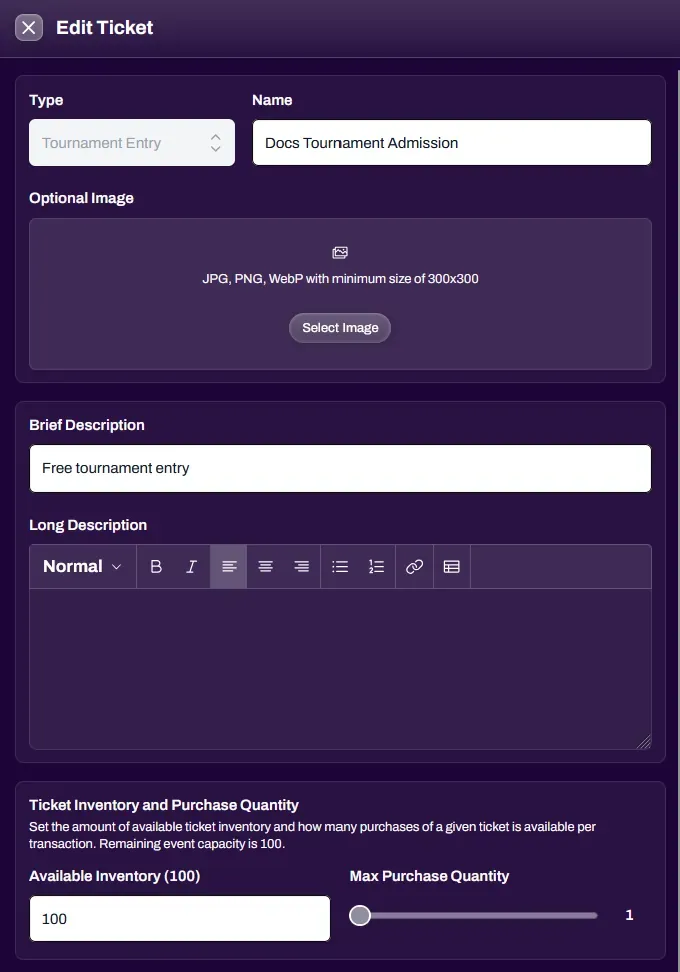
Section titled “Editing Tournament Entry Tickets”While ticketing is primarily created through the Admission field during Tournament Setup, you are able to edit your Tournament Entry tickets, including the details and price. Toggling the ticket off allows you to edit the ticket. After editing, make sure the ticket is toggled back on so that players can acquire the ticket.

| Name | Tournament ticket name. |
| Optional Image | Upload an image here if you want your ticket to display that image. |
| Brief Description | Short description of the ticket. |
| Long Description | Optional field for more details. |
| Ticket Inventory | Should be how many tickets to the tournament you want to sell, most likely reflecting the player cap. |
| Max Purchase Quantity | Will automatically be locked to 1 for Tournament Admission ticket types, since 1 event attendee can only represent themselves 1 time in a single tournament. |
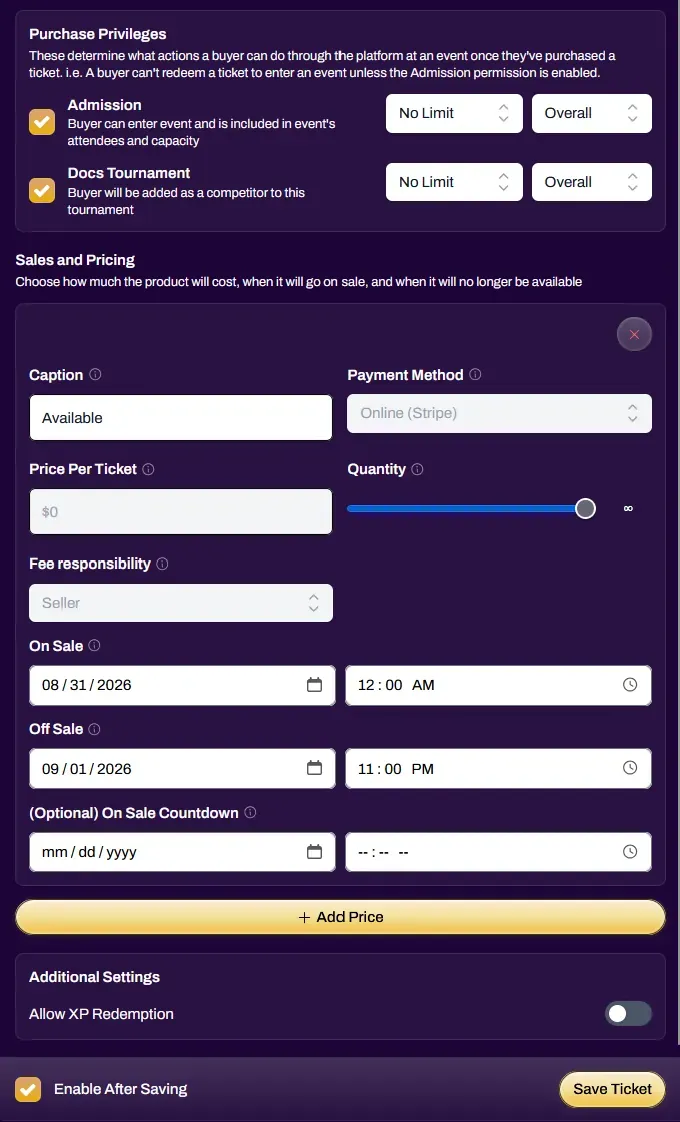
| Purchase Privileges | Determines what a ticket holder can redeem for. The Tournament Entry ticket type allows you to combine Event Admission and Tournament Admission into the same ticket for the event attendee. This makes it easy for them to join the event and also be immediately added as a competitor into the tournament. |
| Sales and Pricing | Works just like a regular Event Admission ticket type. |
| Payment Method | Can be online via Stripe, or Pay-in-Person via cash. |
| Price Per Ticket | Will automatically be locked to $0 until a Stripe account has been linked. Once active, all ticket proceeds will go to the Stripe account of the associated organization of the event. |
| Quantity | Is how many of this ticket you want to sell at the options you have chosen. Defaults to unlimited. This option is useful for dynamic pricing such as “Early Bird Specials” where you can assign a portion of the tickets to be cheaper than the rest. |
| Fee Payer | Is default set to Seller, but you have the ability to change it to Buyer if you wish. This option is greyed out unless the ticket price is above $0. |
| On Sale Date | Is when you want the ticket to be available to purchase. For joining immediately, this should be set to before your current time (ie. 12am on your current date). |
| Off Sale Date | Will default automatically to the Event End date and time. |
| Allow XP Redemption | If your organization has the XP Checkout feature enabled, toggle this on for users to be able to spend XP on this ticket. |
Adding Judges to Your Tournament
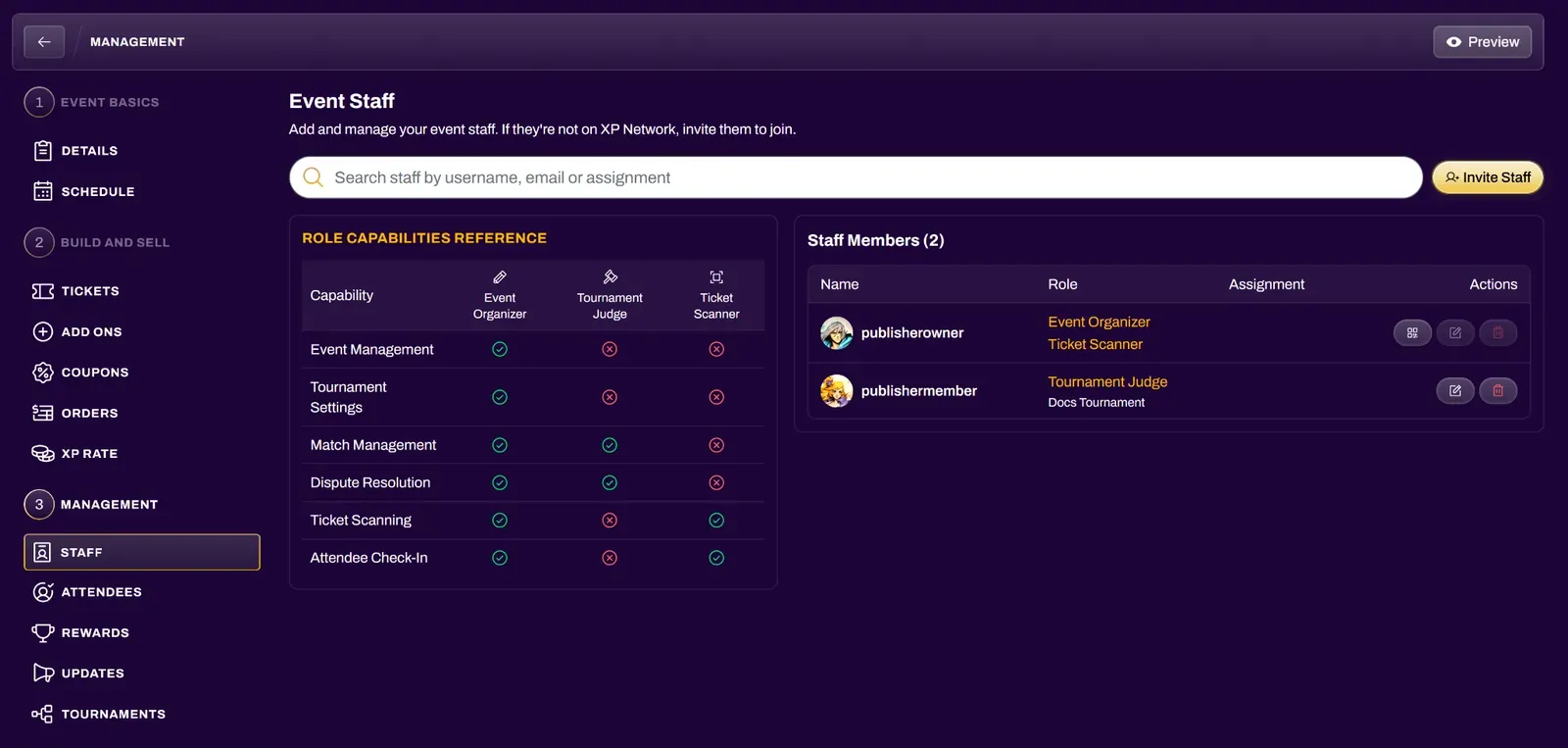
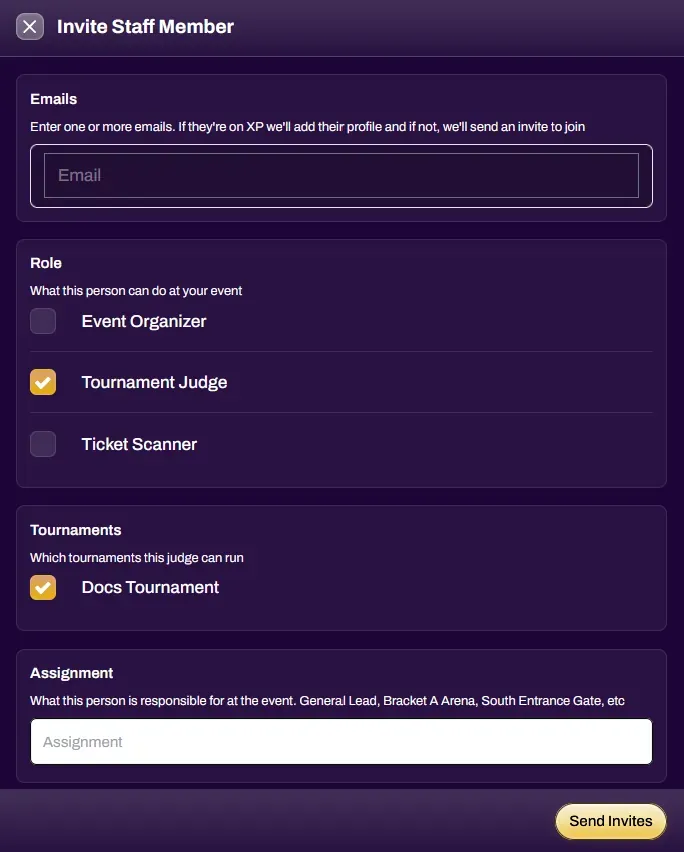
Section titled “Adding Judges to Your Tournament”Under the Staff tab, select Invite Staff, then enter the email address of the Judge you want to add, and assign them the Judge role for any tournaments you want them to judge. This will give them access to the Judge Dashboard (Disputes tab) and will give them notification alerts of any match disputes or judge calls. If their email address is not tied to an XP Network account, they will receive an email prompting them to create an account first.
Players Joining Your Tournament
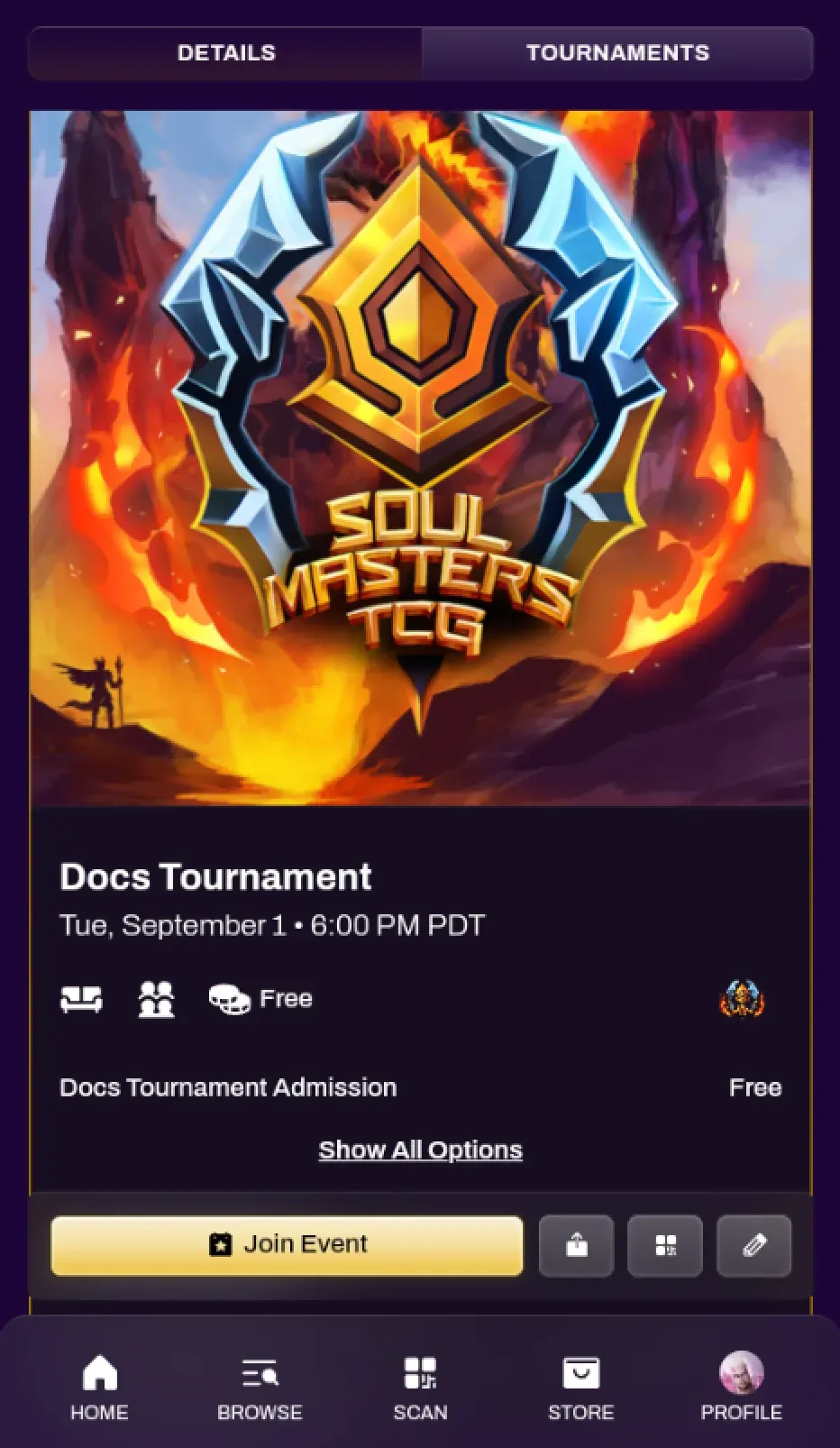
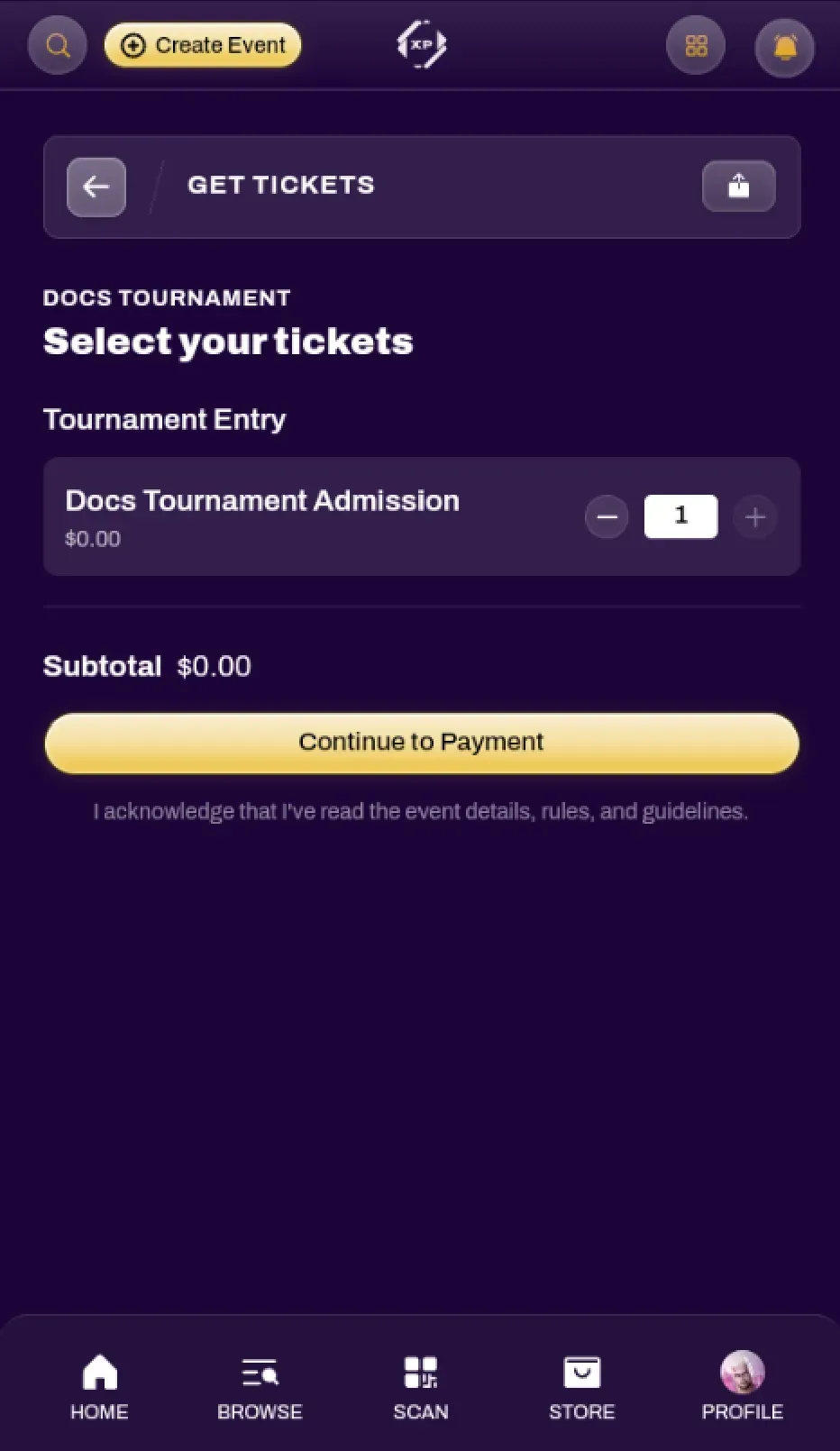
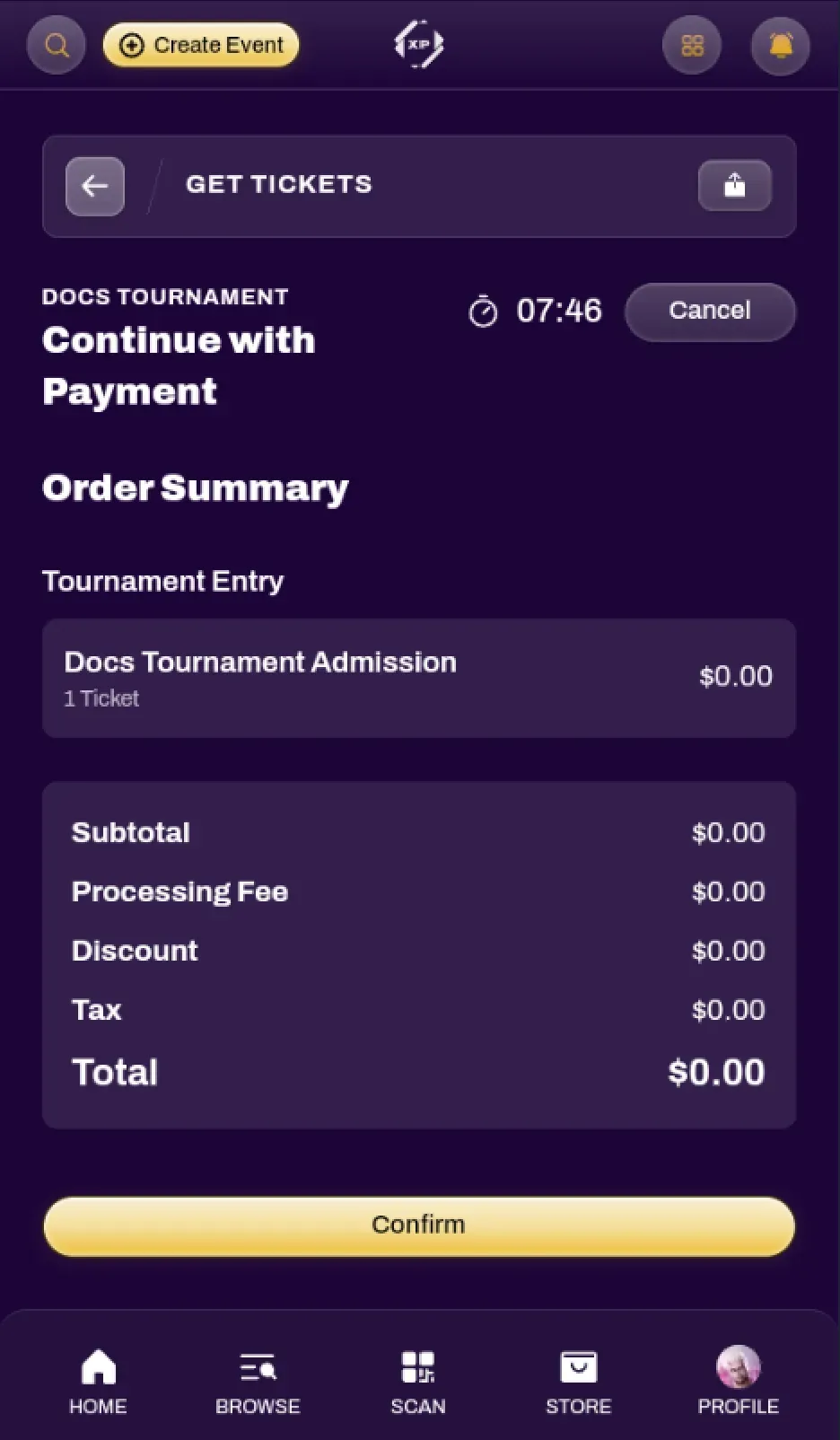
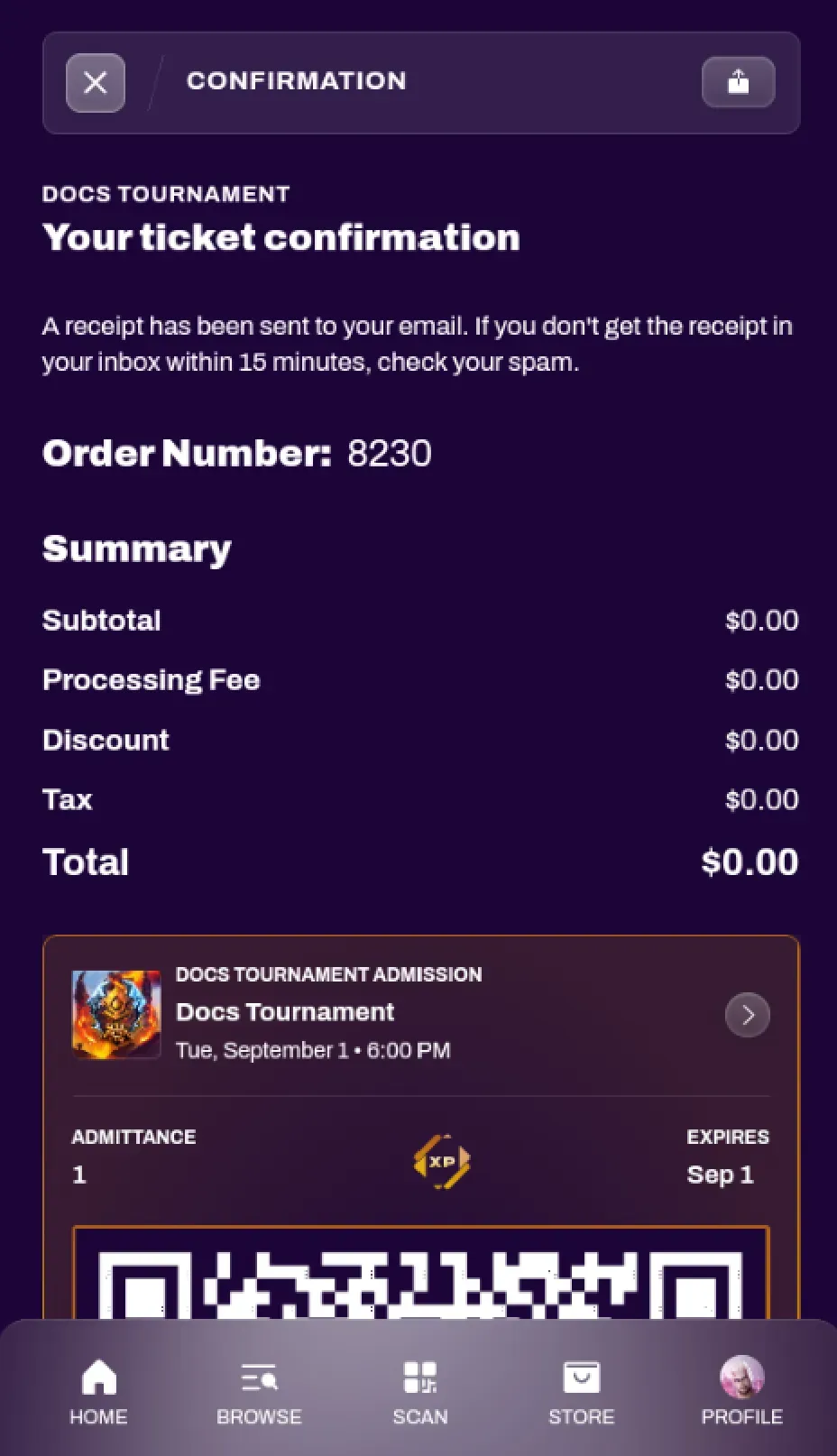
Section titled “Players Joining Your Tournament”After creating the ticket and enabling it, players will be able to join the tournament by navigating to the event page and selecting Join Event. In the case of a paid ticket, they will be taken to a checkout session to complete the payment to obtain their ticket.
If you configured the Require Player ID toggle, their ticket will be held in checkout and give them a window to enter their Player ID for the platform you required. The system will then allow them to acquire their ticket. If that Player ID has already been saved to their profile, this step will be skipped for them.
Tournament Management
Section titled “Tournament Management”After creating a tournament, it will be listed under the Tournaments tab of your Event manager. Selecting Edit will allow you to edit any details of the event, such as the description, tiebreakers, or top cut number. Selecting Manage will take you to the Tournament manager.
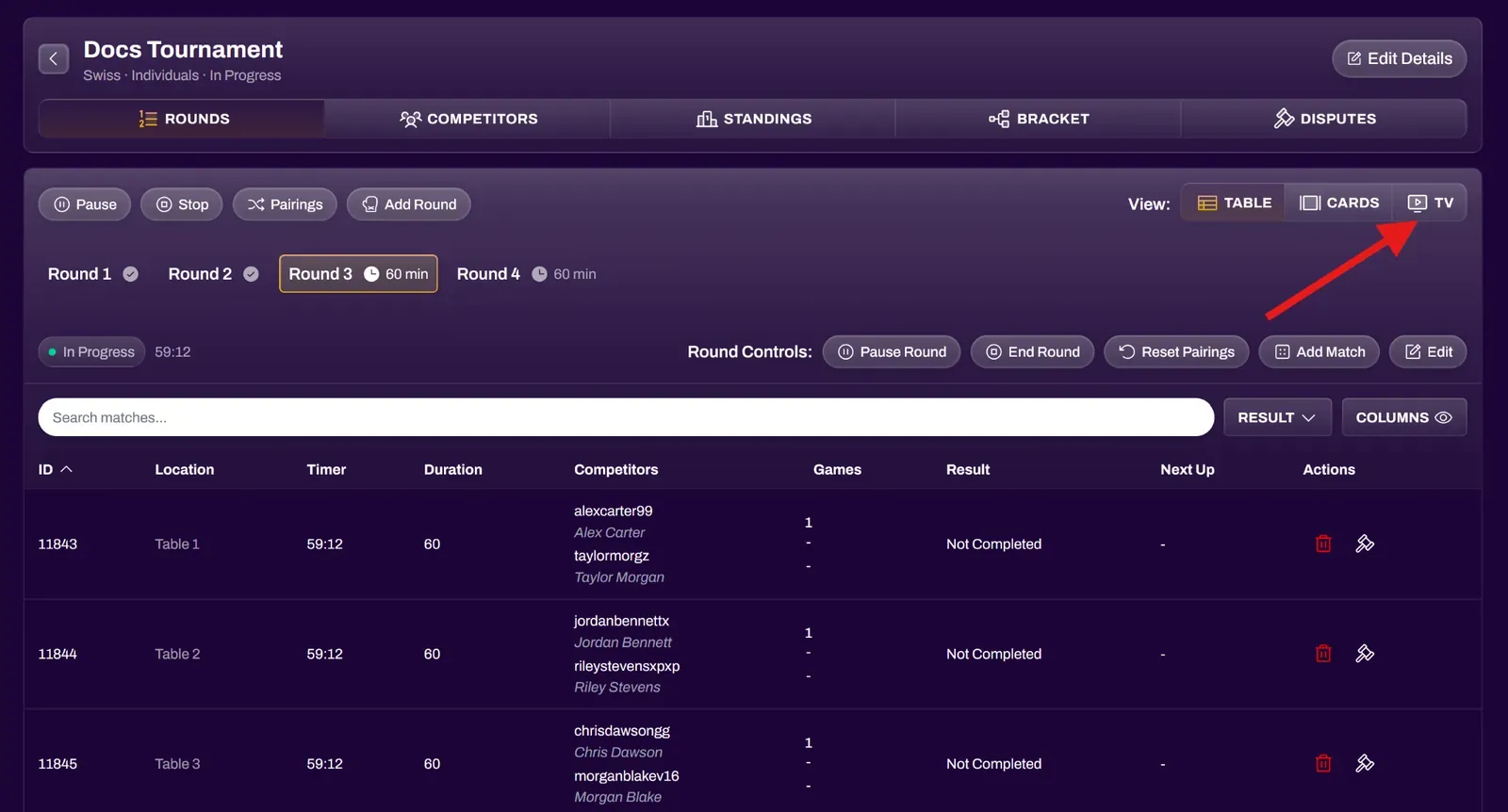
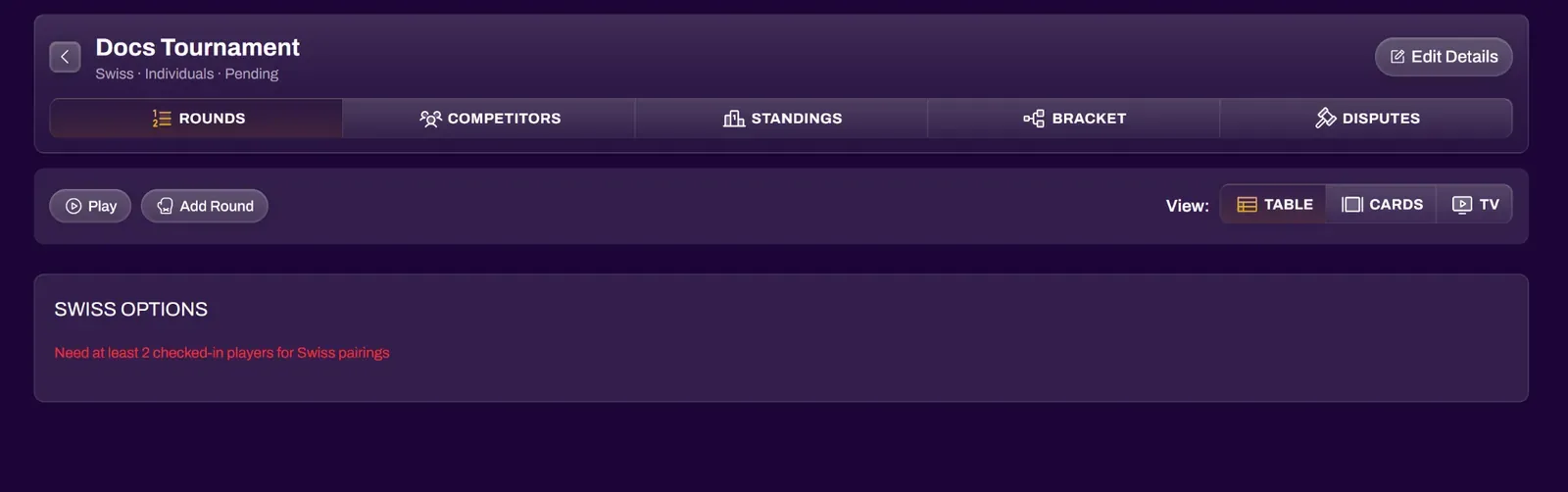
The tournament manager has 5 primary tabs.
| Rounds | Primary tournament view where a majority of tournament management actions are performed. |
| Competitors | View and manage the competitors in your tournament. |
| Standings | View standings of the tournament, round by round. |
| Bracket | Displays a bracket view for elimination style tournaments and top cuts for Swiss. |
| Disputes | Judge dashboard that displays logs of match disputes. |
Checking Players In
Section titled “Checking Players In”A player will need to be checked into the tournament in order for them to be included in Swiss pairings or bracket generation. Players can check in by themselves in their Tournament tab of the event. An organizer can also manually check them in from the Tournament Dashboard under the Competitors tab.
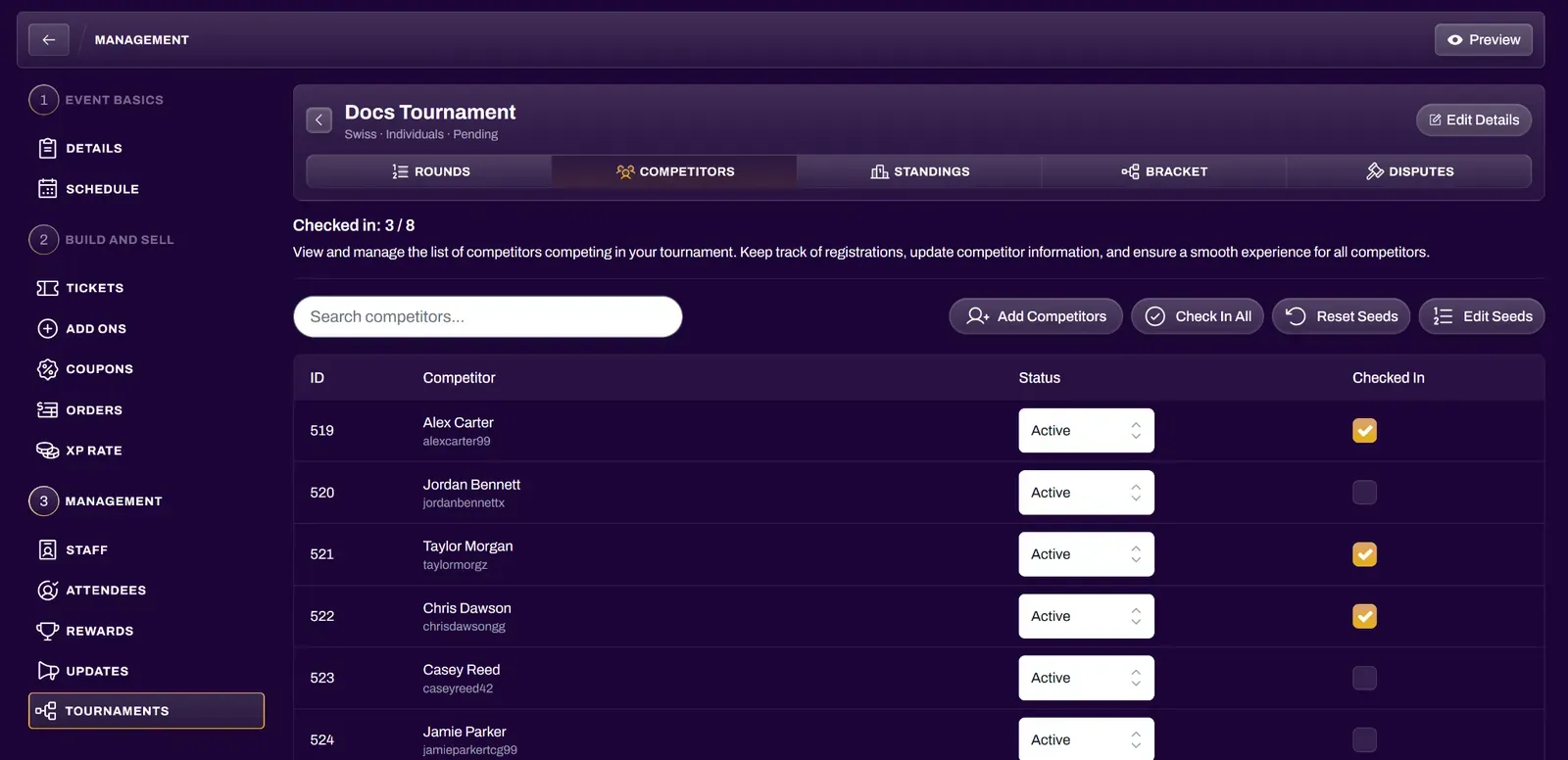
| Add Competitors | This button allows you to manually add any user to your tournament, provided they have registered for your event. XP Network currently does not support ghost users, or allow for manual entry of users who have not registered for your event. |
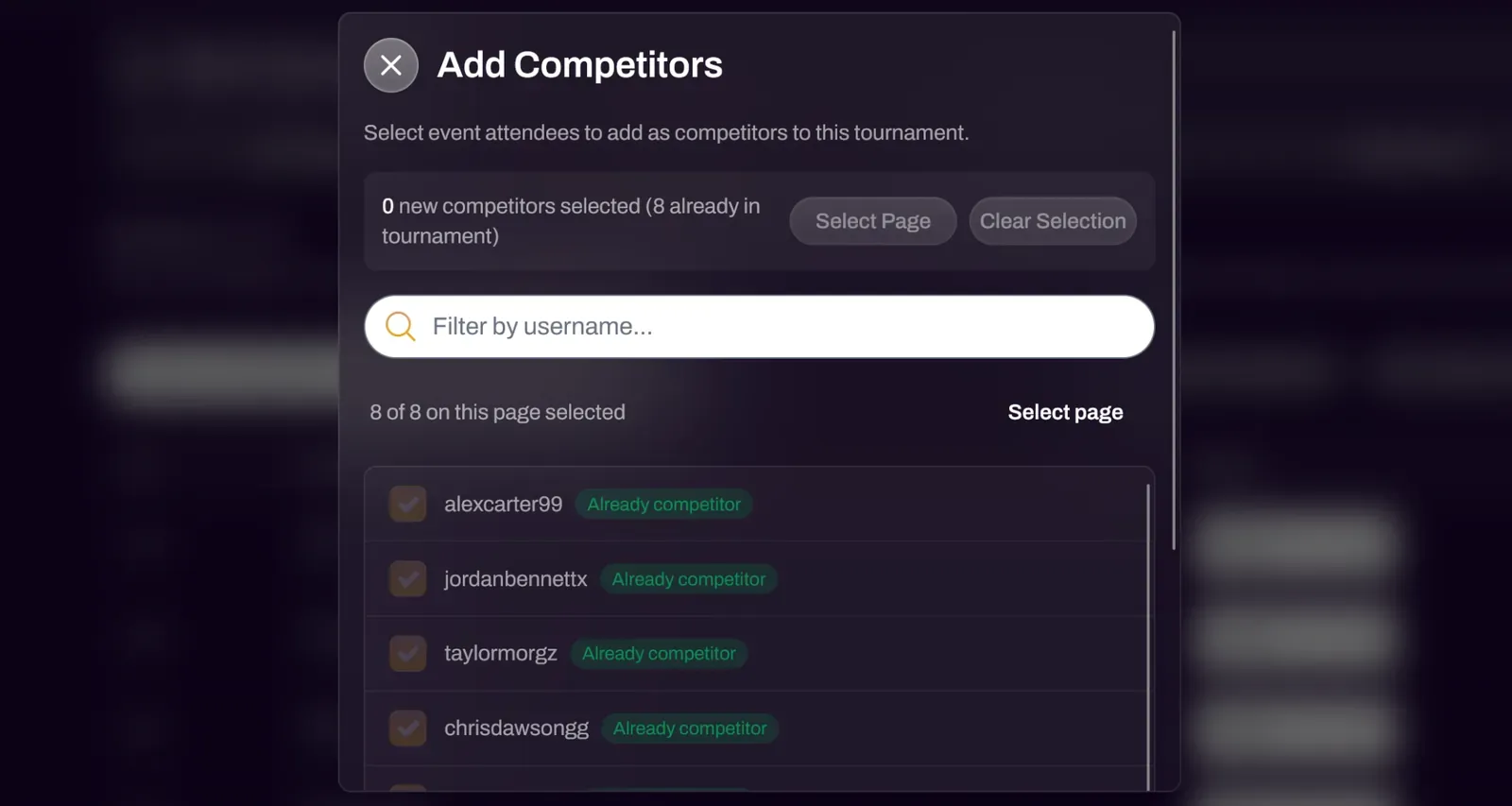
| Check In All | This button gives the ability to Check In or Check Out all players. |
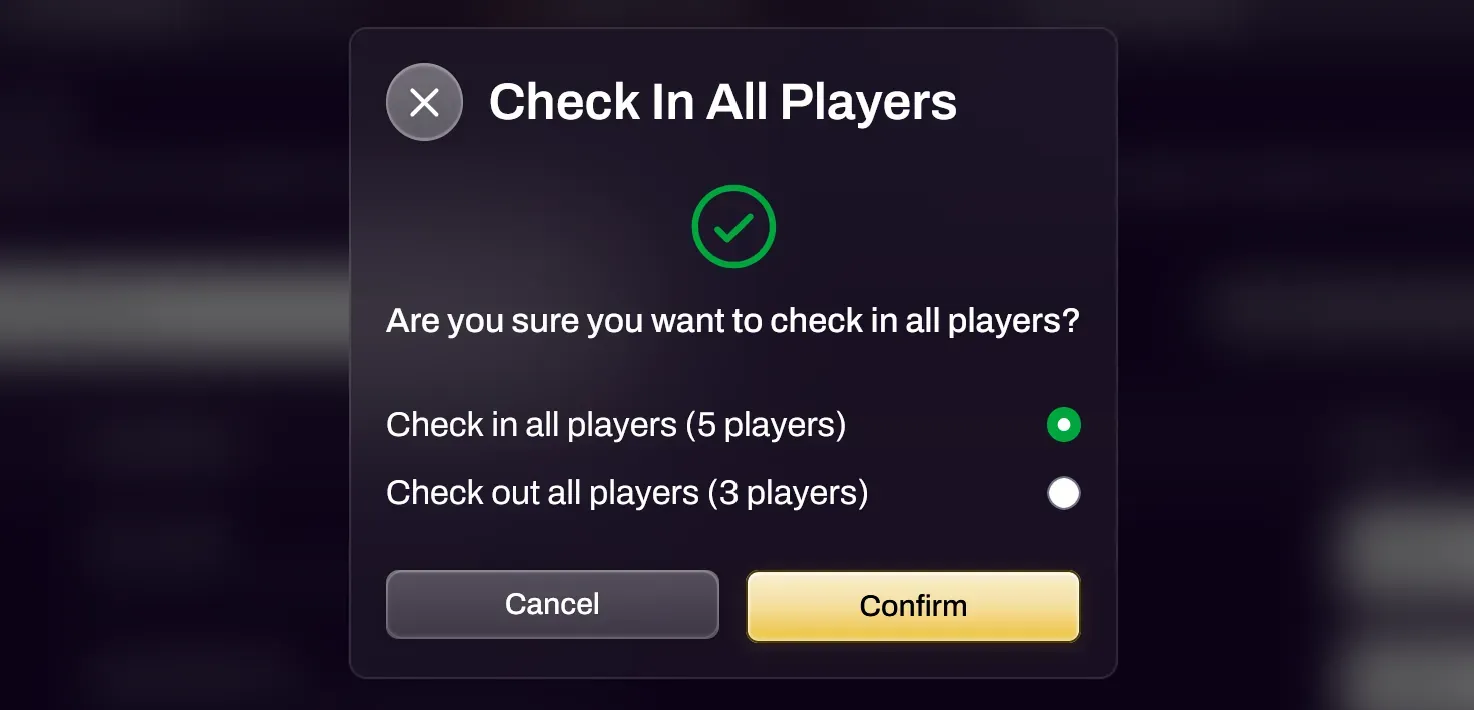
| Reset Seeds | Used for Elimination tournaments to assign seeding. This button must be pressed before creating the initial bracket. Swiss tournaments do not use this button. |
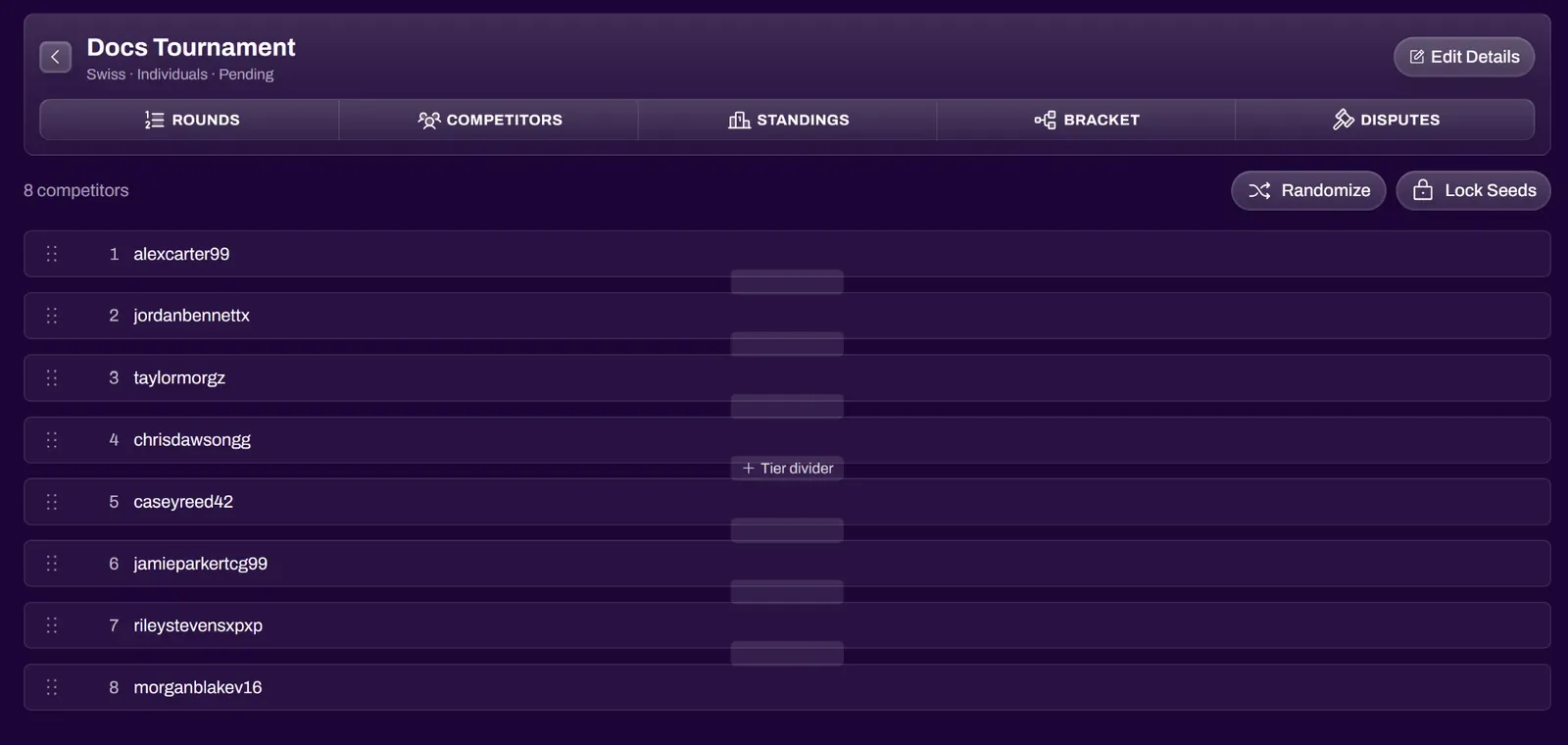
| Edit Seeds | Used for Elimination tournaments to manually assign seeding and customize matchups. Swiss tournaments do not use this button. |
| Randomize | Randomly assigns seeding. If Tier dividers are set, this button will randomize seeding in each individual tier. |
| Lock Seeds | Confirms the seeding and presents a Generate Bracket button. |
| Tier Dividers | Used to separate seeding into tiers to support skill based matchmaking. |
Player Status
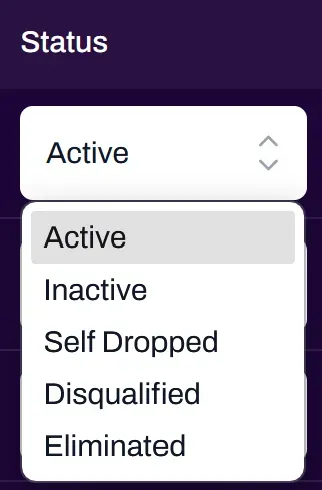
Section titled “Player Status”You can change the player status from the Competitors tab.
| Active | Default status, player is active in the tournament. |
| Inactive | Player is inactive in the tournament and will not be included in matches. |
| Self Dropped | Player has dropped from the tournament. |
| Disqualified | Removes the player from the tournament and marks them as disqualified. |
| Eliminated | Player has been eliminated from the tournament. |
Starting the Tournament
Section titled “Starting the Tournament”After all players are checked in, confirm the number of players is correct in the tournament options. There will also be some additional info like Recommended Rounds, Matches Per Round, Games Per Match, and more. Organizers are able to edit the number of Rounds and games per match after the tournament has started.
| Duration (minutes) | This will set the default timer for each round. |
| Time Between Rounds (minutes) | This can be used as timed breaks in between rounds. This field is optional and can be ignored if the organizer plans to start rounds immediately after the previous round has ended. |
| Start Date | Defaults to the tournament start date set when creating the tournament. |
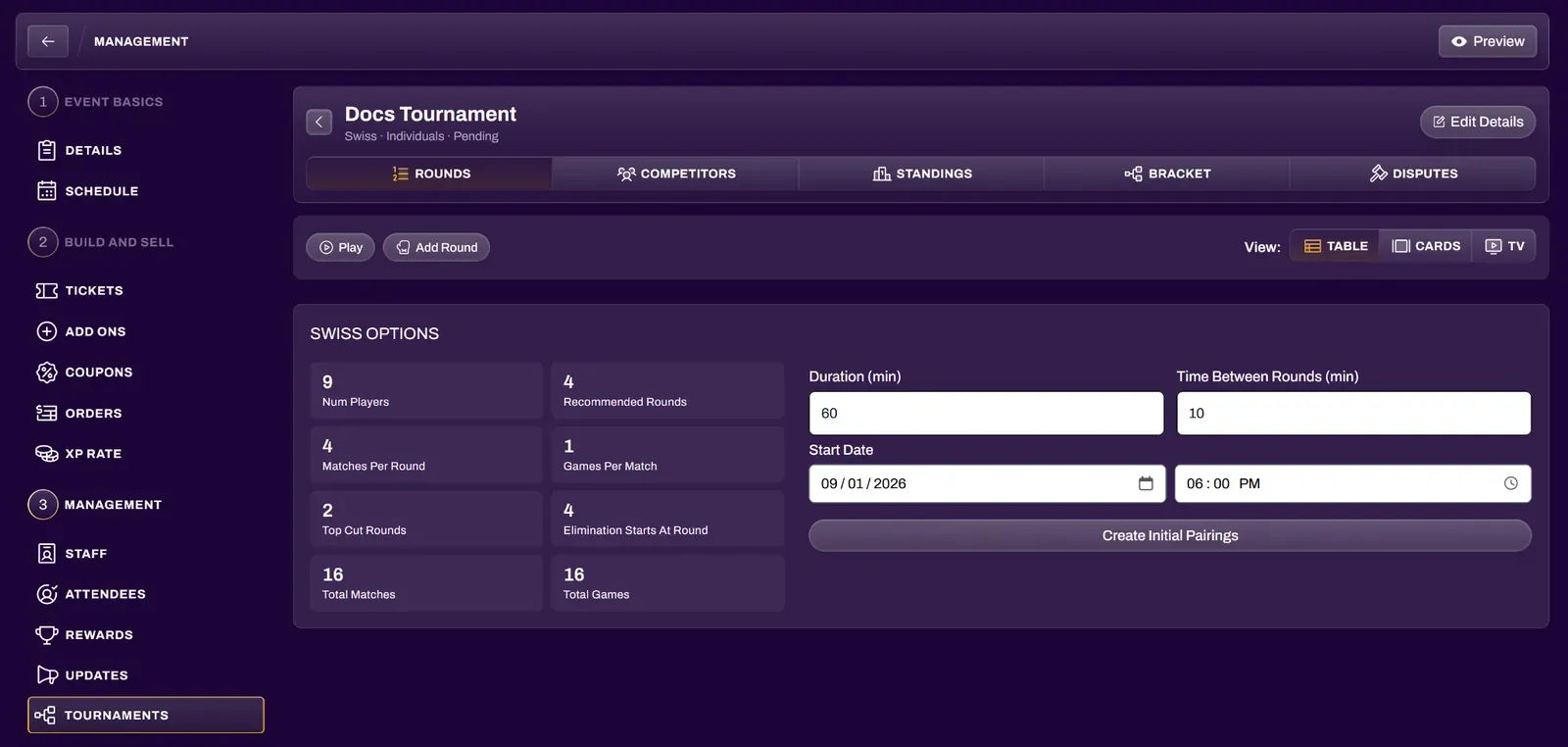
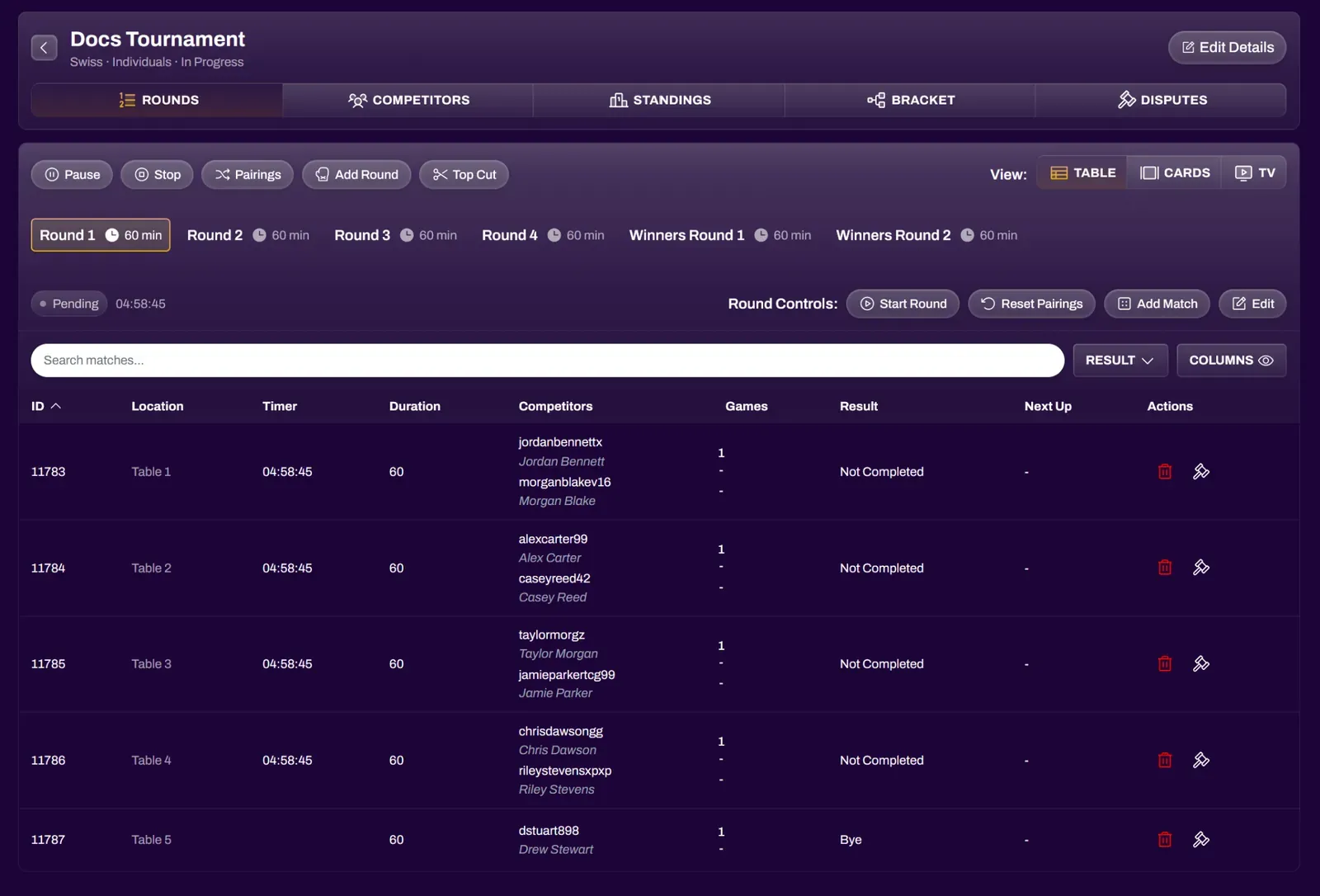
Select Create Initial Pairings to have the system automatically create all rounds and pair players for Round 1. You can then adjust rounds as necessary, such as adding or deleting rounds, or swapping players at tables/stations. You can use the Reset Pairings button to re-pair the round in the event of dropped players, players who joined the tournament late, or after fixing incorrect scores in a previous round. In the case of Elimination style tournaments, you can view and manage everything under the Bracket tab.
Select the Play button to start the tournament. Players will receive a notification that the tournament has started. Players will receive a notification that Round 1 pairings have been created. Selecting that notification will take them to their Tournament tab which will show their Table/Station Number and opponent’s username.
Creating Stations for Elimination Formats
Section titled “Creating Stations for Elimination Formats”You can create and assign Stations to specific matches so that the players know which stations to play at. Select a match and go to Browse Stations to get started and generate as many stations as you have.
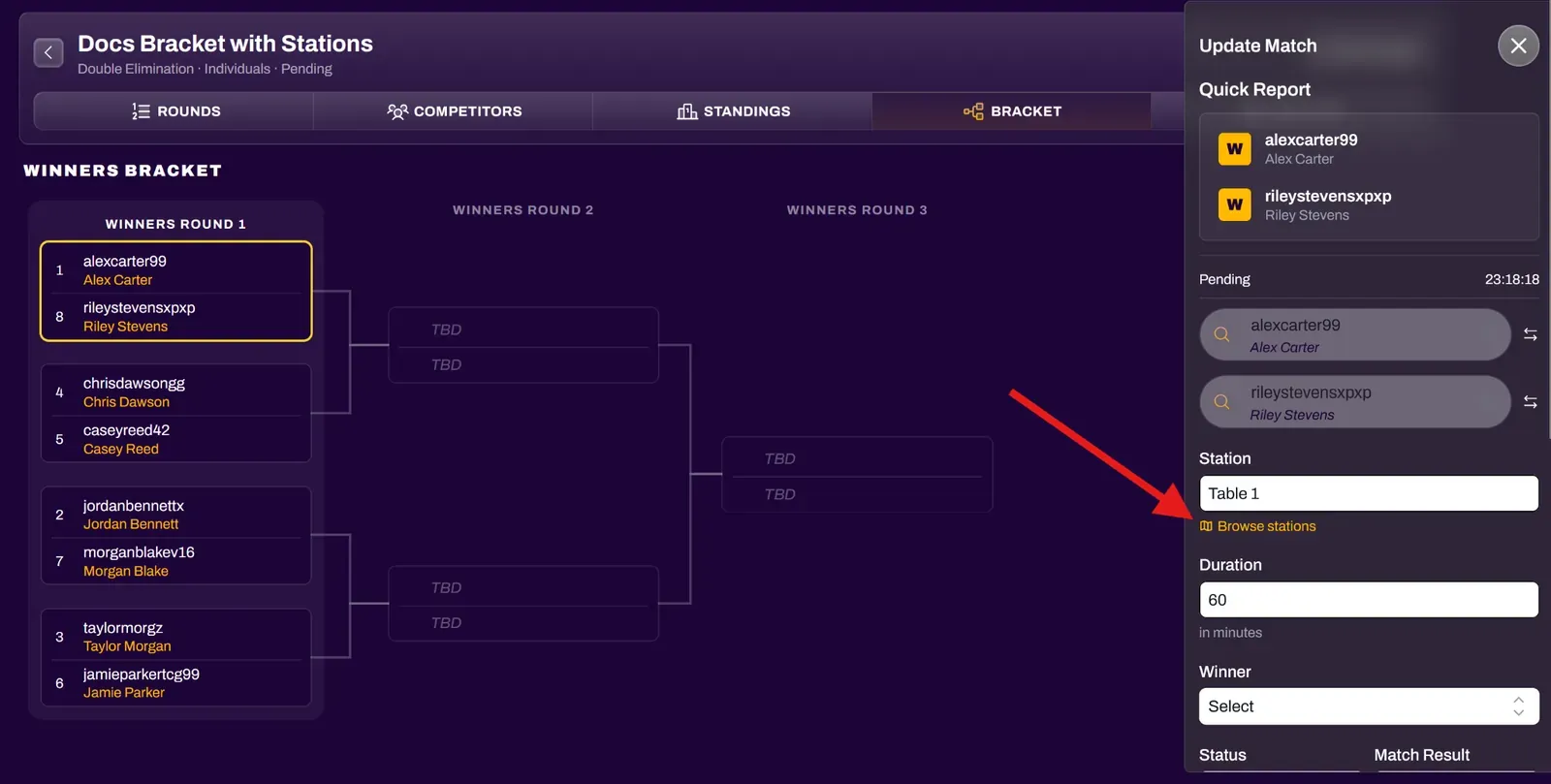
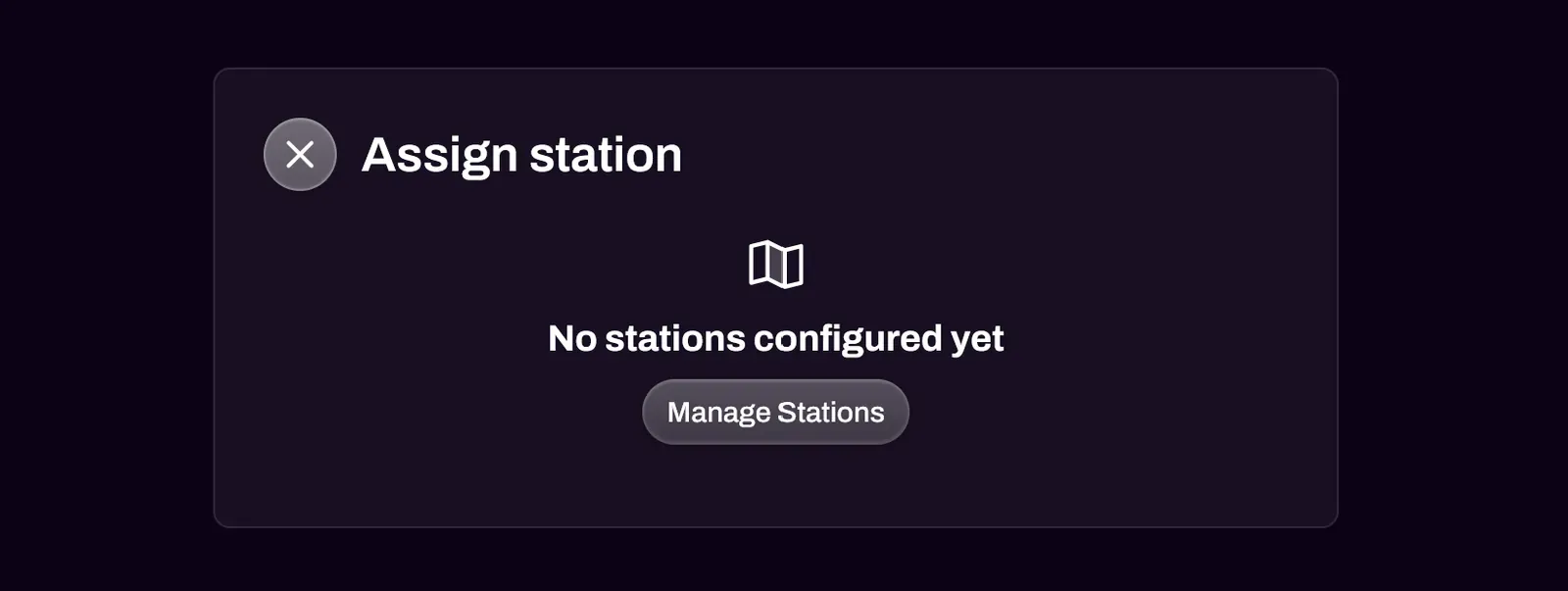
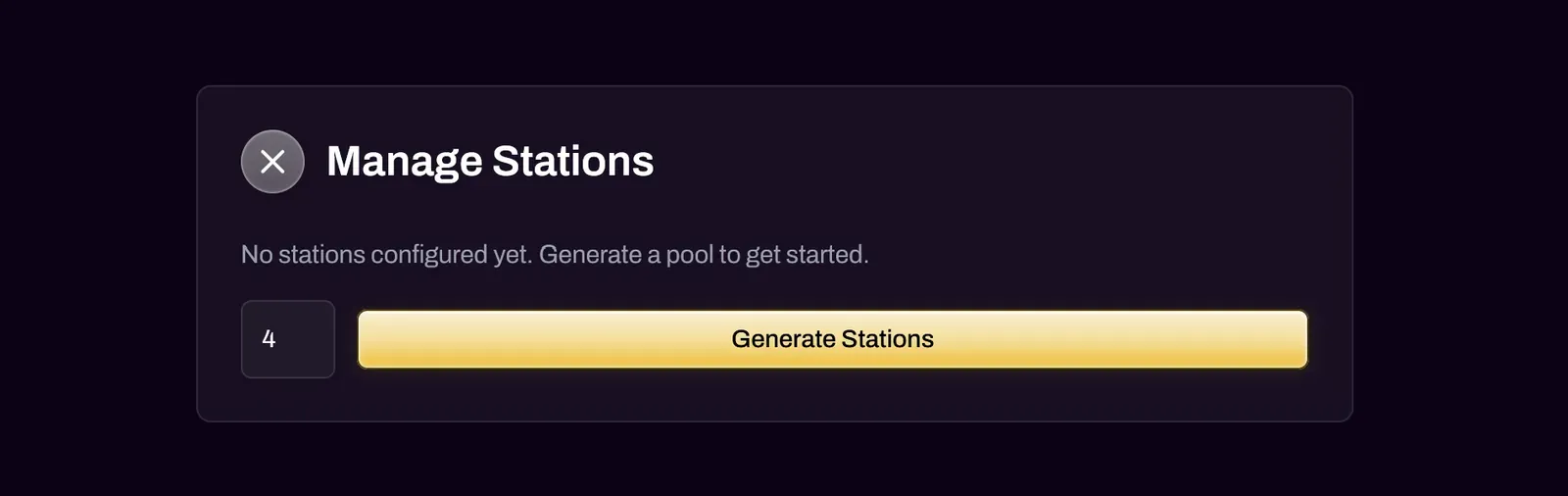
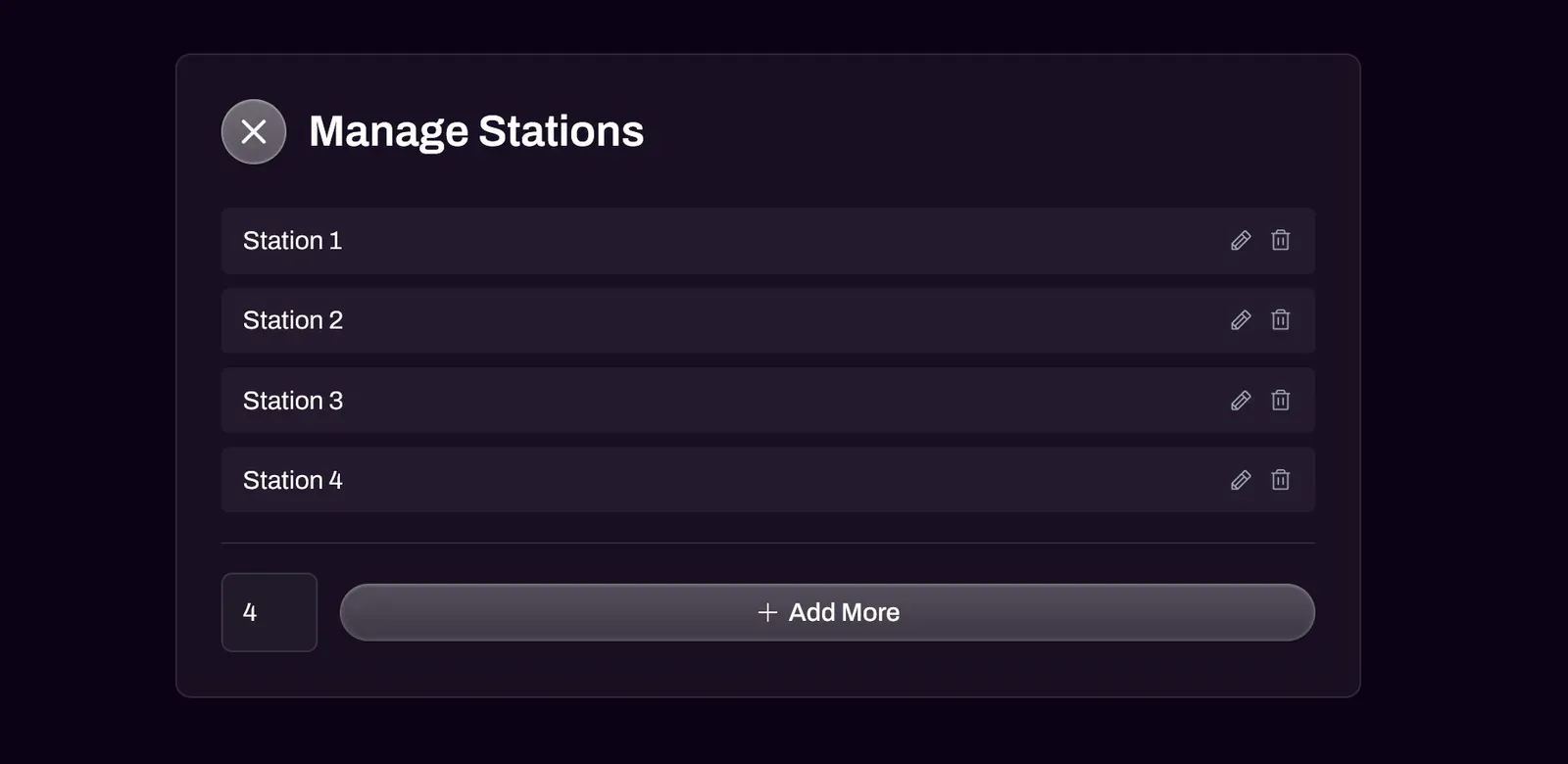
You are able to rename Stations if you wish, such as “Stream Station” for example.
Once your stations are created, you can select a match and go to the Station Select and assign a station to a match. Select Update Match to save the changes. Competitors will be able to see which Station they have been assigned to play at.
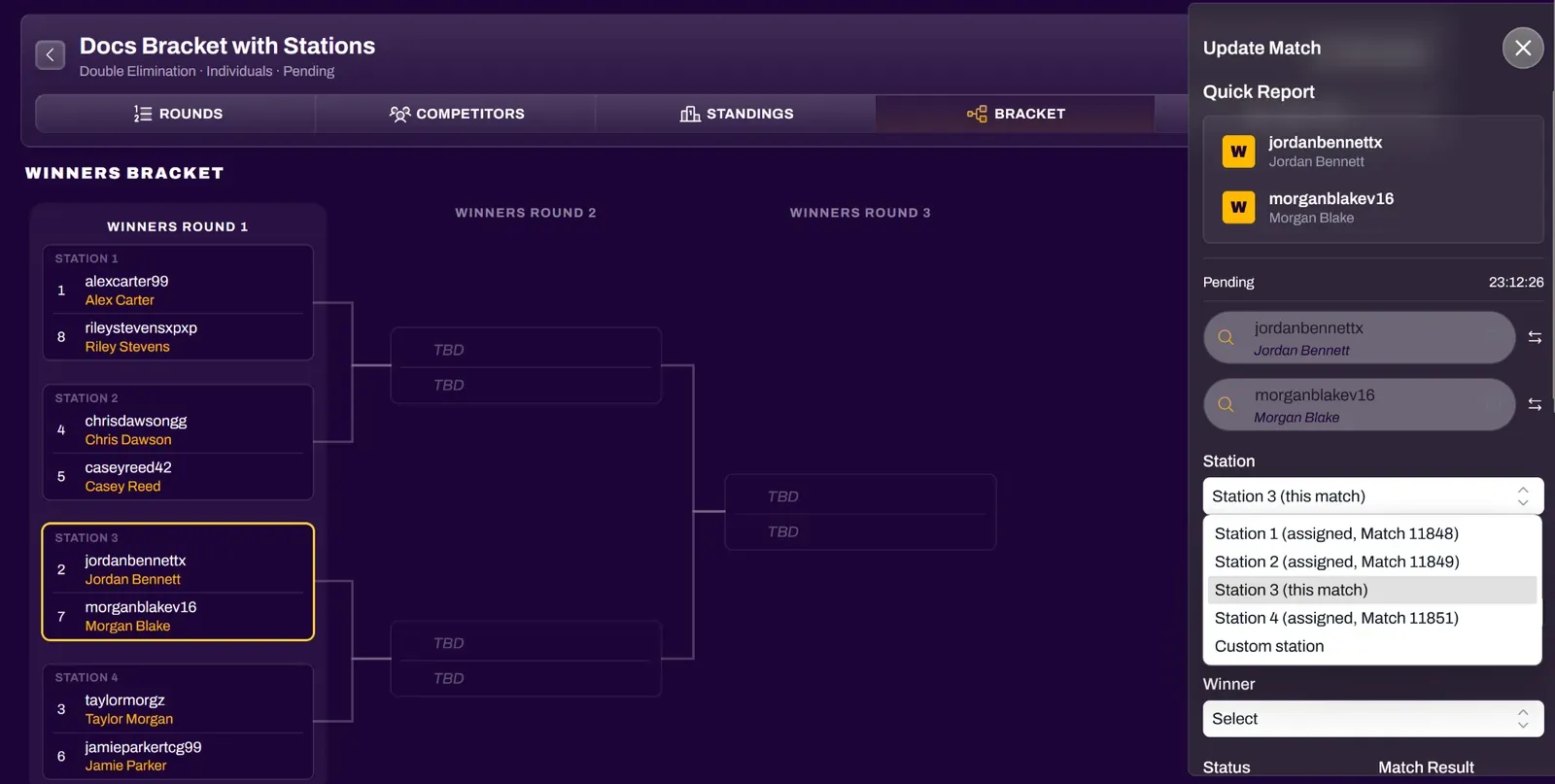
This feature can also be used for Swiss tournaments if you wish to rename the Tables. An example would be naming tables after maps or terrain in miniatures games, for example.
Starting Rounds
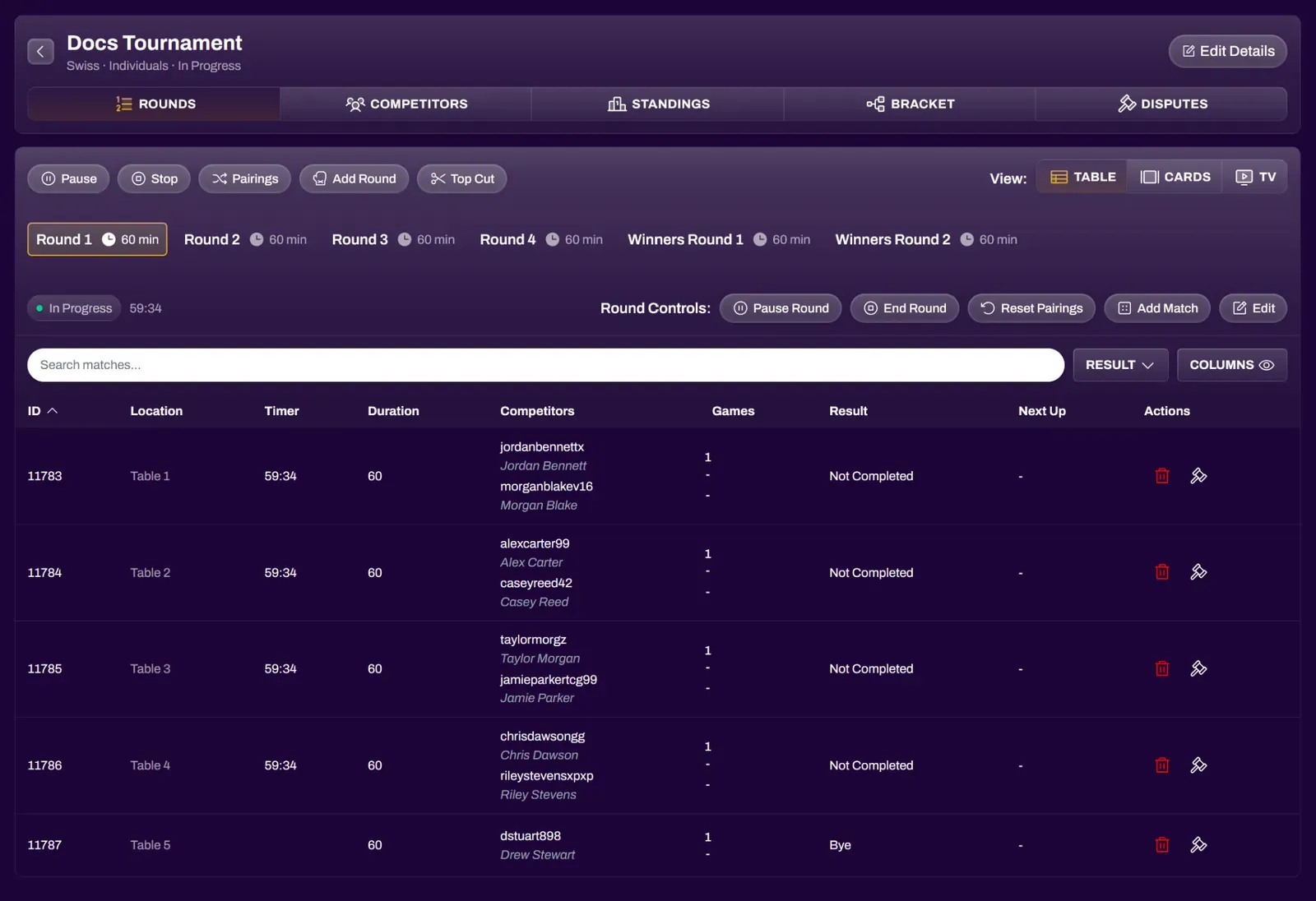
Section titled “Starting Rounds”Selecting Start Round will start the Round Timer and send a notification to all players that the round has started. Players can then begin playing their matches. Players are able to report from their side, but an event organizer can submit scores for them.
Reporting Matches
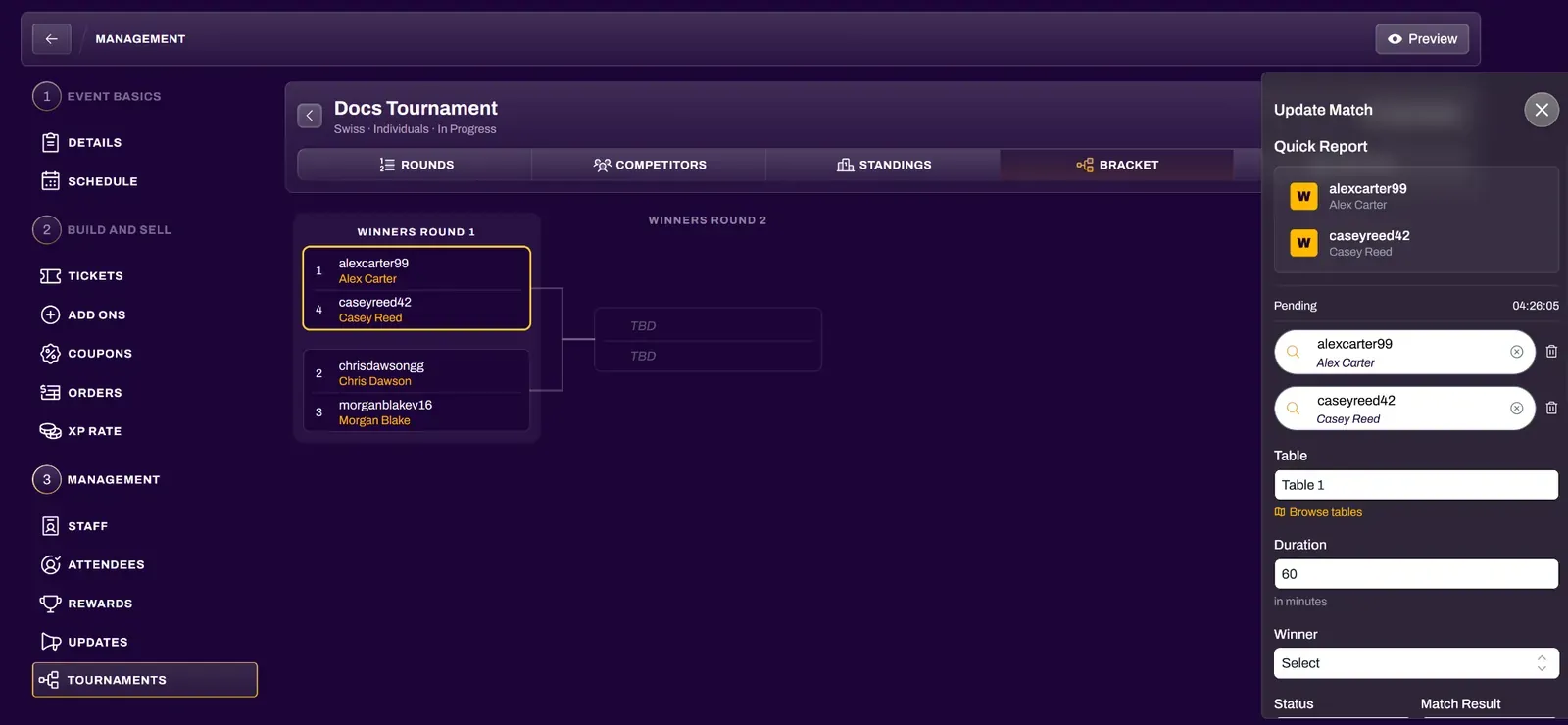
Section titled “Reporting Matches”To report matches as an organizer, select the match and the Update Match Drawer will slide out.
You can select the winner of the match via Quick Report and it will automatically mark that player with the match win and the other player with the match loss, and it will automatically complete the match. After a match has been reported, the Reset Pairings function will no longer work for that round.
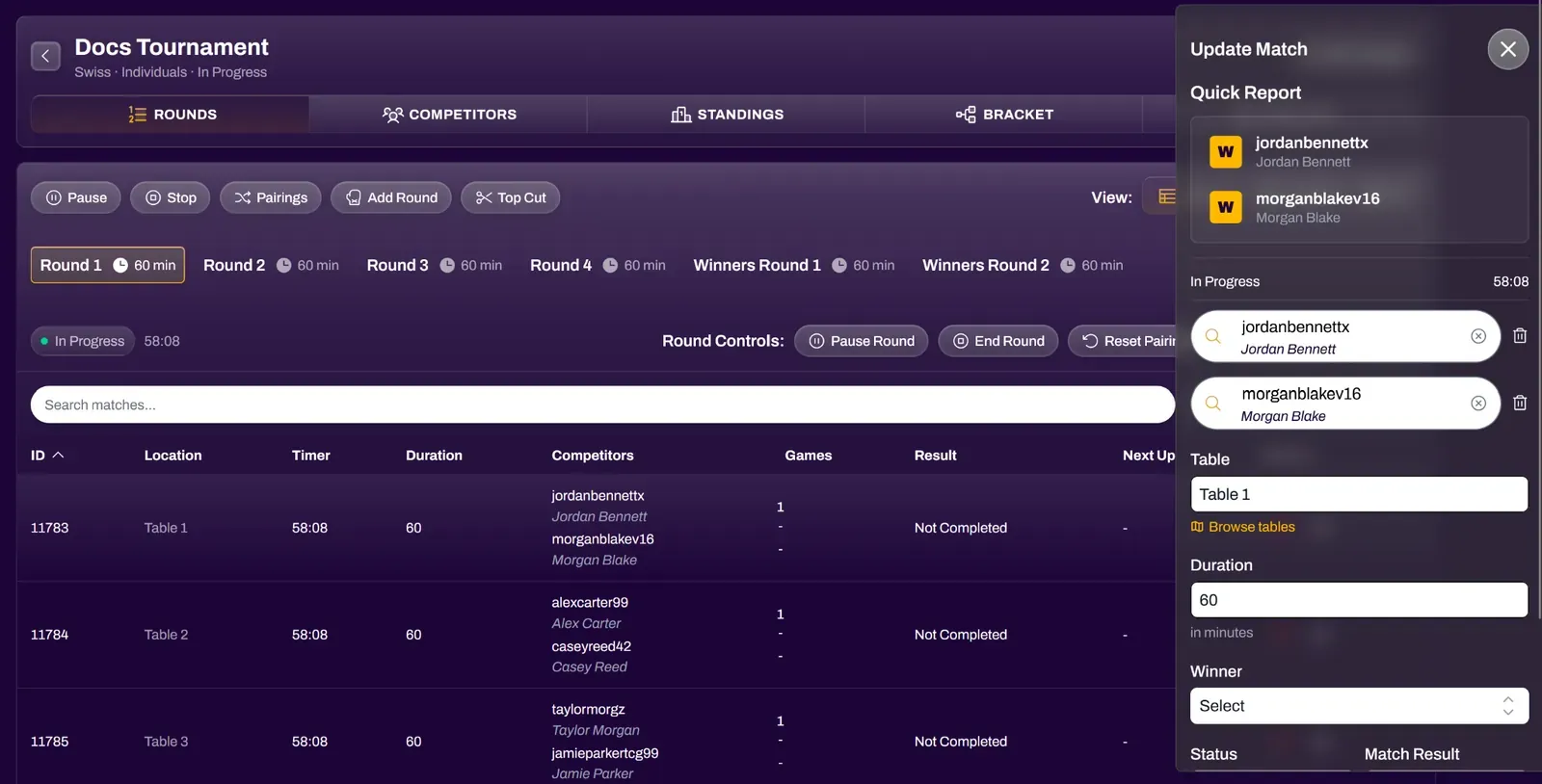
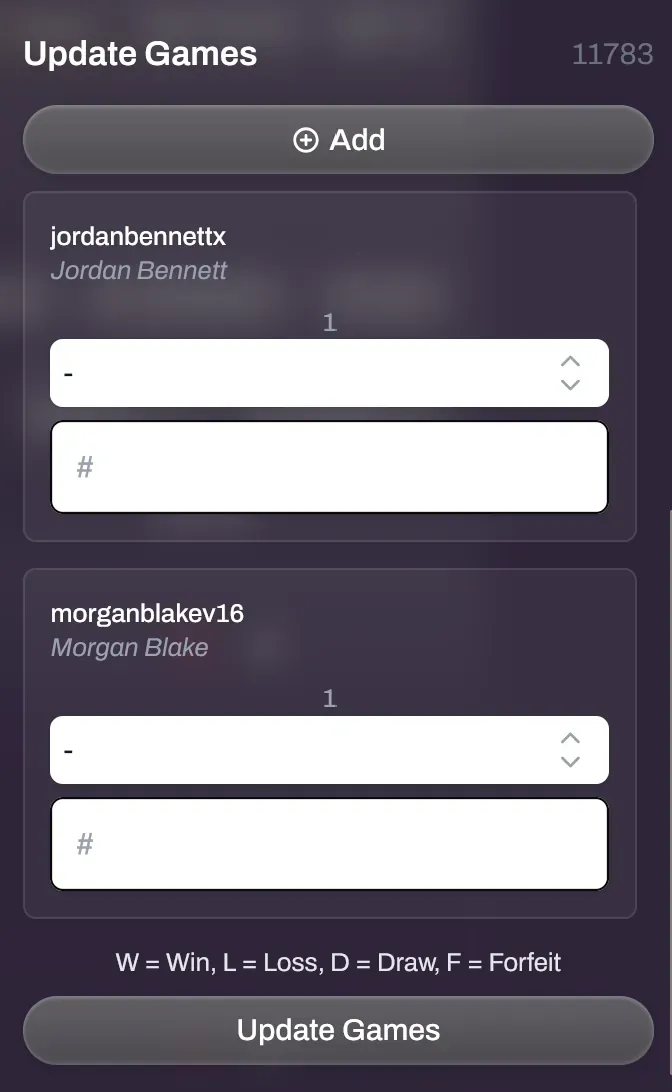
You can use the options beneath Quick Report to get more granular reporting, which may be important in Best of 3 matches for example.
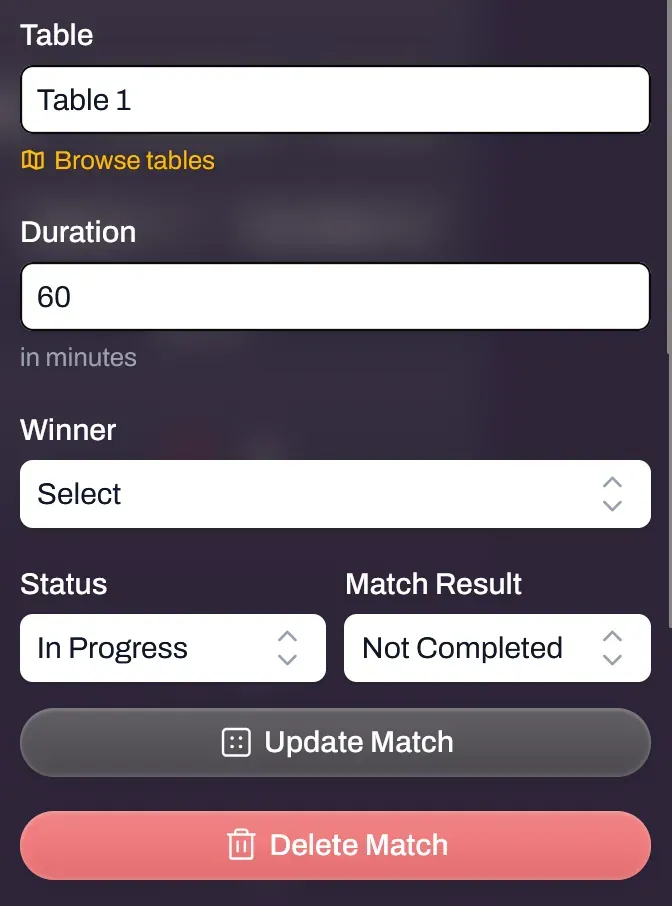
To report a Double Loss for a match in the case of game rules or unsportsmanlike conduct, select the Match you wish to issue a Double Loss to, and change the Match Result to a Double Loss.
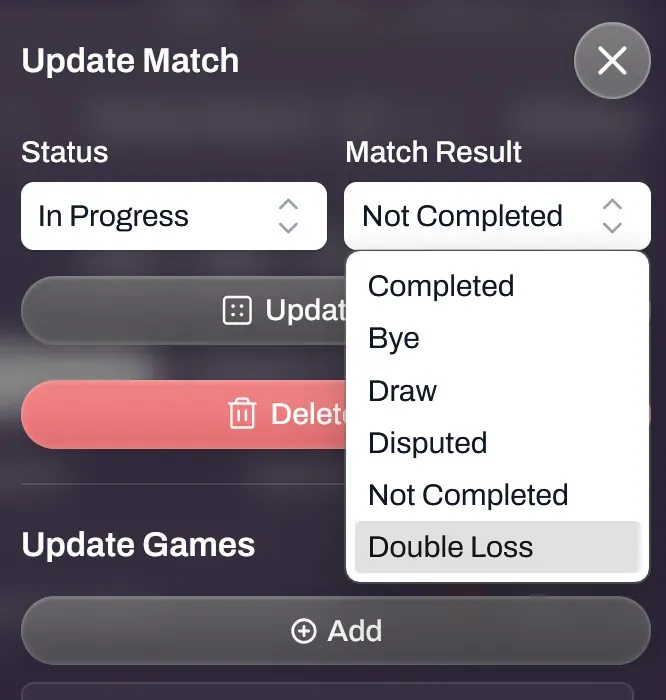
You are also able to swap players at tables through the Update Match window.
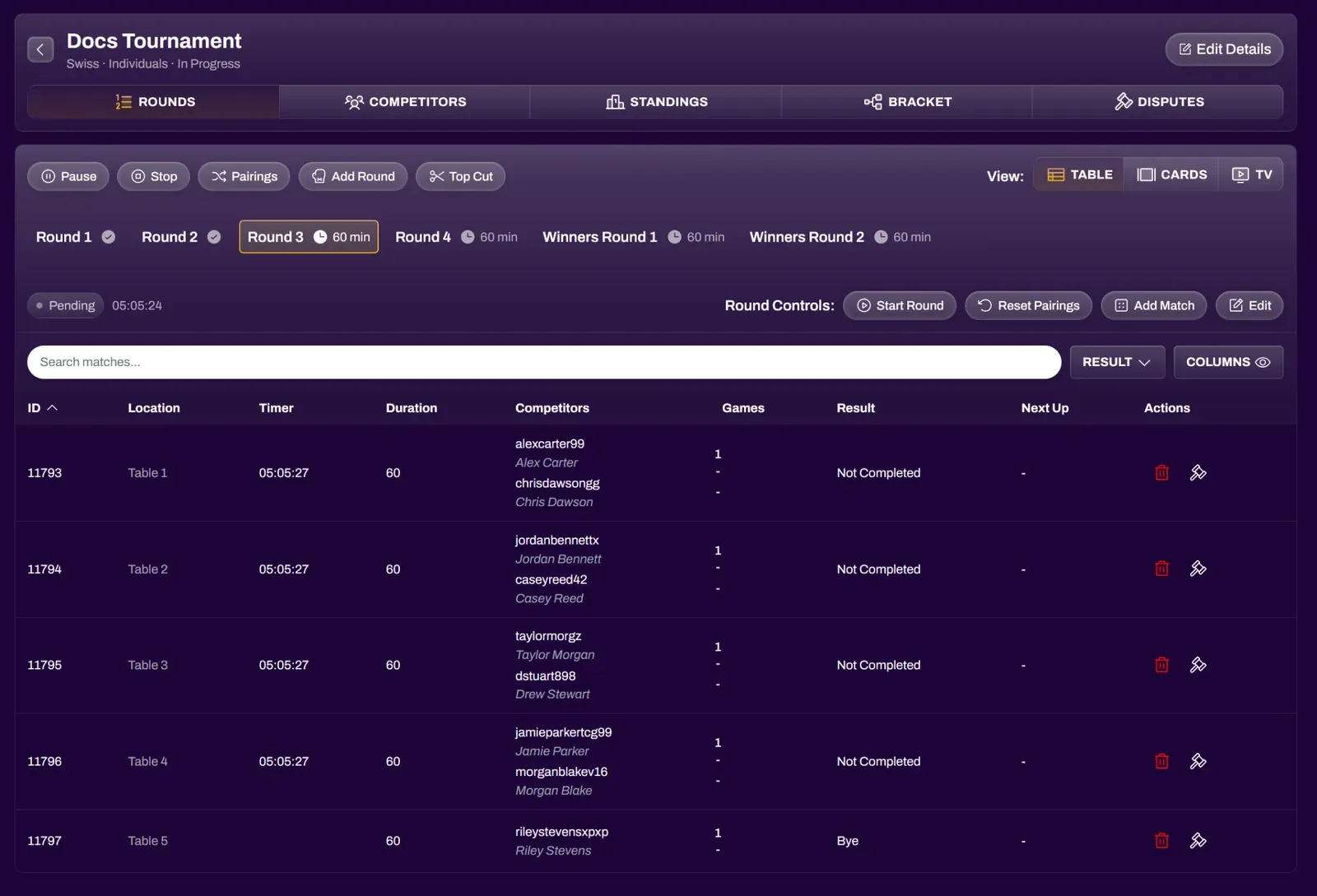
After all matches are complete, the Round will automatically end. You can review the results before proceeding to the next Round and selecting Generate Pairings for that round.
Continue repeating for all rounds until the tournament is over.
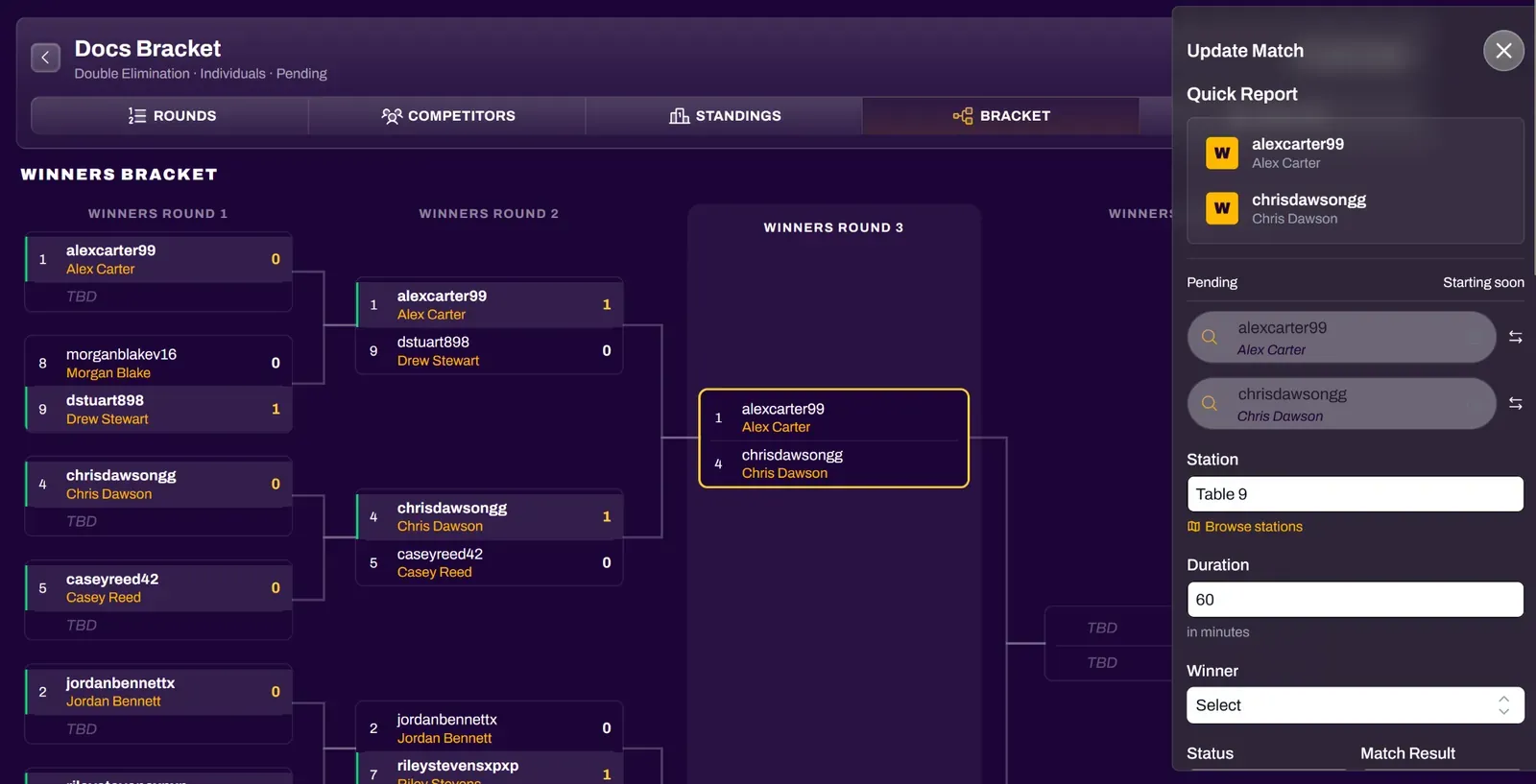
For Elimination style tournaments, selecting a match from the bracket will open the Update Match drawer.
Top Cuts (Swiss tournaments)
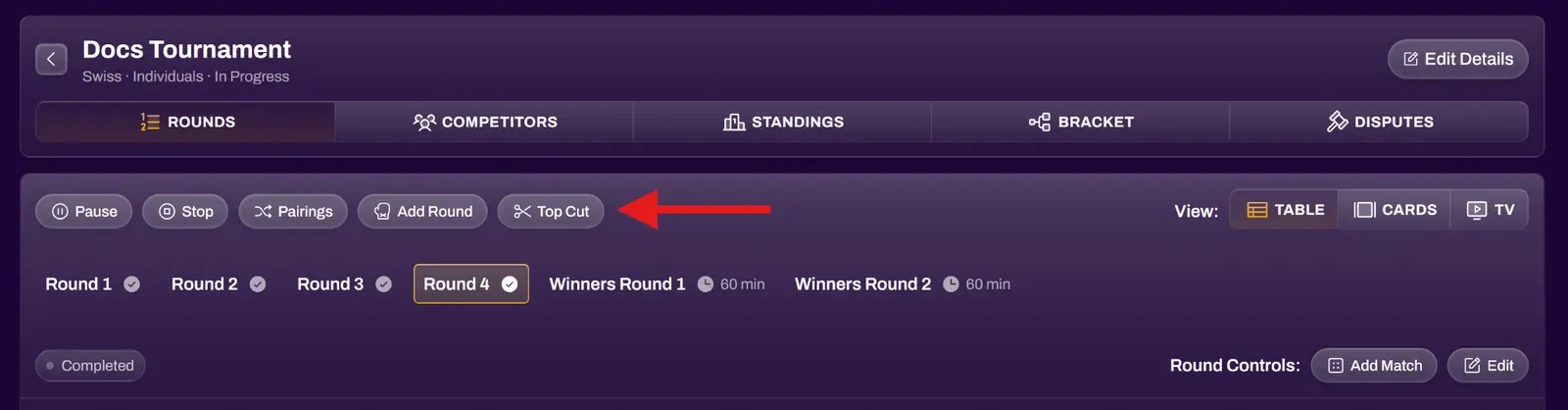
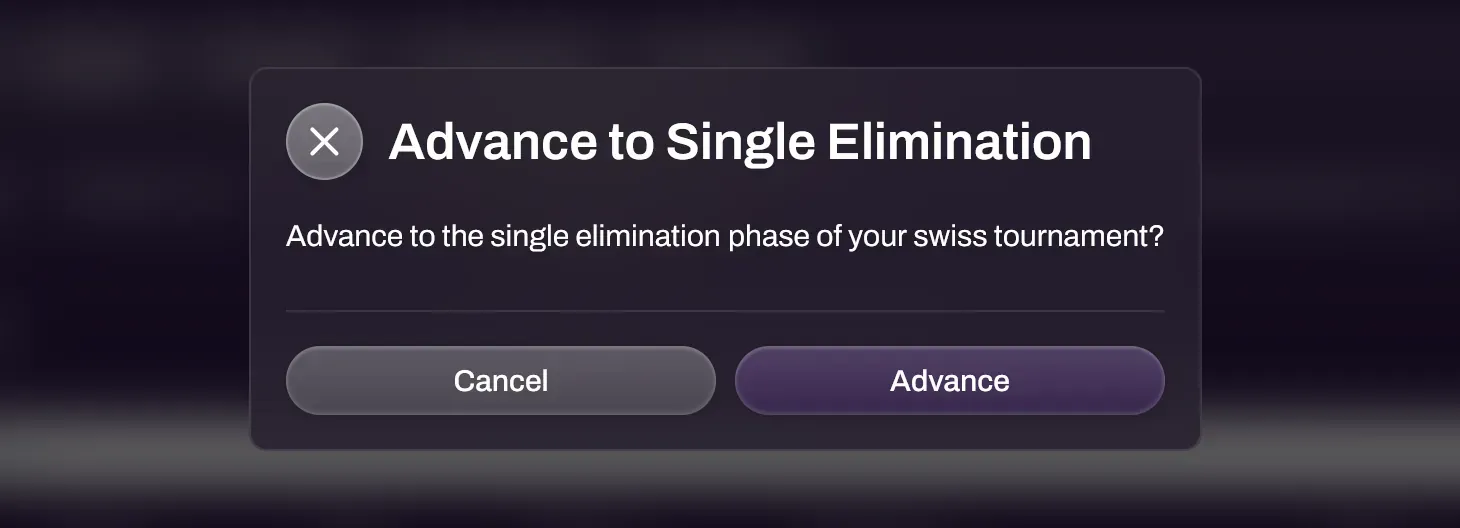
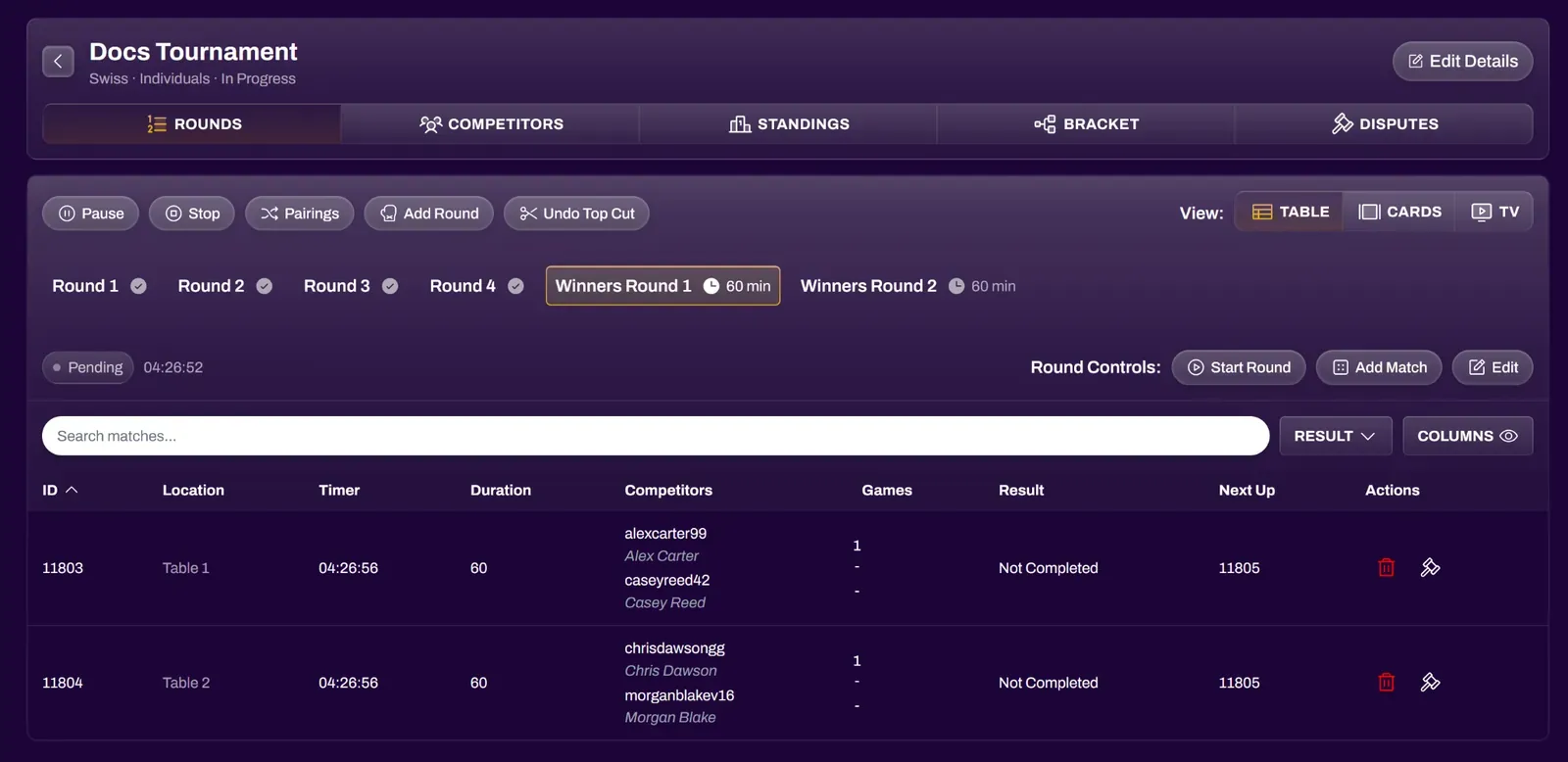
Section titled “Top Cuts (Swiss tournaments)”After Swiss rounds are completed, select the Top Cut button to proceed to the single elimination bracket. The system will take the Top X players (X equals the Top Cut amount you set when creating the tournament) from the last round’s standings and seed them traditionally (1v8, 2v7, and so on) into a single elimination bracket. If needed, you are able to customize player positions in the bracket similarly to how you can change players at tables in Swiss rounds.
Top Cut rounds are run just like any other round. You are able to change the Timer if needed through the Update Round window before Starting the round. You can also manually add games to Top Cut matches if necessary, such as Best of 1 for swiss rounds, but Best of 3 for Top Cuts.
The Bracket view offers a cleaner look at the top cut playoffs, or any elimination format.
Judge Dashboard (Disputes)
Section titled “Judge Dashboard (Disputes)”Organizers and Judges will be notified of any disputes through the notification bell. These disputes can include incorrect match reporting and judge calls. Any judge calls from players will appear in the Disputes tab along with any notes they may have written.
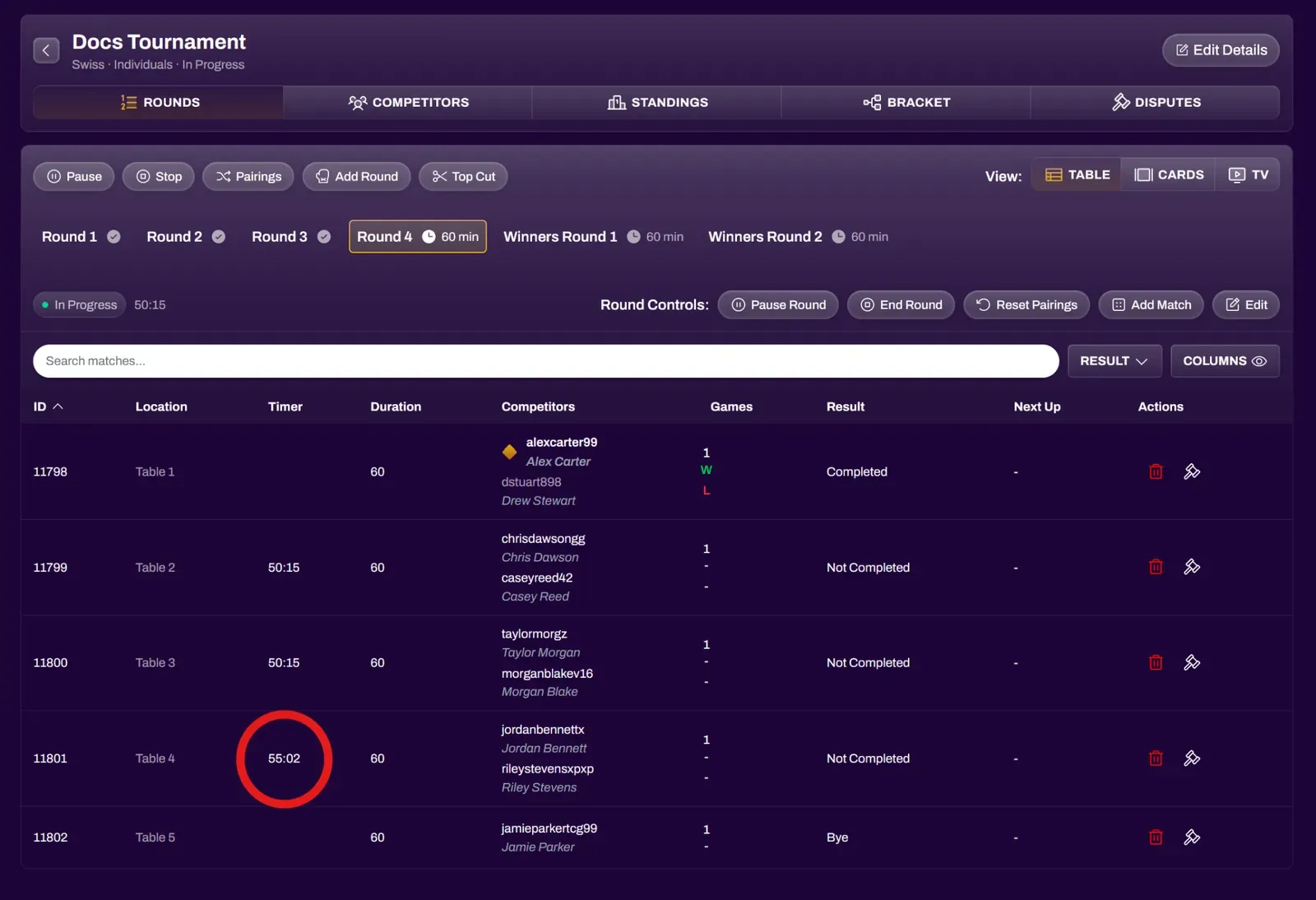
A disputed match will have its individual match timer paused. Resolving the dispute will unpause their match timer, giving them an accurate time extension to how many seconds/minutes were lost from the judge call.
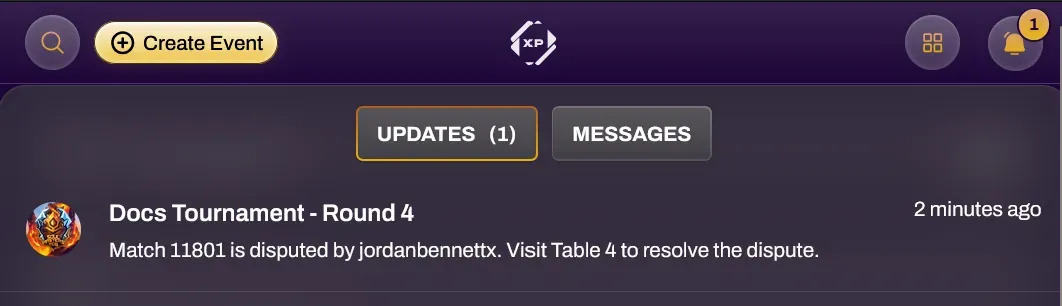
Selecting the notification will bring you to the Disputes tab, or you can navigate to the Disputes tab regularly through the tournament dashboard.
You will be able to see who created the dispute, the timestamp, table number, and additional notes provided by the player.
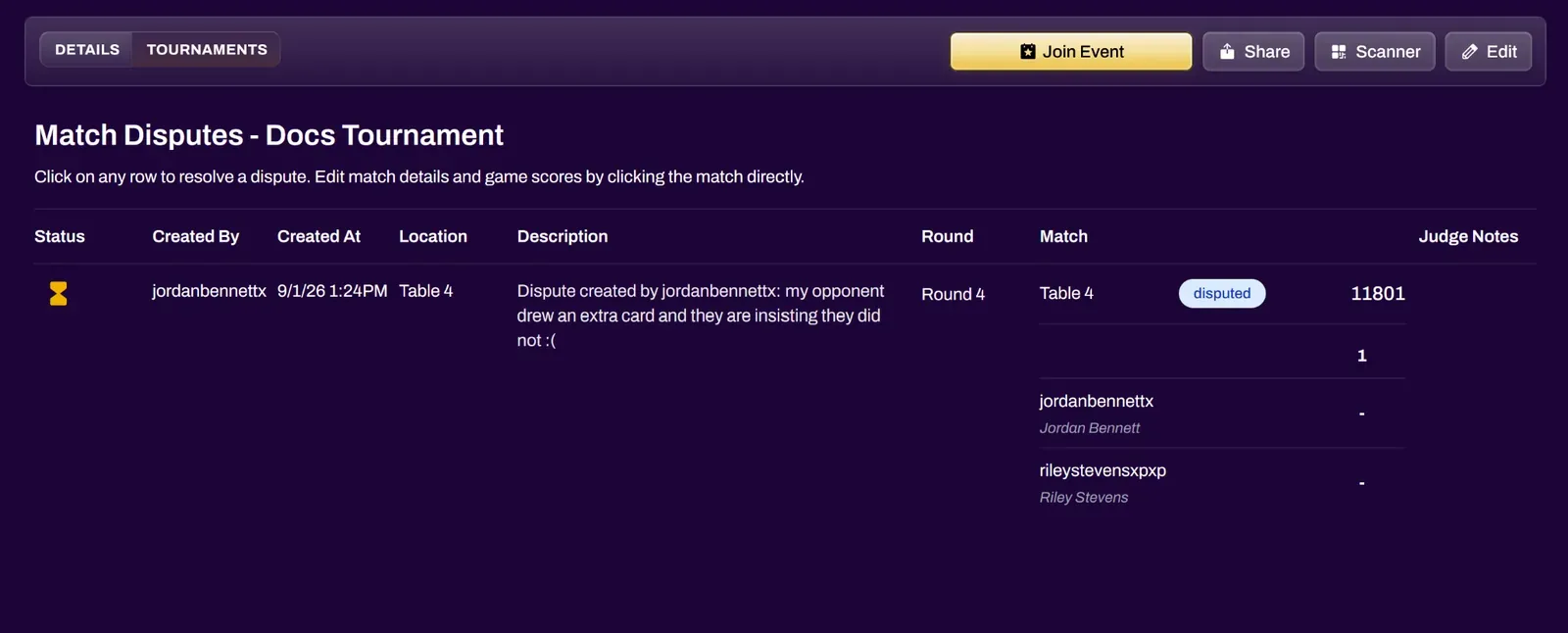
Selecting the dispute will bring up a Resolve Dispute window. You can write any Judge Notes you would like to appear on the Judge Dashboard for any other judges or organizers to reference.
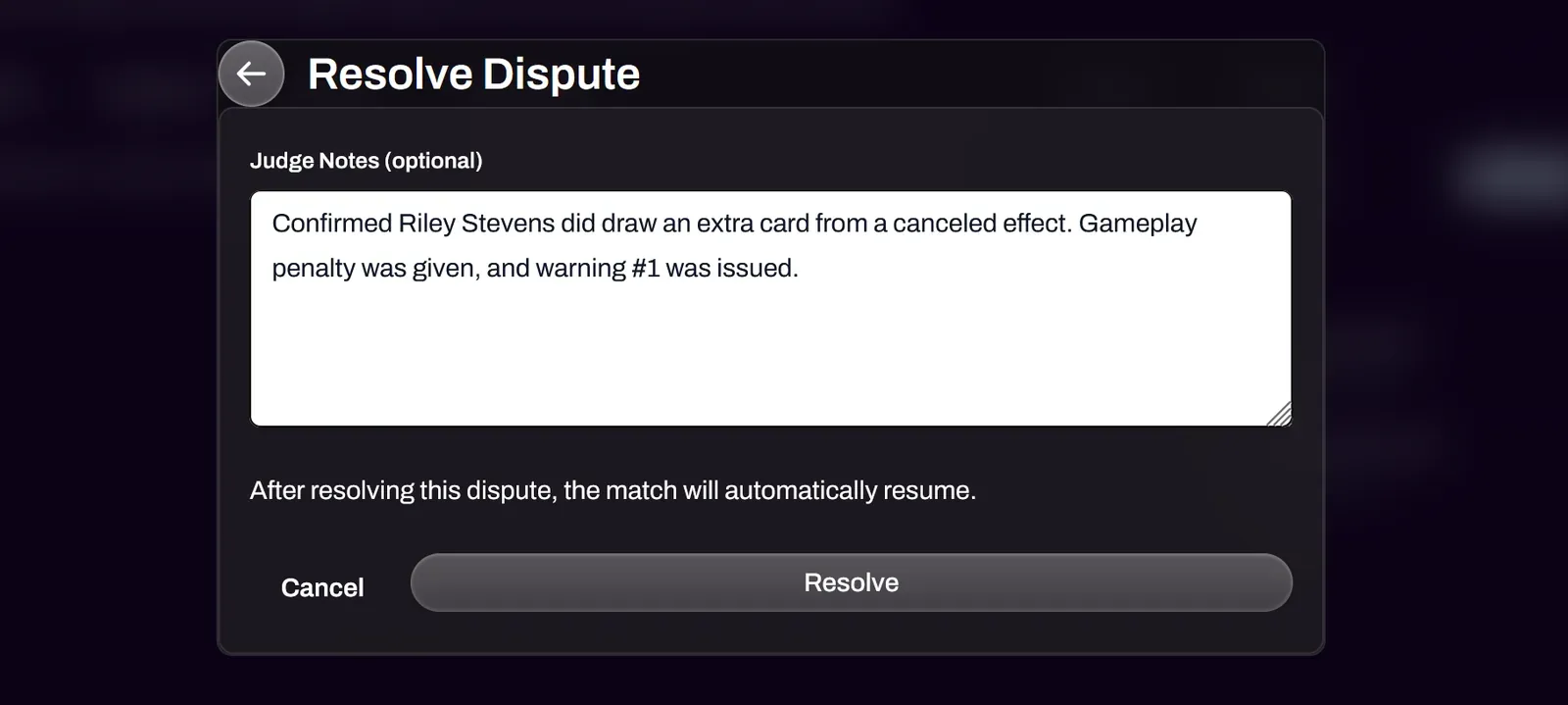
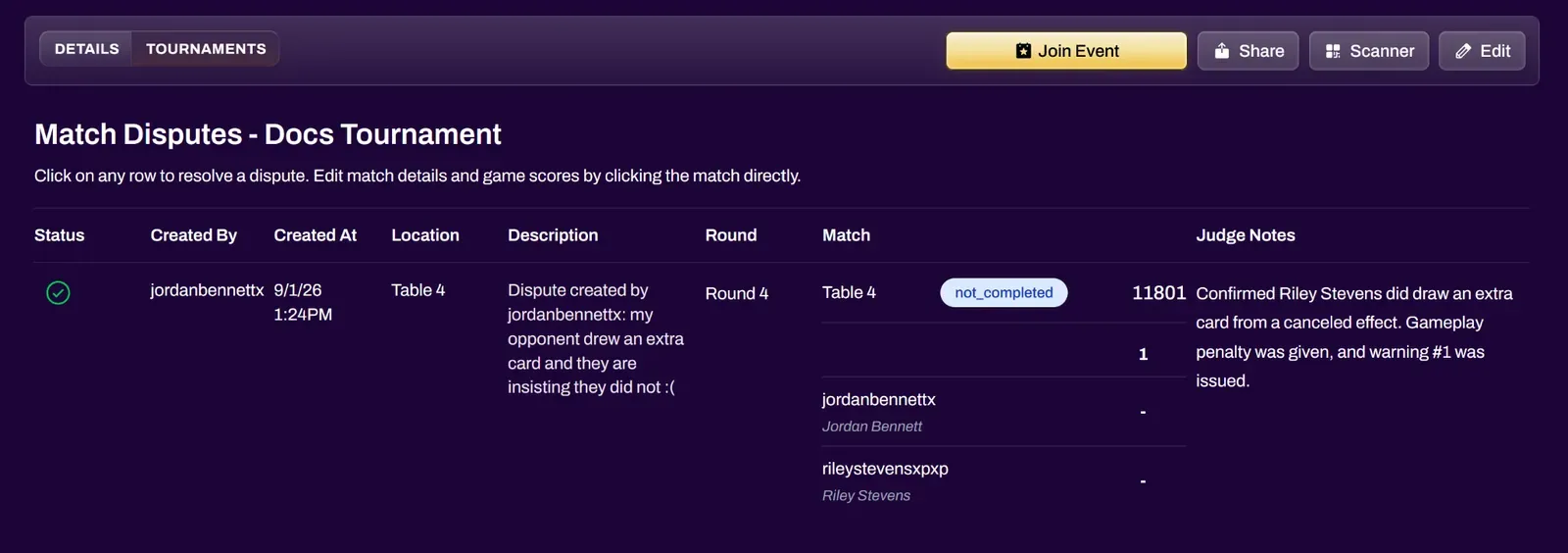
Resolving the dispute will unpause the players individual match timer, giving them an accurate time extension. The judge notes will also be added to the dispute.
You can view the time extension of the disputed match through the Round View.
Ending the Tournament
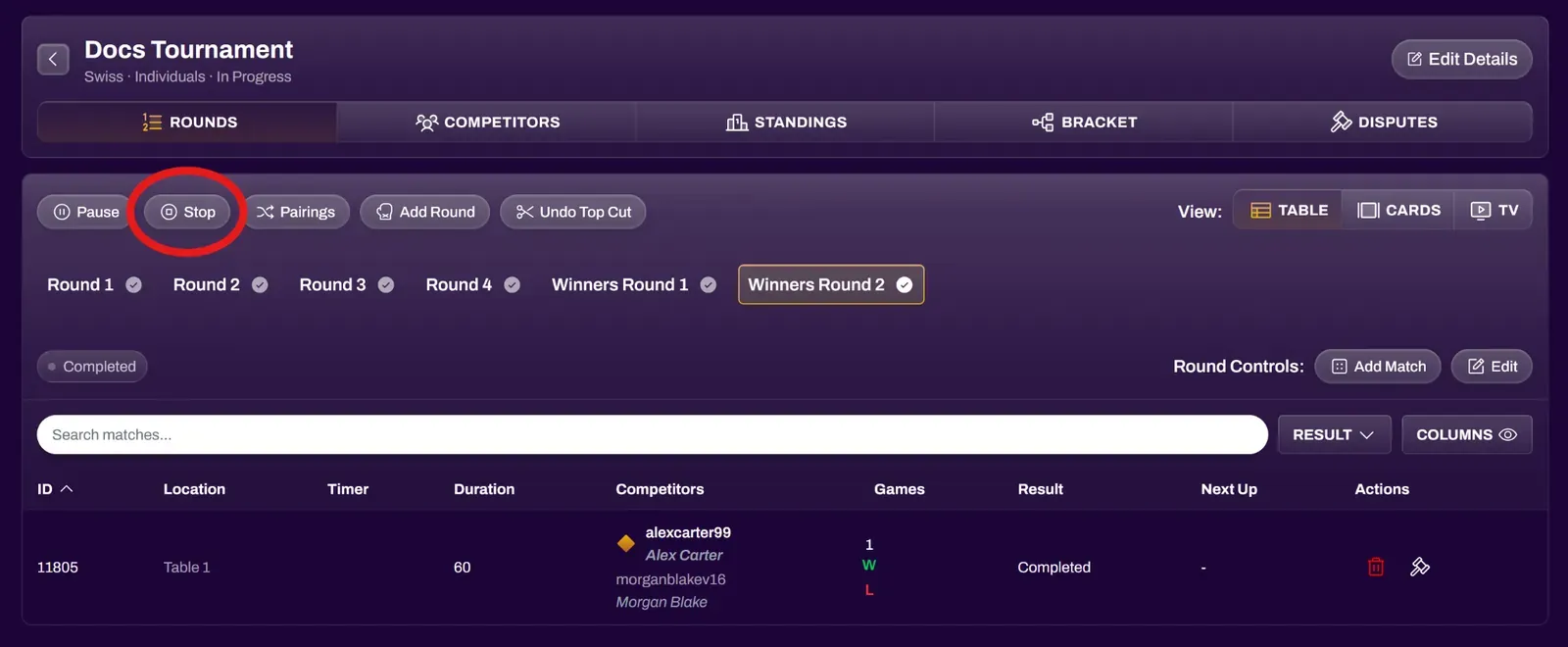
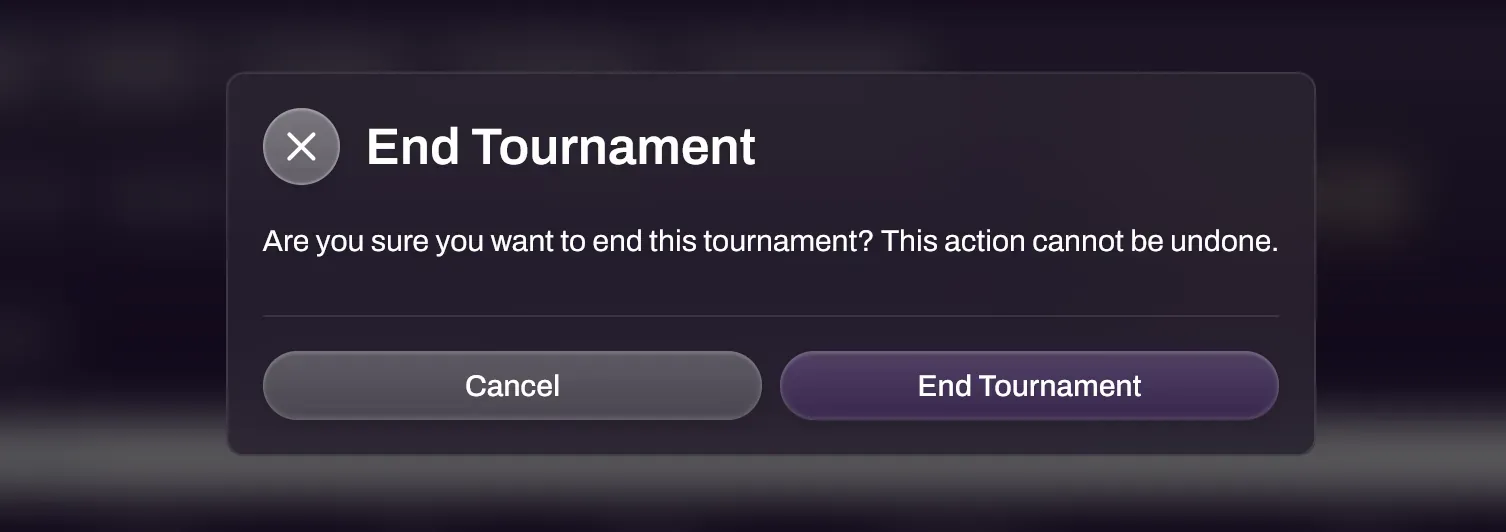
Section titled “Ending the Tournament”To end a tournament, select the Stop icon next to the Pause icon in the Rounds view. This will give a prompt to end the tournament. All players will receive a notification that the tournament has ended.
TV Mode
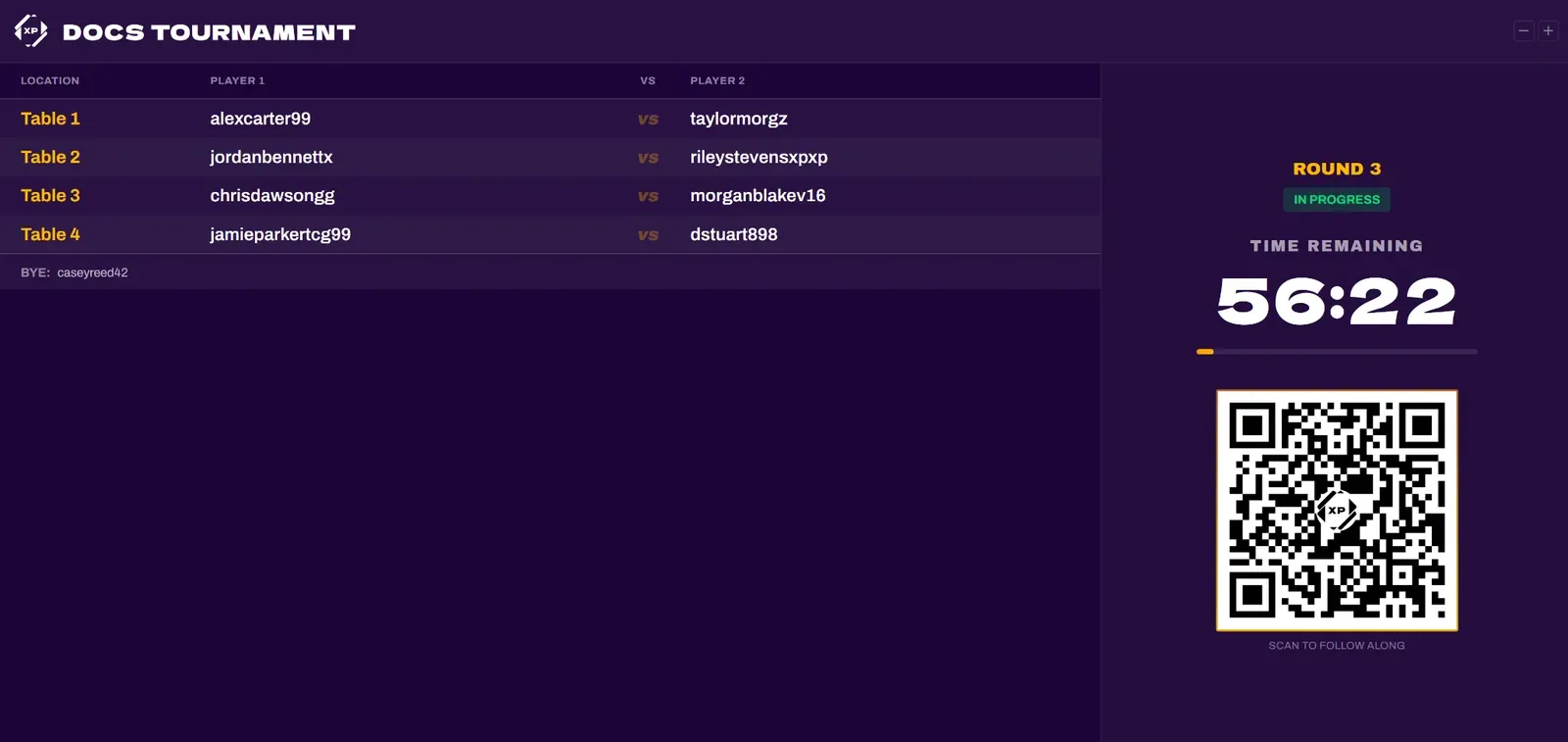
Section titled “TV Mode”Selecting the TV Mode button will open up a new tab that displays the current tournament status, showing pairings and also the global round timer. This tab can be broadcast to a monitor or TV for ease of viewing for the players in attendance. Scanning the QR code displayed from TV Mode will take users directly to the tournament.