
Calendar
Every organization on XP Network has a calendar that is automatically populated with its events. Attendees can view the calendar from your organization’s page, filter it by event categories, and subscribe to it from their own calendar apps. Organizations on the Plus plan or higher can also embed the calendar on other websites, such as their own, using the Calendar Embed Builder.
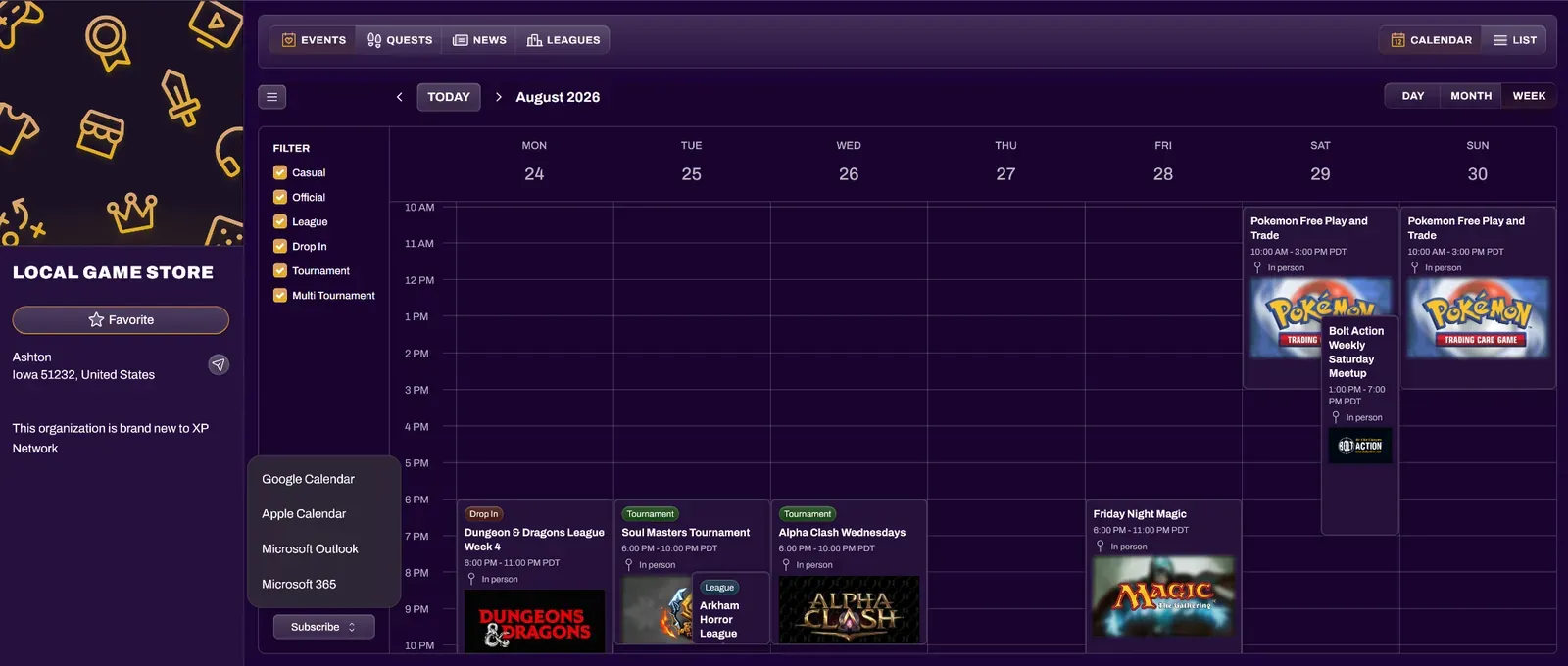
Calendar View
Section titled “Calendar View”Your organization’s calendar is available on your organization page under the Events tab. Visitors can switch between Calendar and List using the toggle in the top right.
The calendar offers Day, Month, and Week views. The arrows shift the calendar forward or back by one day, month, or week depending on the selected view, and the Today button returns to the current date. Each event on the calendar displays its event type, start and end times, location type, and event image.
Visitors can use the Filter checkboxes to show or hide events by categories:
| Casual | Relaxed events such as open play and friendly meetups |
| Official | Events approved by an organization such as a publisher |
| League | Events from a league schedule (includes Drop In and Auto Join) |
| Drop In | League events where league members opt in to register |
| Tournament | Events with 1 tournament |
| Multi Tournament | Events with more than 1 tournament |
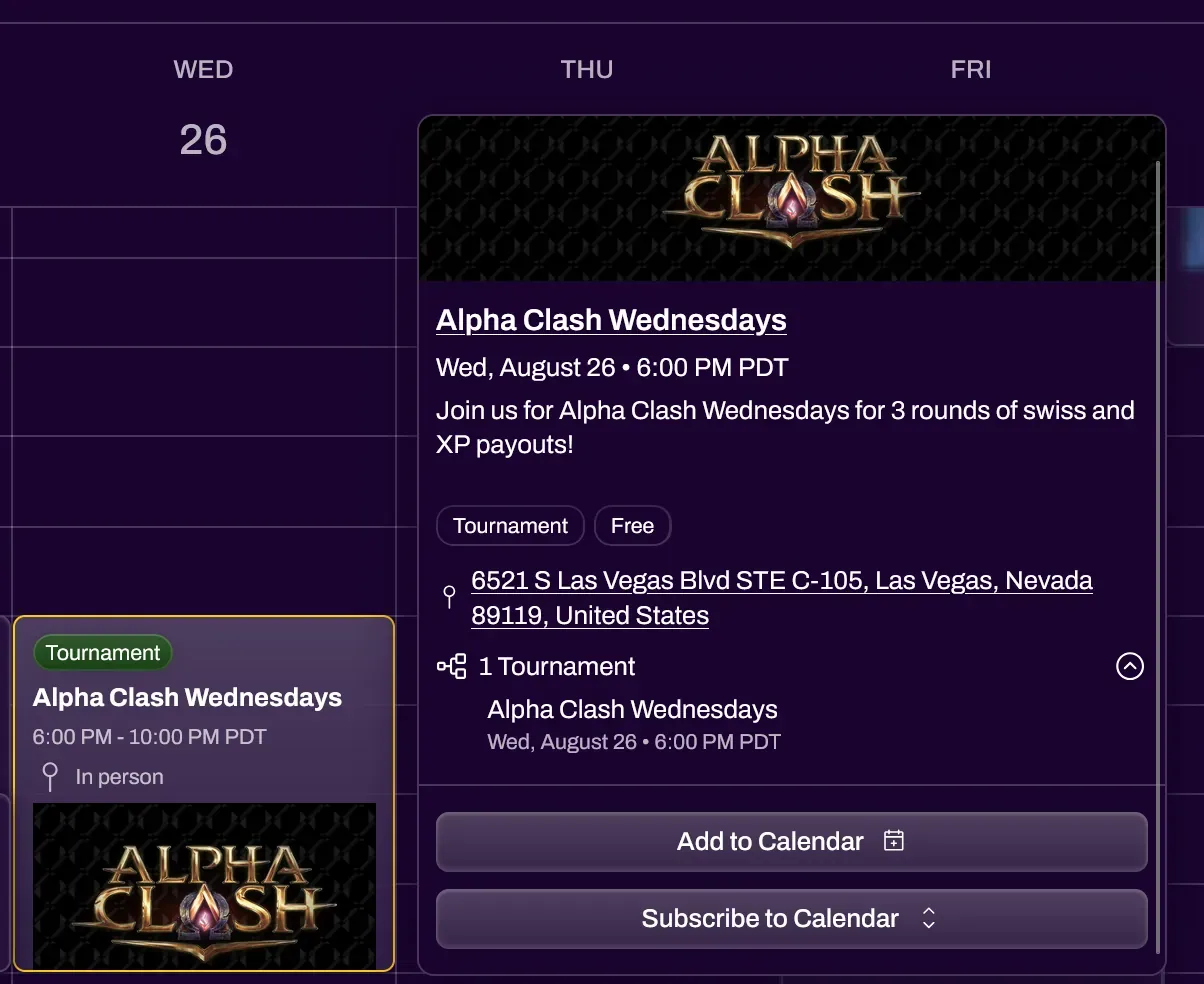
Selecting an event opens a detail card with the event’s image, name, date and time, description, event tags, and venue address. If the event includes tournaments, the card lists them along with their start times. Selecting the event name will take the visitor to the event page.
From the detail card, visitors can select Add to Calendar to add that single event to their own calendar, or Subscribe to Calendar to subscribe to your organization’s full calendar.
Subscribing to the Calendar
Section titled “Subscribing to the Calendar”Visitors can select Subscribe at the bottom of the filter panel, or Subscribe to Calendar on any event’s detail card, to add your organization’s calendar to their own calendar app. Supported options are Google Calendar, Apple Calendar, Microsoft Outlook, and Microsoft 365. Once subscribed, new and updated events sync to their calendar automatically.
Embedding Your Calendar
Section titled “Embedding Your Calendar”Organizations can display their XP Network calendar on other websites, such as their own, using the Calendar Embed Builder. From your organization’s Hub, select the Calendars card to open the Calendar Embed Builder.
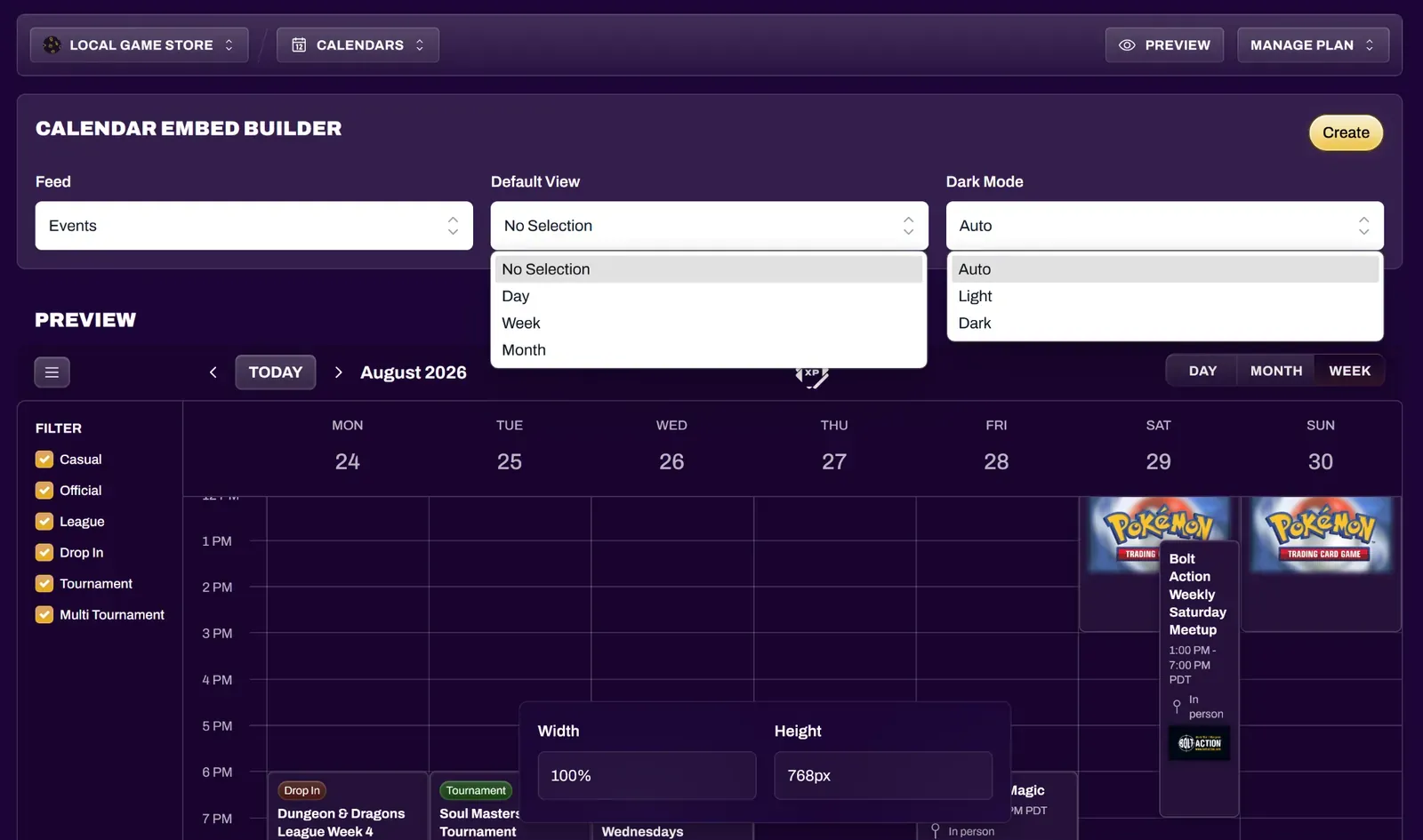
| Feed | The content the embedded calendar displays |
| Default View | The view the calendar opens in for visitors: Day, Week, or Month |
| Dark Mode | The color theme of the embedded calendar: Light, Dark, or Auto (matches the visitor’s device setting) |
| Width | The width of the calendar on your website, which defaults to 100% |
| Height | The height of the calendar on your website, which defaults to 768px |
When you’re ready, select Create. Your embed code will appear in a pop-up window. Copy the code and paste it into your website where you want the calendar to appear.
Your embedded calendar updates automatically as you add or change events. To change your embed’s settings later, such as switching the Default View from Week to Month, update the settings in the Calendar Embed Builder, select Create to generate new embed code, and replace the existing code on your website.